
Squarespace's Form block is how most Squarespace sites capture leads. This guide turns every Squarespace form submission into a conversion you can send to Google Ads, Meta, or anywhere else.
Unlike booking tools, there is no account to connect. Once Converly is installed on your site, it detects Squarespace form submissions automatically. By default it counts every Squarespace form on your site, so the important step is telling it which one you actually care about.
Before you start: Converly needs to be installed on your Squarespace site, and the form needs to be live on a page. If you have not installed Converly yet, simply follow Install Converly on Squarespace. It takes a minute or two and goes in the Header box of Squarespace's Code Injection settings.
Step 1: Create a flow
A flow is the rule that turns a form submission into a conversion. Click Flows in the left sidebar, then Create New Flow, and give it a name like "Contact form leads".
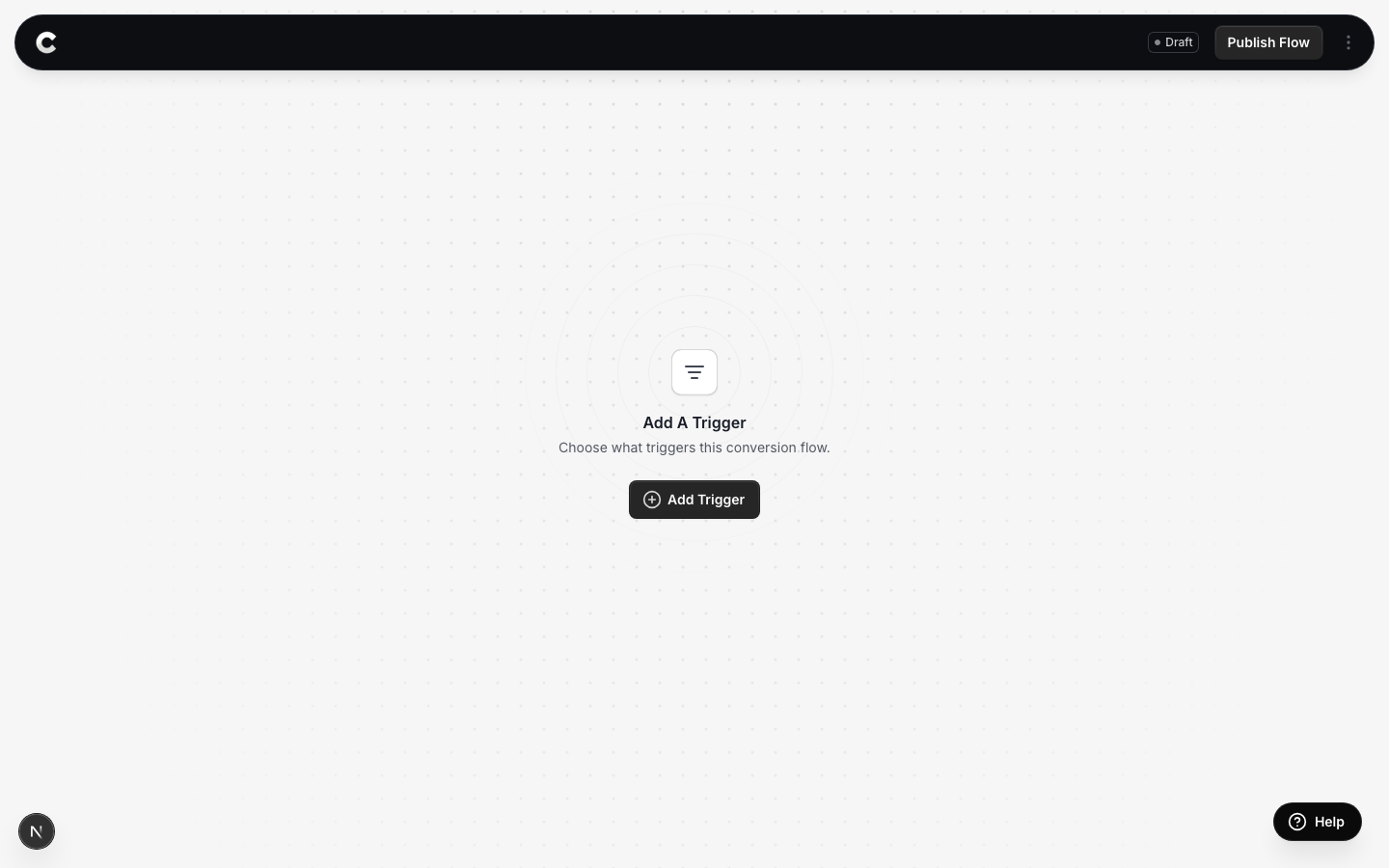
You land in the flow builder. It is empty for now. Click Add Trigger to choose what starts this flow.
Step 2: Choose Squarespace Forms
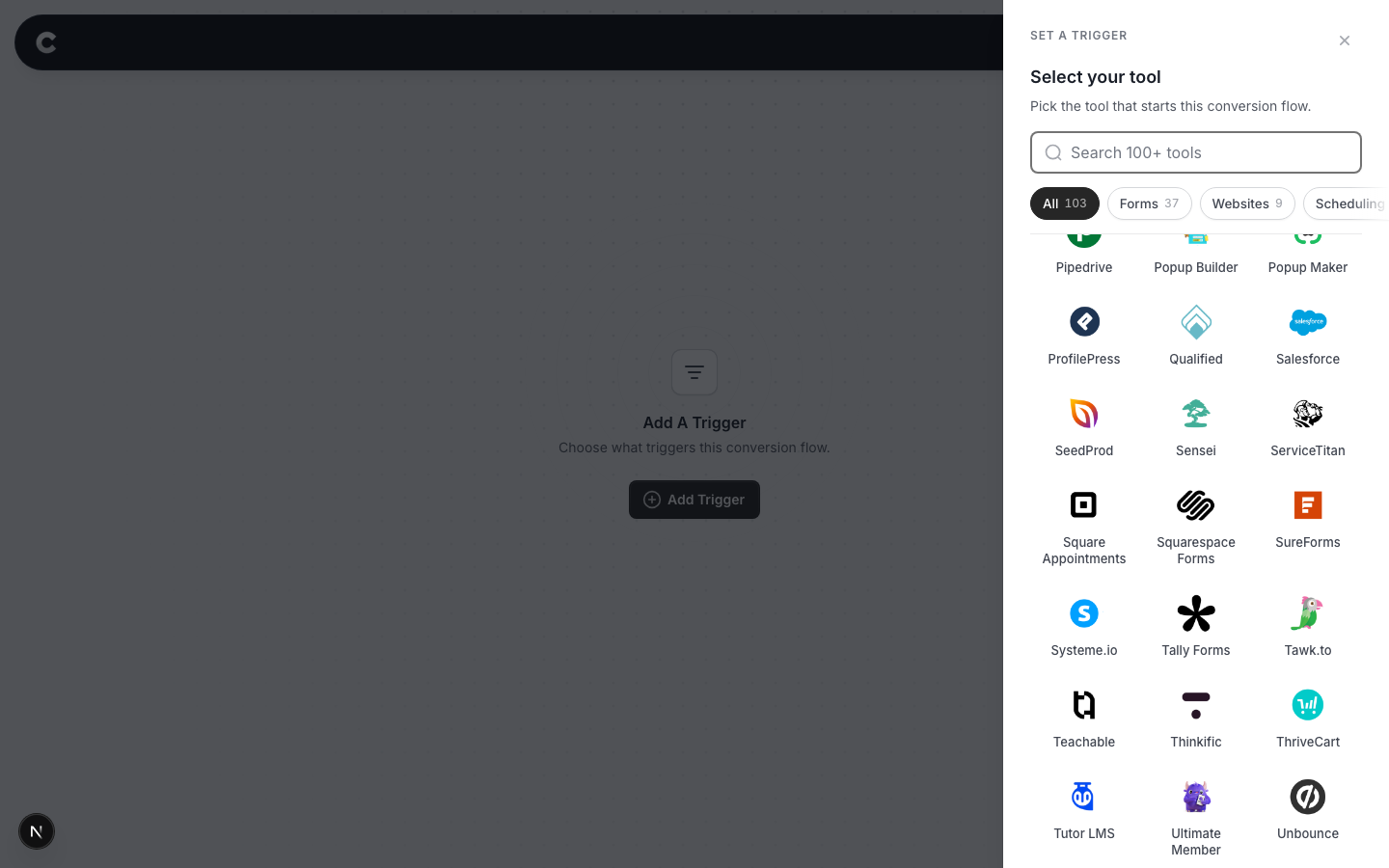
A panel slides in from the right listing every lead capture tool Converly supports, grouped by type. Squarespace Forms is with the website builders.
Click Squarespace Forms. If you do not see it straight away, scroll the panel or use the search box at the top.
Step 3: Choose where it fires
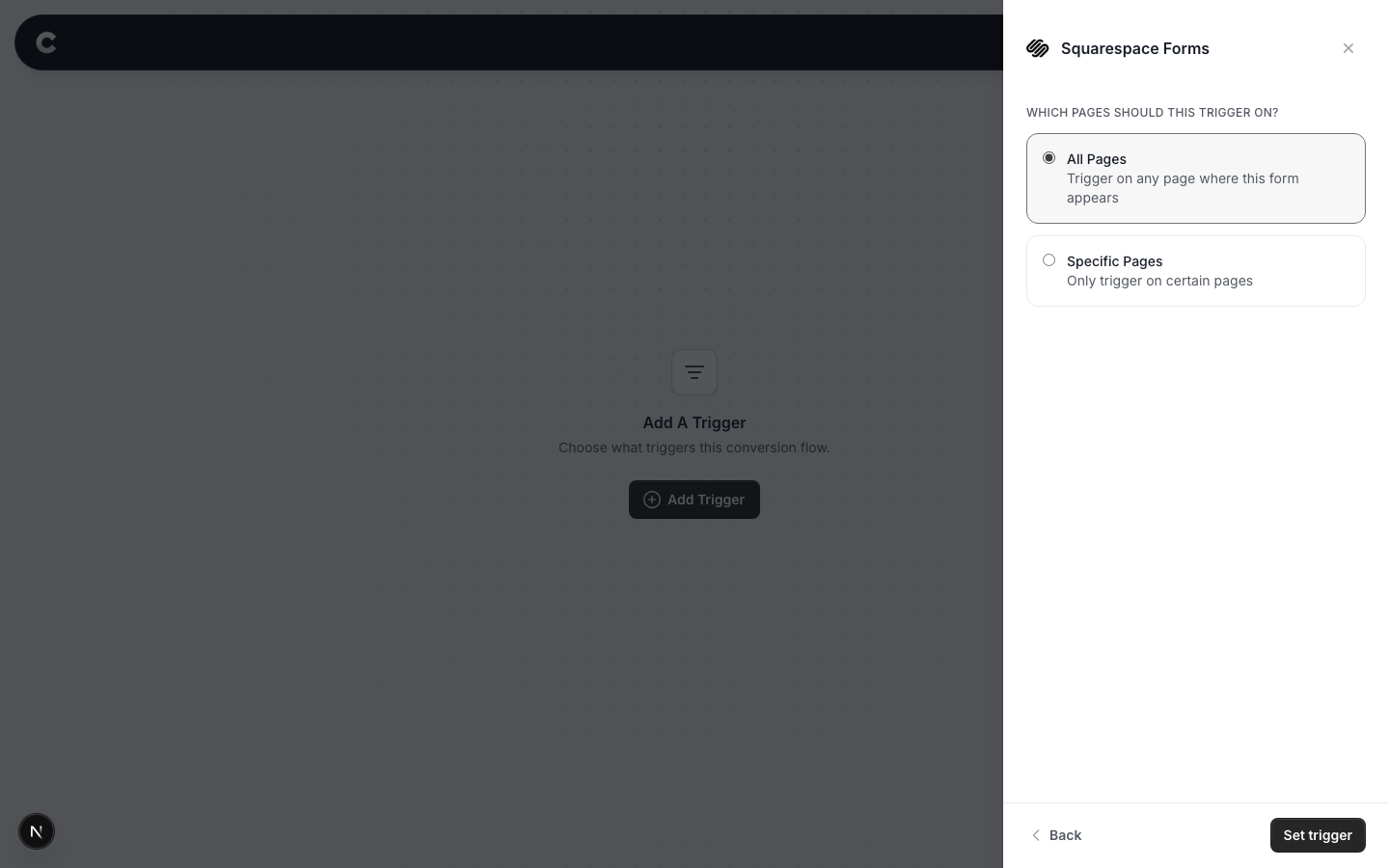
This step is the one to get right. Converly does not ask you to pick a specific form. It listens for any Squarespace form being submitted. The page setting is how you narrow that down to the one form you actually want to count.
Read this before you choose
If you do not set a specific page, this trigger fires every time someone submits any Squarespace form anywhere on your site. That includes forms in your footer and forms opened from a button. If you have a contact form, a quote request form and a job application form all built with Squarespace's Form block, all three would count as the same conversion. To track just one of them, use the specific page option below.
The only slight oddity is Squarespace's separate Newsletter block, the email sign-up box that adds people to a mailing list. Converly never counts those sign-ups, so they will not show up as conversions on any page.
Option 1: Trigger on all pages
A conversion fires whenever anyone submits any Squarespace form, on any page of your site. Only choose this if you have a single form, or if every form on the site genuinely should count as the same conversion.
Option 2: Trigger on specific pages
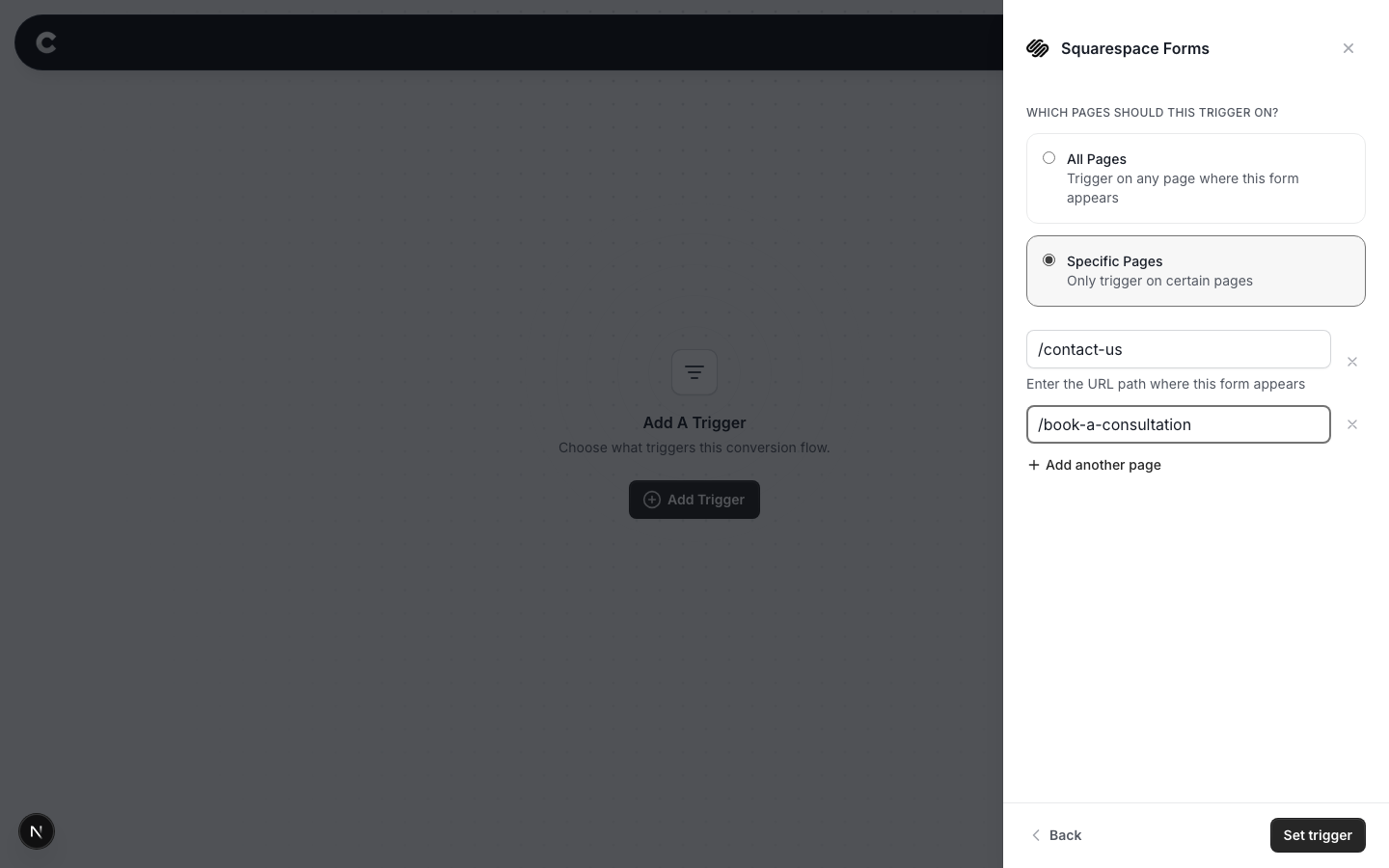
This is how most people should set it up. Listing a page tells Converly to only count a Squarespace form submission that happens on that page, which is usually enough to pin the trigger to one form.
For example, to count only your contact form, find the page that form lives on (say https://www.yoursite.com/contact-us), select Specific Pages, and enter the path /contact-us. The path is just the part of the address after your domain. Start it with a slash, and do not include your domain. A submission now only counts if it happens on that page, so the forms elsewhere on your site are ignored.
Click Add another page if the same form appears on more than one page, or the x to remove one.
If two Squarespace forms share one page
Filtering by page narrows the trigger to a page, not to a form. If a single page holds two Squarespace forms, say a contact form and a quote request form, both count as the same conversion and there is no setting that separates them.
Two ways around it. Move one form onto its own page, or give the two forms different conversions by putting each on a page of its own and linking to it. If neither works for you, contact support and we will look at your setup.
When you have picked an option, click Set trigger.
What happens next
A trigger on its own does not send anything yet. Next you add one or more destinations (Google Ads, Meta, and so on) and publish the flow. See Building a flow for that part.
Converly only counts a submission once Squarespace has accepted it, so a form sent back with an error (a missing field or an email address Squarespace rejects) is not counted. It works whether your form shows a thank-you message or redirects visitors to another page, website or file after they submit, so there is nothing extra to install on the page they land on. Converly picks up the email, name and phone number automatically, and phone numbers are sent in international format (for example +61 412 345 678), which is the format Google and Meta need to match them.
Important: test it in a new incognito window (or on your phone). If you are logged in to Squarespace, visiting your own site opens the Squarespace editor rather than your live page, so a test from there will not behave like a real visitor's. Submit your form with a real email address, then click Logs in Converly's left sidebar. Your test should show up within a moment. You can read more about how to properly test your setup here.
If submissions are not showing up later, check that Converly is installed in the Header box of Squarespace's Code Injection, that any page paths you entered exactly match the real URLs, and that the flow is set to Active rather than Draft.