
Duda is a website builder popular with agencies for building and managing client sites. It has a site-wide head HTML area, so you only add the Converly code once and it loads on every page. To install Converly on your Duda site, follow the instructions below:
Step 1: Copy your install code
The first step is to grab your Converly install code. In Converly, click Install in the left sidebar and copy the code shown at the top. It is unique to your site, so make sure you copy the exact code shown there rather than reusing code from anywhere else. See Install Converly for the full walkthrough.
Step 2: Open your site settings
The next step is to find where Duda lets you add custom code. Open your site in the Duda editor and open the site settings from the left menu.
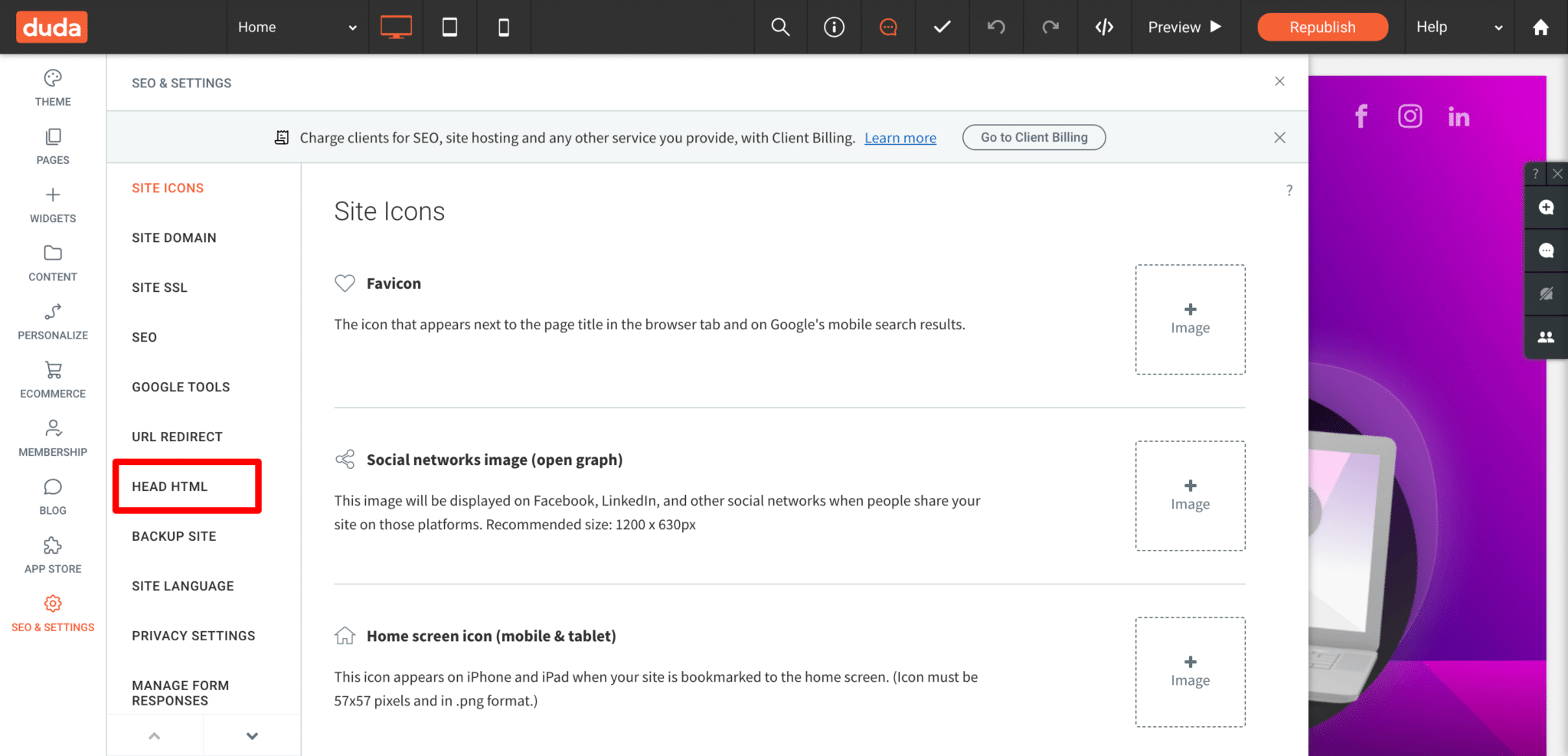
Step 3: Paste your code in Head HTML and republish
In the settings menu, choose Head HTML. Paste the code from your Converly account into the Head HTML box, then save your changes and republish the site so the code goes live.
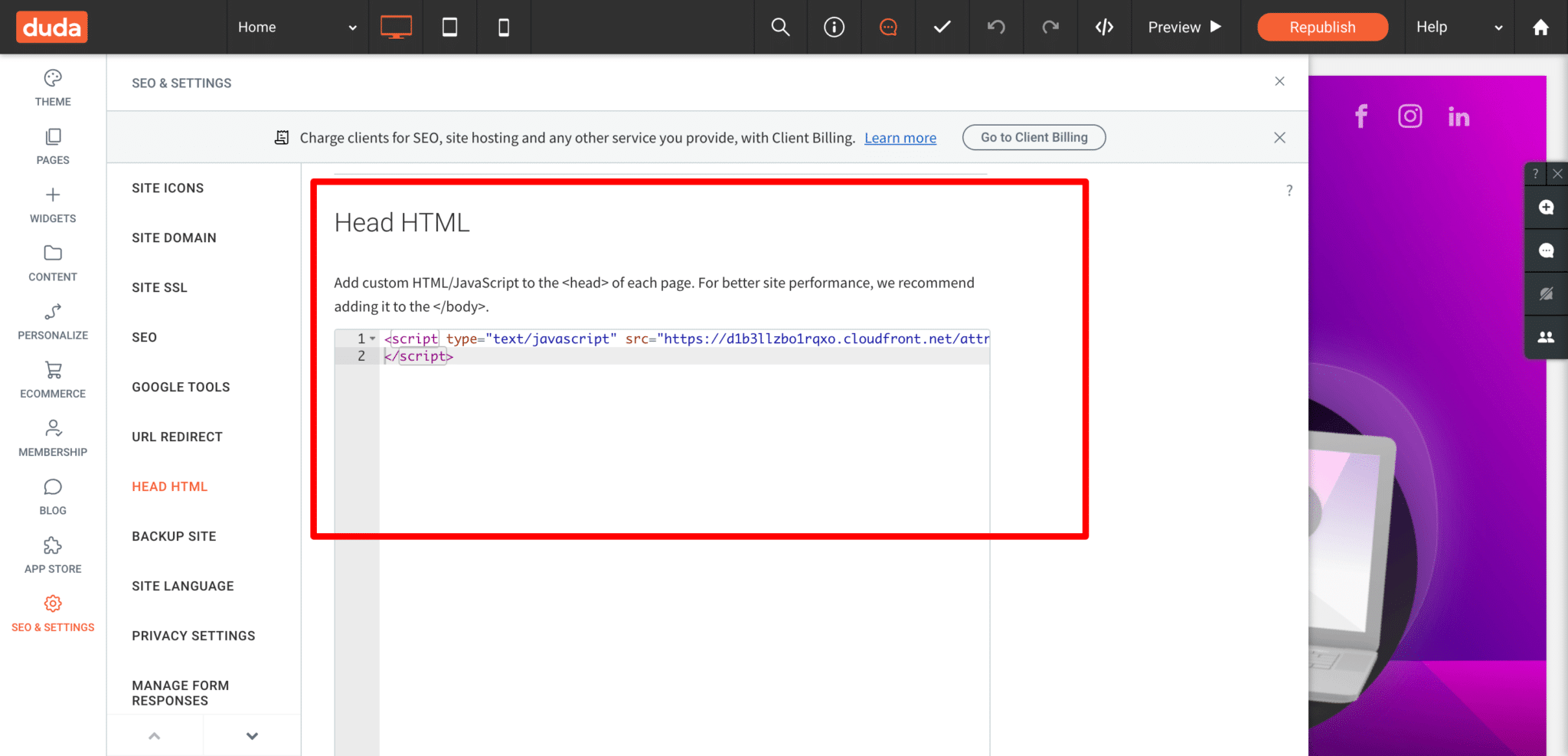
Use Head HTML, not End Body HTML
Duda also has an End Body HTML box. Make sure you paste the Converly code into Head HTML, not End Body HTML, so it loads early enough to track every conversion.
Test it works
That's it! Converly is now installed on your Duda site. To check it is working, open a new incognito window, go to your website, and submit a test entry through one of your forms. Then open the Activity page in Converly. If the code is installed correctly, the test conversion shows up there within a moment.
Paste your own code
Any code shown in a screenshot is only an example. Always paste the exact code from your own Install page, which contains the key that is unique to your site. Code copied from anywhere else will not track to your account.