
Framer is a popular website builder that designers love for its smooth animations and easy publishing. It has a site-wide custom code setting, so you only add the Converly code once and it loads on every page. To install Converly on your Framer site, follow the instructions below:
Step 1: Copy your tracking code
The first step is to grab your Converly tracking code. In Converly, click Settings in the left sidebar, open the Install tab and copy the code shown in step 2. It is unique to your site, so make sure you copy the exact code shown there rather than reusing code from anywhere else. See Install Converly for the full walkthrough.
Step 2: Open your site settings
The next step is to find where Framer lets you add custom code. Open your project in Framer, click the menu button in the top left of the editor (it is labelled with the view you are in, usually Canvas), then select Settings.
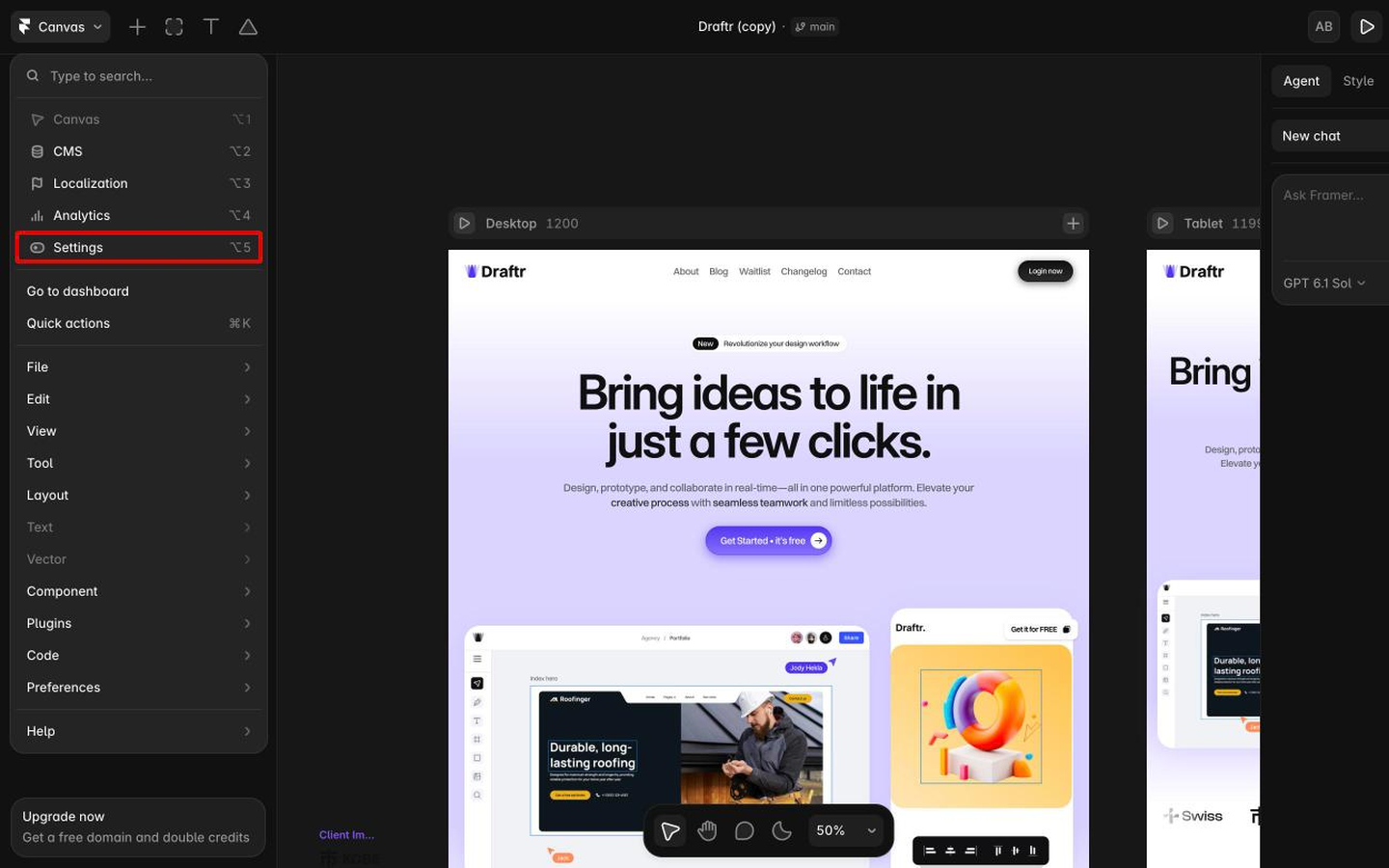
Step 3: Go to the Code section and click Add
In the left menu of your settings, under Site settings, click Code. This is where Framer keeps the custom code that loads across your published website. Then simply click the Add button in the top right.
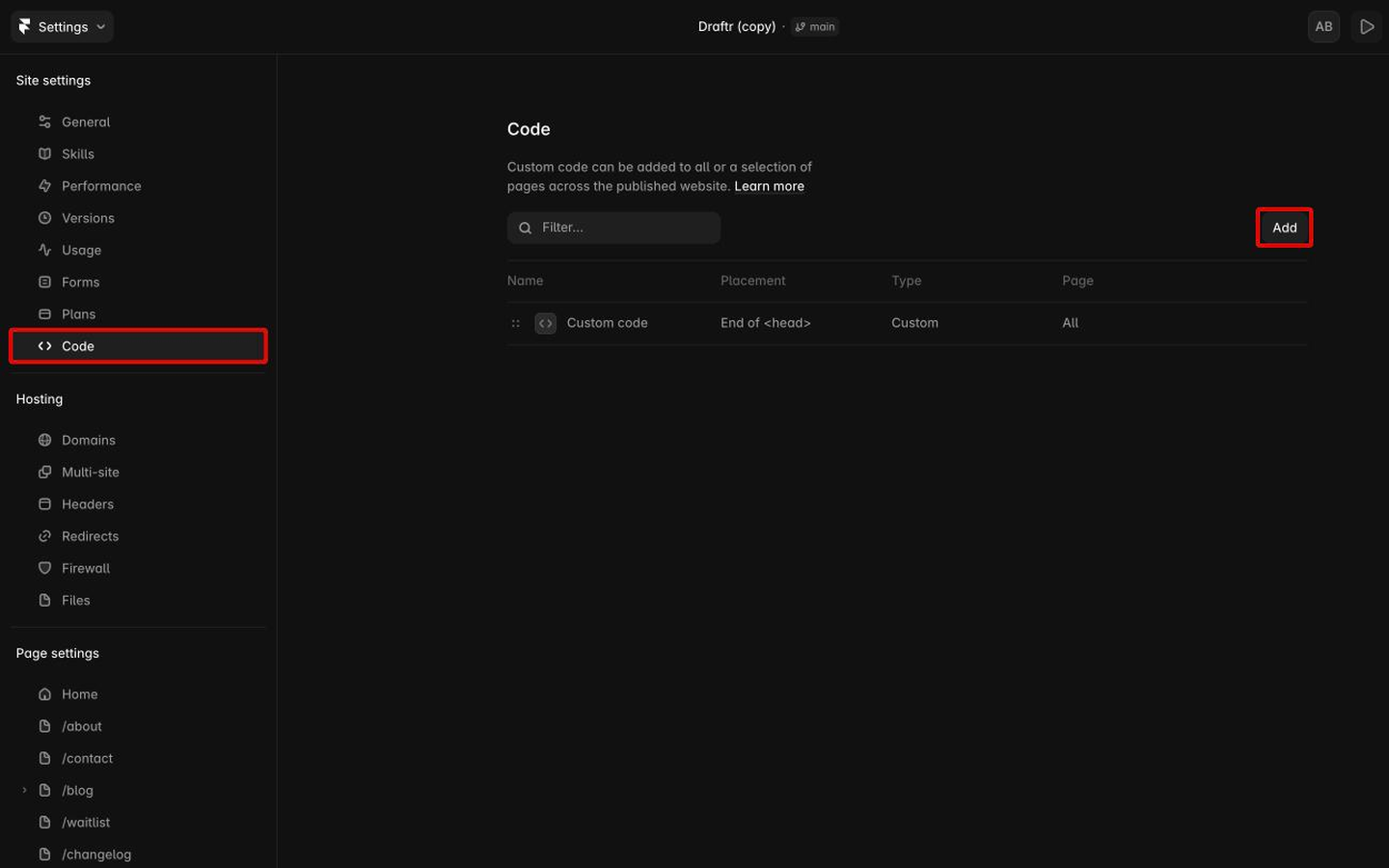
If you already have some custom code in this list, leave it as it is and add a new entry for Converly.
Step 4: Paste your Converly code
An Add script window opens. Fill it in like this:
- Name: Converly (or anything you will recognise later)
- Placement: End of <head>
- Page: All
- Run: Once
- Code: paste the code from your Converly account
Important: Framer sets Placement to End of <body> by default, so make sure you change it to End of <head>.
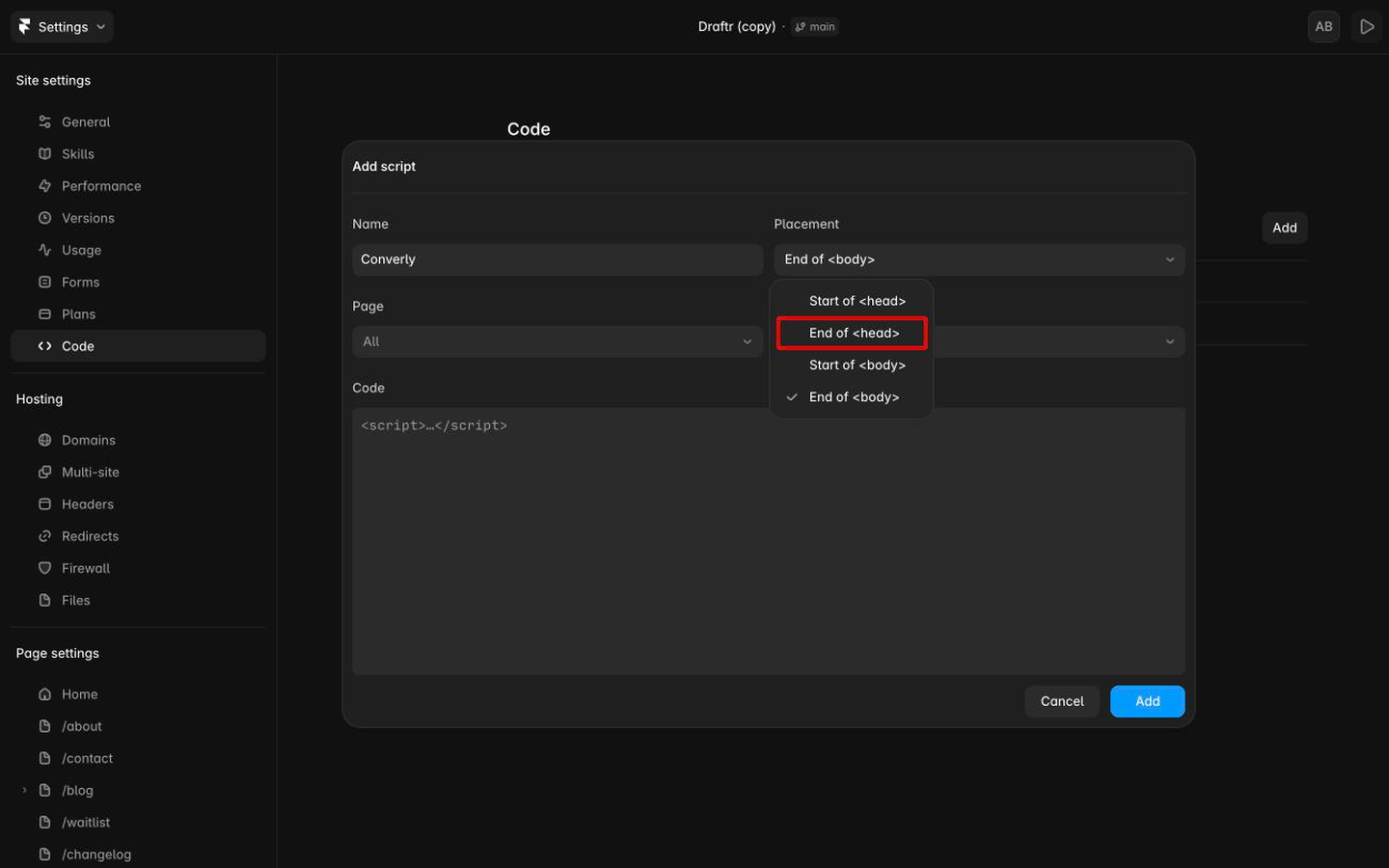
Putting it in the head means it loads early on every page, so Converly is ready to capture a conversion the moment a visitor submits a form. Leaving Page set to All matters too, because code added to a single page only loads on that page and forms everywhere else would go untracked.
Once everything is filled in, click Add.
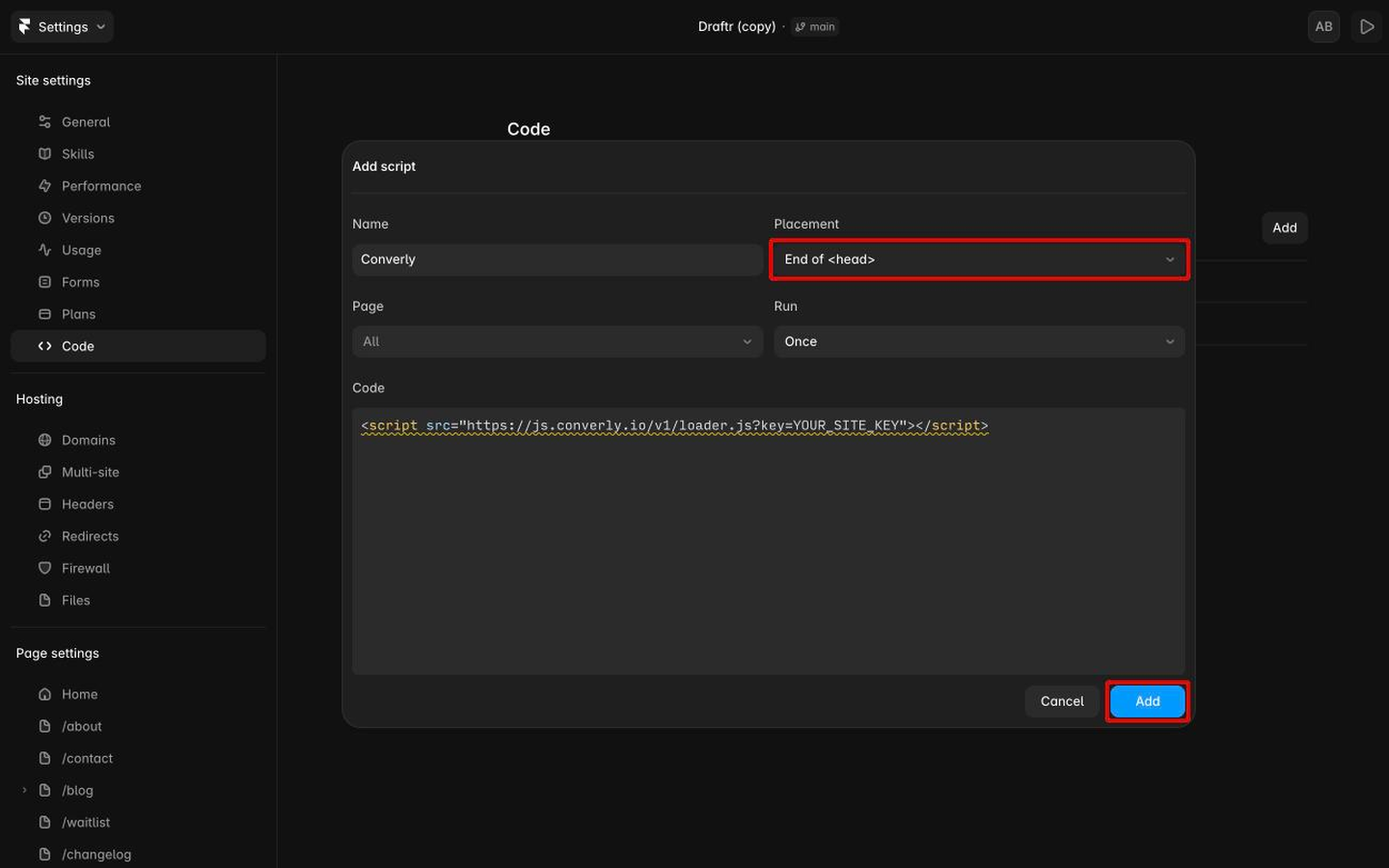
The only slight oddity is that Framer may underline the code with a yellow squiggle and suggest moving it to the body. You can safely ignore this message. Converly's code is very small, and keeping it in the head means it is ready before a visitor has a chance to submit a form.
Step 5: Publish your site
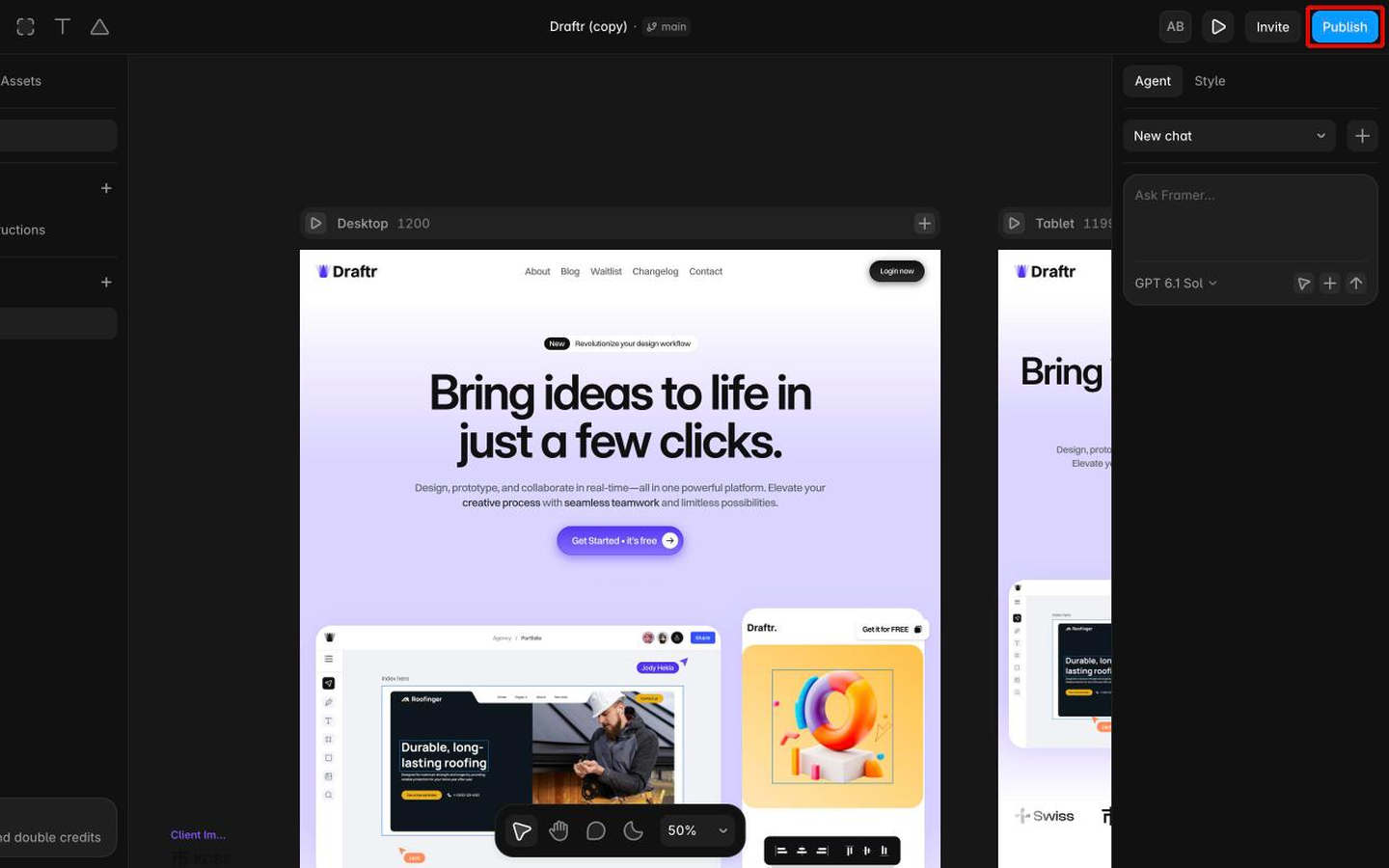
The final step is to publish. Framer only adds custom code to your published website (it does not run in the editor or in Preview), so Converly is not active until you publish. Simply click Publish in the top right of the editor, then click Update in the panel that opens (if your site has never been published, this button says Publish instead).
Test it works
That's it! Converly is now installed on your Framer site. To check it is working, open a new incognito window, go to your website, and submit a test entry through one of your forms. Then click Logs in Converly's left sidebar to open your conversion log. If the code is installed correctly, the test conversion shows up there within a moment.
Paste your own code
Any code shown in a screenshot is only an example. Always paste the exact code from the Install tab in your own Converly settings, which contains the key that is unique to your site. Code copied from anywhere else will not track to your account.