
Instapage is a landing page builder built for marketing campaigns and ad traffic. You can add the Converly code to a single page, or across your whole workspace if you are on the Convert plan. To install Converly on Instapage, follow the instructions below:
Step 1: Copy your install code
The first step is to grab your Converly install code. In Converly, click Install in the left sidebar and copy the code shown at the top. It is unique to your site, so make sure you copy the exact code shown there rather than reusing code from anywhere else. See Install Converly for the full walkthrough.
Step 2: Add the code to Instapage
The next step is to add your code to Instapage. There are two ways to do this. Use Method 1 to add it to a single page, or Method 2 to add it across your whole workspace at once.
Method 1: A single landing page
From the left menu, go to Landing Pages and select the page you want to track.
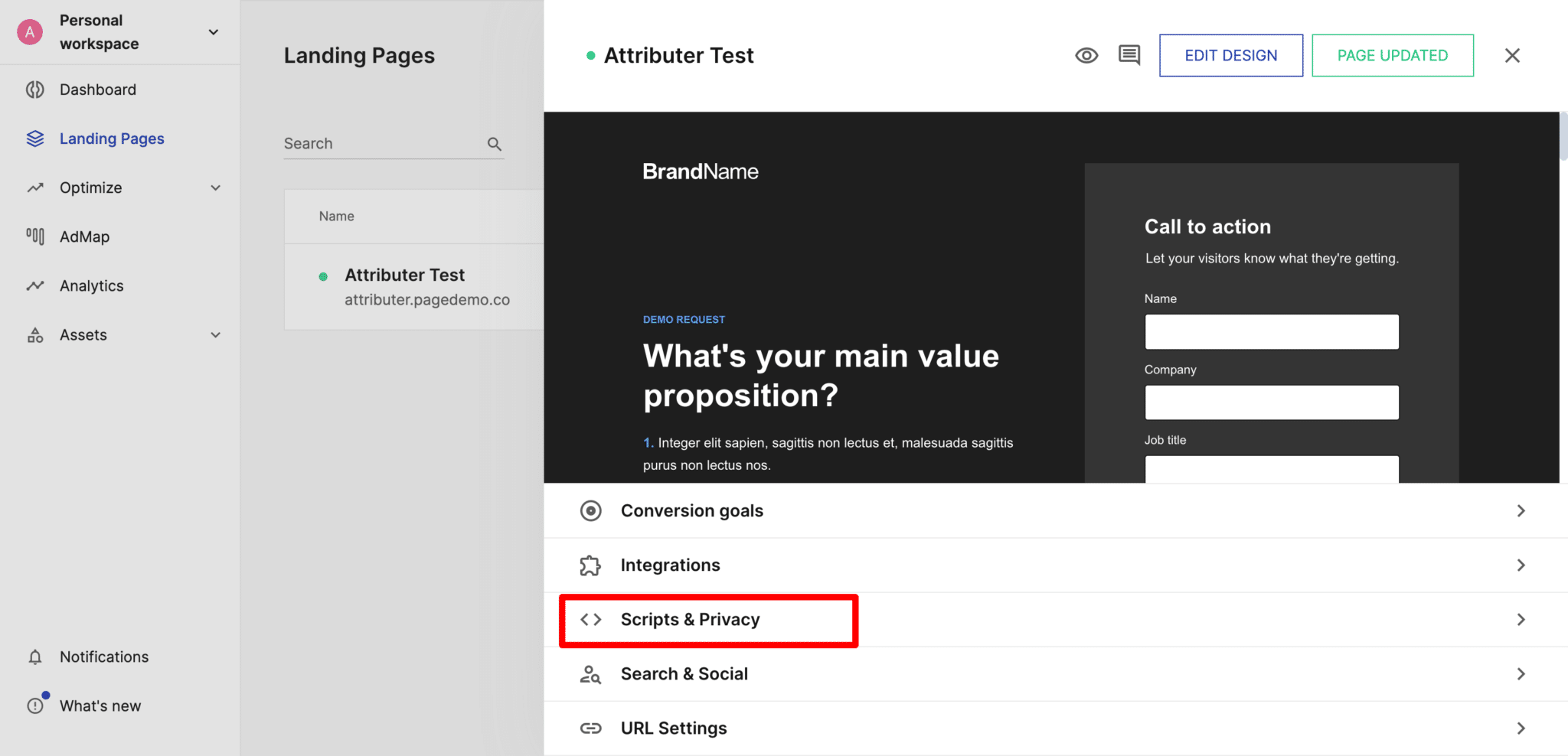
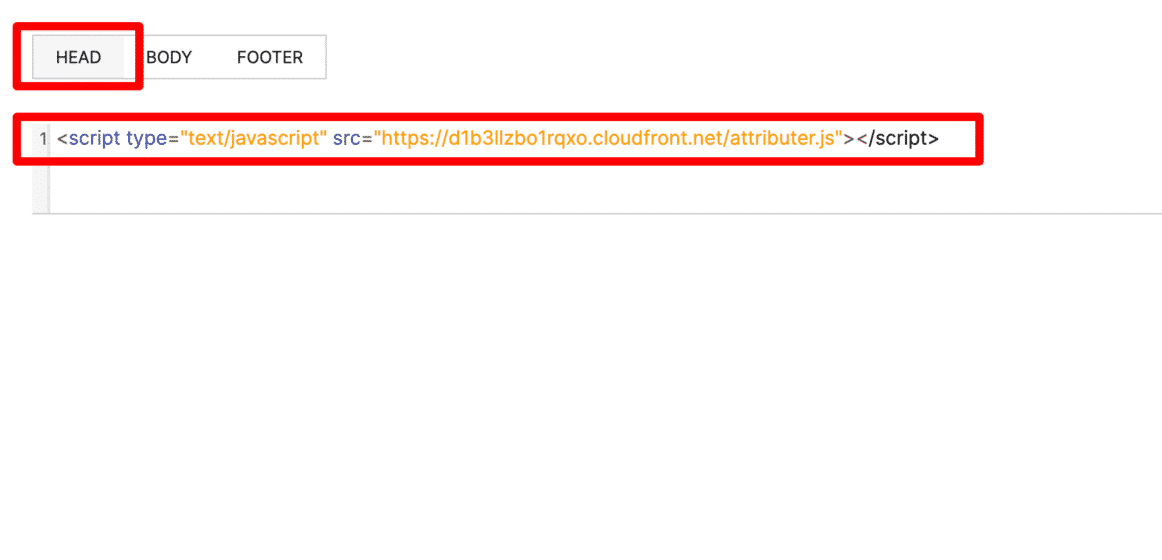
In the panel that slides out, click Scripts & Privacy, make sure the Head tab is selected, and paste your Converly code into the box. Repeat for any other page you want Converly to track.
Method 2: Your whole workspace (Convert plan)
If you are on the Instapage Convert plan, you can add Converly once for every page in your workspace. From the left menu, select Assets, then Scripts. Choose how you want the script applied: to all current and future pages automatically, or available for each page to switch on individually. Select the Head tab, paste your Converly code into the box, and save.
Test it works
That's it! Converly is now installed on your Instapage pages. To check it is working, open a new incognito window, go to one of your pages, and submit a test entry through one of your forms. Then open the Activity page in Converly. If the code is installed correctly, the test conversion shows up there within a moment.
Paste your own code
Any code shown in a screenshot is only an example. Always paste the exact code from your own Install page, which contains the key that is unique to your site. Code copied from anywhere else will not track to your account.