
WordPress is the most popular website platform in the world, powering a large share of business websites. It lets you add code to the head of your site in a few different ways, which is all Converly needs to track the forms on your pages. To install Converly on your WordPress website, follow the instructions below:
Step 1: Copy your install code
The first step is to grab your Converly install code. In Converly, click Install in the left sidebar and copy the code shown at the top. It is unique to your site, so make sure you copy the exact code shown there rather than reusing code from anywhere else. See Install Converly for the full walkthrough.
Step 2: Add the code to your website
The next step is to add that code to your website. WordPress gives you a few ways to do this, so simply pick whichever suits you. Any one of them works, so you only need to follow one.
Method 1: Your theme's built-in header code
Many WordPress themes and page builders include their own box for head code, which is the quickest option if your theme has one. For example, in Divi you go to Divi → Theme Options → Integrations and paste your code into the box labelled Add code to the head of your blog. Themes like Elementor, Avada, and Astra have a similar setting under their own options.
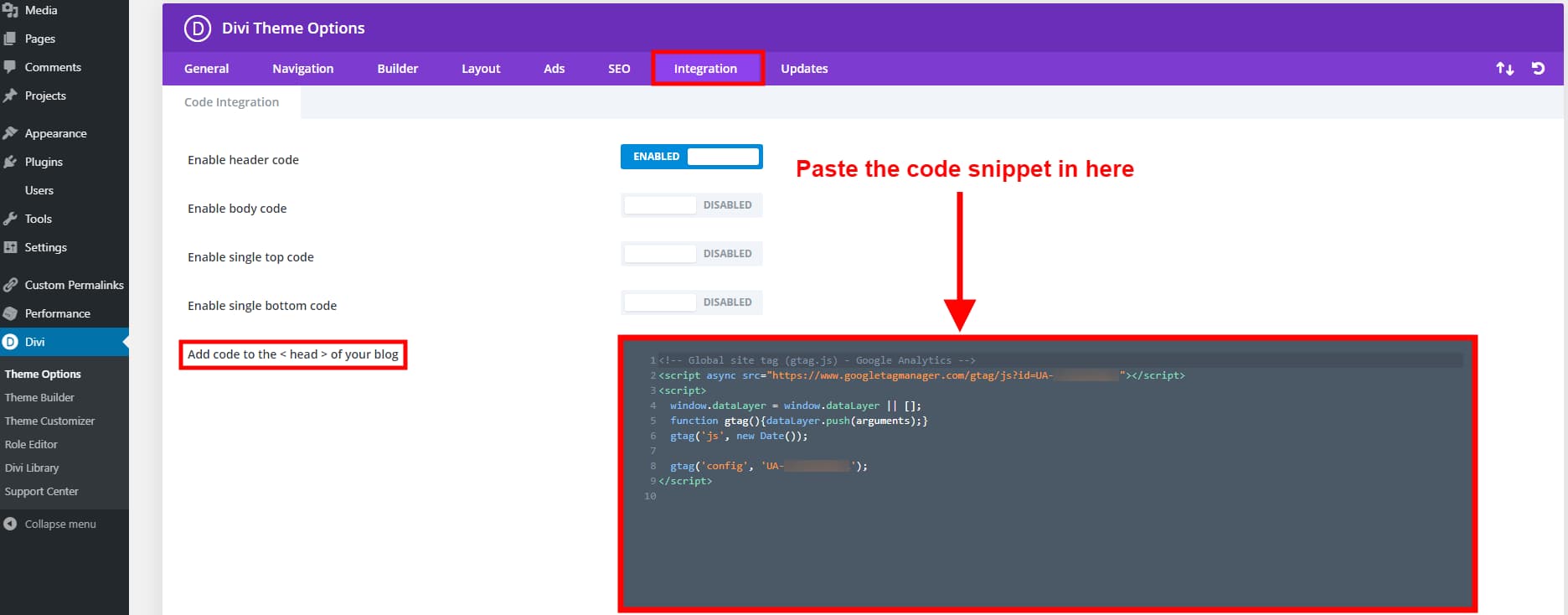
If you are not sure whether your theme has this, check its settings for anything mentioning header code, head, or integrations.
Method 2: A header code plugin
If your theme does not have a head code box, the most reliable option is a free plugin that adds one. In your WordPress admin, go to Plugins → Add New and search for a header code plugin such as WPCode or Insert Headers and Footers. Install and activate it, then open its settings, find the Header box (sometimes labelled Scripts in Header), paste your Converly code into it, and save.
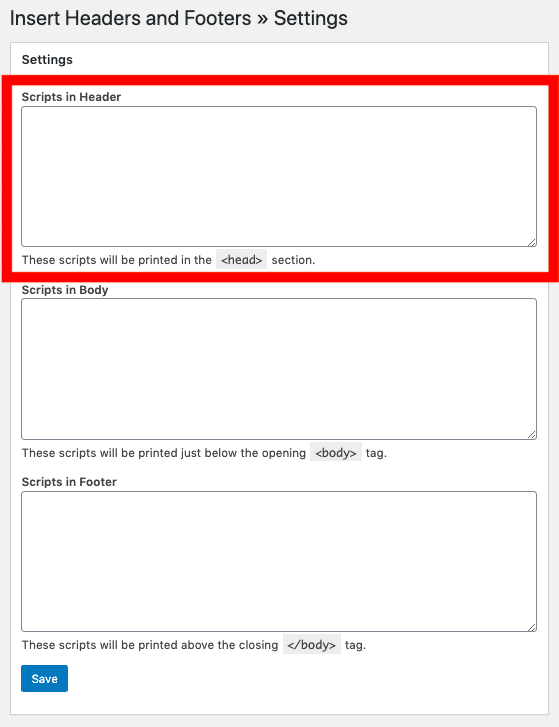
The code now loads on every page of your site automatically.
Method 3: Google Tag Manager
If you already manage your tracking through Google Tag Manager, you can add Converly there instead and skip editing WordPress directly. Follow the Google Tag Manager guide for the exact steps.
Test it works
That's it! Converly is now installed on your WordPress site. To check it is working, open a new incognito window, go to your website, and submit a test entry through one of your forms. Then open the Activity page in Converly. If the code is installed correctly, the test conversion shows up there within a moment.
Paste your own code
Any code shown in a screenshot is only an example. Always paste the exact code from your own Install page, which contains the key that is unique to your site. Code copied from anywhere else will not track to your account.