
The Integrations tab is where you see every ad platform and lead source connected to Converly, and where you disconnect or reconnect them.
Step 1: Open your integrations
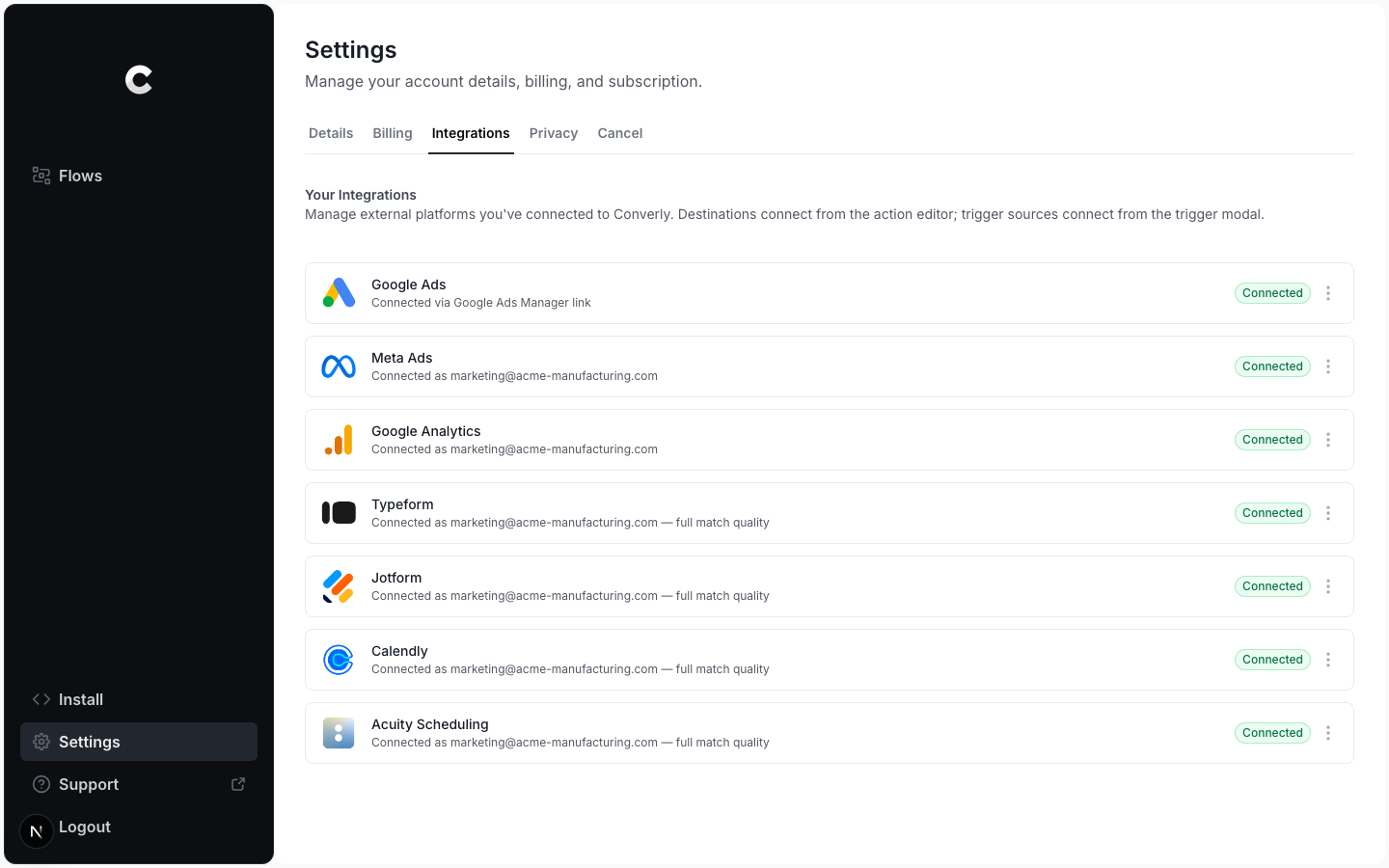
Click Settings in the left sidebar, then open the Integrations tab. Each connected platform is listed with its status. A green Connected badge means it is working. Needs reconnection means the login expired, so use the Reconnect button on that row.
Step 2: Open the menu
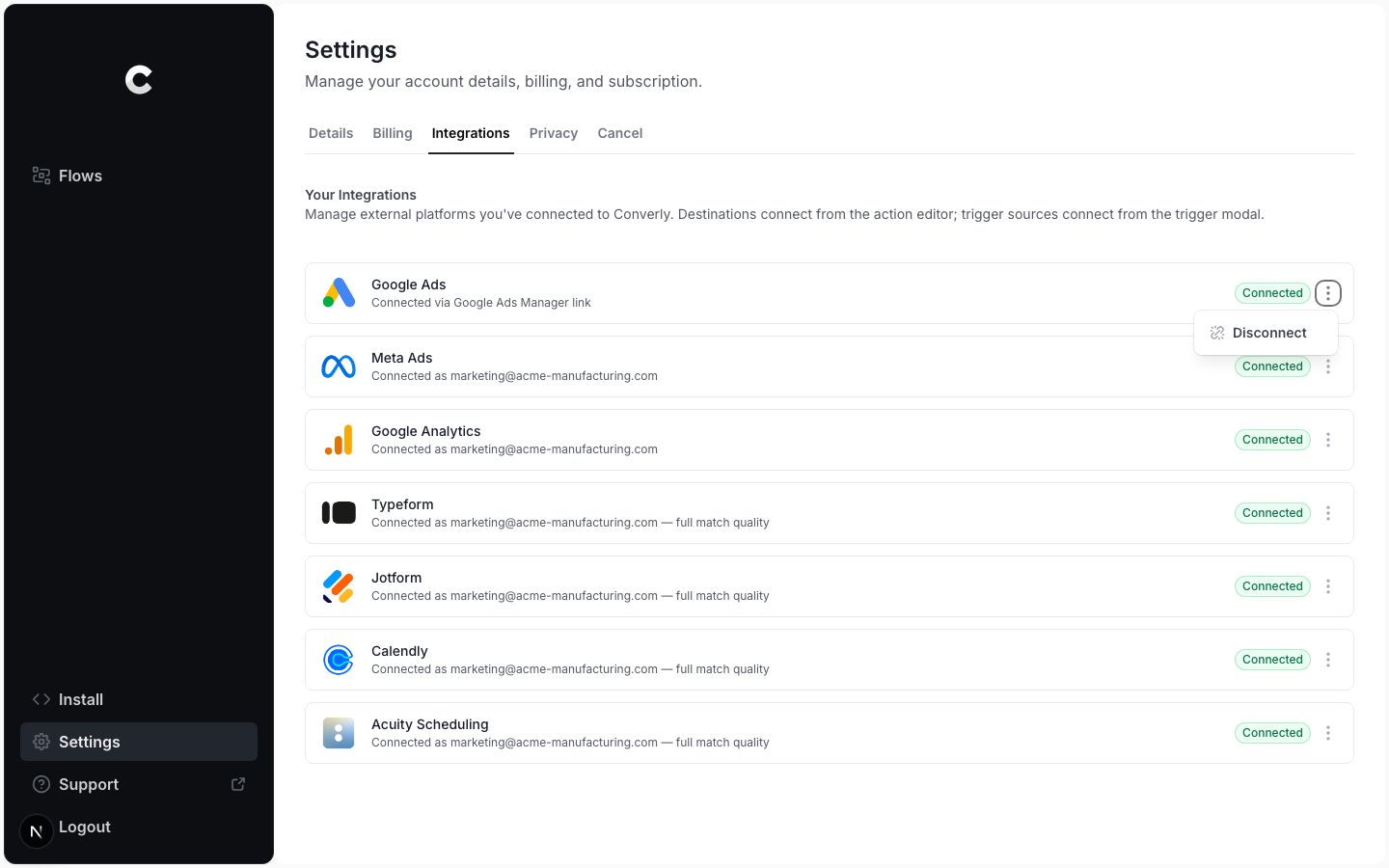
Find the platform you want to disconnect and click the ⋮ menu on its row. Choose Disconnect.
Step 3: Confirm
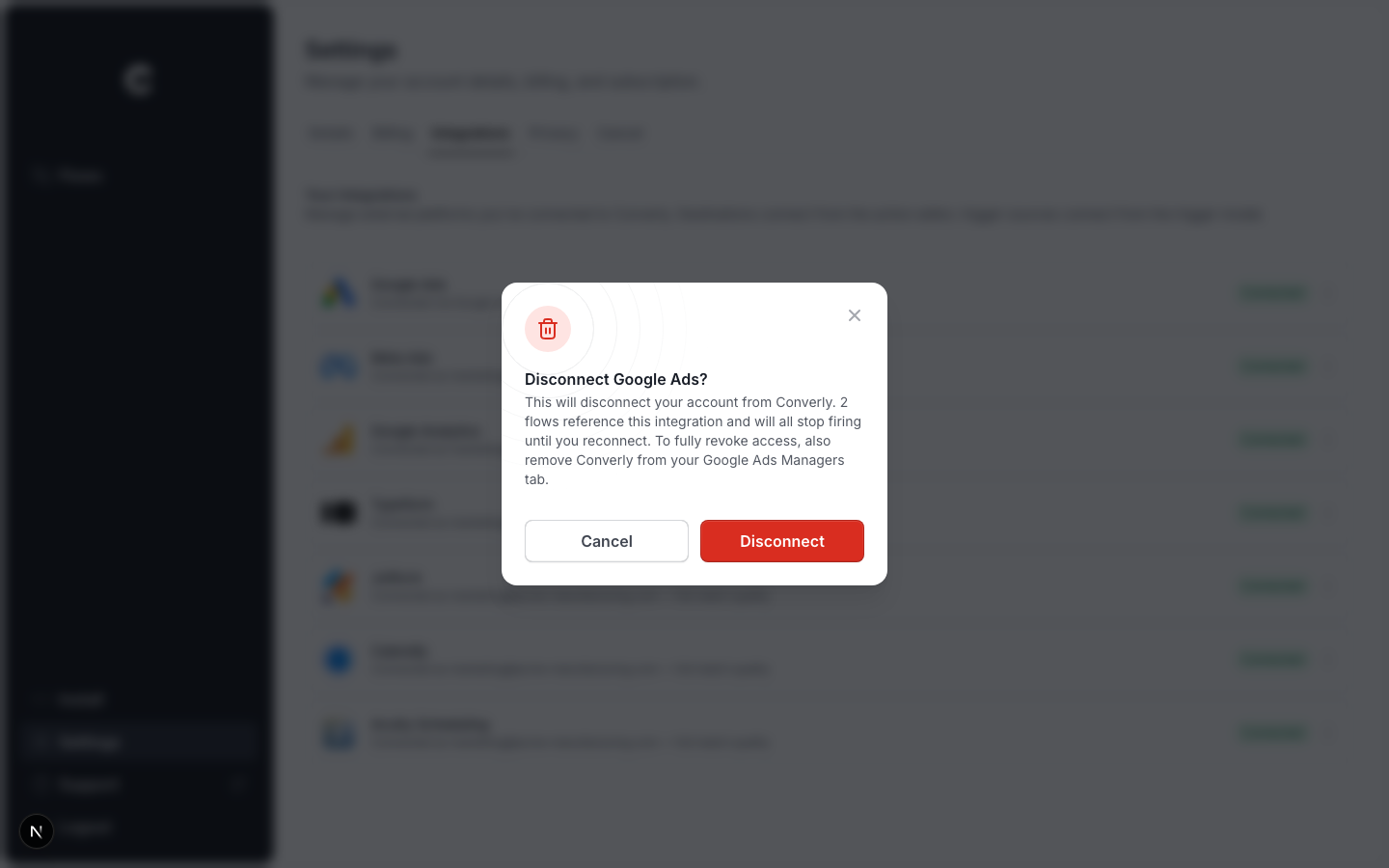
A confirmation window appears. It tells you how many flows use this integration and will stop firing until you reconnect. Click Disconnect to confirm.
Google Ads needs one extra step
Google Ads is connected through a manager (MCC) link. Disconnecting in Converly stops the data, but to fully revoke access you also need to remove Converly from the Managers tab inside your Google Ads account.