
Two-factor authentication (often called 2FA) adds a second step when you log in to Converly. As well as your password or login link, you enter a 6-digit code from an authenticator app on your phone.
It means that even if someone gets hold of your password, or gets into your email inbox, they still can't get into your Converly account without your phone. It's optional, it's included on every plan, and it takes about 2 minutes to set up.
To set it up, follow the instructions below:
Do you log in with Google or Webflow?
Two-factor authentication in Converly protects password and login link logins. If you log in with your Google or Webflow account, Converly won't ask you for a code. Your login is protected by the security settings on your Google or Webflow account instead, so we recommend turning on 2-Step Verification there too.
What you'll need
An authenticator app on your phone. Google Authenticator, Microsoft Authenticator, 1Password and Authy all work. If you don't have one yet, simply install one from your phone's app store before you start.
Step 1: Start the setup in Settings
The first step is to start the setup. Click Settings in the left sidebar. On the Details tab, find the Two-factor authentication row under Login details and click Turn On.
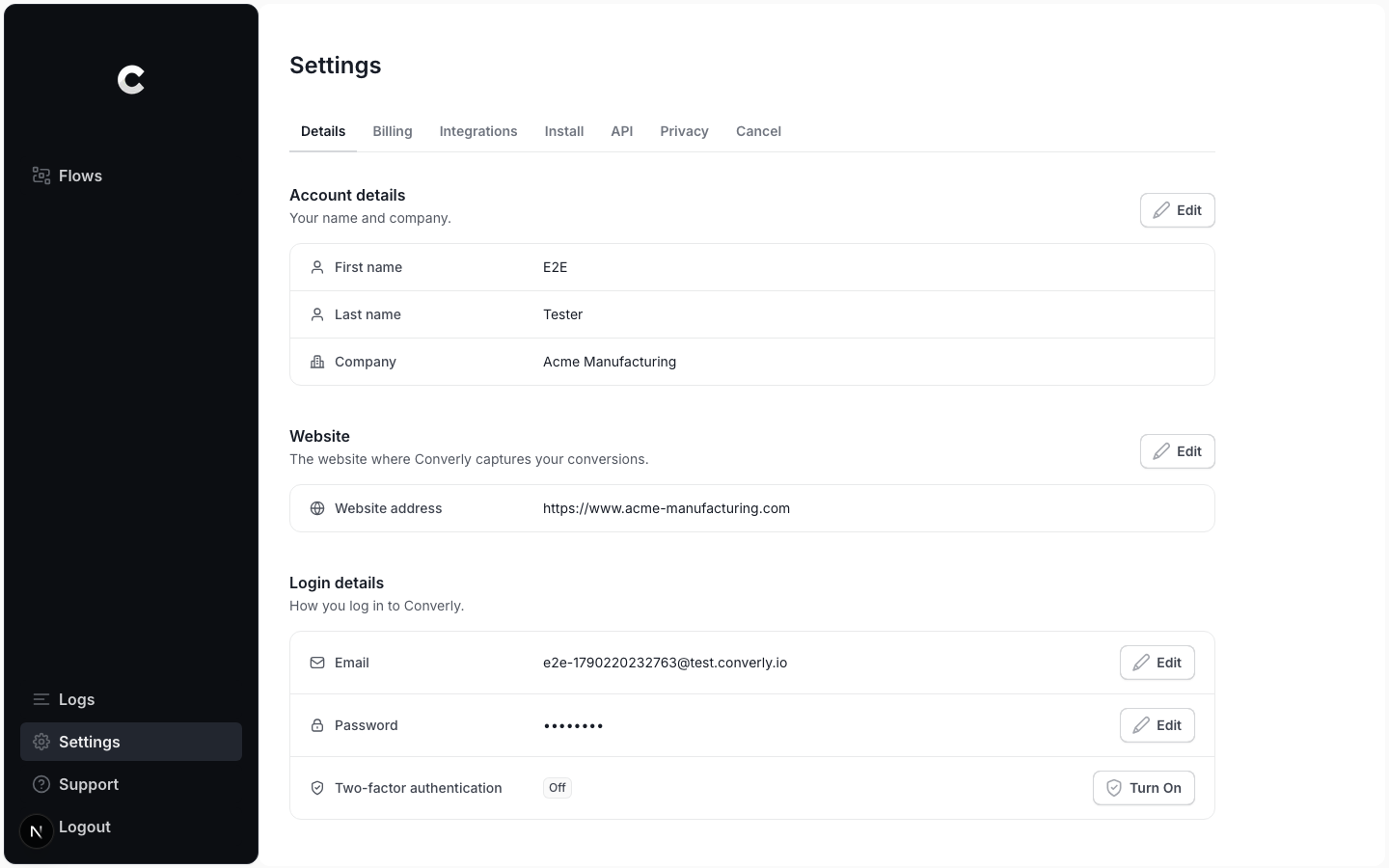
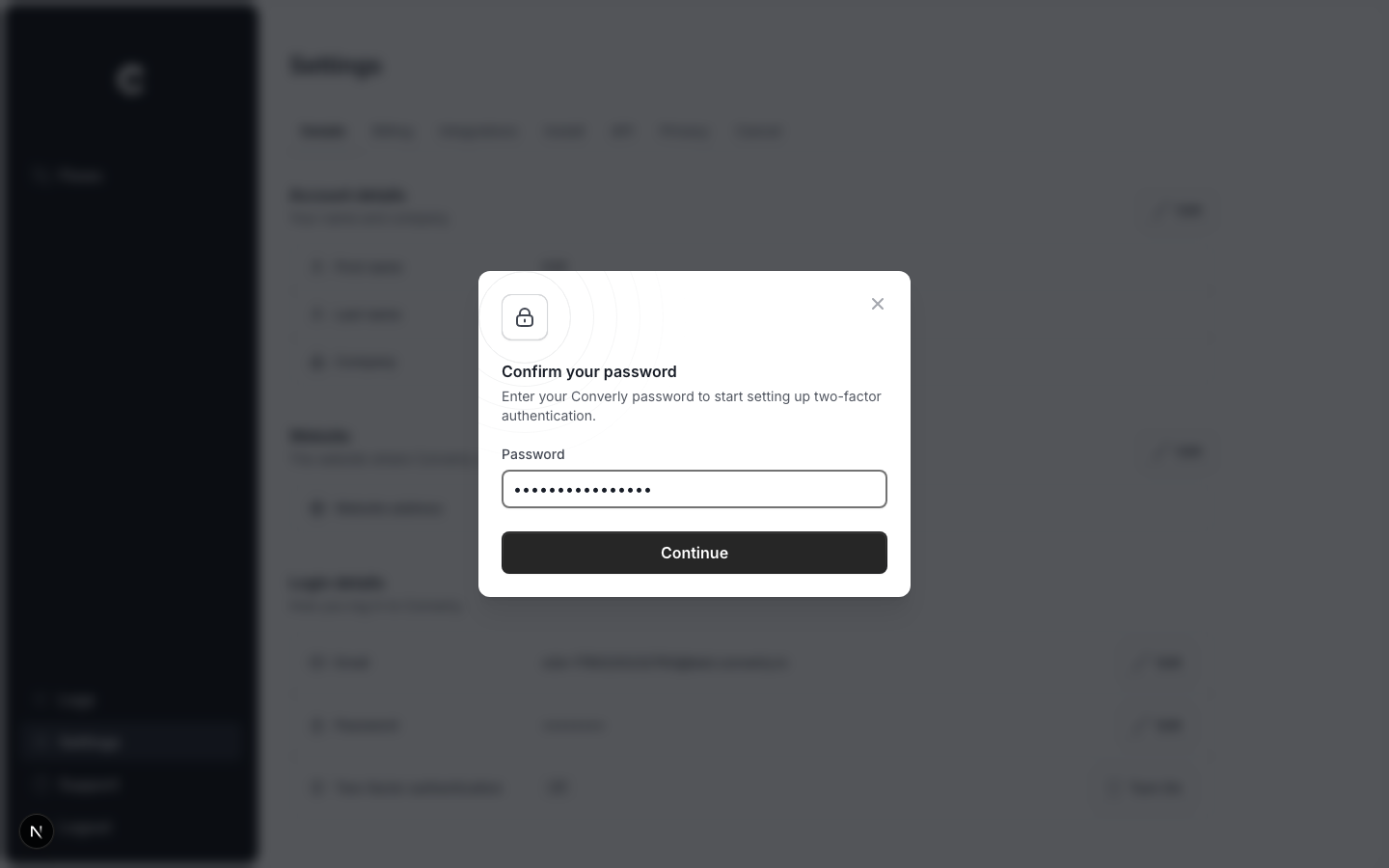
If your account has a password, Converly asks you to enter it first so it knows it's really you. Enter it and click Continue. If you only ever log in with a login link, you won't be asked for one.
Step 2: Scan the QR code
The second step is to connect your authenticator app. Open the app on your phone, add a new account, and simply scan the QR code shown on your screen. Then click Continue.
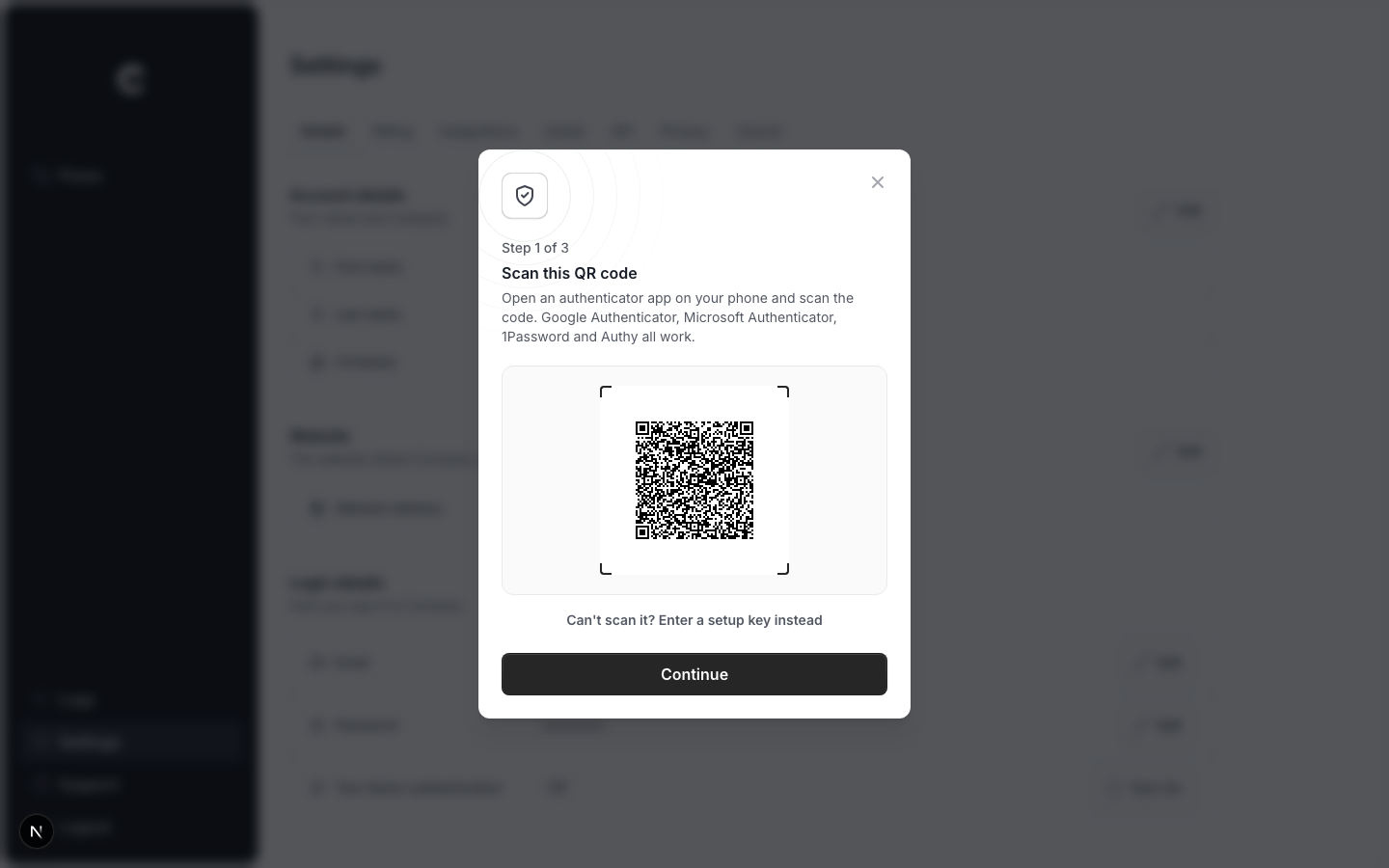
If you can't scan it (for example, you're setting up on the same phone you're reading this on), click Can't scan it? Enter a setup key instead and type the setup key into your app.
Step 3: Enter the 6-digit code
Your app now shows a 6-digit code for Converly. It changes every 30 seconds. Type the code that's showing into Converly and click Turn On.
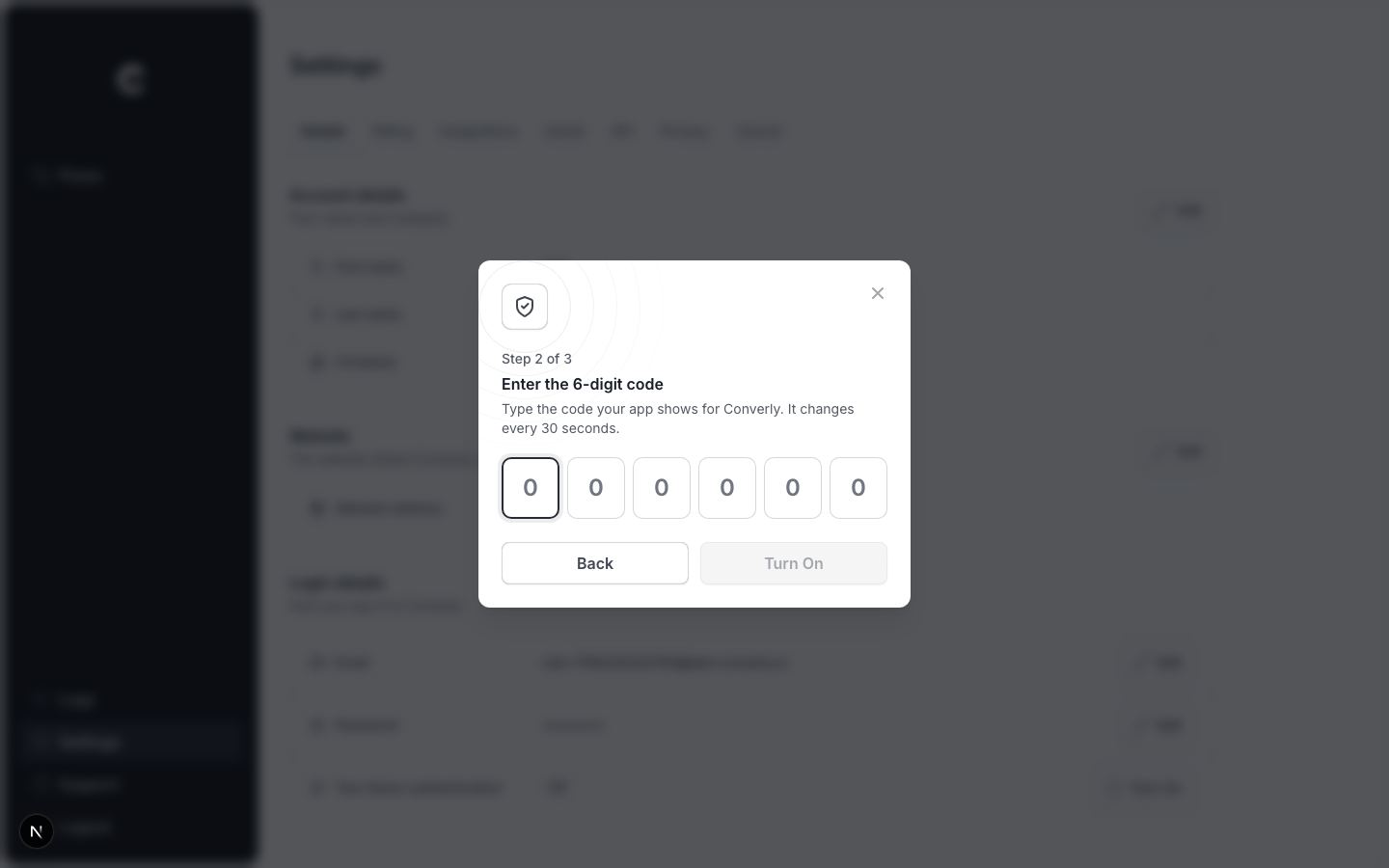
If it isn't accepted, wait for the next code to appear in your app and try that one.
Step 4: Save your backup codes
The final step is to save your backup codes. Converly gives you 10 of them, and each one lets you log in once if you ever lose your phone.
Click Copy All or Download and keep them somewhere safe, like your password manager. Then tick I've saved these codes somewhere safe and click Finish.
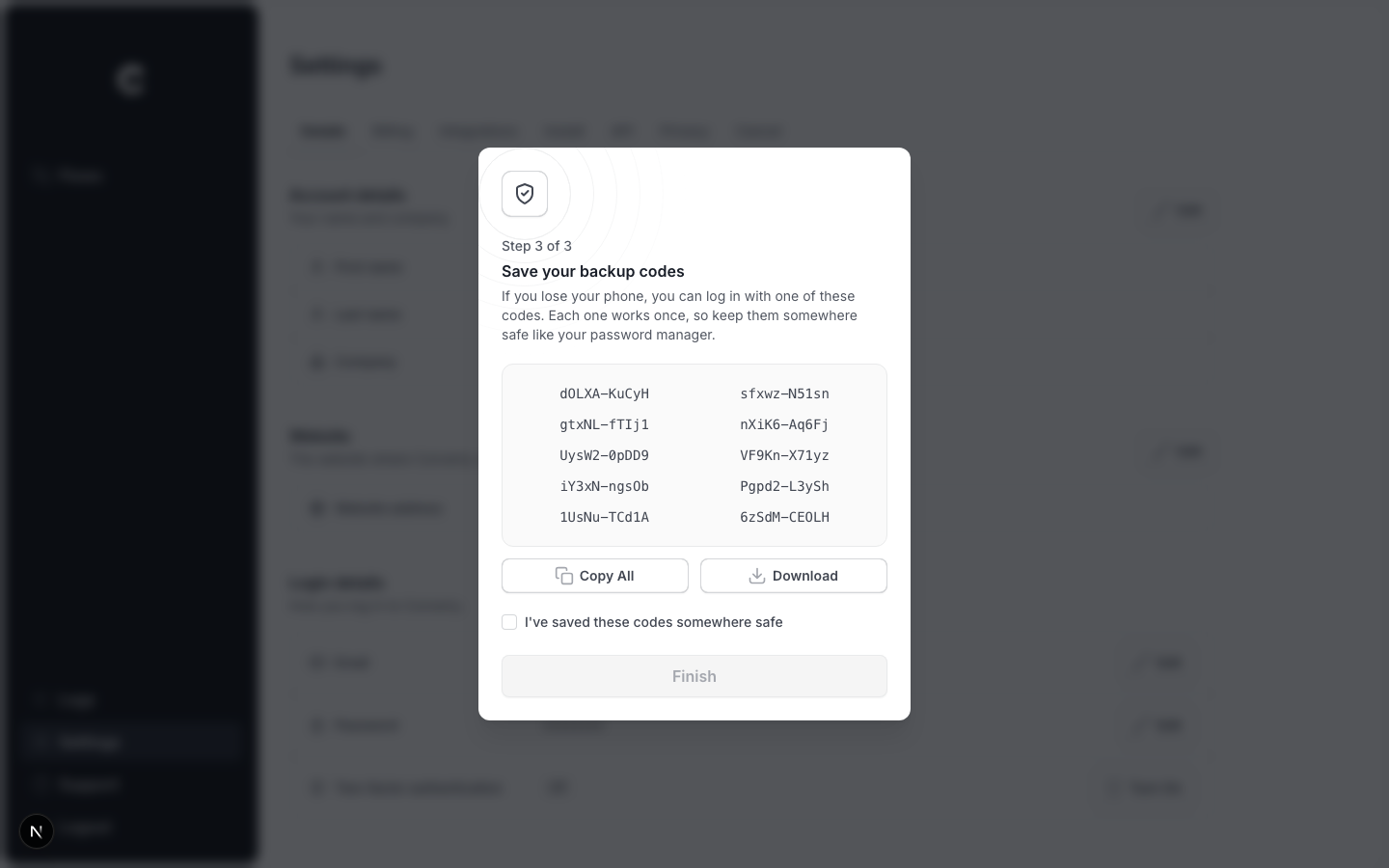
Important: Save your codes before you click Finish. Apart from contacting our support team, they're the only way back into your account without your phone.
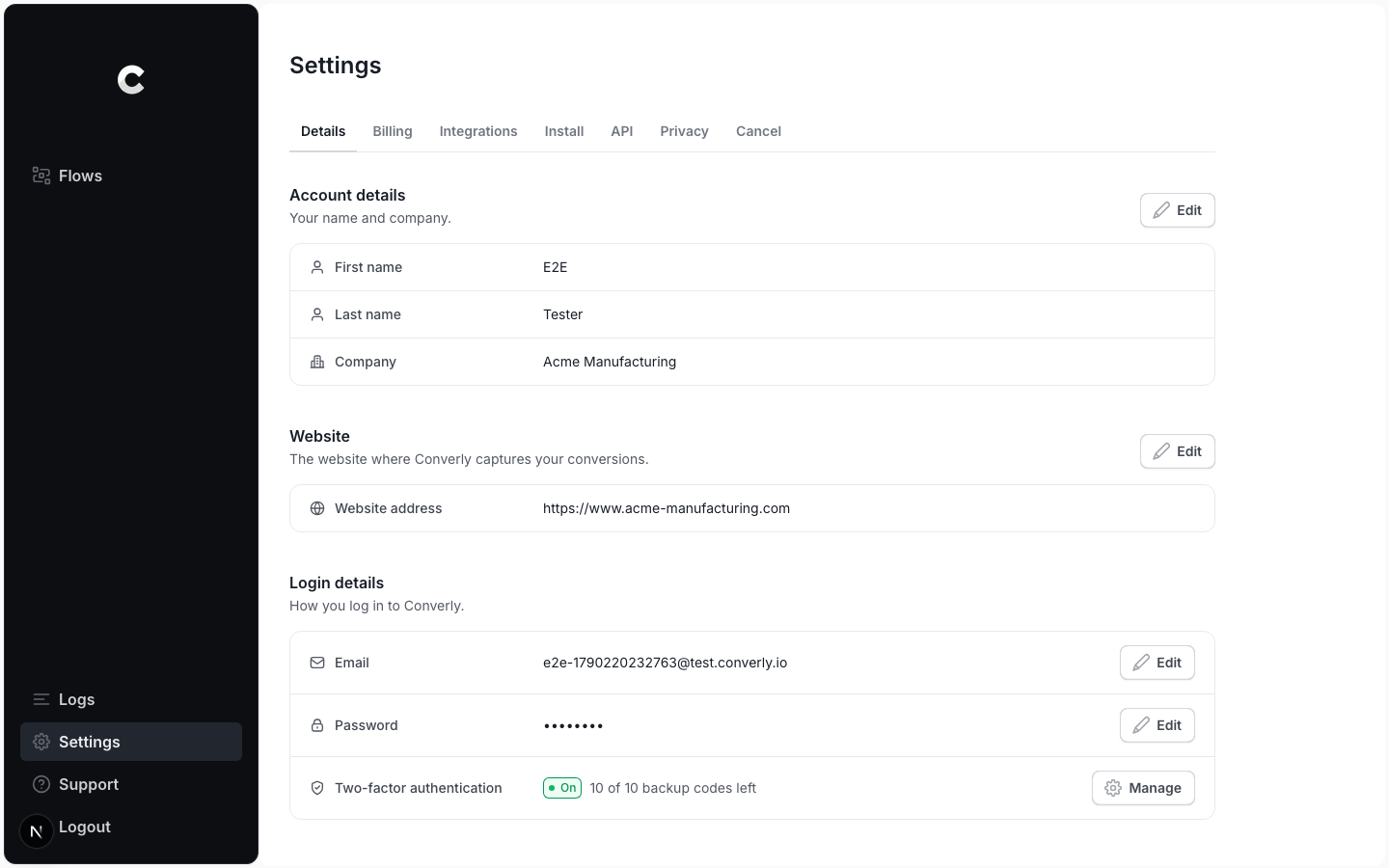
That's it! Two-factor authentication is now on, and the row shows how many backup codes you have left. To make the protection start straight away, Converly logs you out on every other browser, so you'll need a code the next time you log in on those.
Step 5: Test it works
The last thing to do is check it works. Open a new incognito window (or private window) and log in to Converly with your password or a login link, just as you normally would.
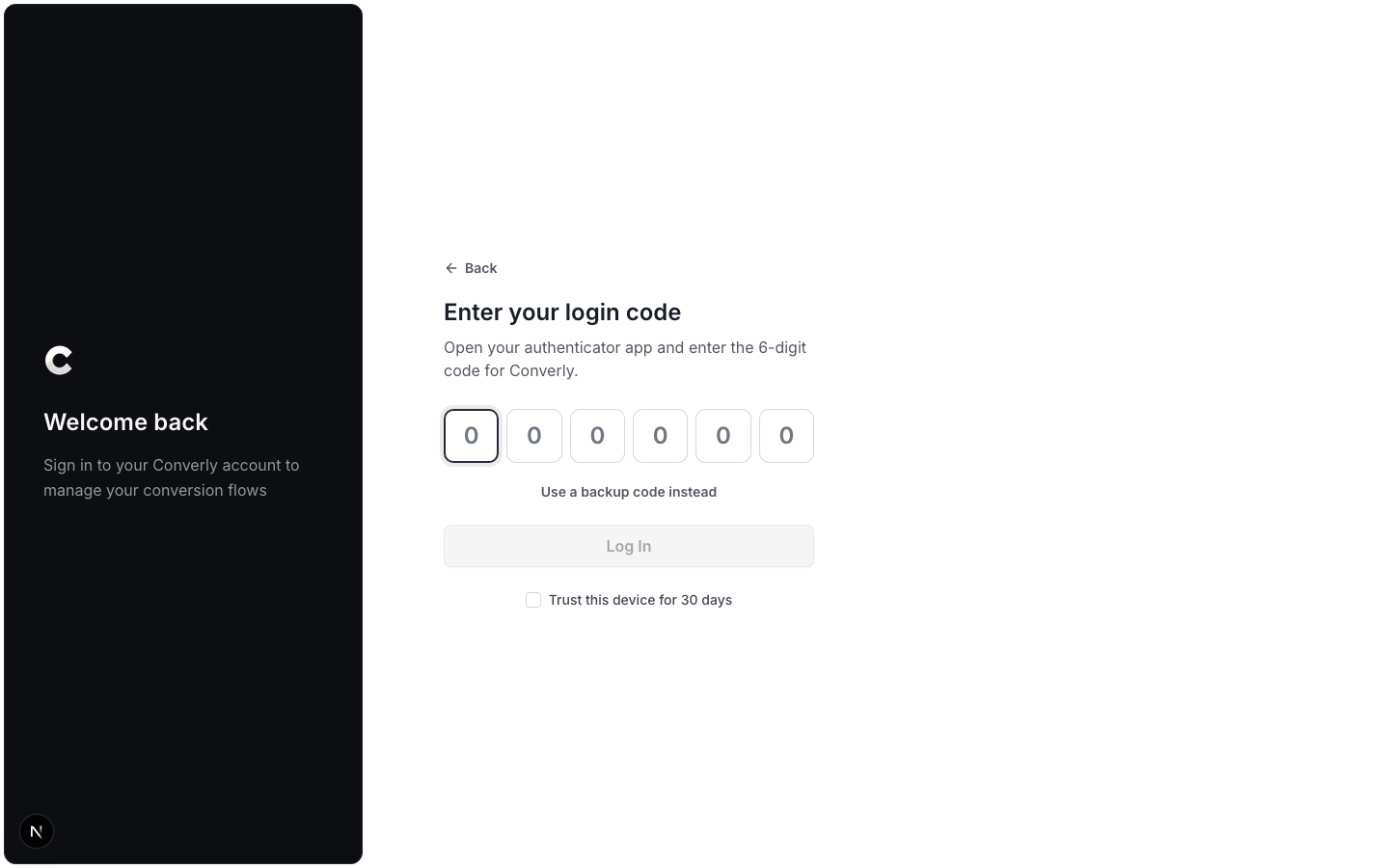
Instead of going straight to your dashboard, you should see Enter your login code. Open your authenticator app, type the 6-digit code for Converly and click Log In. If you land on your dashboard, everything is working.
Logging in from now on
Each time you log in with your password or a login link, Converly asks for the 6-digit code from your app. You have 10 minutes to enter it. If you take longer, you'll see This login has timed out, so simply click Start Again.
Trust this device for 30 days
On the code screen, tick Trust this device for 30 days and Converly won't ask that browser for a code again for 30 days. Only tick it on your own computer, never on a shared one.
Changing or resetting your password, or turning two-factor authentication off, makes Converly forget every trusted device.
Log in with a backup code
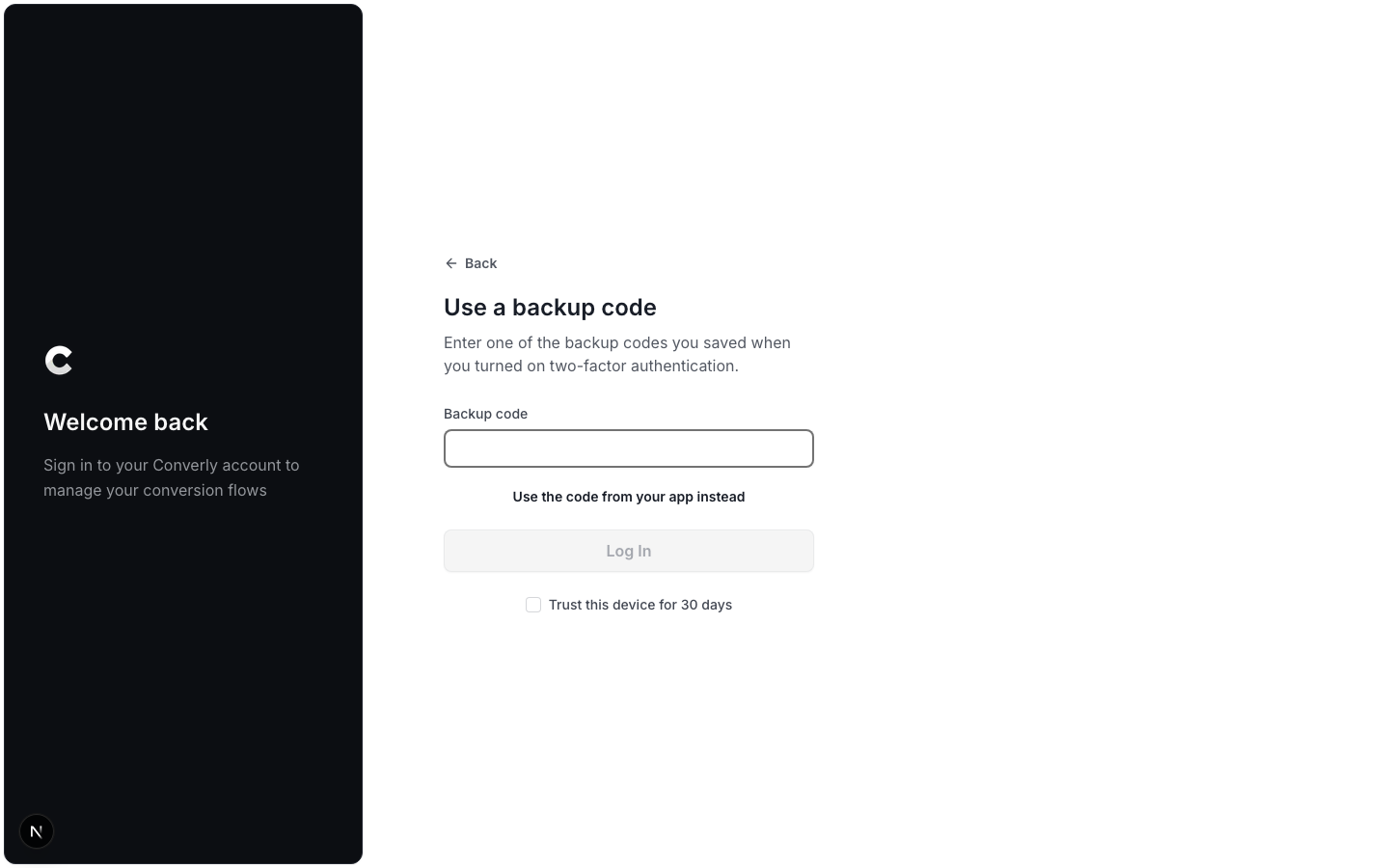
If you don't have your phone with you, click Use a backup code instead on the code screen and enter one of your backup codes. Each code only works once. When you're running low, Converly shows a reminder next to the Two-factor authentication row in Settings.
Get new backup codes
If you've used most of your backup codes, or you think someone else might have seen them, you can replace them. In Settings, on the Details tab, click Manage on the Two-factor authentication row. The window that opens shows how many backup codes you have left. Click Get New Codes, enter the code from your app and save your new codes.
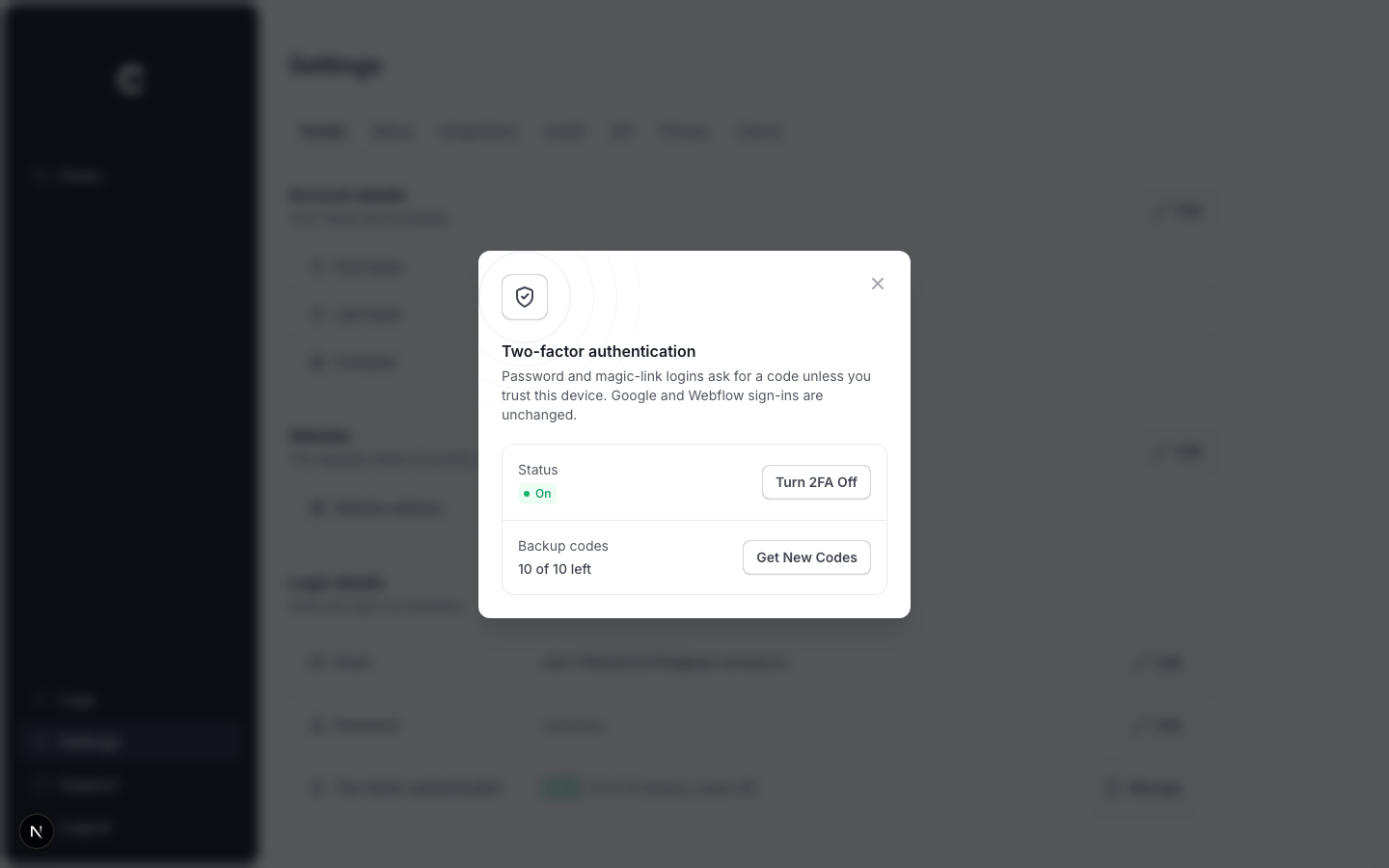
Your old backup codes stop working straight away.
Switch to a new phone
To move to a new phone, turn two-factor authentication off and then back on again. In Settings, on the Details tab, click Manage on the Two-factor authentication row, then click Turn 2FA Off. Enter the code from your app (or click Use a backup code instead) and click Turn Off.
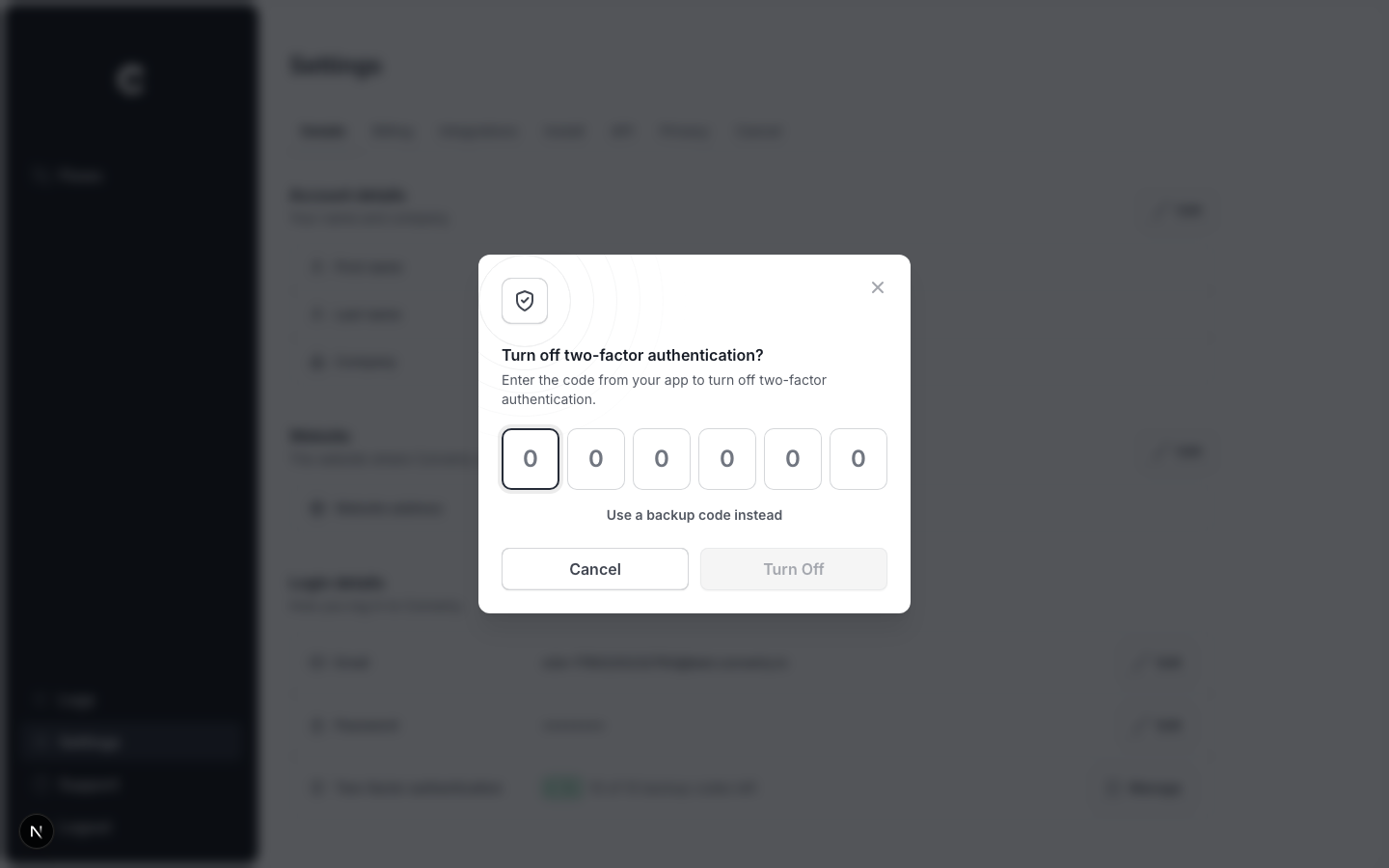
Then follow the steps above on your new phone. You'll get a new set of backup codes too.
If you lose your phone
Log in with one of your backup codes, then follow the steps under Switch to a new phone to set it up on your new one.
If you don't have your backup codes either, email us at help@converly.io from the email address on your account. We'll confirm it's really you and help you get back in.
Troubleshooting
The code isn't accepted. Check you're typing the code from the Converly entry in your app, and that the code hasn't just changed. Authenticator codes also depend on your phone's clock, so make sure your phone sets its date and time automatically. After several wrong tries in a row, Converly asks you to wait a few seconds before trying again.
You're asked to log in again before changing your settings. To protect your account, Converly only lets you turn two-factor authentication on or off, or get new backup codes, if you logged in within the last day. Simply log out, log back in, and try again.
Nobody from Converly will ask for your codes
We'll never ask you for a login code or a backup code, by email or anywhere else. If someone does, don't share it.