
When your card expires or changes, update it here so your subscription keeps running without interruption.
Step 1: Open the Billing tab
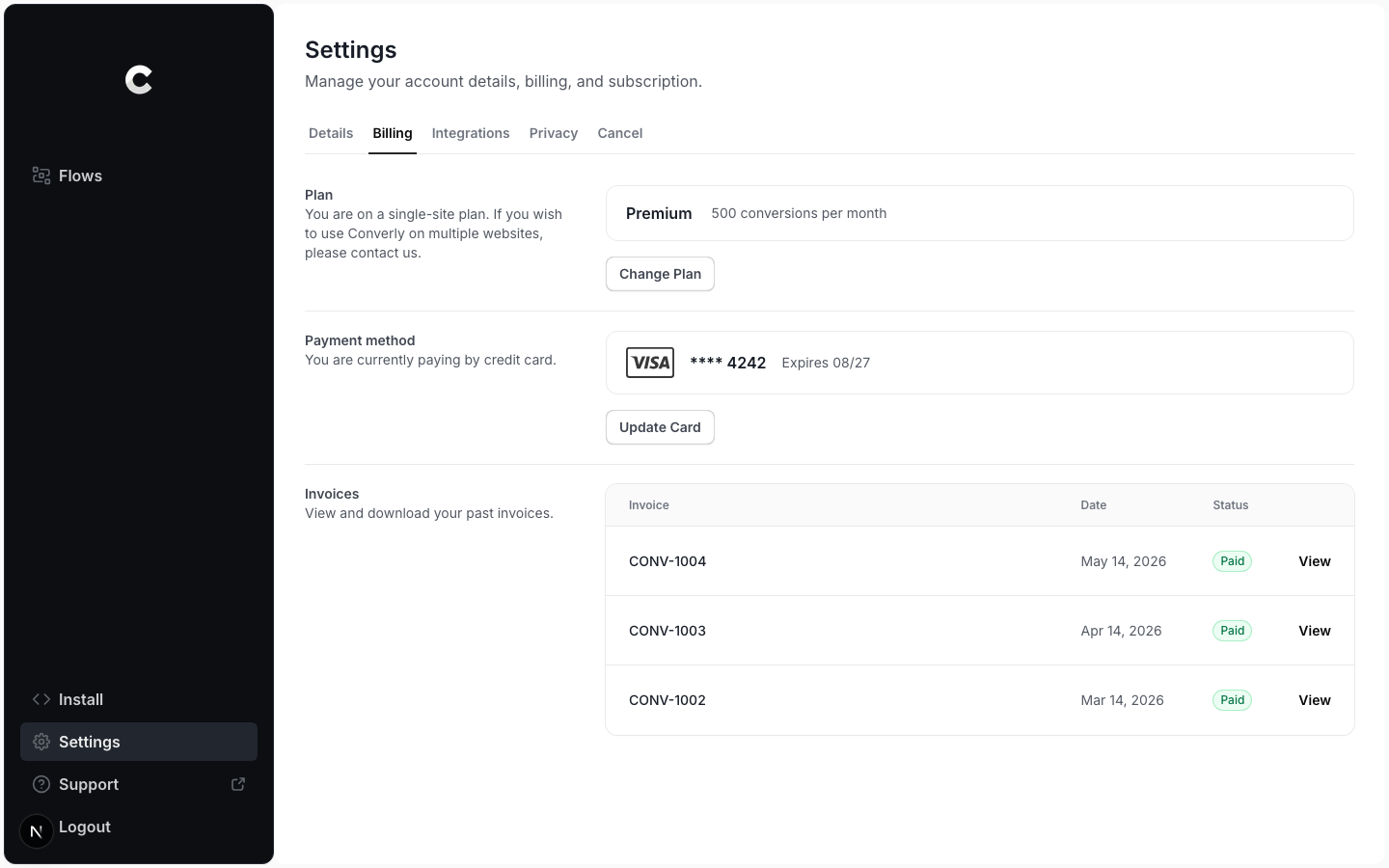
Click Settings in the left sidebar, then open the Billing tab. The Payment method section shows the card currently on file.
Step 2: Enter your new card
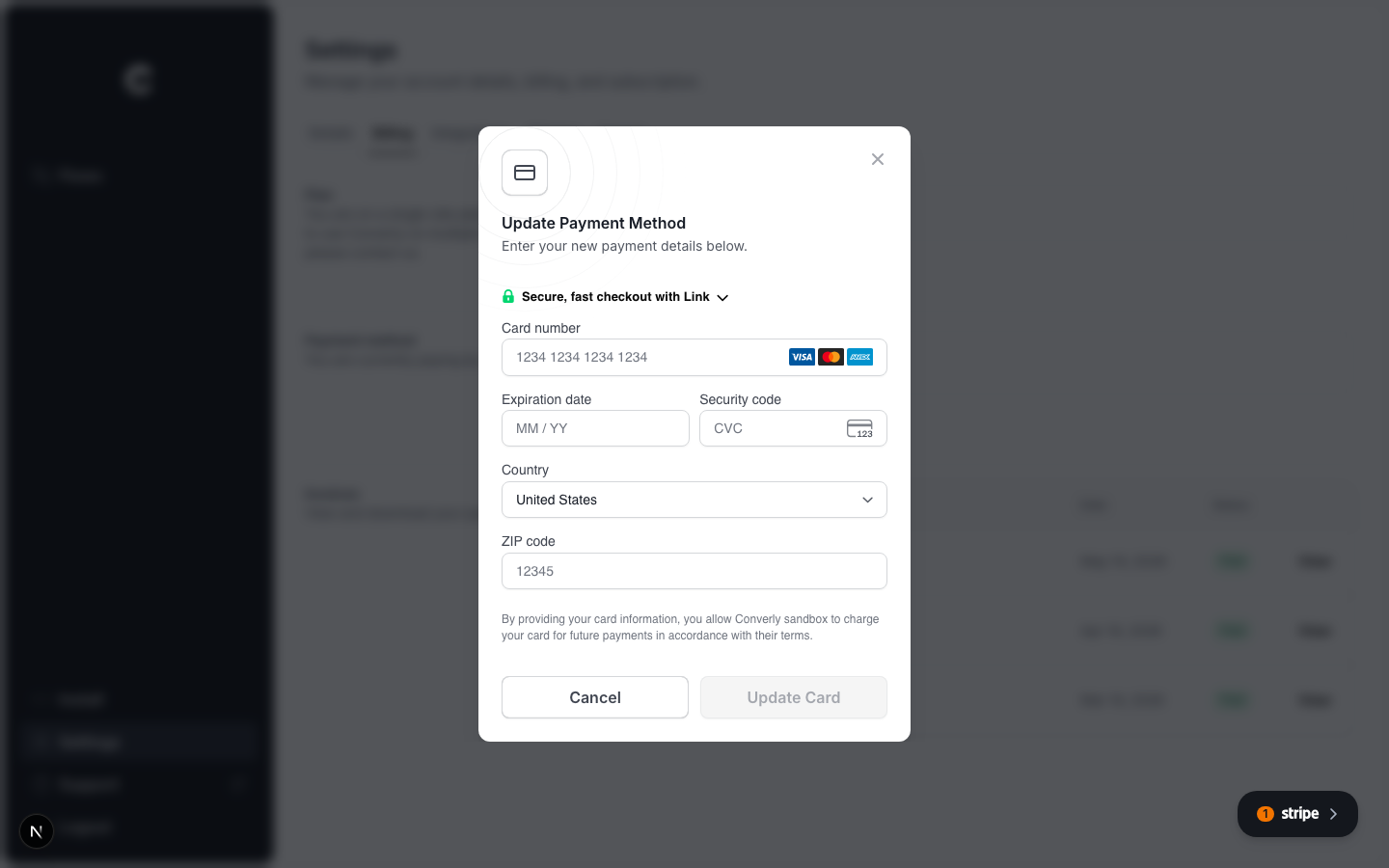
Click Update Card. A secure card form from our payment processor, Stripe, opens in the window. Enter your new card number, expiry date, and security code, then click Update Card.
One card at a time
Converly stores one card for billing. When you add a new one, it replaces the old card straight away. Your next invoice will be charged to the new card.