
Every Converly payment has an invoice you can view or download for your records.
Step 1: Find your invoices
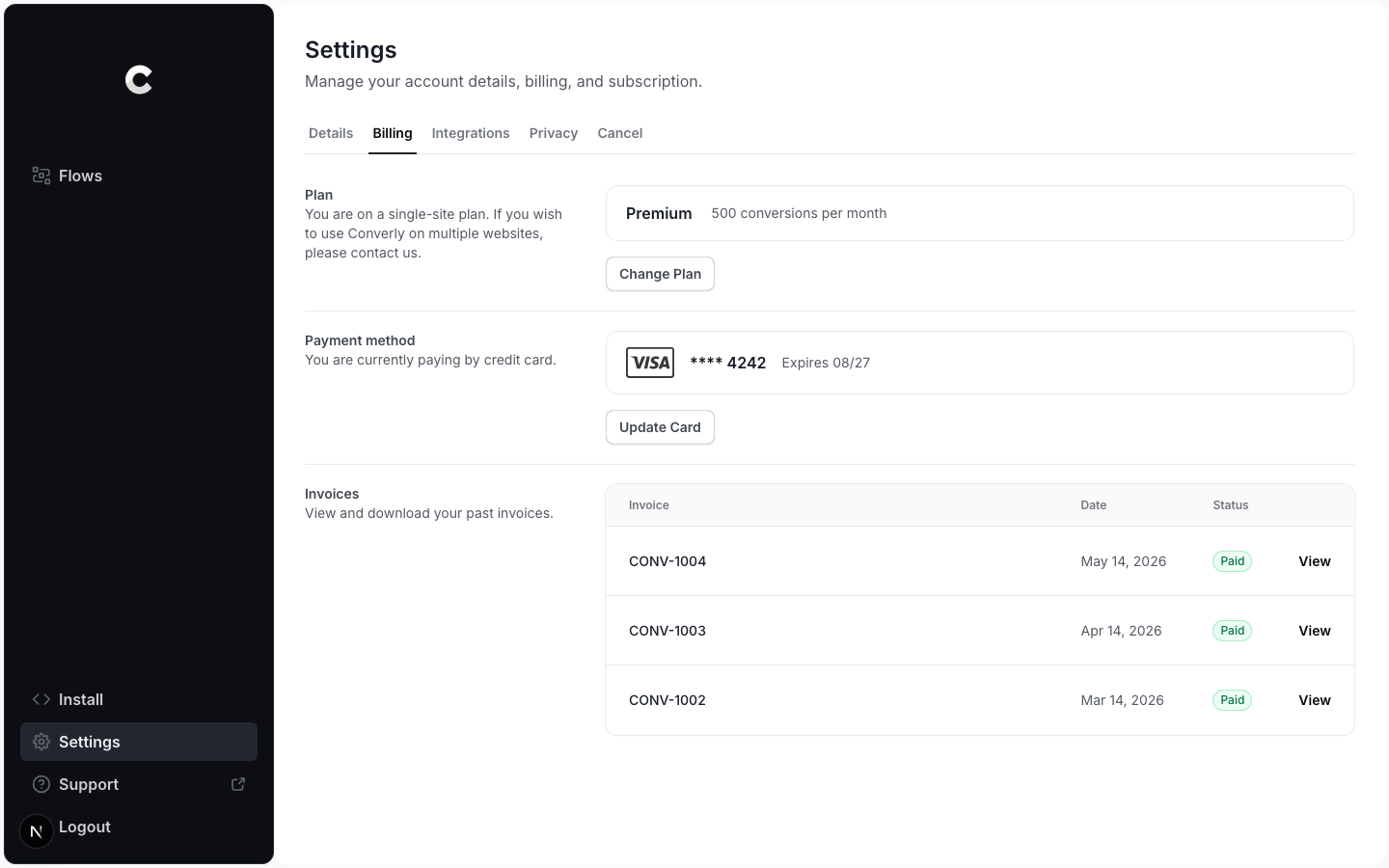
Click Settings in the left sidebar, then open the Billing tab. Scroll to the Invoices section. Each invoice shows its number, date, and status.
To open one, click View on its row. The full invoice opens in a new tab, where you can download it as a PDF or print it.
Status colours
A green Paid badge means the invoice was charged successfully. An amber or red badge means a payment is open or failed, which usually means you need to update your card.