
You can move to a different plan at any time. Converly shows you exactly what it costs before you confirm, and the change takes effect immediately.
Step 1: Open the Billing tab
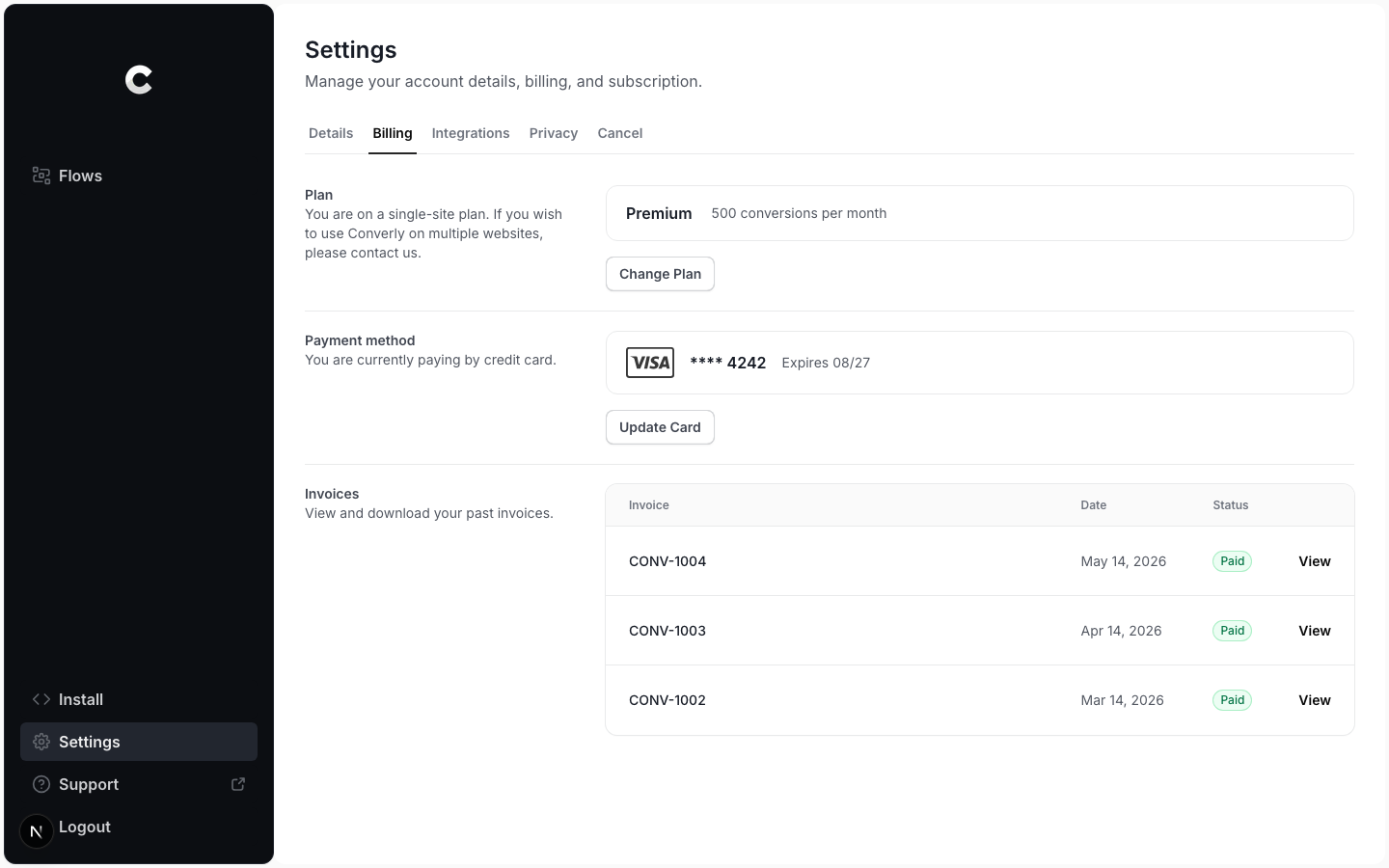
Click Settings in the left sidebar, then open the Billing tab. The Plan section shows your current plan and its limits.
Step 2: Choose a new plan
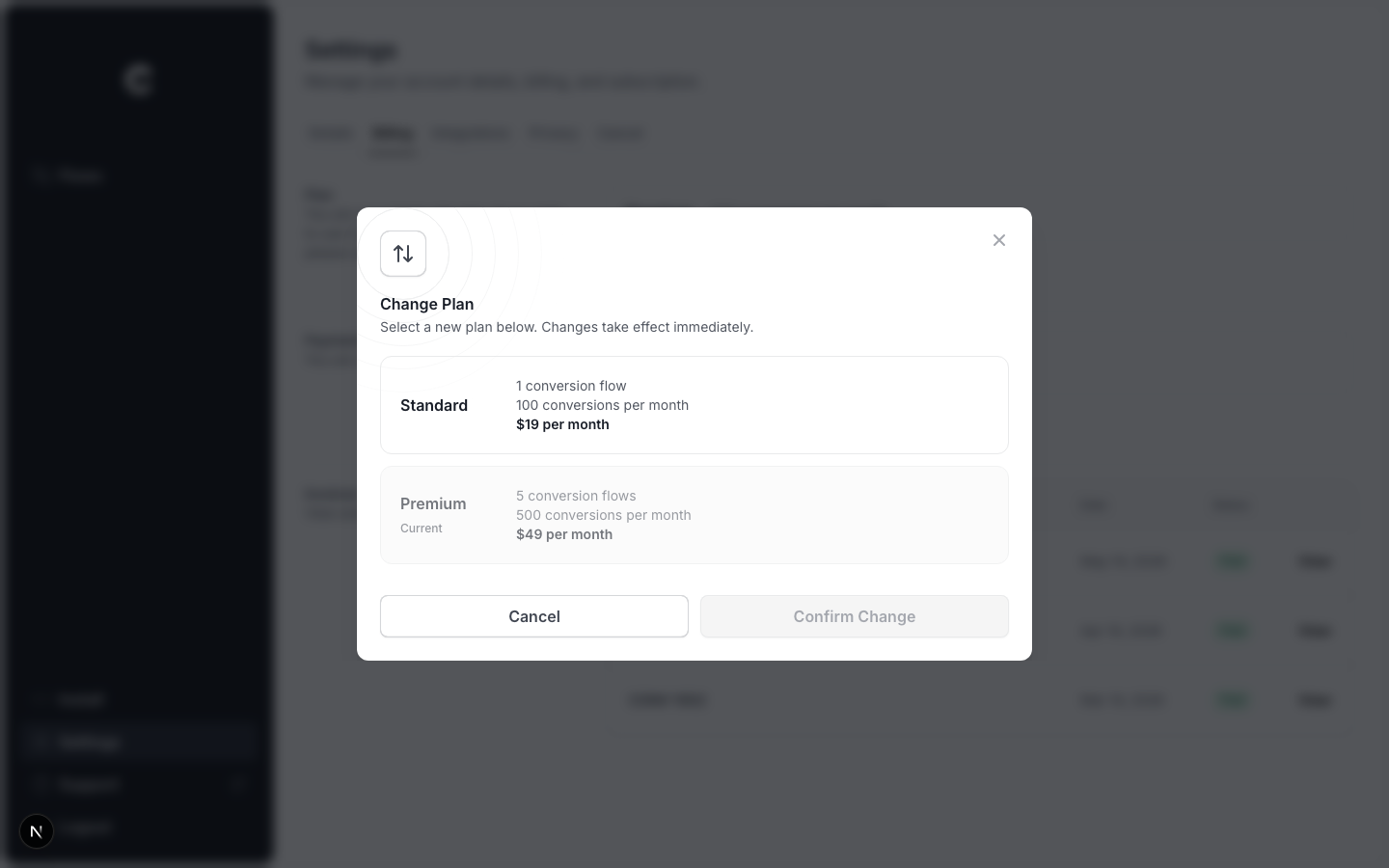
Click Change Plan. A window lists the available plans with their flow and conversion limits. Your current plan is marked and cannot be selected. Click the plan you want to move to.
Step 3: Review the cost and confirm
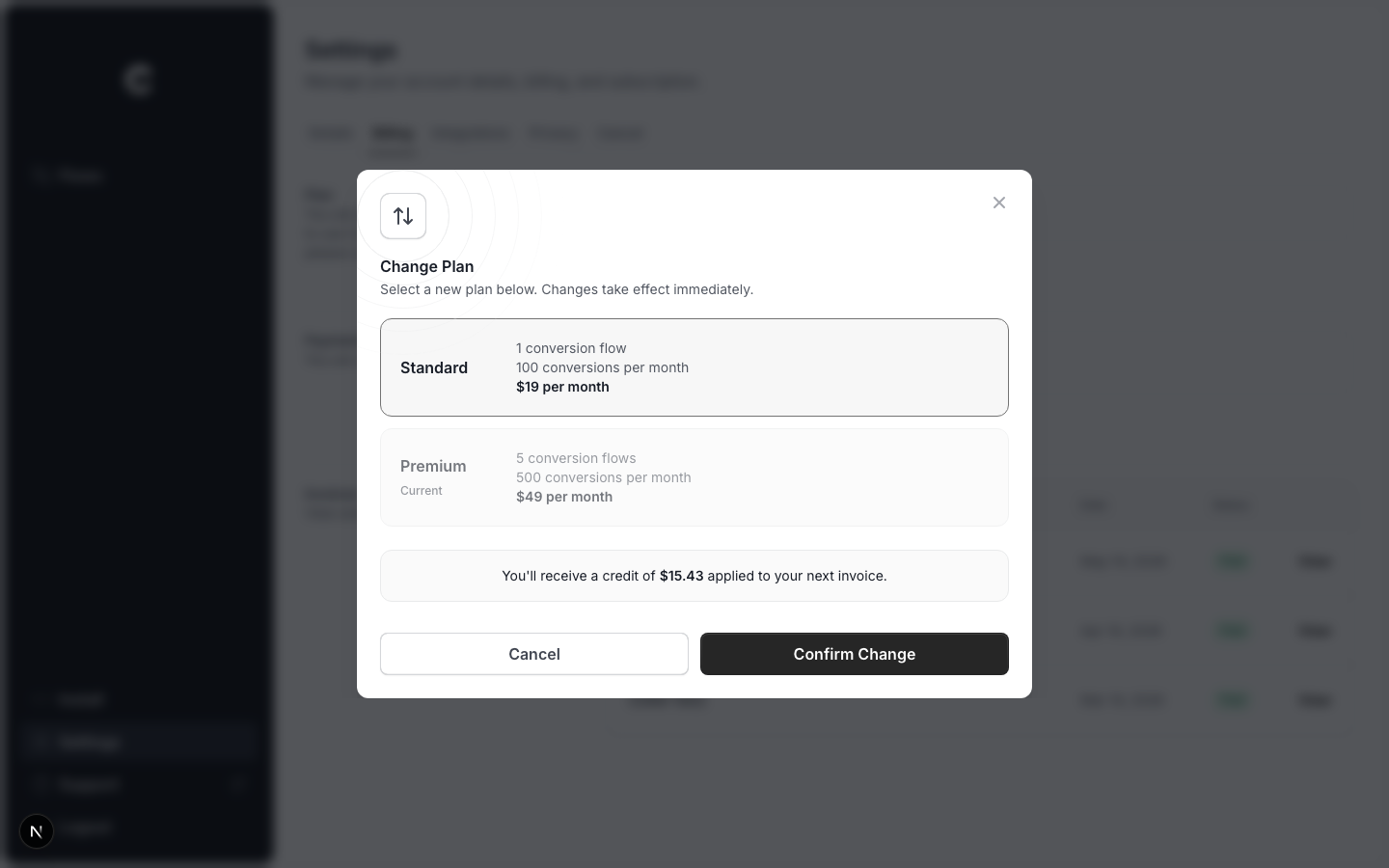
Converly works out the cost straight away. If you are upgrading, you are charged a prorated amount today for the rest of the billing period. If you are downgrading, you get a credit applied to your next invoice. Check the amount, then click Confirm Change.
Cancelling? Reactivate first
If your subscription is already scheduled to cancel, the Change Plan button is hidden. Reactivate your subscription first, then change the plan.