
Fillout lets you embed forms on your website to capture leads. This guide turns saved responses from those forms into conversions you can send to your ad platforms.
There is no account to connect. To set it up, follow the instructions below:
Before you start: Embed your Fillout form on a live page and install Converly on that website page. Simply follow Install Converly for your website's instructions.
This integration covers standard, pop-up, slider and full-screen embeds served from https://embed.fillout.com on your own website. Fillout's hosted share links at forms.fillout.com and custom Fillout domains are not covered. The form must be embedded on a page running Converly.
Forms that redirect visitors to another page after submission, payment blocks and scheduling blocks are not covered by this integration.
Step 1: Create a flow
A flow is the rule that turns a form submission into a conversion. Click Flows in the left sidebar, then Create New Flow, and give it a name like "Contact form leads".
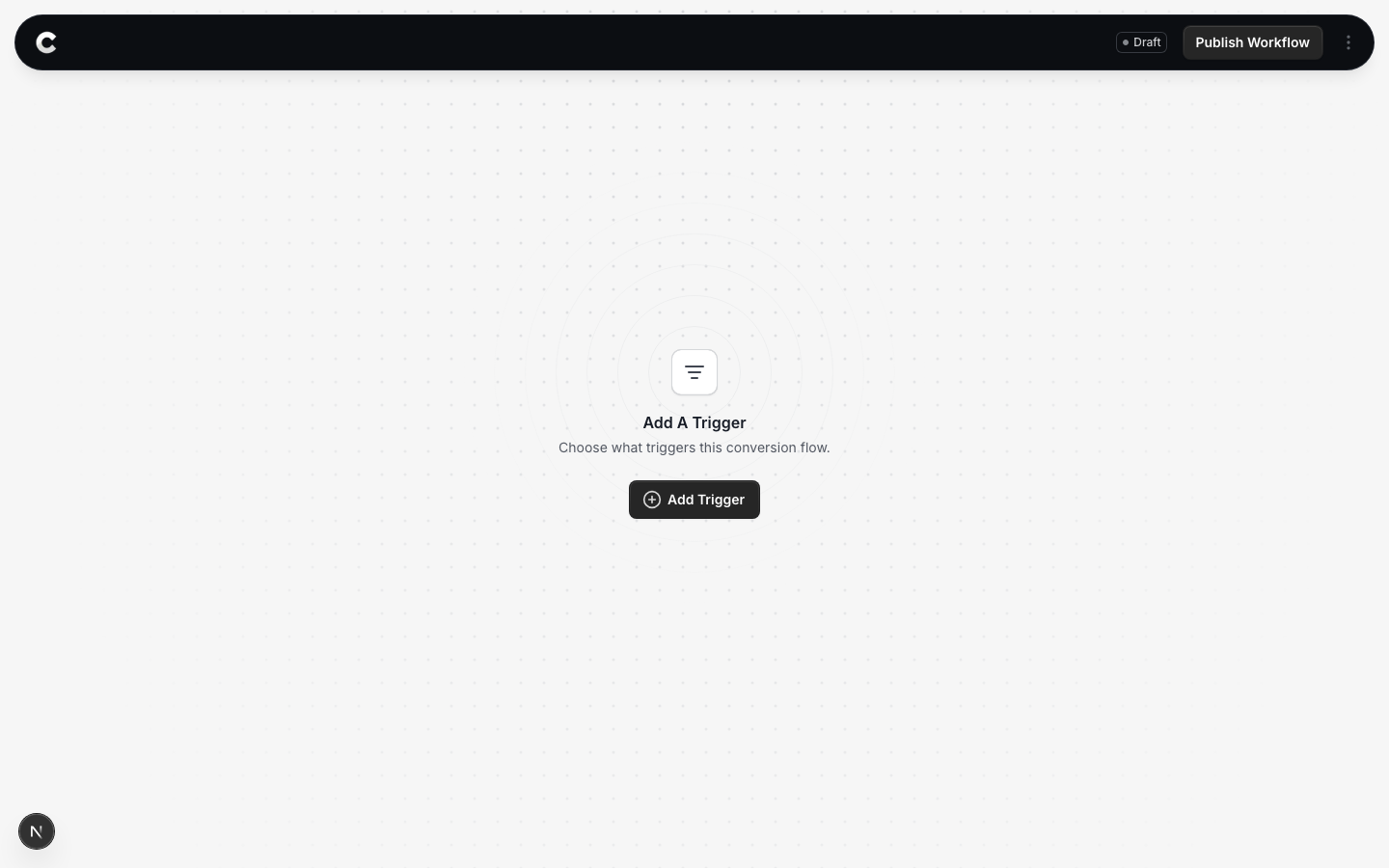
You land in the flow builder. It is empty for now. Click Add Trigger to choose what starts this flow.
Step 2: Choose Fillout Forms
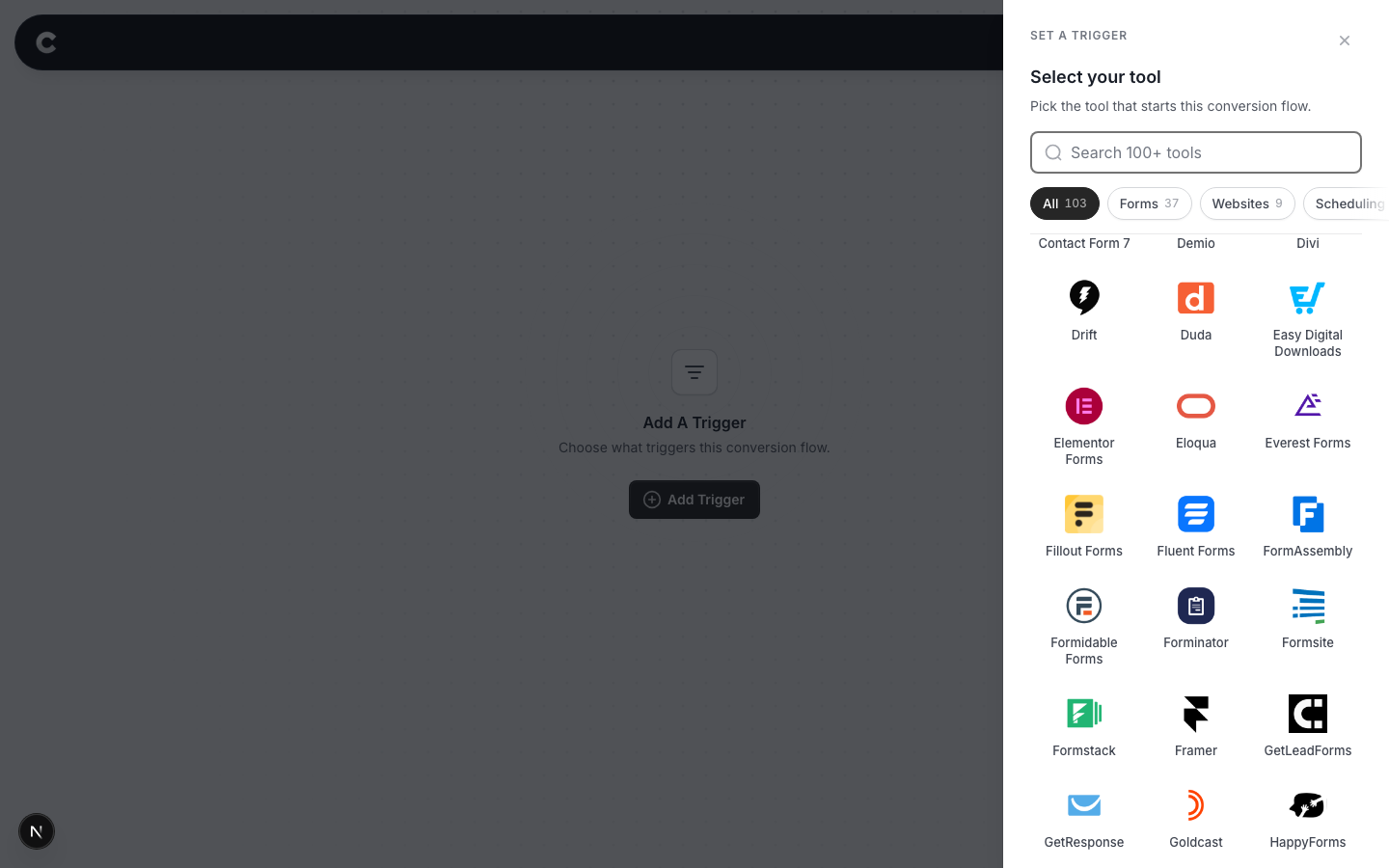
A panel slides in from the right listing every lead capture tool Converly supports, grouped by type.
Click Fillout Forms. If you do not see it straight away, scroll the panel or use the search box at the top.
Step 3: Choose where it fires
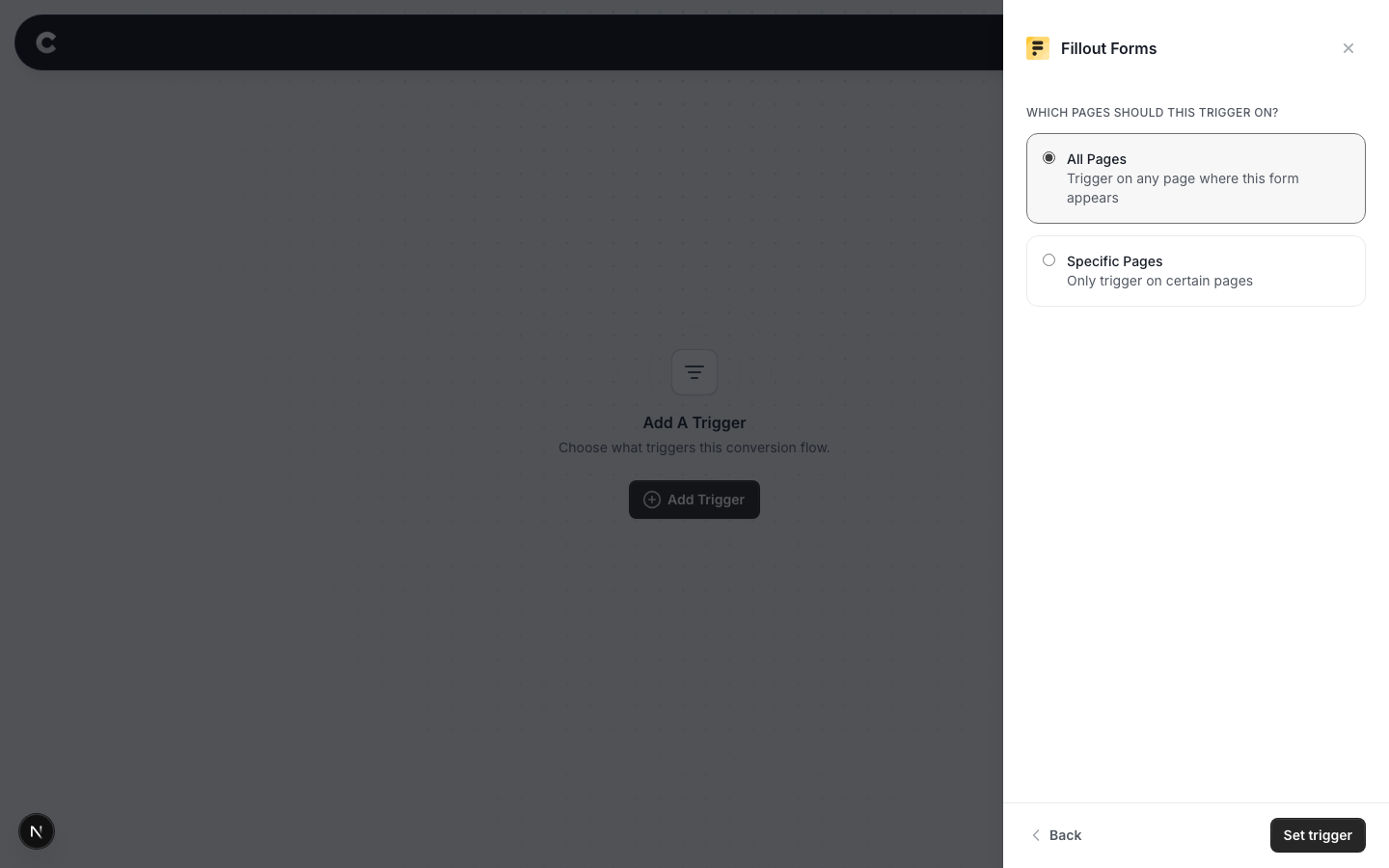
Converly listens for saved responses from Fillout embeds on your site. Use the page setting to select where the form appears.
Read this before you choose
Without a specific page, every supported Fillout form on your site can count as the same conversion. That includes forms opened in pop-ups, sliders and full-screen embeds.
Option 1: Trigger on all pages
A conversion fires whenever someone submits a supported Fillout embed on any page of your site. Choose this if all those submissions should count together.
Option 2: Trigger on specific pages
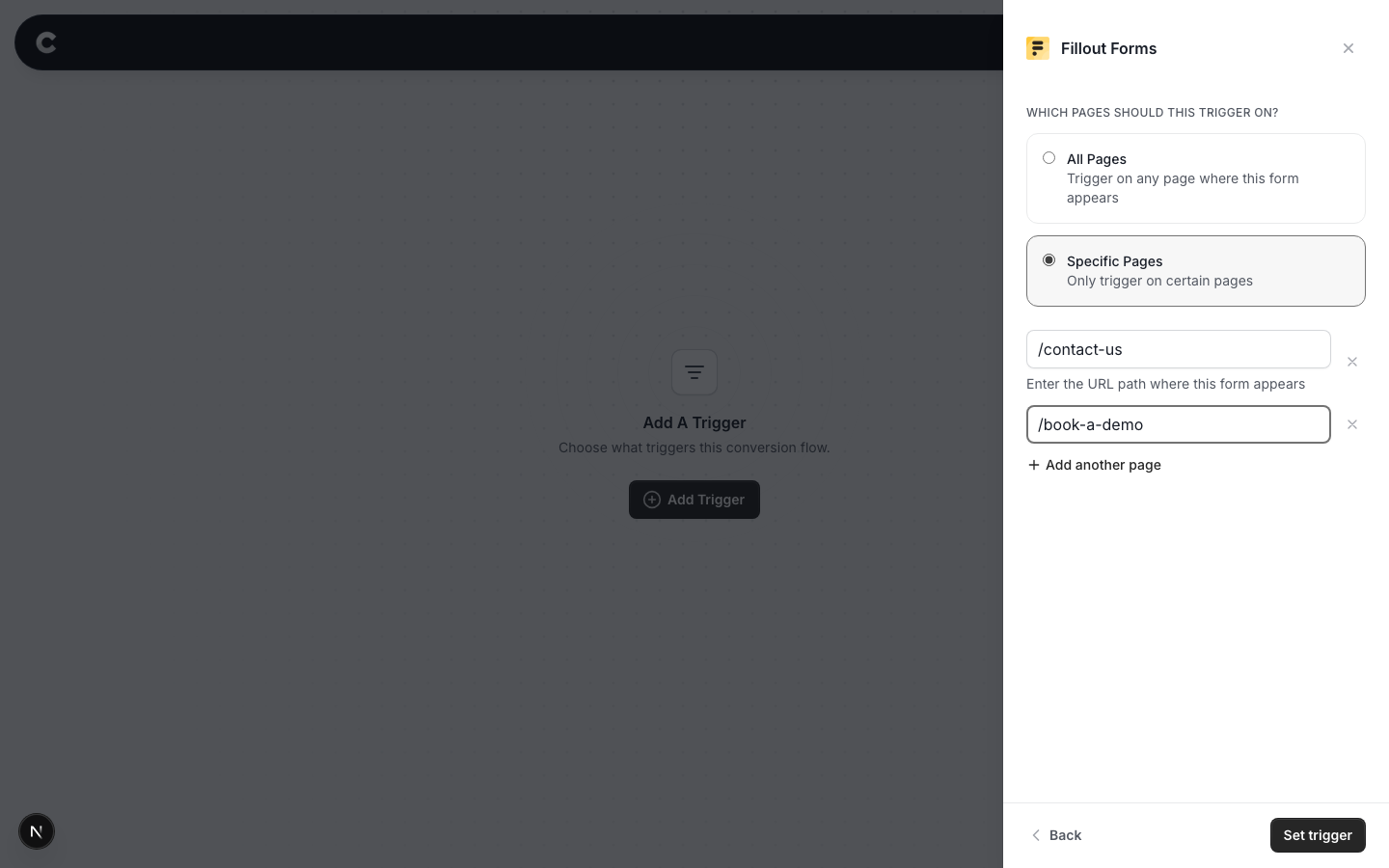
To count a form on https://www.yoursite.com/contact-us, select Specific Pages and enter /contact-us. The path is just the part after your domain. Start it with a slash, and do not include the domain.
Use the website page containing the embed, including the page that opens a pop-up or slider. Do not enter the Fillout-hosted address.
Click Add another page if you want to include more than one page, or the x to remove one.
If 2 Fillout forms share one page
Page filtering includes both forms, so both count as this conversion. To count only one, put it on its own page, or contact support before publishing.
When you have picked an option, click Set trigger.
What happens next
A trigger on its own does not send anything yet. Next you add one or more destinations (Google Ads, Meta, and so on) and publish the flow. See Building a flow for that part.
Multi-page forms count once, at the final accepted submission. Opening a form, moving to the next page, rejected answers and unfinished submissions do not count.
A second accepted response from the same open form without reloading is not counted separately. Reload the form before testing another submission.
Fillout's Verify you are human check is normal and does not prevent a completed submission from counting. The visitor must finish the check and submit successfully. A response still waiting on that check does not count.
Converly can collect email, name and phone details from the confirmed submission when supported fields are provided. Other answers are not used as contact details.
That's it! The final step is to test your setup in a new incognito window. Complete the embedded form on your live website with a real email address, including any human verification check. Then click Logs in Converly's left sidebar and check the destination results for your test. You can read more about how to properly test your setup here.
If submissions are not showing up later, check that Converly is installed on the page containing the embed, the form uses embed.fillout.com, and any page path matches exactly. Check advertising consent and that the flow is Active rather than Draft. Opening a hosted share link or leaving the human verification check unfinished does not test a completed submission through this integration.