
Formsite lets you embed forms on your website or share a hosted form. This guide counts submissions that send visitors to a marked thank-you page on your own site.
There is no account to connect. To set it up, follow the instructions below:
Before you start: Install the normal Converly code on your original website page and the final thank-you page. Follow Install Converly for your website's instructions. You do not add the code inside Formsite.
In Formsite, set the form's Success Page to Redirect, using a page on your site. Add the formsite_form marker exactly like this:
https://www.example.com/thank-you?formsite_form=contact
Replace the example website with yours. If the address already contains a question mark, add &formsite_form=contact instead. Choose a short, stable form key such as contact, never an email address or other personal detail. Use 1 to 64 lowercase letters, digits, underscores or hyphens, starting with a letter.
Forms that only show a thank-you message are not covered. Custom Formsite domains, source-code embeds and thank-you screens that appear without loading a new page are outside this release. Multi-page forms and forms with captcha checks have not yet been verified.
Contact details are optional. To include them, use Formsite's pipe chooser to put selected answers after # in the redirect address. The pattern is #fs_email=[pipe:2?]&fs_first=[pipe:0?]&fs_last=[pipe:1?]&fs_phone=[pipe:3?]. Replace these example item numbers with your own form's item numbers. Only include email, name and phone answers. Never put answers before # or include passwords, payment details or security codes.
Converly removes its recognised contact fields from the address when it runs, but other page scripts may see the address before then. Without these optional answers, a conversion can still count, but contact matching is limited.
Step 1: Create a flow
A flow is the rule that turns a form submission into a conversion. Click Flows in the left sidebar, then Create New Flow, and give it a name like "Contact form leads".
You land in the flow builder. It is empty for now. Click Add Trigger to choose what starts this flow.
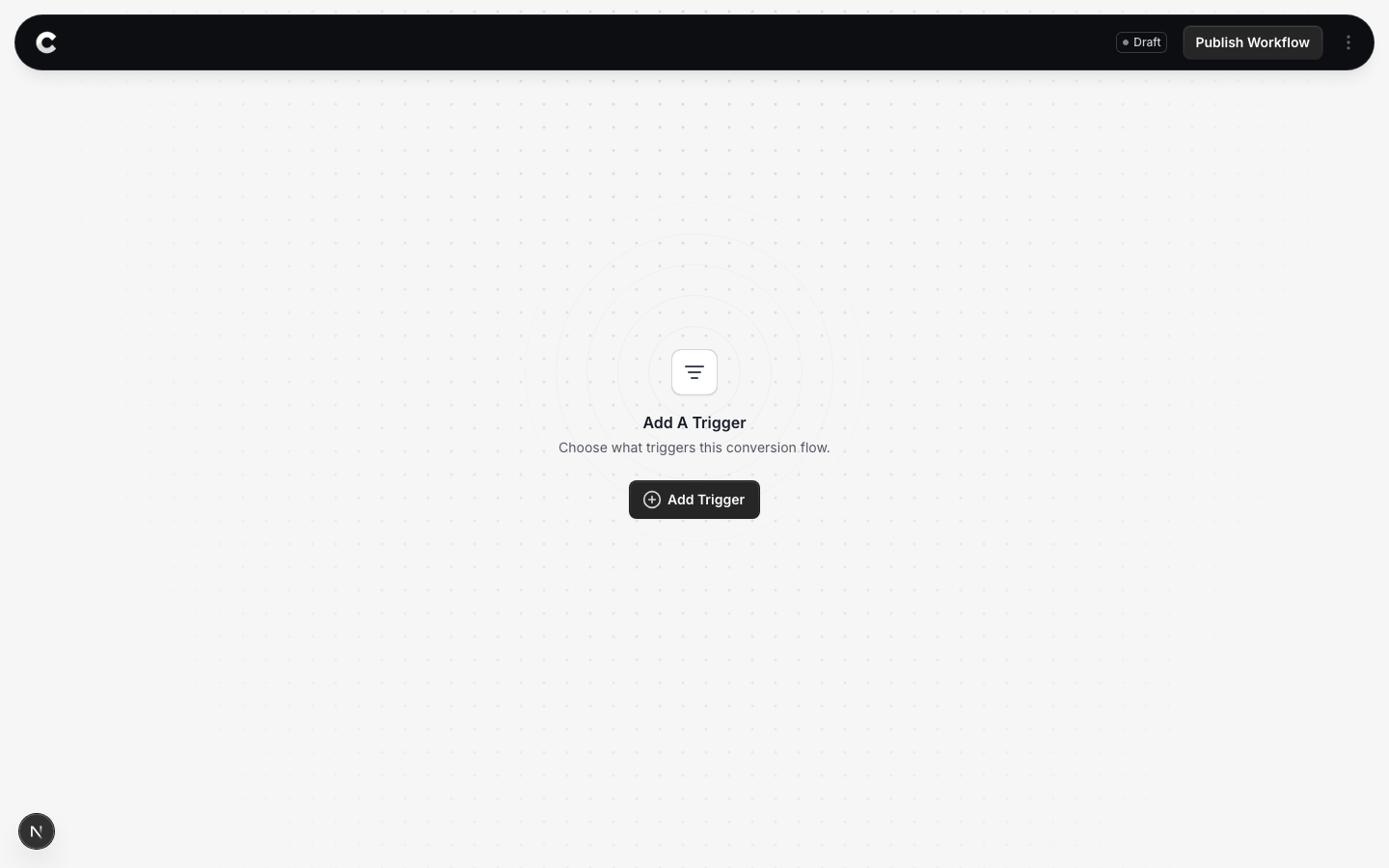
Step 2: Choose Formsite
A panel slides in from the right listing every lead capture tool Converly supports, grouped by type.
Click Formsite. If you do not see it straight away, scroll the panel or use the search box at the top.
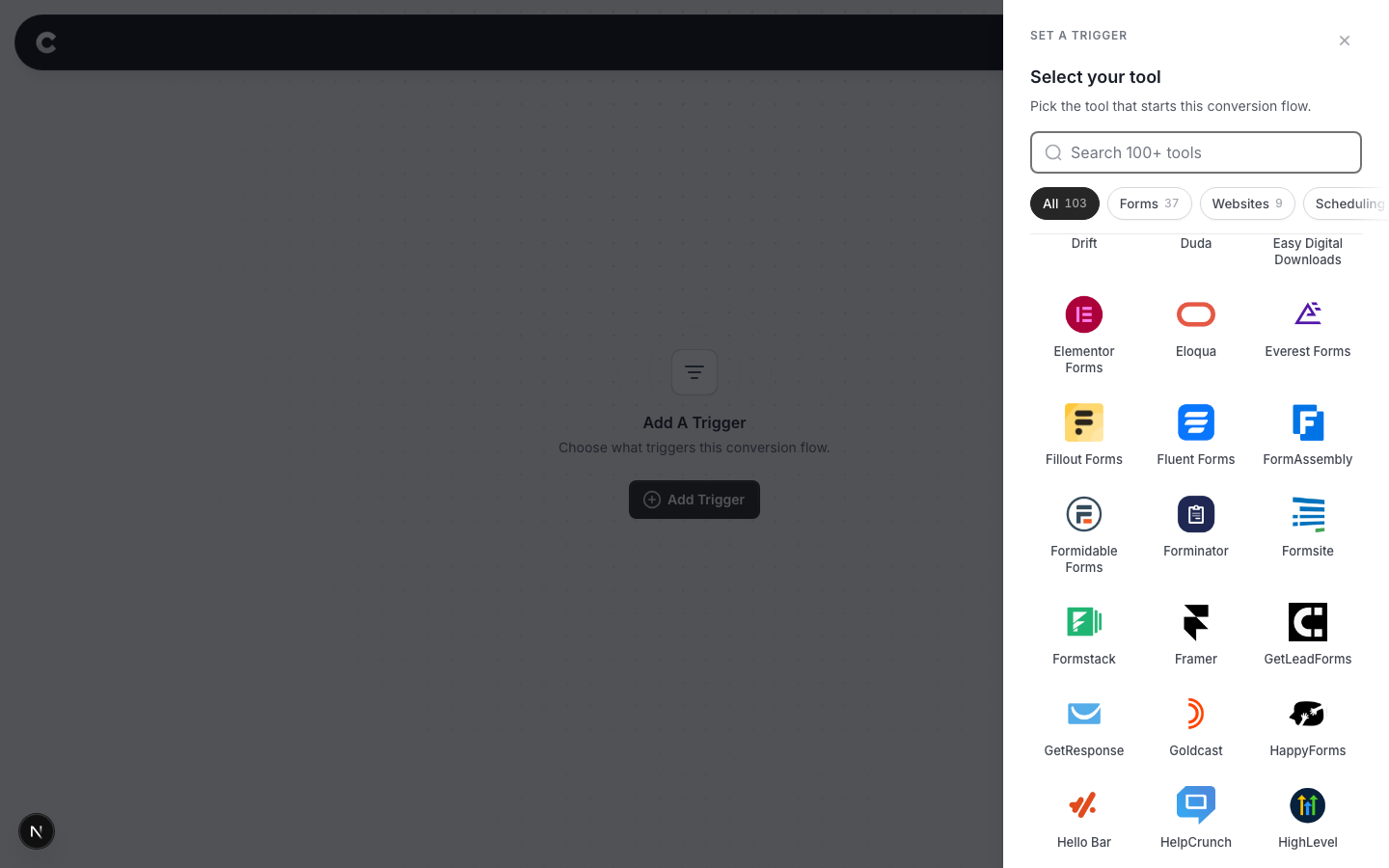
Step 3: Choose where it fires
For Formsite, the page setting refers to the thank-you page visitors reach after submitting.
Read this before you choose
Without a specific page, arrivals from supported Formsite forms at any correctly marked thank-you page can count. If several forms redirect to the same page, page filtering alone includes all of them.
Option 1: Trigger on all pages
Choose this if every qualifying Formsite arrival on your site should count as the same conversion.
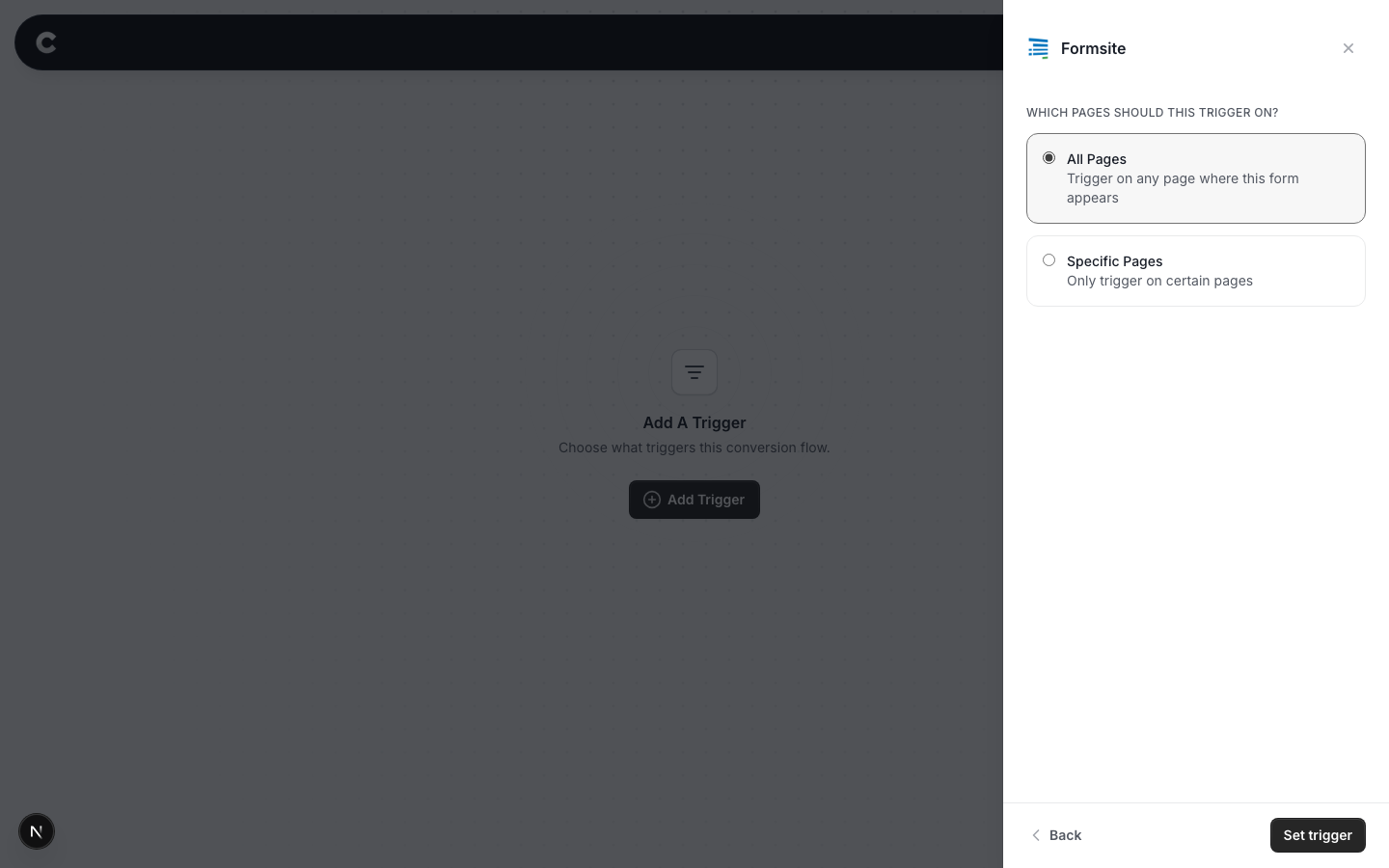
Option 2: Trigger on specific pages
Select Specific Pages and enter the thank-you path, such as /thank-you. Use the part after your domain, starting with a slash. Leave out the ?formsite_form=contact marker and anything after #.
Do not enter the page containing the embedded form or the hosted Formsite address. This trigger checks the page the visitor lands on.
Click Add another page if you want to include more than one page, or the x to remove one.
If two forms share one thank-you page
Page filtering includes both forms, so both count as this conversion. To count only one, give each form its own thank-you page, or contact support before publishing.
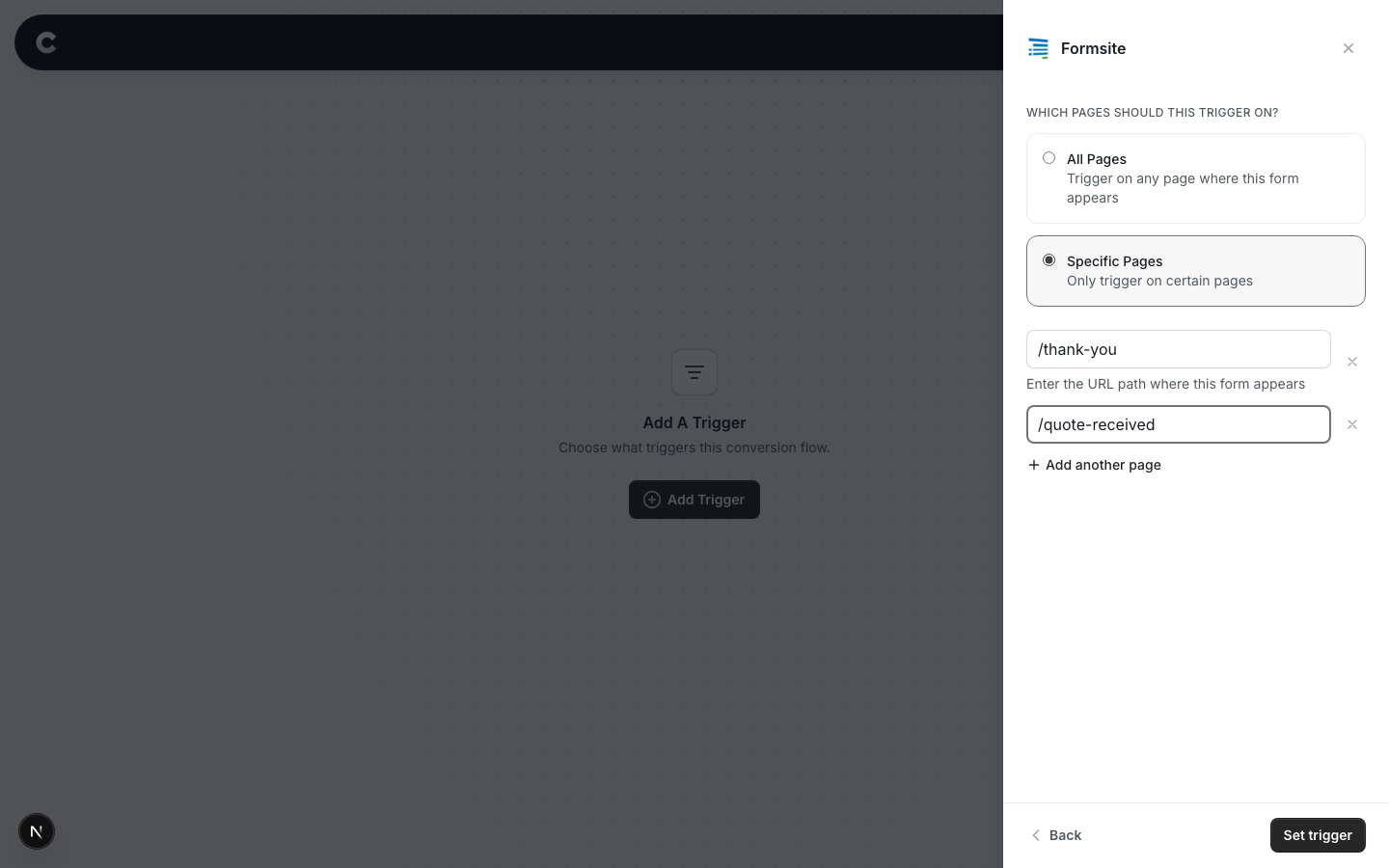
When you have picked an option, click Set trigger.
What happens next
A trigger on its own does not send anything yet. Next you add one or more destinations (Google Ads, Meta, and so on) and publish the flow. See Building a flow for that part.
Converly checks that the marked page was reached directly from Formsite. If the browser hides where the visitor came from, the submission will not count. This arrival check is not proof of a saved submission. A specially constructed link opened from a Formsite form page can also meet the checks.
If a visitor goes straight to a hosted Formsite form without first visiting your site, Converly may not have their earlier marketing source. Also check for any existing Google Tag Manager conversion that would count the same lead twice.
That's it! The final step is to test your setup in a new incognito window. Submit the actual form and let it redirect to your thank-you page. Simply pasting the thank-you address into your browser is not a valid test. Then click Logs in Converly's left sidebar and check the destination results. You can read more about how to properly test your setup here.
If submissions are not showing up later, check the formsite_form marker, the code on both website pages, the direct redirect from Formsite and advertising consent. Make sure your page filter names the thank-you path and the flow is Active rather than Draft.