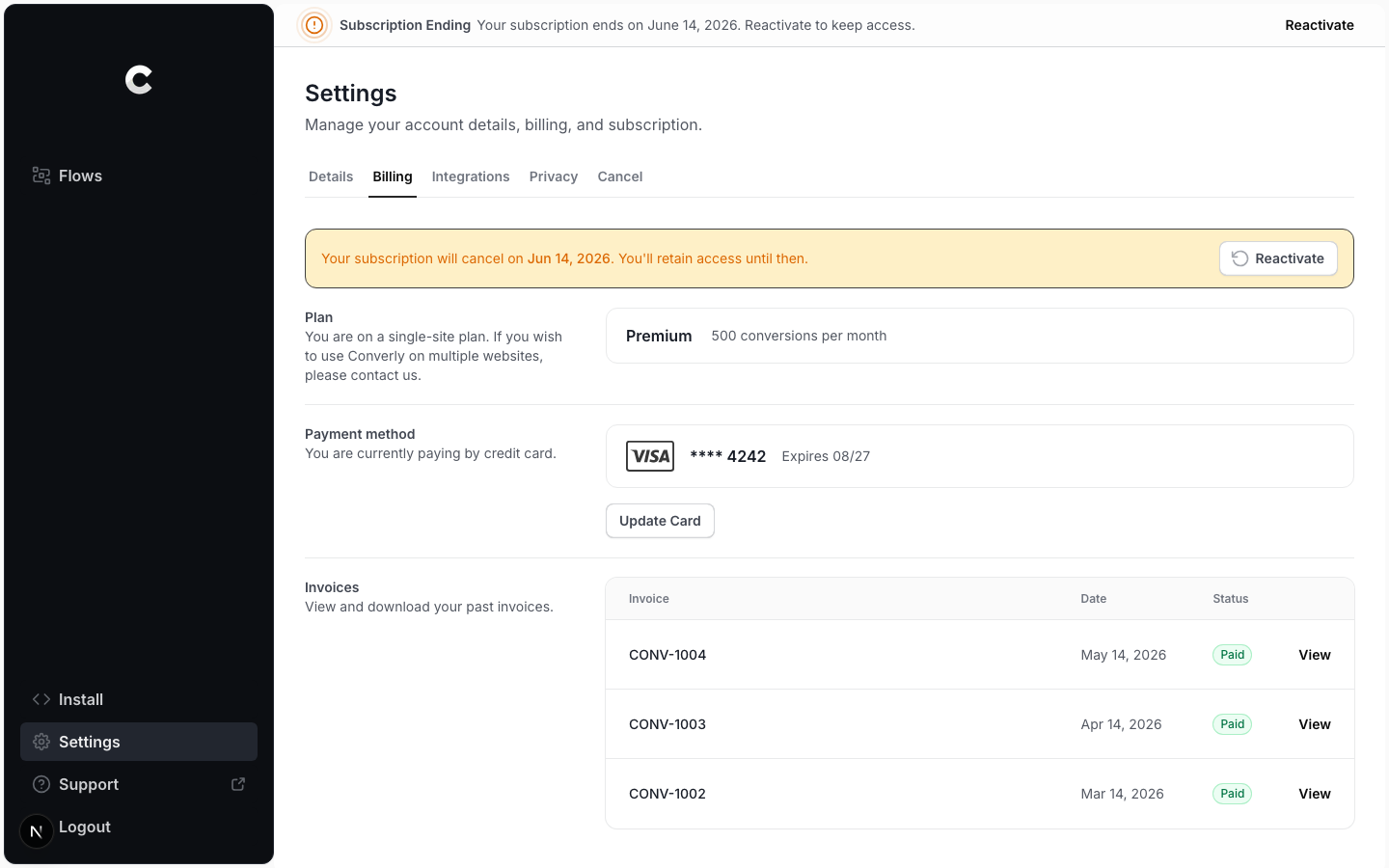
You can cancel your Converly account from Settings. Cancelling is immediate, so read this first.
Cancelling takes effect right away
When you cancel, your subscription ends immediately and all your flows stop firing straight away. It is not an end-of-period cancellation. If you only want to pause spending, consider changing to a smaller plan instead.
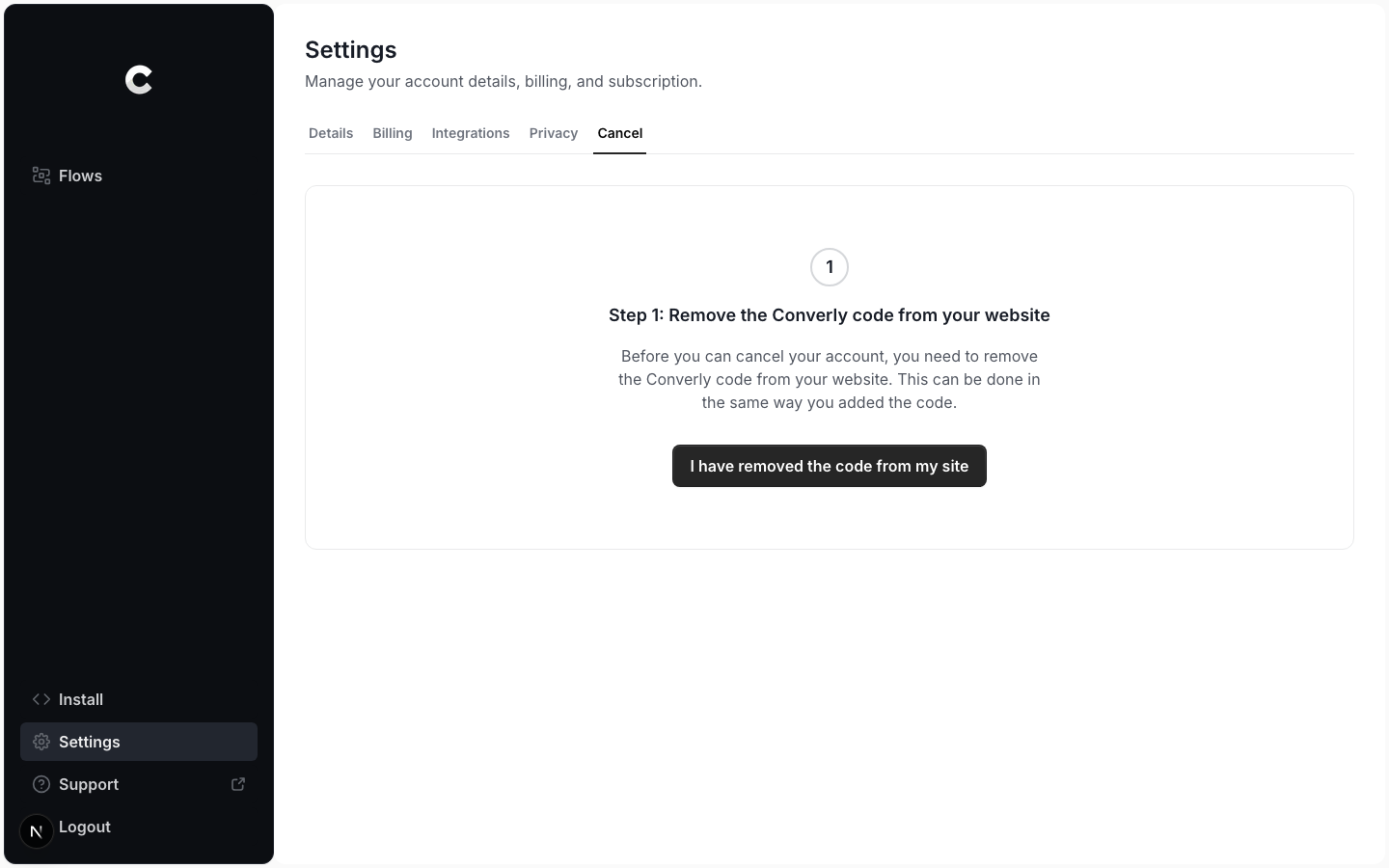
Step 1: Remove the Converly code
Click Settings in the left sidebar, then open the Cancel tab. The first step asks you to remove the Converly code from your website, the same way you added it. Once it is removed, click I have removed the code from my site.
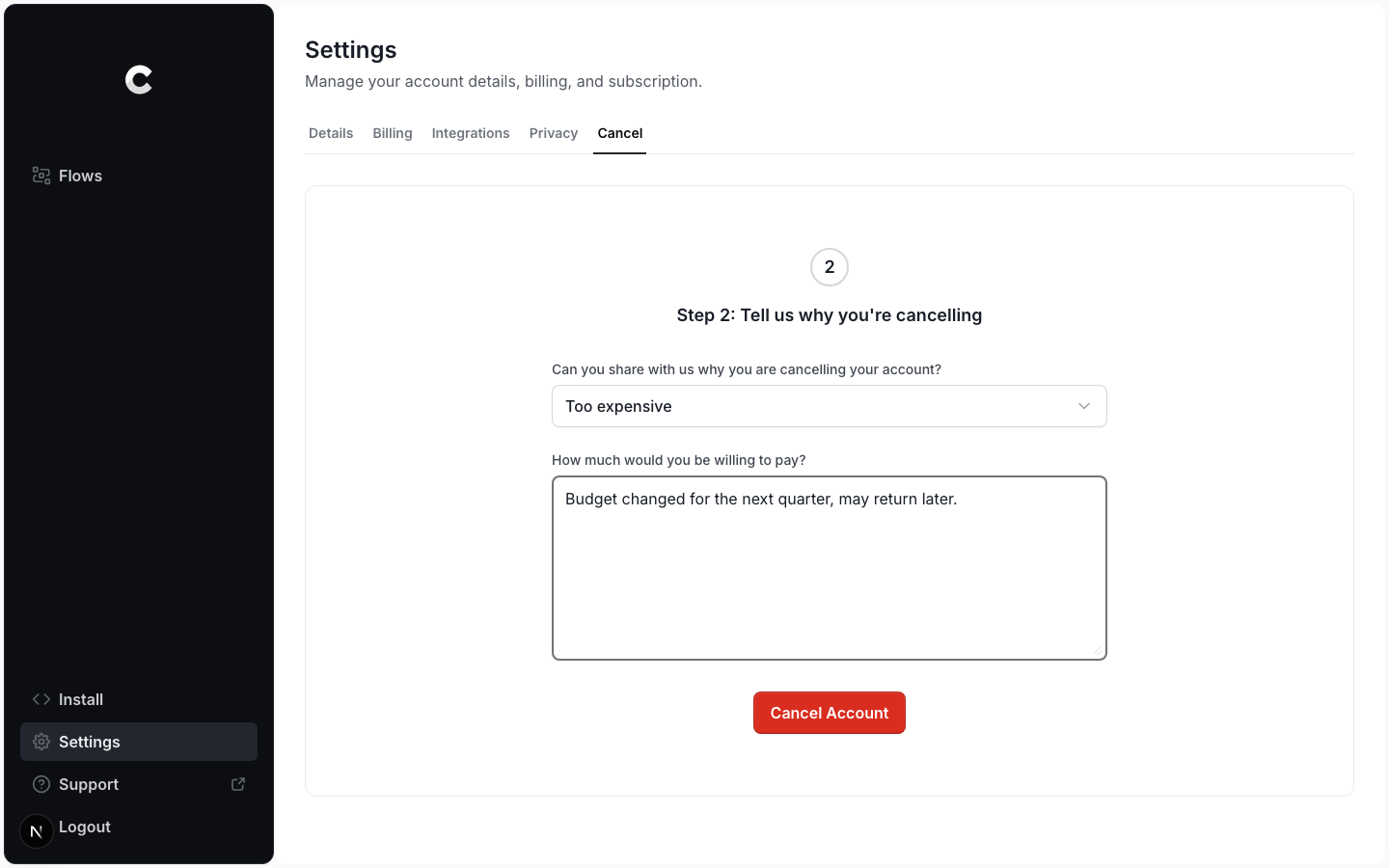
Step 2: Tell us why
Choose a reason for cancelling from the dropdown, then add a short note in the box that appears. Both are required. When you are ready, click Cancel Account.
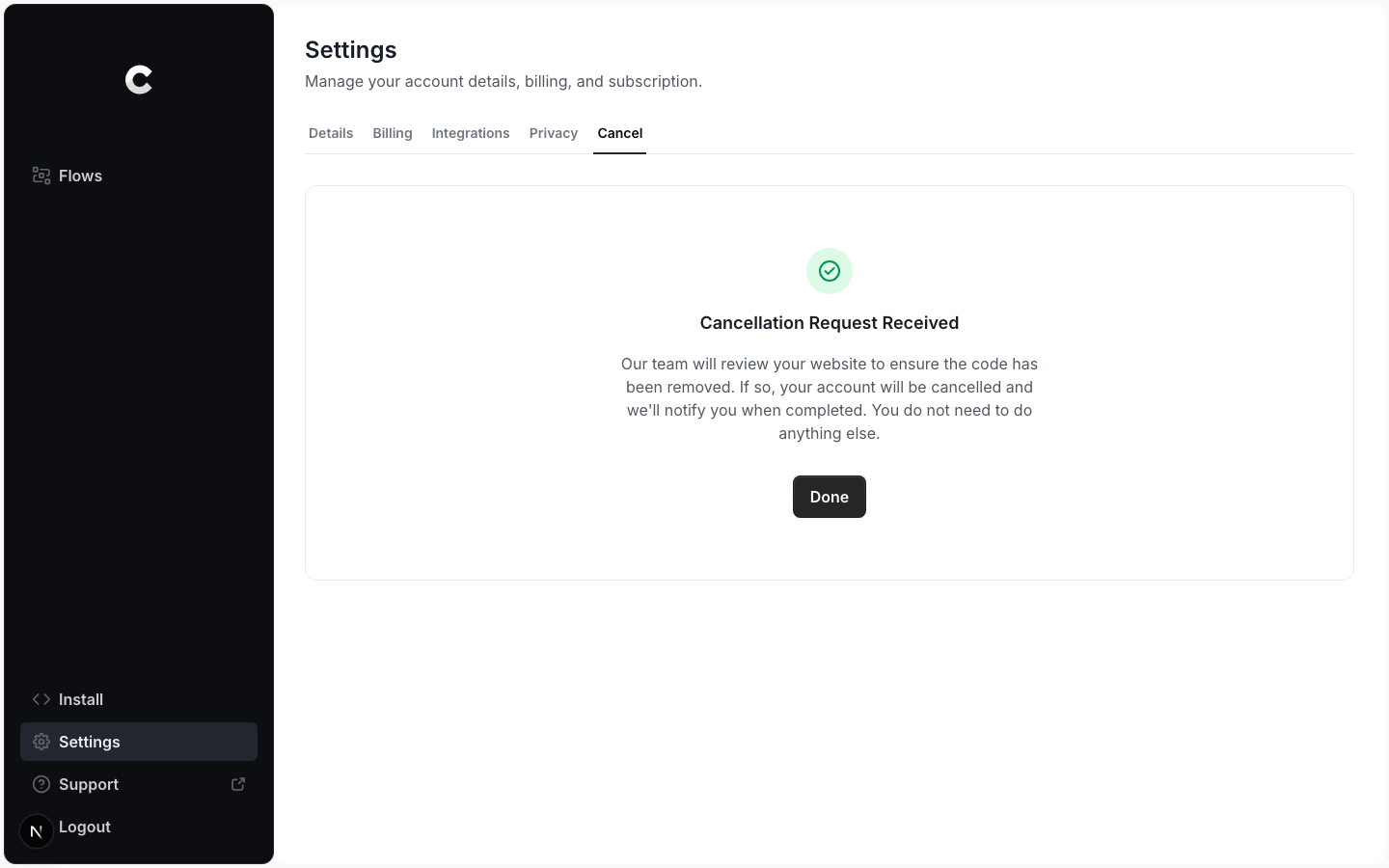
Step 3: Confirmation
You will see a confirmation that your cancellation request was received. Our team reviews your site to check the code has been removed, then completes the cancellation and notifies you. You do not need to do anything else.
Changed your mind? Reactivate
If you scheduled a cancellation and are still within your billing period, you can undo it. Open Settings, go to the Billing tab, and click Reactivate in the notice at the top. Your subscription continues as normal.