
Sending conversions to LinkedIn tells it which ad clicks turned into real leads. LinkedIn uses that to optimise delivery and to report accurately, even when the browser can't be tracked, because Converly also sends server-side through the LinkedIn Conversions API.
One thing that makes LinkedIn a little different is that it counts browser conversions and server conversions in separate conversion rules. Converly handles that for you with 2 rules, and this article shows you where they fit.
A destination is added inside a flow as an action, so you connect LinkedIn while building (or editing) a flow.
Before you start: you need a flow that already has a trigger set up (see Building a flow), and access to your LinkedIn Campaign Manager account.
Step 1: Add an action
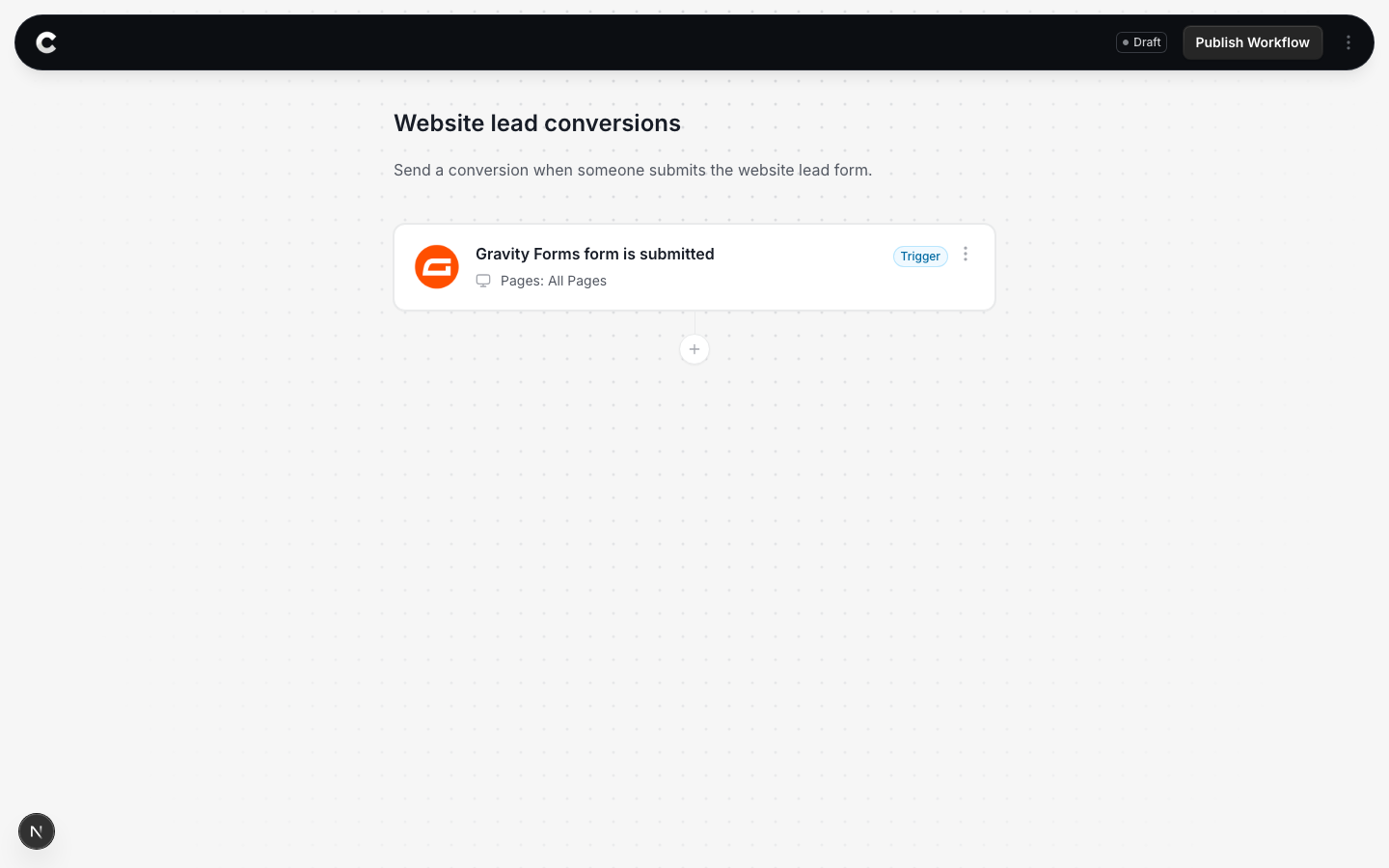
Open the flow with your trigger. Below the trigger card there is a + button. Click it to add an action.
Step 2: Choose LinkedIn Ads
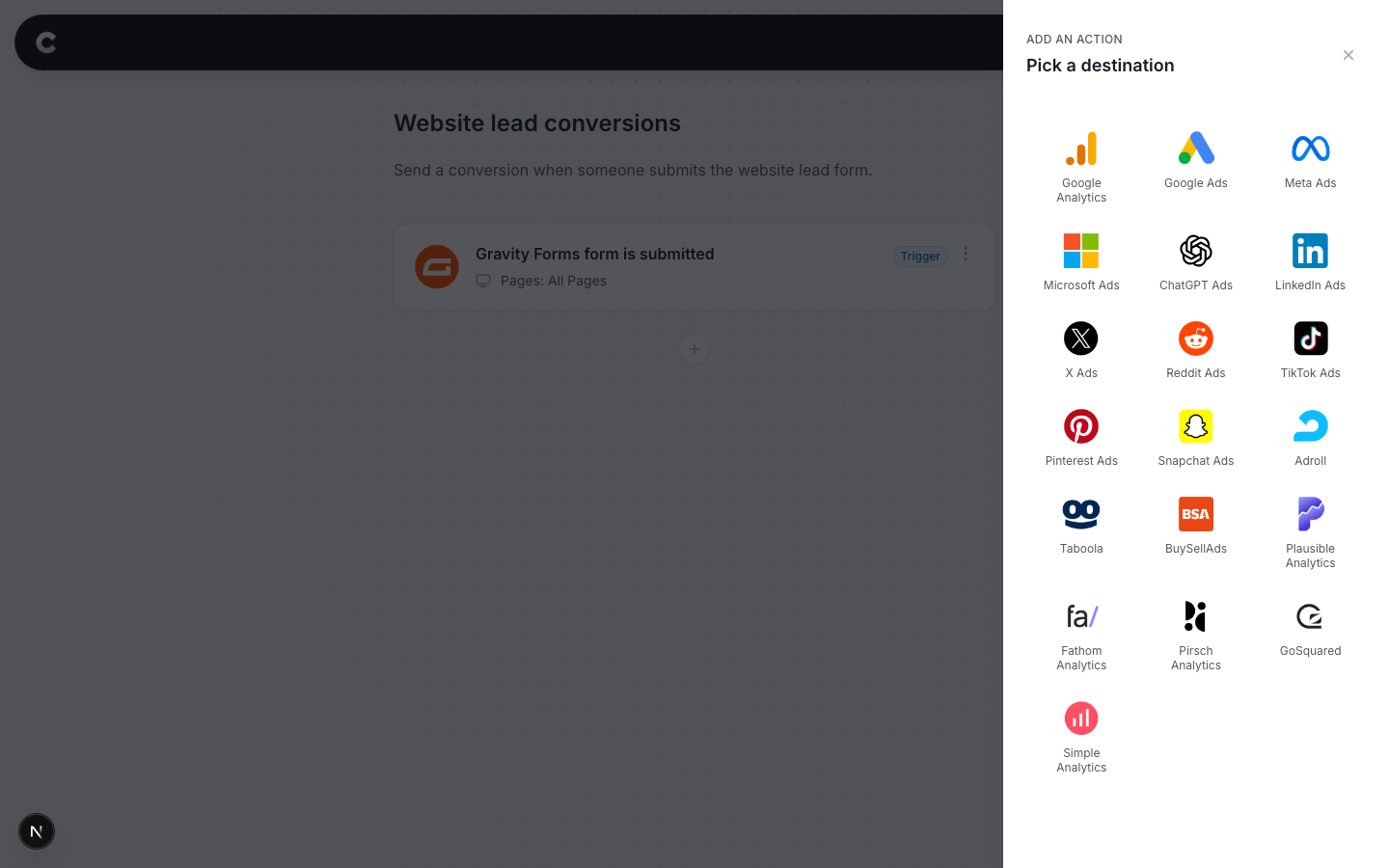
A panel slides in from the right listing every destination Converly can send to. Click LinkedIn Ads.
Step 3: Connect LinkedIn
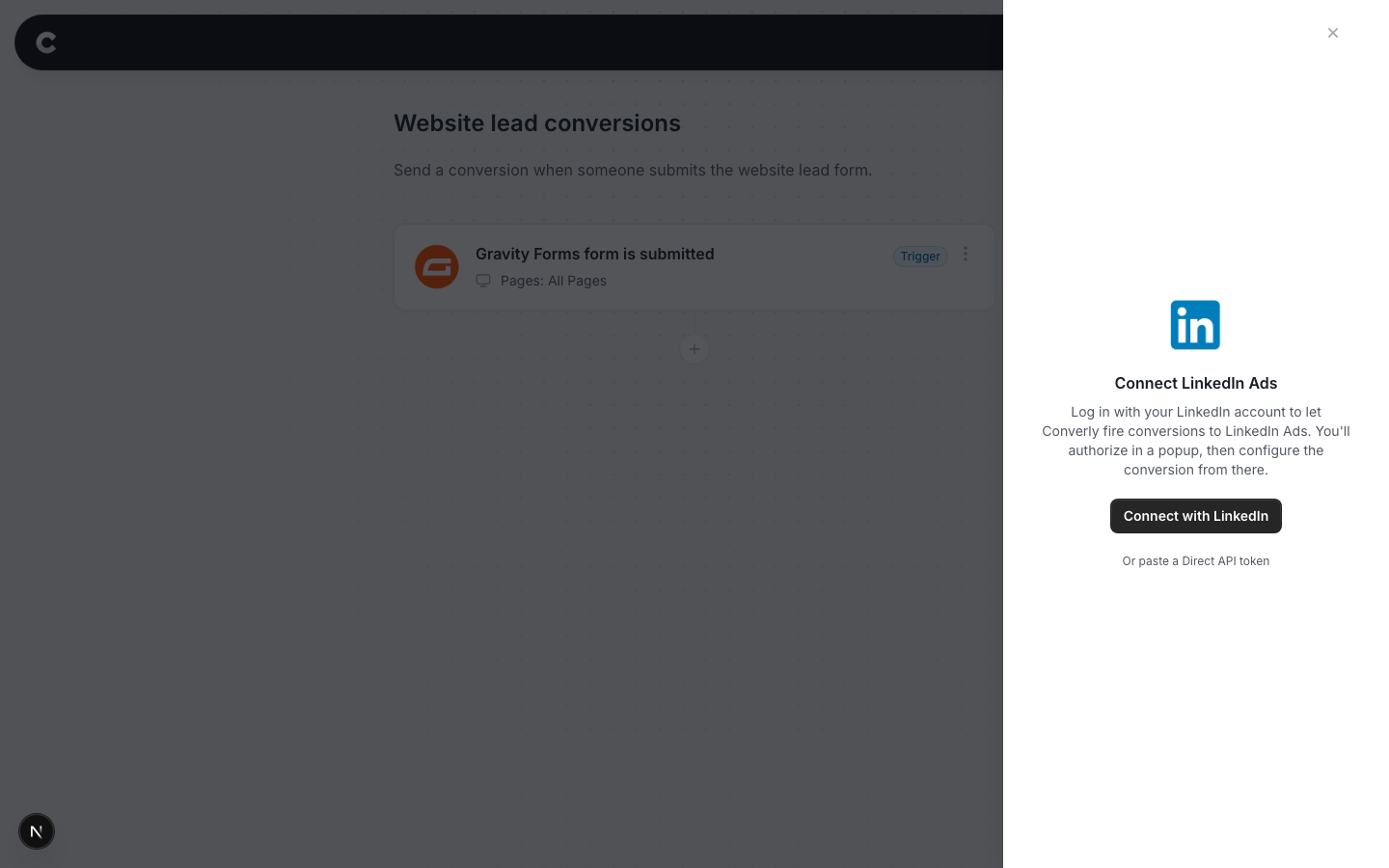
The first time you use LinkedIn you need to connect it. Click Connect with LinkedIn.
A LinkedIn window opens. Sign in with the account that has access to your Campaign Manager, and approve the request. The window closes and you come back to Converly, where you pick which LinkedIn ad account Converly should send conversions to. This is a one time step. After this, LinkedIn stays connected for every flow.
Step 4: Choose your conversion rules
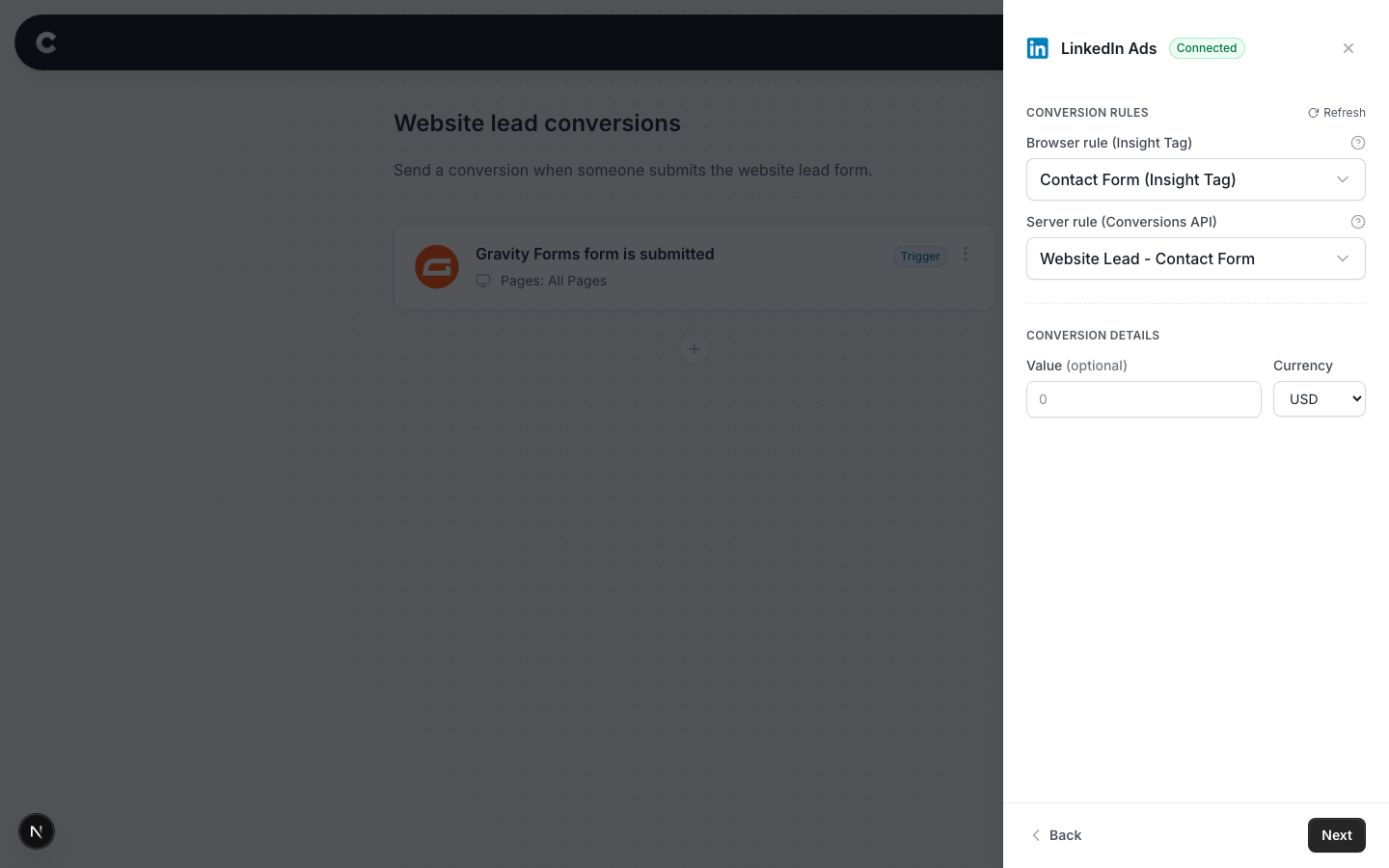
Because LinkedIn counts browser and server conversions separately, Converly asks for 2 rules.
- Browser rule - the conversion LinkedIn records from your visitor's browser, through your Insight Tag.
- Server rule - the conversion Converly fires from its servers, which ad blockers and privacy settings can't stop.
Pick an existing rule in each dropdown, or choose Create a new conversion at the bottom to have Converly create one in your LinkedIn account. Give it a name, pick a category (Lead is the usual choice for form conversions), and Converly sets it up with the right method for that slot.
Step 5: Send a test
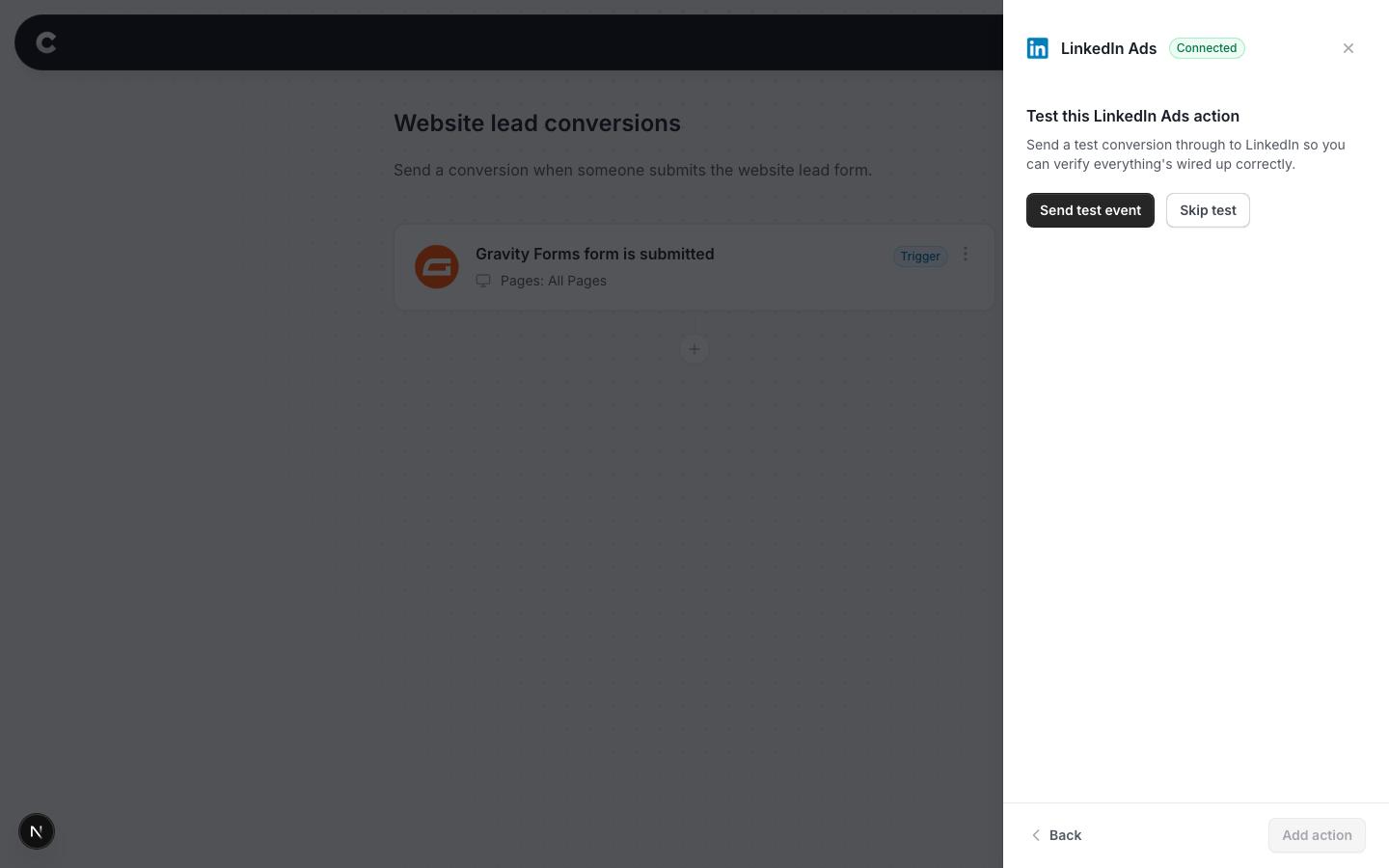
The last step is to make sure everything is working. Click Send test event in Converly.
Then check it arrived. In LinkedIn Campaign Manager, open Measurement, then Conversion tracking. Find your server rule in the list. LinkedIn shows when each conversion last received a signal, and your test should register there. LinkedIn can take a few minutes to update this, so don't worry if it isn't instant.
Once you have seen it, click Add action and publish the flow.
Prefer to paste a token instead?
If you'd rather not use the LinkedIn login, Converly also accepts a LinkedIn Direct API access token pasted directly.
Click paste your own token on the connect screen, then grab the token from Campaign Manager. Open the Measure dropdown in the left menu, select Signals Manager, choose the Direct API option, and click Generate Access Token. Paste it into Converly and continue.
What happens next
Once the flow is published, real conversions flow to LinkedIn automatically. You can also watch them arrive in Converly on the Activity page right away.
If conversions are not showing in LinkedIn later, check that the ad account you connected is the one your campaigns use, that the flow is Active rather than Draft in Converly, and that the connection still shows as connected under Settings.