
Simple Analytics is a privacy-first alternative to Google Analytics. No cookies, no personal data, just clean website stats.
Converly can send your conversions to Simple Analytics as events, so your form submissions show up in your Simple Analytics dashboard alongside your traffic, with the conversion value attached as metadata.
To set it up, follow the instructions below:
Before you start: you need a flow with a trigger already set up (see Building a flow), and the Simple Analytics script needs to be installed on your website. Converly fires the event into the script already running on your page. It does not install Simple Analytics for you.
Step 1: Add an action
Open the flow with your trigger. Below the trigger card there is a + button. Click it to add an action.
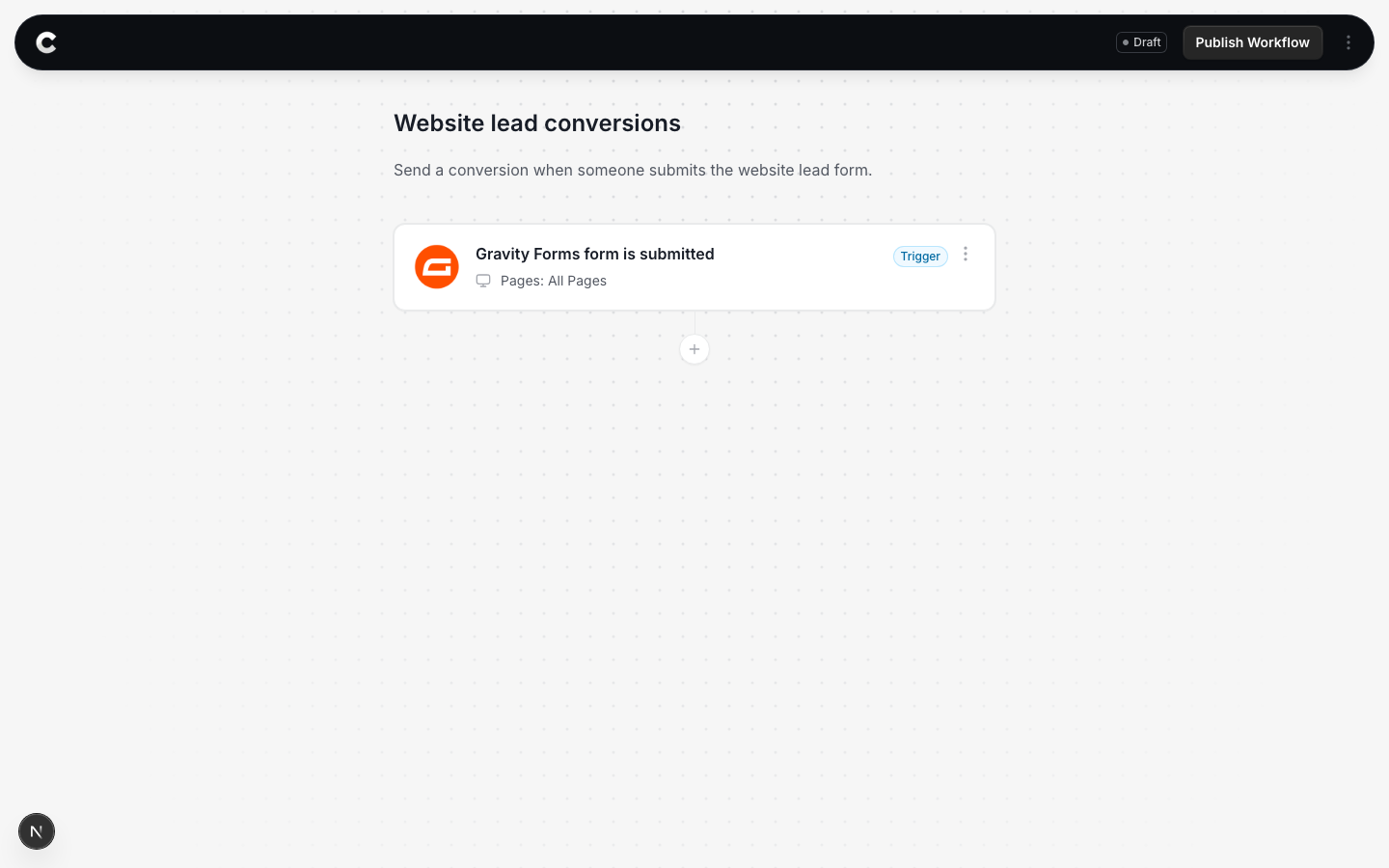
Step 2: Choose Simple Analytics
A panel slides in from the right listing every destination Converly can send to. Click Simple Analytics.
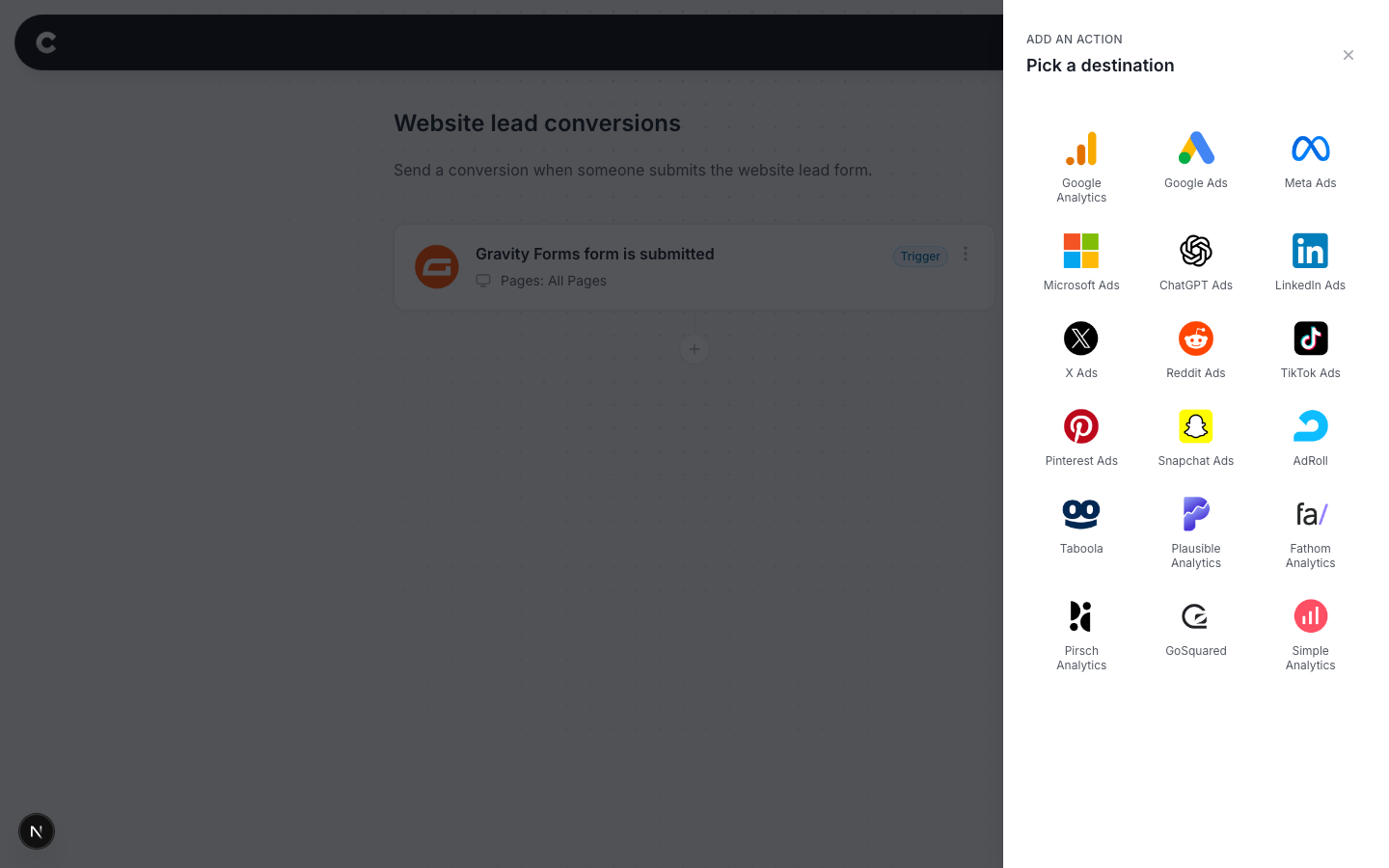
Step 3: Configure the event
The next step is to tell Converly what to send. It should look something like this:
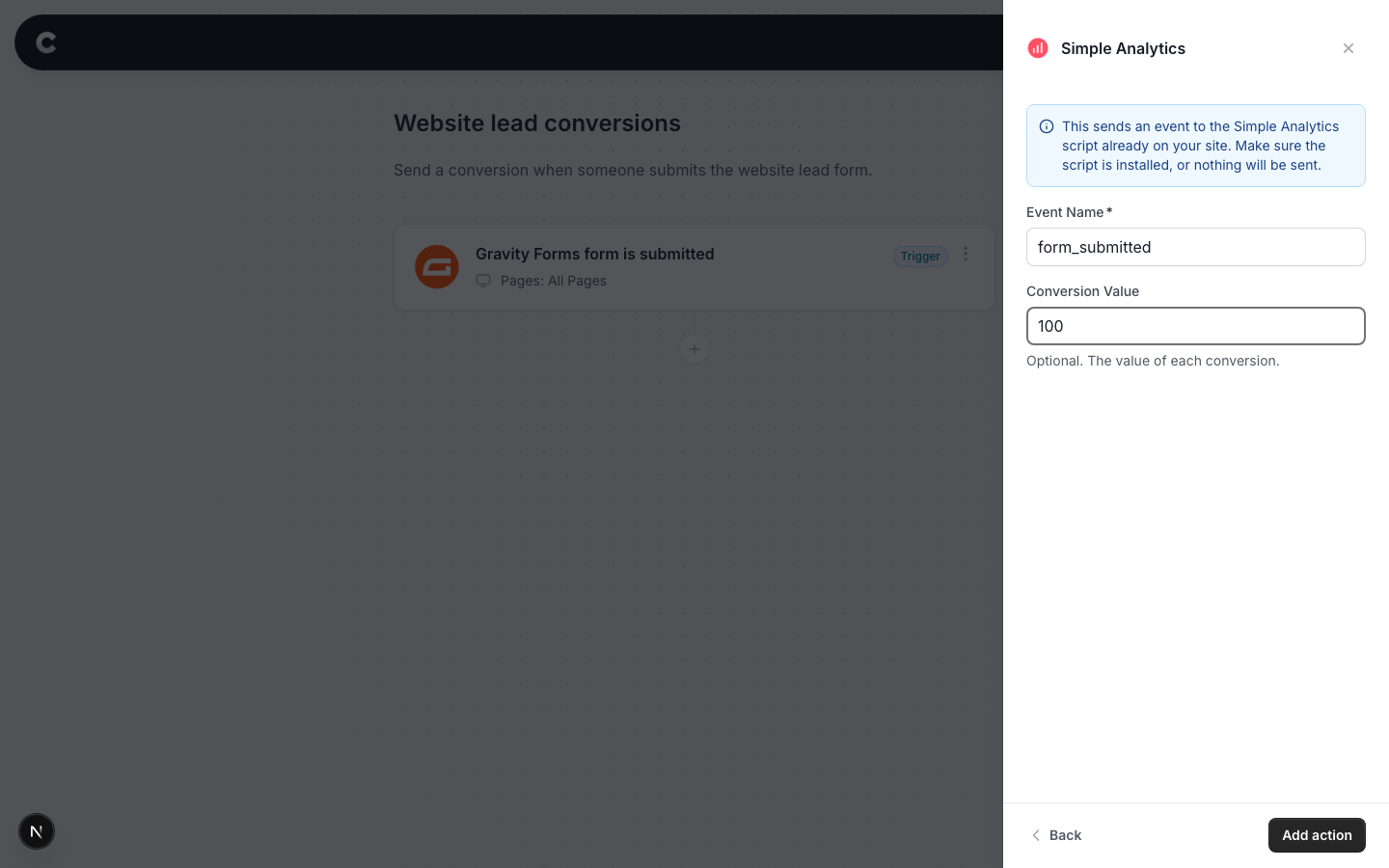
- Event Name = the name the event appears under in Simple Analytics. The default, form_submitted, follows their naming style (lowercase with underscores).
- Conversion Value = optional. What a conversion is worth to you, in normal dollars (100 means $100). Converly attaches it to the event as metadata whenever it is above 0.
Click Add action, then publish your flow.
There is nothing to set up on the Simple Analytics side. Events appear automatically the first time one arrives.
Step 4: Test it works
That's it! You've set everything up!
The final step is to make sure everything is working. To do this, open a new incognito window and submit the form on your website that triggers your flow.
Then check 2 places:
- In Converly, click Logs in the left sidebar to open your conversion log. You should see the conversion with Simple Analytics marked as fired.
- In Simple Analytics, open the Events tab for your website. Your event name should appear with a count. To see the conversion value, click Add a column and choose the value field from the metadata list.
Nothing showing up in Simple Analytics?
2 things to check. First, if the conversion shows as Pixel not found in your Converly conversion log, the Simple Analytics script was not on the page when the form was submitted. Add their snippet to your site and test again. Second, Simple Analytics filters out traffic that looks automated. If you test with a bot, a testing tool, or an unusual browser, they may silently ignore the visit and the event. Always test in a normal browser.