
Taboola is a native advertising platform that places your ads across a huge network of publisher websites.
Converly can fire your conversions into the Taboola pixel on your website, so Taboola knows which campaigns and placements are actually turning into leads and can optimise your spend accordingly.
To set it up, follow the instructions below:
Before you start: you need a flow with a trigger already set up (see Building a flow), and the Taboola pixel needs to be installed on your website. Converly fires the conversion into the pixel already running on your page. It does not install the pixel for you.
Step 1: Add an action
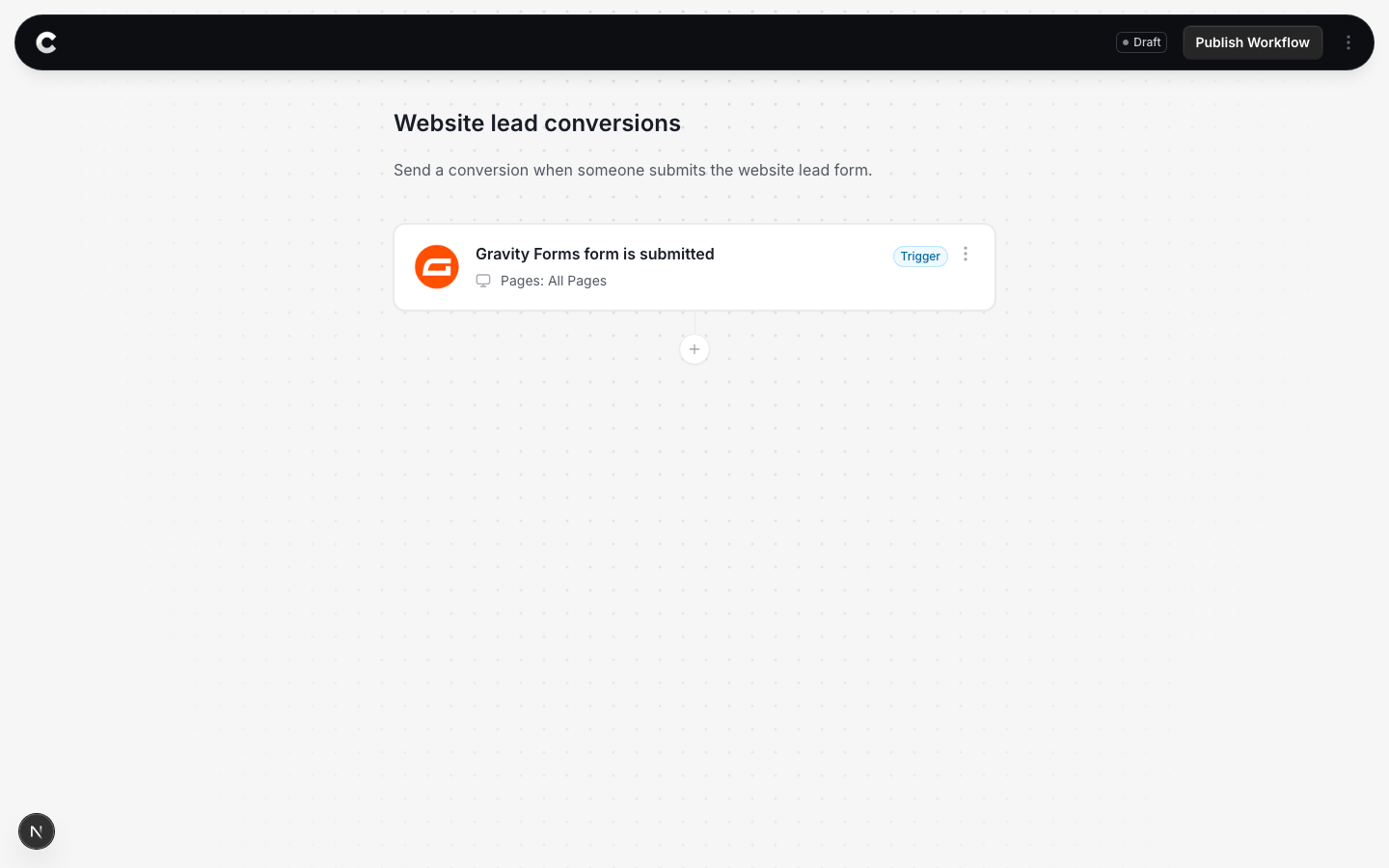
Open the flow with your trigger. Below the trigger card there is a + button. Click it to add an action.
Step 2: Choose Taboola
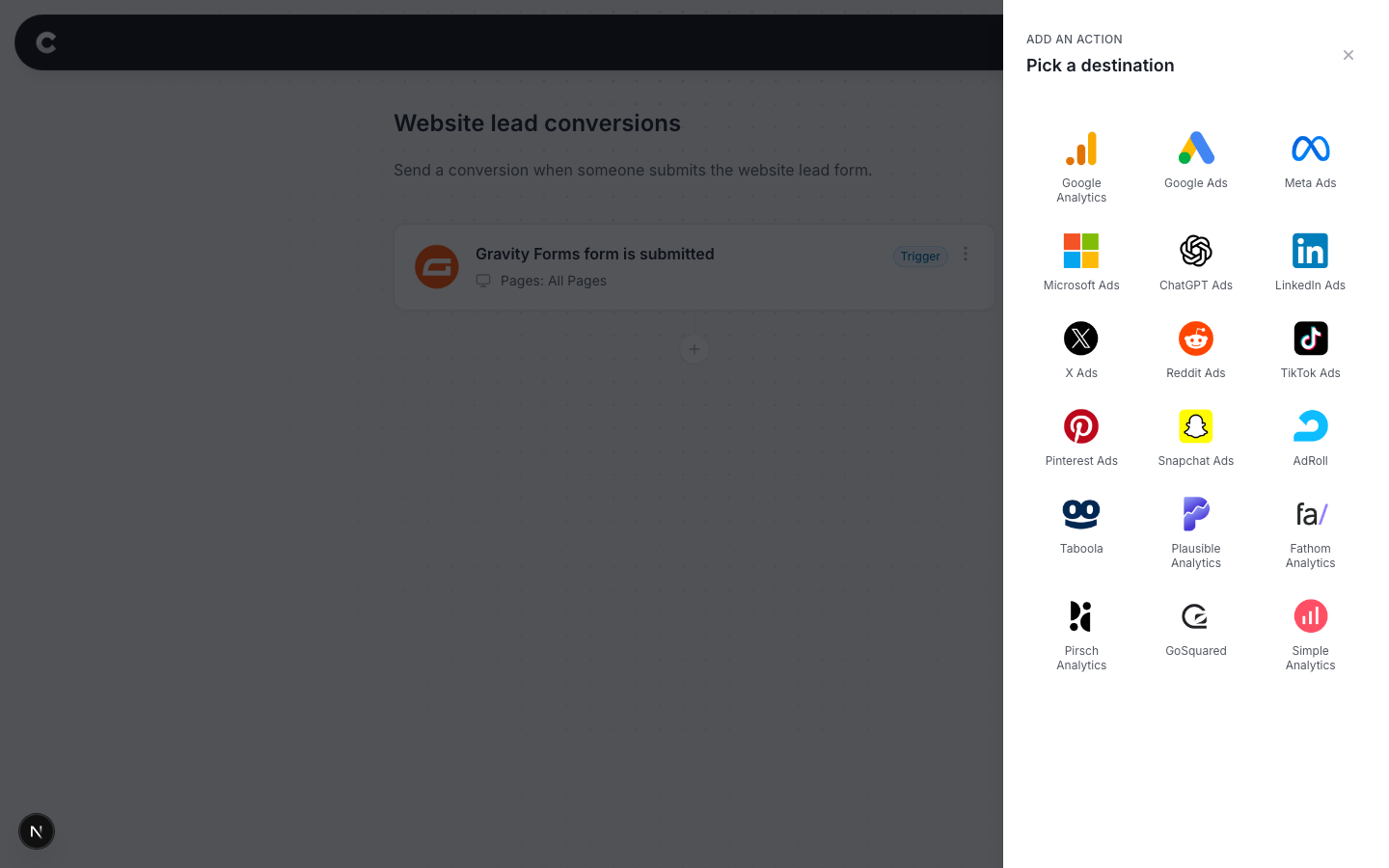
A panel slides in from the right listing every destination Converly can send to. Click Taboola.
Step 3: Configure the conversion
The next step is to tell Converly what to send. It should look something like this:
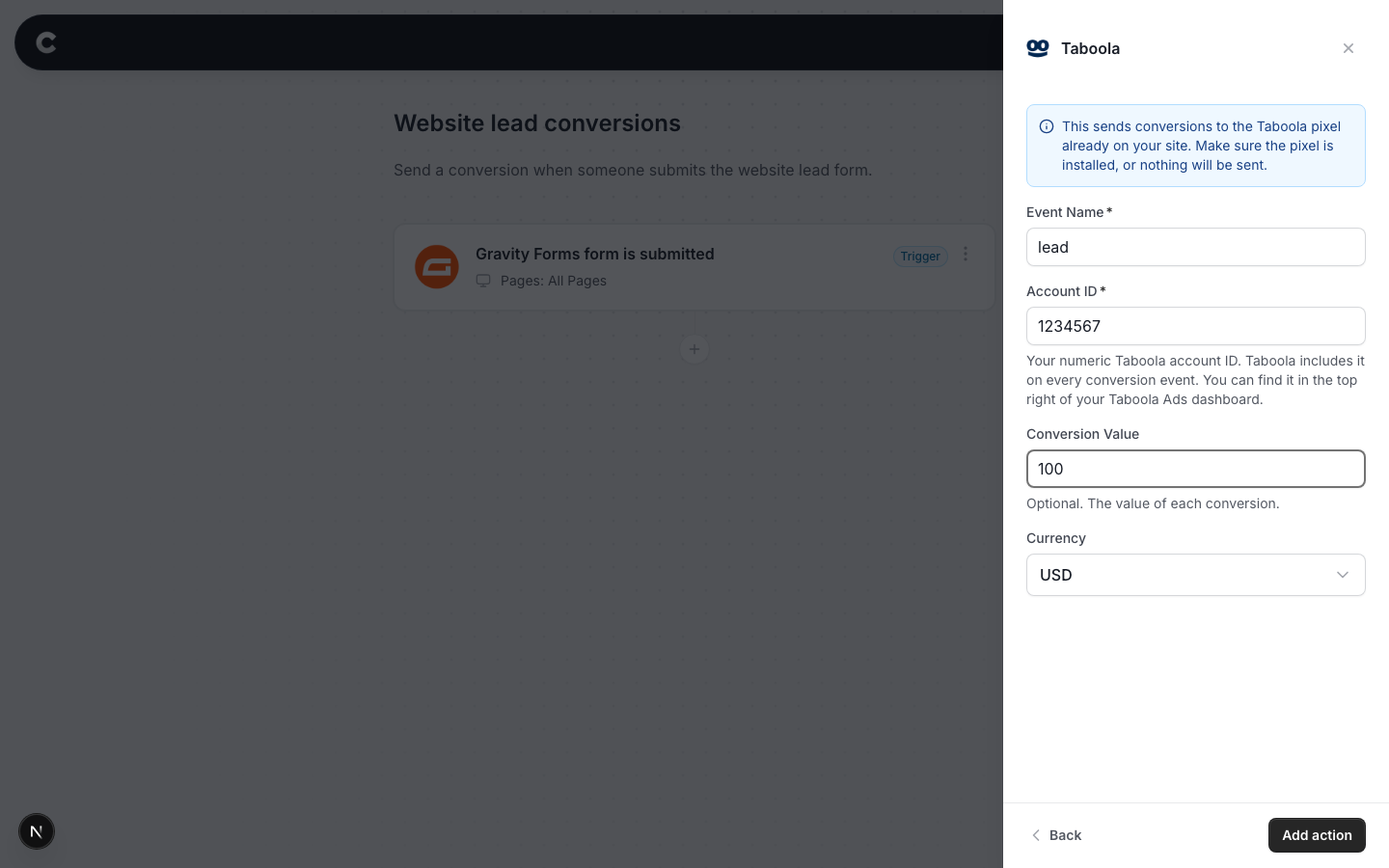
- Event Name = the event name Taboola should receive, for example lead. Use the same event name as the conversion you set up in your Taboola account, so Taboola can match them up.
- Account ID = your numeric Taboola account ID. Taboola includes it on every conversion event, so Converly cannot fire without it. You can find it in the top right of your Taboola Ads dashboard.
- Conversion Value = optional. What a conversion is worth to you, in normal dollars (100 means $100).
- Currency = the currency for that value.
Important: the Account ID must be a plain number, with no leading zero and no more than 15 digits. If the ID doesn't look like that, Converly skips the conversion rather than send something Taboola cannot attribute.
Click Add action, then publish your flow.
Step 4: Set up the matching conversion in Taboola
For Taboola to count what Converly sends, your Taboola account needs a conversion defined with the same event name. In Taboola Ads, this lives under your tracking settings, where you can add a conversion based on an event (Taboola calls these event-based conversions).
If you already track this conversion with Taboola, simply reuse its event name in Converly rather than creating a new one.
Step 5: Test it works
That's it! You've set everything up!
The final step is to make sure everything is working. To do this, open a new incognito window and submit the form on your website that triggers your flow.
Then check 2 places:
- In Converly, click Logs in the left sidebar to open your conversion log. You should see the conversion with Taboola marked as fired.
- In Taboola Ads, check your conversion's activity. Taboola can take a while to reflect new conversions in reporting, so don't panic if it isn't instant.
Conversion shows as Pixel not found in the conversion log?
2 common causes. If the Taboola pixel was not on the page when the form was submitted, nothing can be sent until it is installed. And if the Account ID is missing or not a plain number, Converly deliberately skips the fire, because Taboola cannot attribute a conversion without a valid account ID. Fix the field and test again.