
Sending conversions to TikTok tells it which ad clicks turned into real leads. TikTok uses that to optimise delivery and to report accurately, even when the browser pixel is blocked, because Converly also sends server-side through the TikTok Events API. TikTok recognises when the same conversion arrives both ways and counts it once.
A destination is added inside a flow as an action, so you connect TikTok while building (or editing) a flow.
Before you start: you need a flow that already has a trigger set up (see Building a flow), access to your TikTok Ads account, and a TikTok pixel created in TikTok Events Manager.
Step 1: Add an action
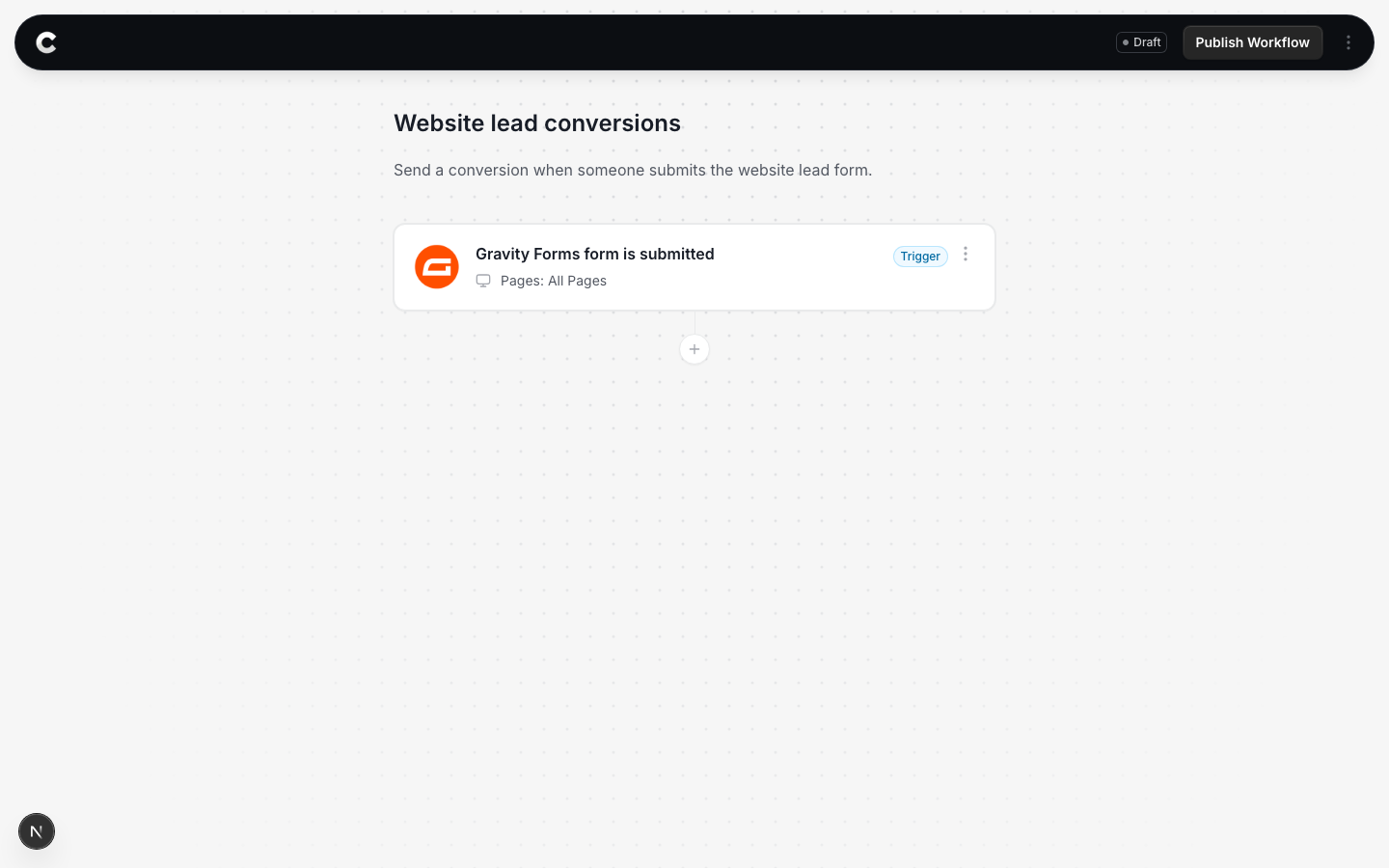
Open the flow with your trigger. Below the trigger card there is a + button. Click it to add an action.
Step 2: Choose TikTok Ads
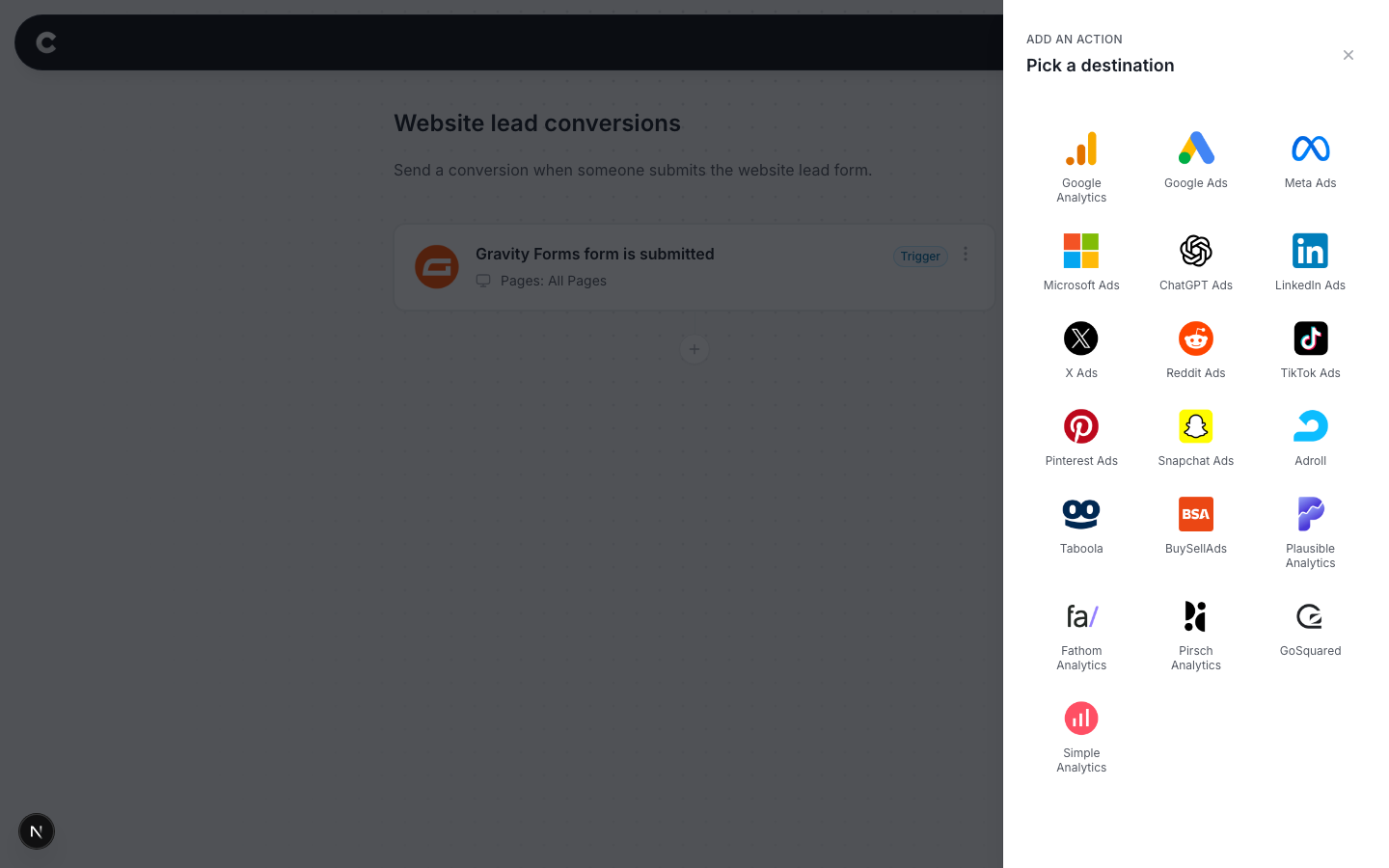
A panel slides in from the right listing every destination Converly can send to. Click TikTok Ads.
Step 3: Connect TikTok
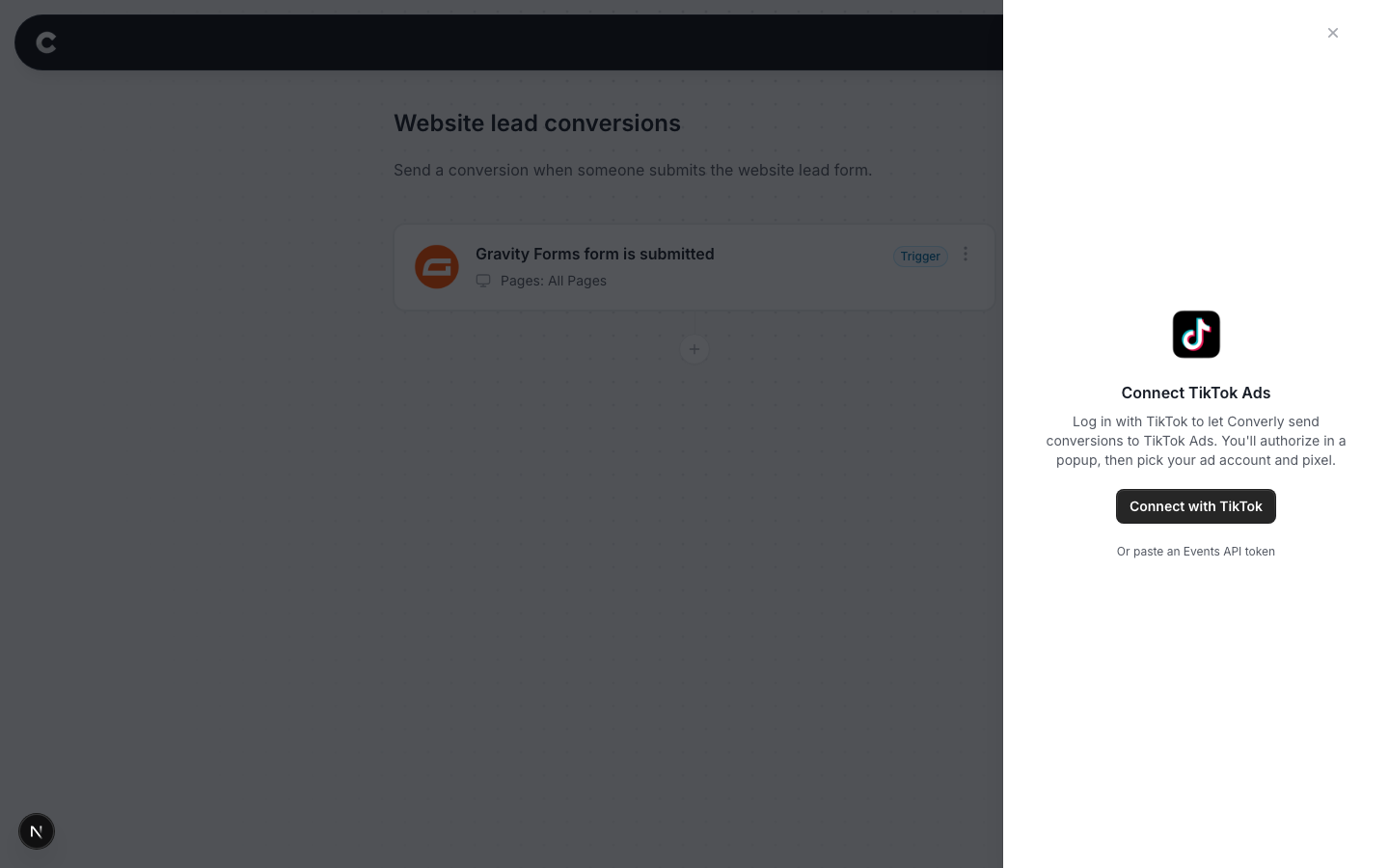
The first time you use TikTok you need to connect it. Click Connect with TikTok.
A TikTok window opens. Sign in with the account that has access to your TikTok Ads, and approve the request. The window closes and you come back to Converly, where you pick the ad account Converly should use, then the pixel conversions should be recorded against (the same pixel you see in TikTok Events Manager). This is a one time step. After this, TikTok stays connected for every flow.
TikTok emails you a verification code
During authorisation, TikTok sends a verification code to the email address on the ad account. So make sure you can access that inbox before you start. If you can't, use the paste-a-token option instead (see the end of this article).
Step 4: Choose your conversion
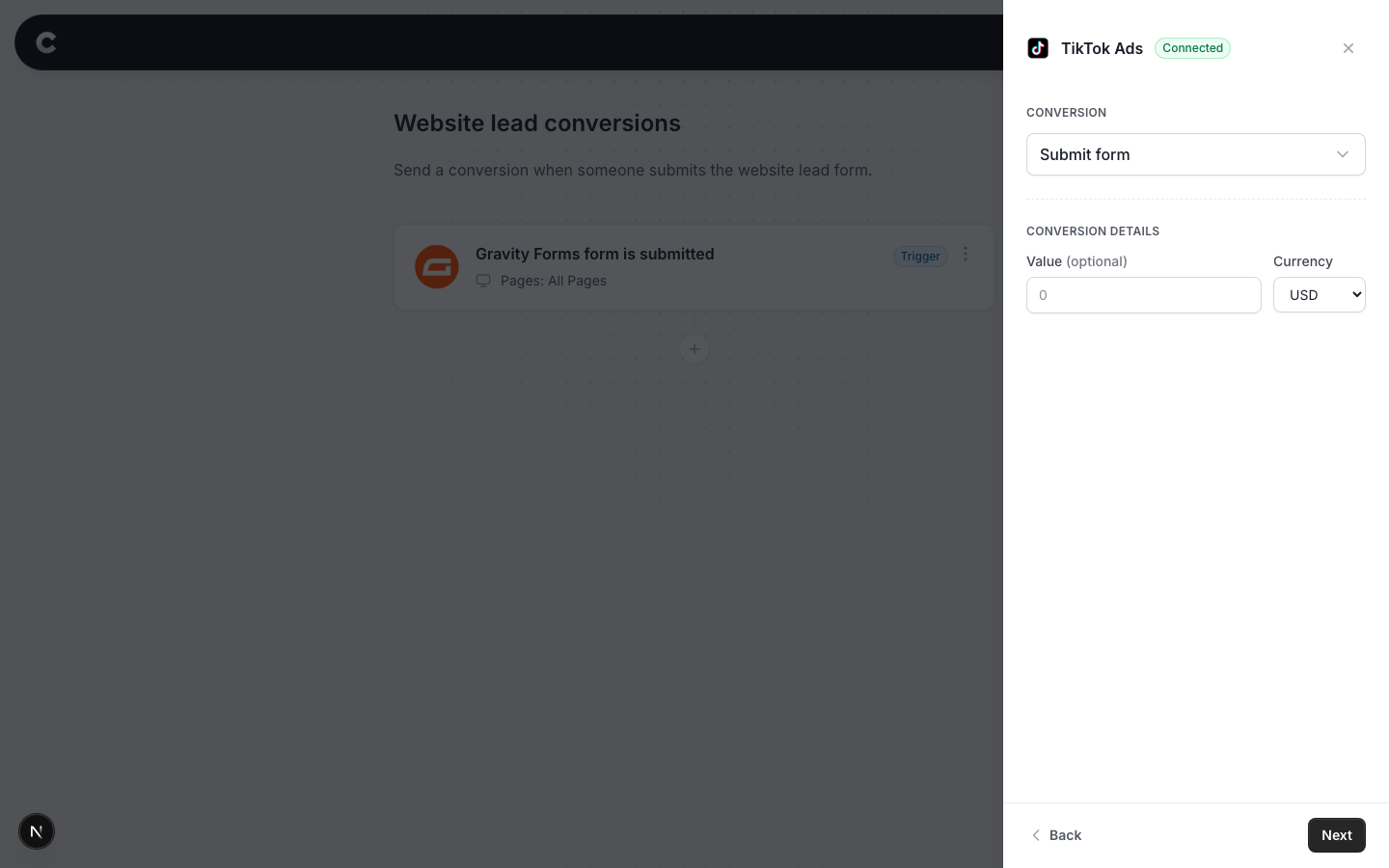
Pick which TikTok event to record from the Conversion dropdown. The options are Submit form, Complete registration, Contact, Subscribe, and Download. Most people sending form conversions want Submit form.
Set a value and currency if each lead is worth a fixed amount, or leave the value blank.
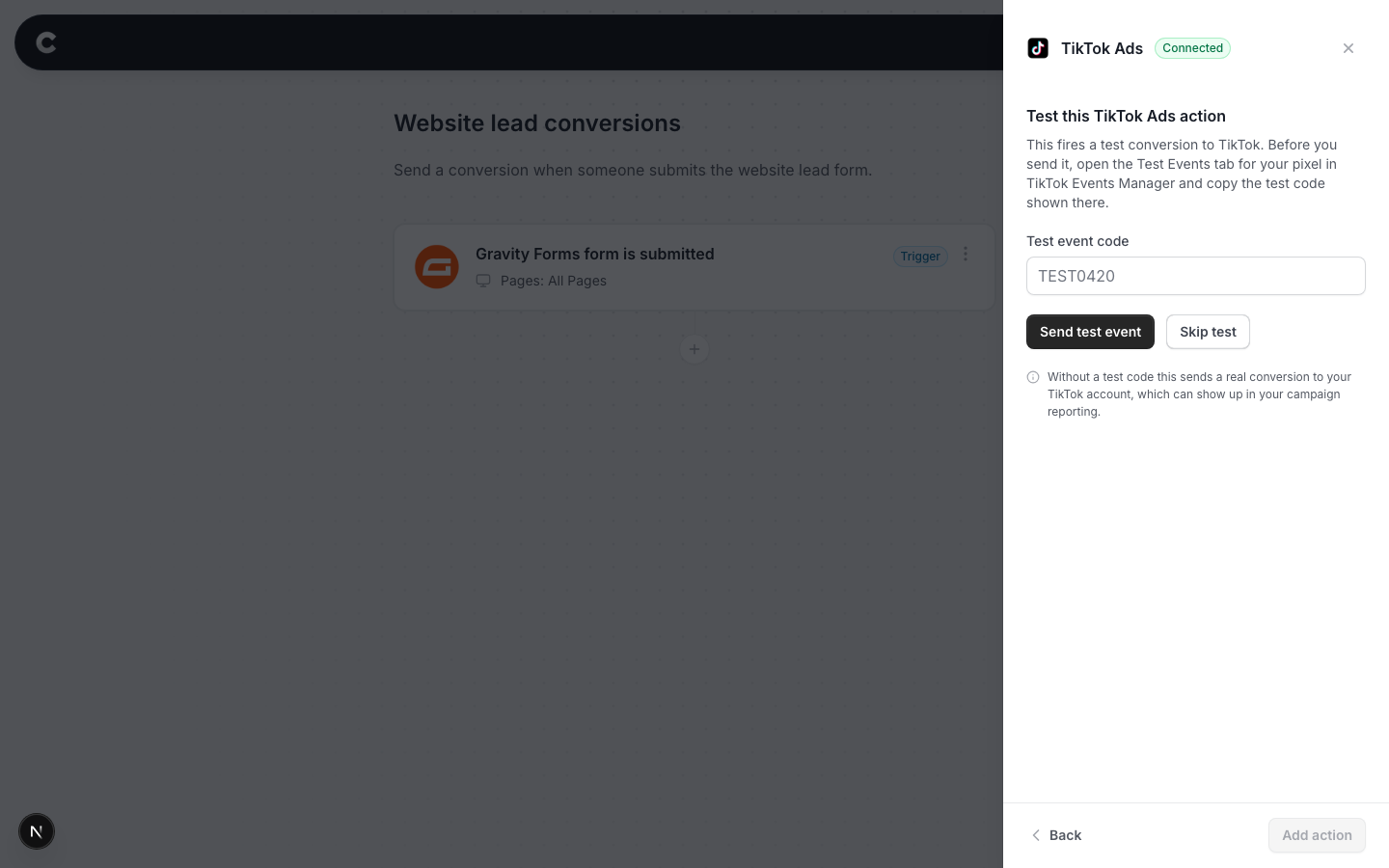
Step 5: Send a test
TikTok shows incoming events in Events Manager, so you can check your test conversion arrived.
- In TikTok Events Manager, open your pixel and go to the Test events tab. Leave it open.
- Back in Converly, click Send test event.
The event usually appears within a minute or two. Once you have seen it, click Add action and publish the flow.
Prefer to paste a token instead?
If you can't use the TikTok login (for example you can't access the inbox TikTok sends its verification code to), Converly also accepts a TikTok Events API access token pasted directly.
Click paste your own token on the connect screen, then grab 2 things from TikTok Events Manager:
- Access token - in Events Manager, open your pixel's settings and generate an Events API access token.
- Pixel code - the pixel's ID, shown at the top of the pixel's page in Events Manager.
Paste both into Converly and continue. Everything from Step 4 onwards is the same.
What happens next
Once the flow is published, real conversions flow to TikTok automatically. You can also watch them arrive in Converly on the Activity page right away.
If conversions are not showing in TikTok later, check that the pixel you connected is the one your campaigns use, that the flow is Active rather than Draft in Converly, and that the connection still shows as connected under Settings.