
Zoho CRM lets you add web forms to your website to capture leads. This guide turns visits back to your website after a form submission into conversions you can send to your ad platforms.
There is no account to connect. To set it up, follow the instructions below:
Before you start: Publish a Zoho CRM Source Code form on your HTTPS website and install Converly across the website, including the form and return pages. Follow Install Converly if you have not done that yet.
Set the form's return address (returnURL) to a different page on the same website, such as https://www.yoursite.com/thanks. Use the full HTTPS address with the same domain, including www if the form page uses it. Use a plain address without extra parameters or a section link. The form must submit and return in the same browser tab.
Converly counts the return to your website, not a confirmed lead. The visitor must return within 60 seconds of submitting. A submission Zoho refuses can still count if the visitor returns. A manual visit to another page on your website within that time can count too.
Only the Australian Source Code form has been tested live. The United States, Europe, India, Japan, Canada and Saudi Arabia addresses are recognised but have not been tested live. China, hosted forms, forms inside an embedded frame, forms that submit without leaving the page and new-tab submissions are not covered.
Zoho CRM and Zoho Forms are separate products. For Zoho Forms, use Connect Zoho Forms.
Step 1: Create a flow
A flow is the rule that turns a form submission into a conversion. Click Flows in the left sidebar, then Create New Flow, and give it a name like "Contact form leads".
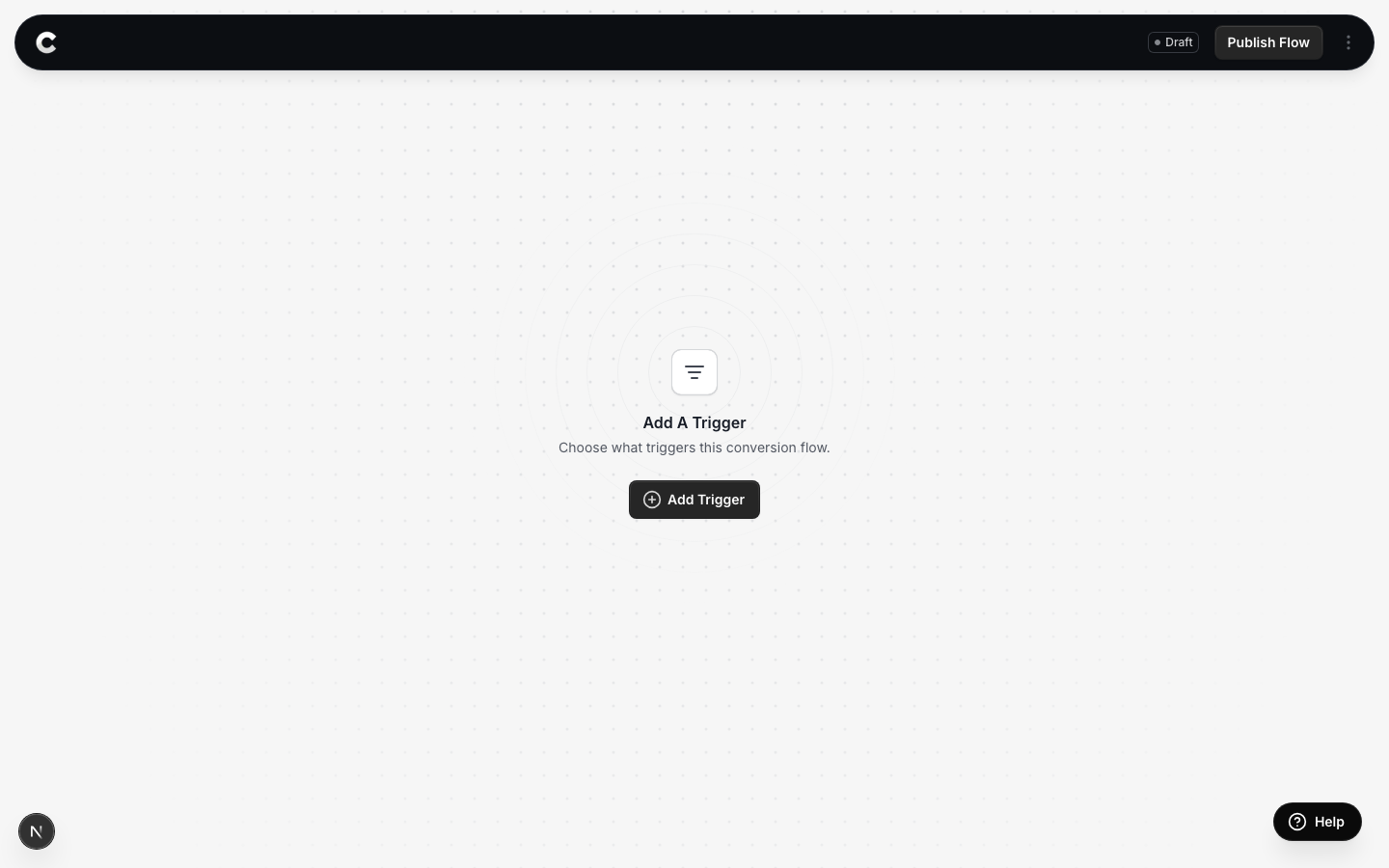
You land in the flow builder. It is empty for now. Click Add Trigger to choose what starts this flow.
Step 2: Choose Zoho CRM
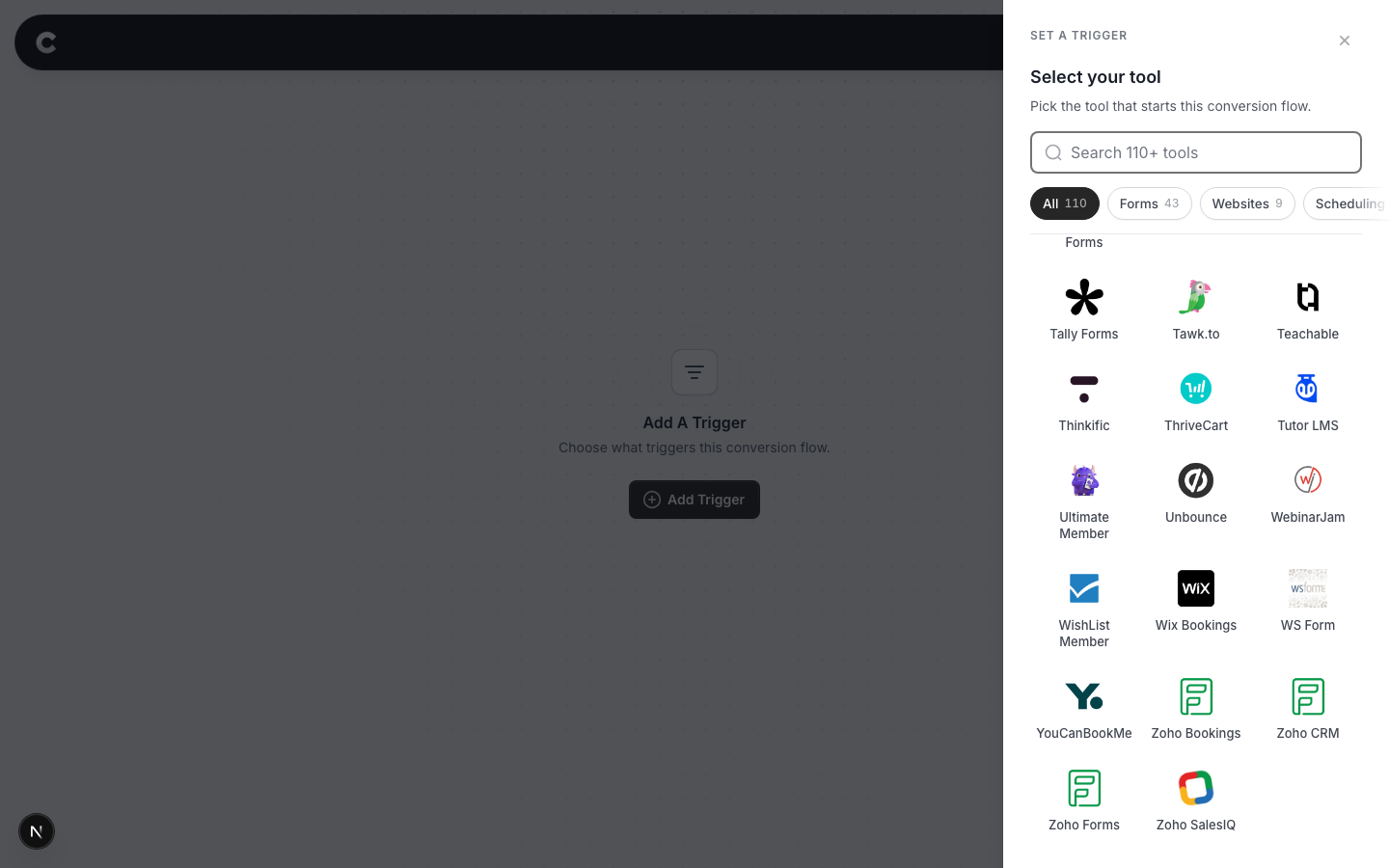
A panel slides in from the right listing every lead capture tool Converly supports, grouped by type.
Simply click Zoho CRM. If you do not see it straight away, scroll the panel or use the search box at the top.
Step 3: Choose where it fires
Converly counts when a visitor returns within 60 seconds of submitting a supported Zoho CRM form. Use the page setting to choose which website pages count.
Read this before you choose
Without a specific page, every supported Zoho CRM form on your site can contribute to the same conversion. To count only the ones on a particular page, choose that page.
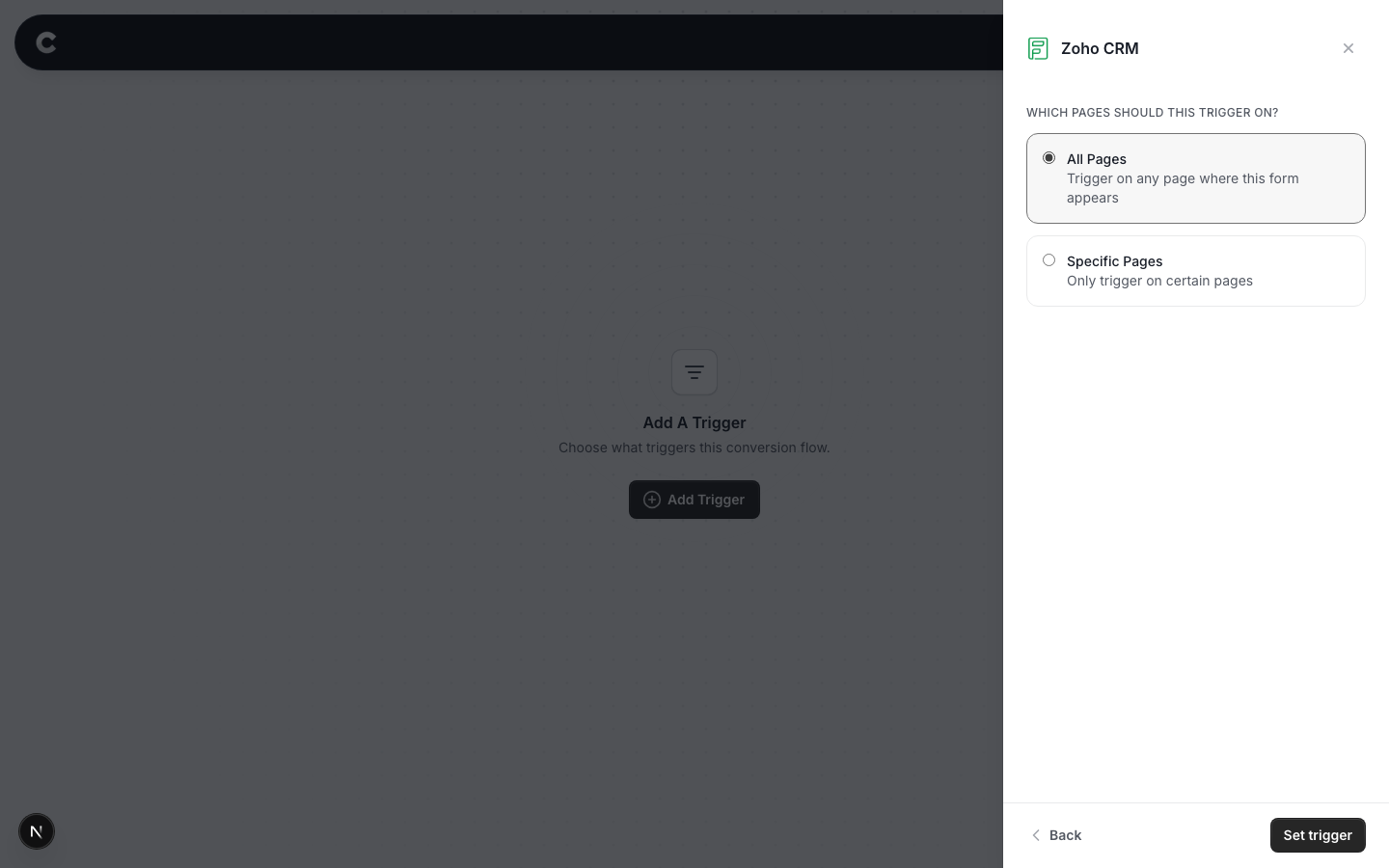
Option 1: Trigger on all pages
A conversion fires when a visitor returns within 60 seconds of submitting a supported Zoho CRM form. This includes supported forms across your site. Choose this if all those submissions should count together.
Option 2: Trigger on specific pages
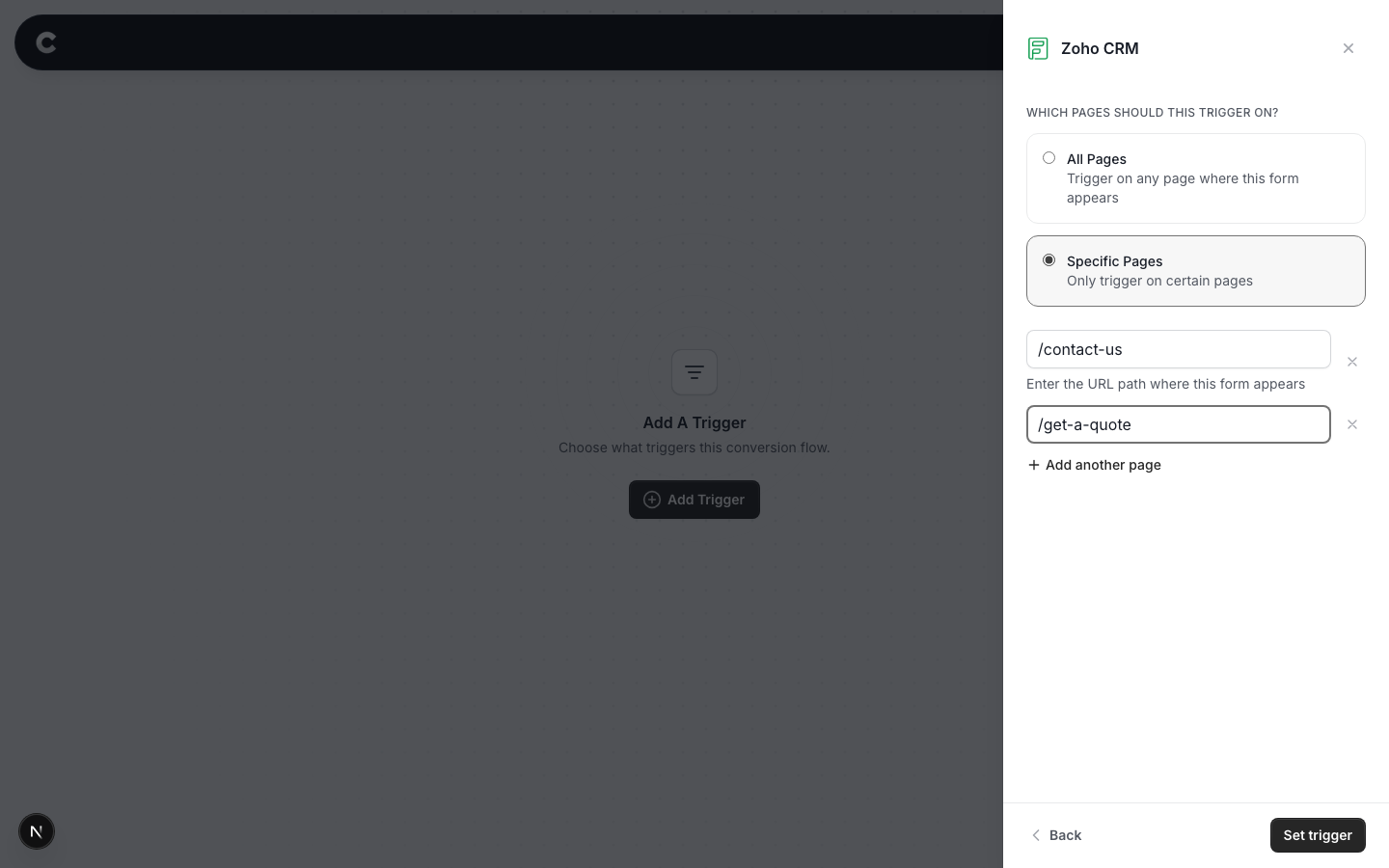
To count a form on https://www.yoursite.com/contact-us, select Specific Pages and enter /contact-us. The path is just the part after your domain. Start it with a slash, and do not include the domain.
Use the original page containing the form, not the return page. Converly uses the original form page for this setting, even though the conversion is counted after the visitor returns. Keep Converly installed across your website so it can recognise that return.
Click Add another page if you want to include more than 1 page, or the x to remove a page.
If 2 forms or widgets share 1 page
Page filtering includes both, so both can count as this conversion. To count only 1, put it on its own page, or contact support before publishing.
When you have picked an option, click Set trigger.
What happens next
A trigger on its own does not send anything yet. Next you add 1 or more destinations (Google Ads, Meta, and so on) and publish the flow. See Building a flow for that part.
The first eligible visit to a different page on the same website can count once. Going straight to the thank-you page without submitting does not count. Refreshing it does not repeat the conversion. Use Zoho CRM itself to check whether a lead was saved.
Converly captures the standard Email, First Name, Last Name and Phone fields when the visitor submits. It includes those details for matching when the return counts. Hidden contact fields, company names and other answers are not included.
That's it! The final step is to test your setup in a new incognito window. Submit the Source Code form with a real email address and let it return to your website within 60 seconds. Check the lead separately in Zoho CRM. Then click Logs in Converly's left sidebar and check the destination results for your test. You can read more about how to properly test your setup here.
If submissions are not showing up later, check the return address, same-tab journey and 60-second limit. Converly must load on both pages, and browser storage must be available. Check the original form page in your page settings and that the flow is Active rather than Draft. Blocked scripts or withdrawn advertising consent can also prevent tracking.