
The Sites page is your home in Converly when you're on a Multiple sites plan (5 Sites, 10 Sites or 20 Sites). It lists every client website in your account, and it's where you open a site to work on its flows, logs and settings.
Each site has its own tracking code, its own flows and its own connections to ad platforms, so you set up and look after each client on its own.
Only on Multiple sites plans
On Standard or Premium you won't see a Sites page. Your account covers one website, and everything lives under Flows, Logs and Settings. To track several websites, move to a Multiple sites plan.
Follow the instructions below:
Step 1: Open the Sites page
Converly opens on the Sites page when you log in. You can also get back to it at any time by clicking Sites in the left sidebar.
Each row shows the site's name, its website address, its tracking status and how many flows it has. The Tracking column tells you at a glance whether each site is working:
- Tracking. The tracking code has been seen on the site's website in the last 7 days, and at least 1 of its flows is live.
- No live flows. The tracking code is on the website, but none of the site's flows are active yet.
- Not installed. Converly hasn't seen the tracking code on the site's website address in the last 7 days. Usually the code isn't on the website yet, or it's on a different address from the one saved in Converly. A website that has had no visitors for a week shows this too.
- Status unknown. Converly couldn't check the site just now. Refresh the page to try again.
- Removing. The site is being removed, so you can't open it.
If you have more than 6 sites, a Search sites box appears above the list. Simply type part of a site's name or website address to find it.
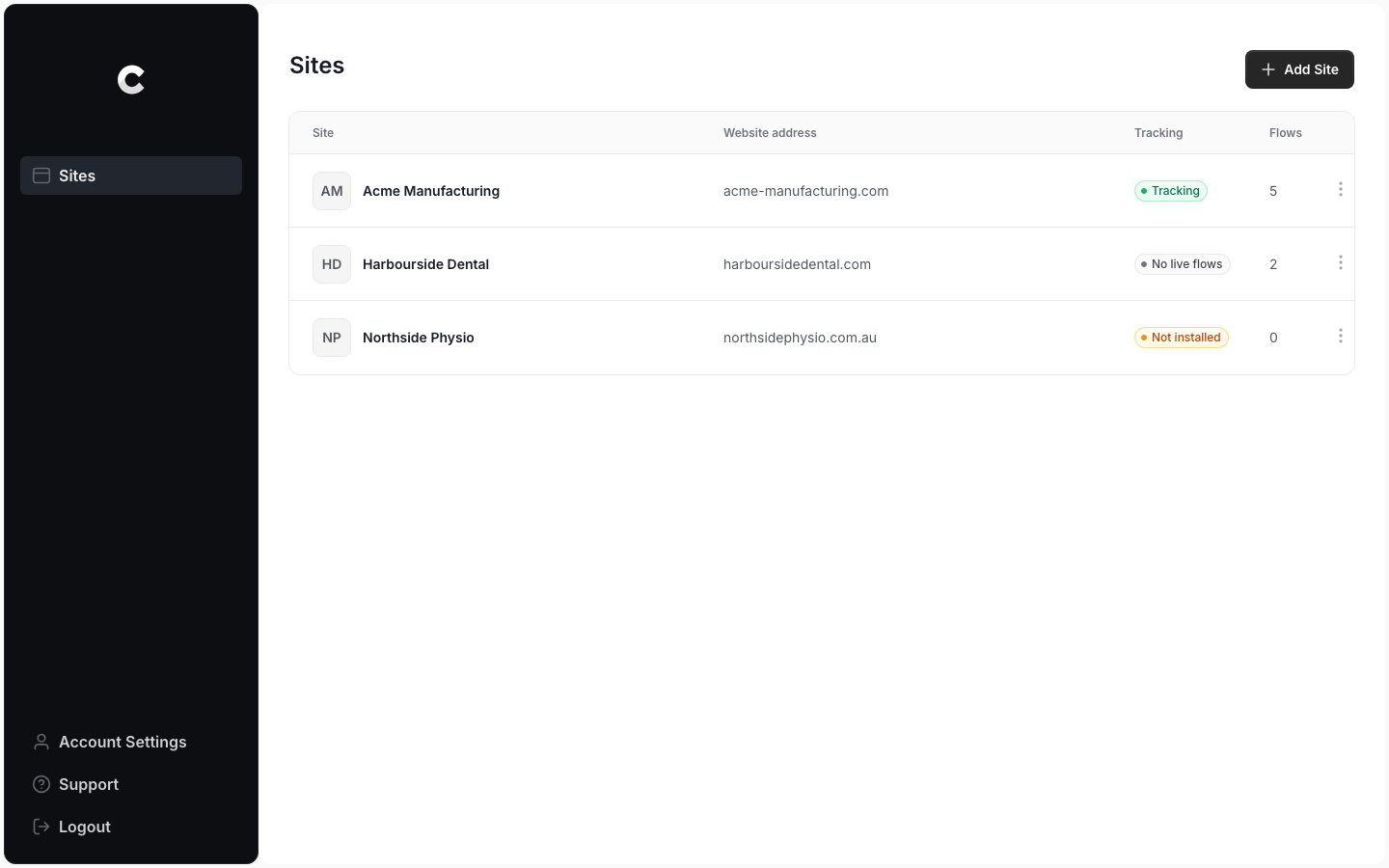
Step 2: Open a site
The next step is to open the site you want to work on. Simply click its row, and Converly opens that site's Conversion Flows page.
Inside a site, the left sidebar changes. The site's name sits at the top, with Flows, Logs and Site Settings below it. Everything you see and change here belongs to that site only, including its flows, its logs, its tracking code and its connections.
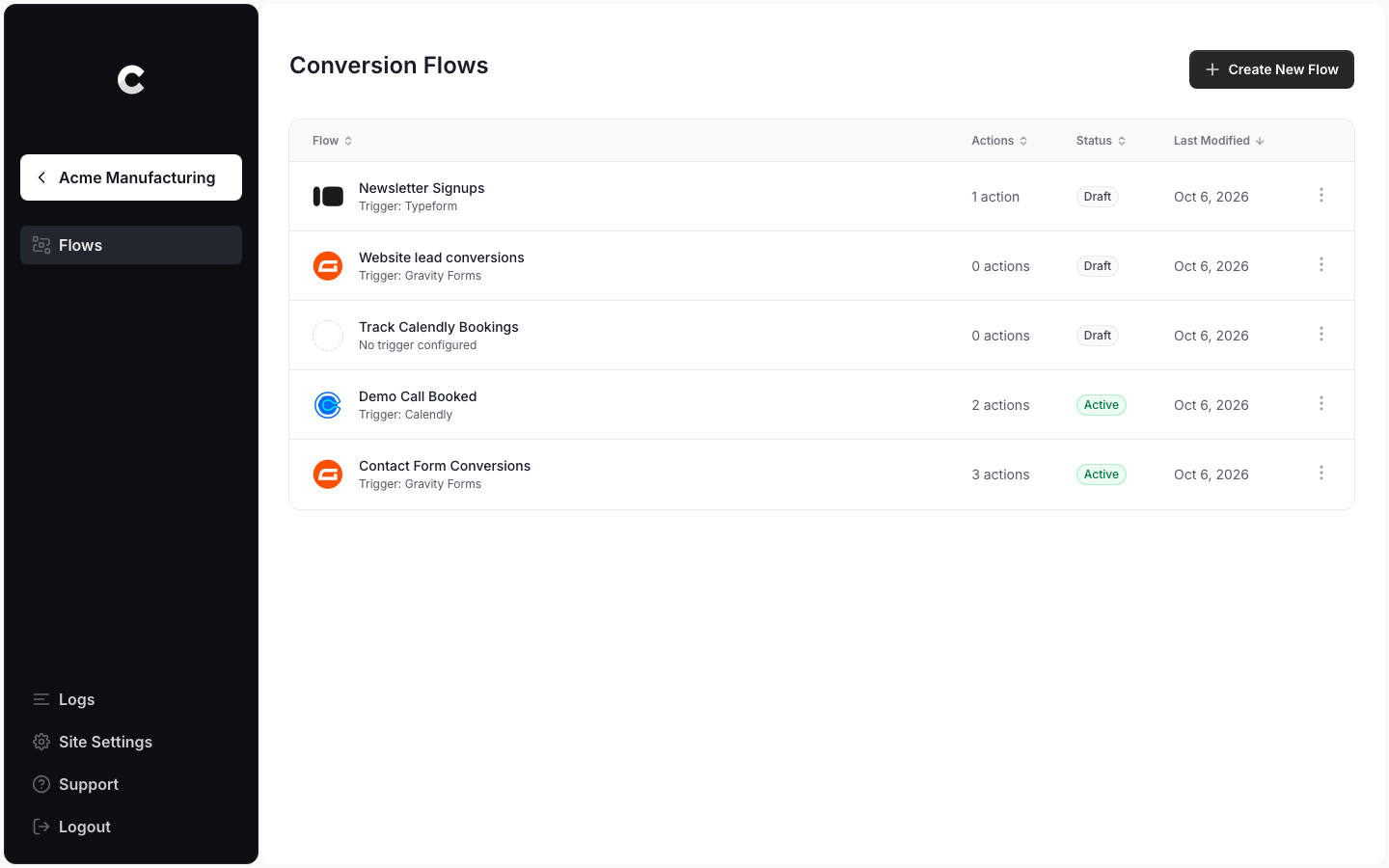
You can also jump straight to part of a site from the Sites page. Click the ⋮ menu at the end of a site's row and choose one of these:
- Site Settings. Opens the site's name, website address and other settings.
- Get Tracking Code. Opens the site's Install tab, where you can copy its tracking code.
- Remove Site. Opens the page where you remove the site. You can read more about removing a site here.
Step 3: Go back to your sites
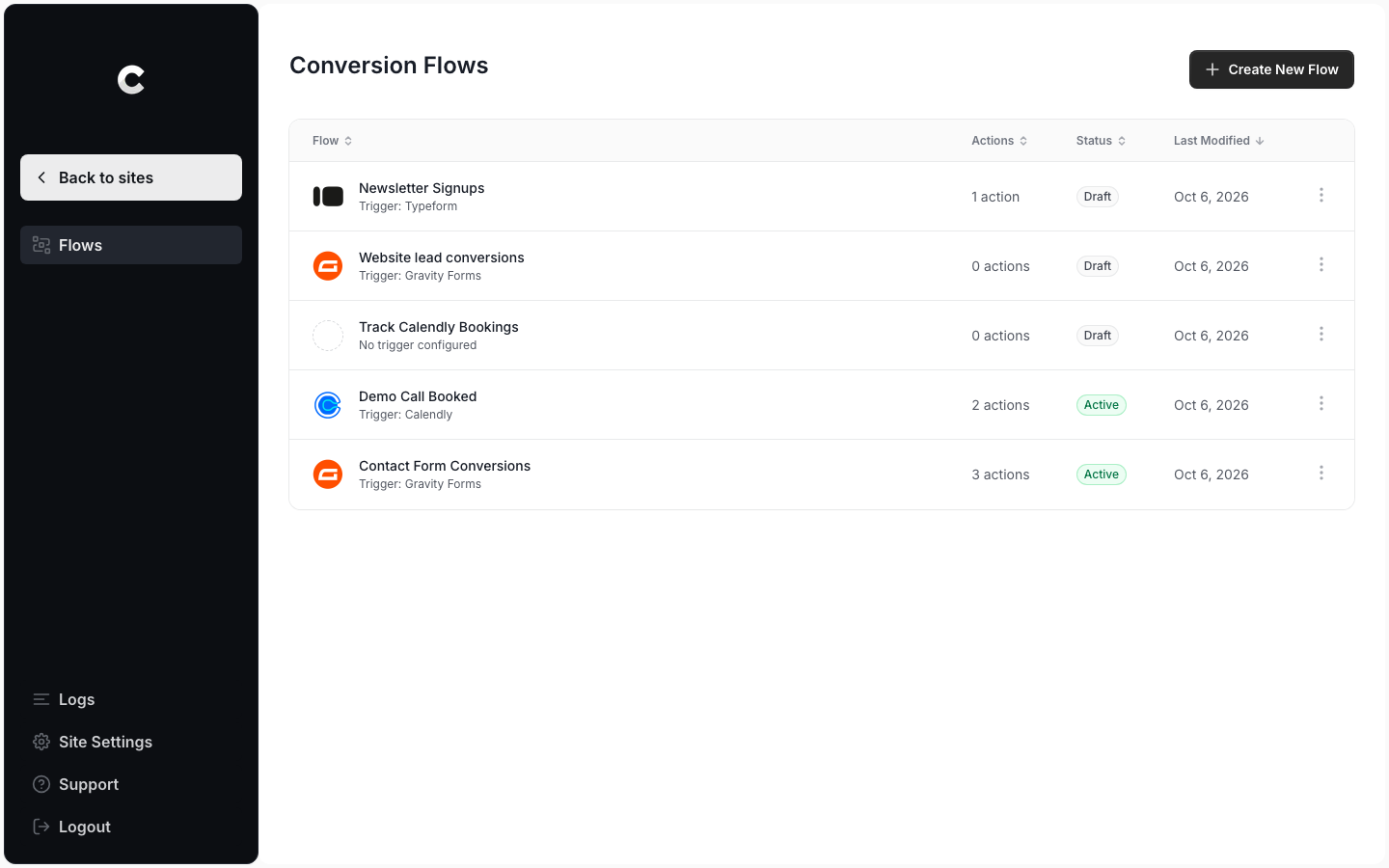
When you've finished with one client and want to work on another, go back to the Sites page. Simply click the site's name at the top of the left sidebar. When you point at it, it changes to Back to sites.
From the Sites page, click the next site you want to work on. There's no shortcut that jumps from one site straight to another, so you always go back through Sites.
On a phone, the sidebar is tucked away. Tap the menu button at the top right of the screen to open it.
That's all you need to do to move between your sites!
Where are my account settings?
Your billing, login and other account options are under Account Settings, in the sidebar on the Sites page. It isn't in the sidebar inside a site, so go back to Sites first. Account Settings and Site Settings explains exactly what lives where.
Your plan's limits
Your plan sets how many sites you can have. Each site can then have up to 5 flows and 500 conversions a month.
To see how many sites you're using, open Account Settings, then the Billing tab, and look at the Sites row. When you're using every site on your plan, the Sites page shows an Upgrade to Add Sites button instead of Add Site. Add a site explains your options when that happens.