
On a Multiple sites plan (5 Sites, 10 Sites or 20 Sites), your settings live in 2 places. Account Settings covers everything that applies to your whole account, like your login and your bill. Site Settings covers one client website, like its tracking code and its connections.
This article shows you where everything is. Keep it handy, because most of our other help articles were written for Standard and Premium plans and tell you to click Settings. On a Multiple sites plan there's no button called Settings, so you use one of these 2 instead.
On Standard or Premium?
This article doesn't apply to you. Everything is under Settings in the left sidebar, exactly as our other help articles describe.
Where to find everything
Find what you want to do in the left column, then go to the place in the right column.
| What you want to do | Where to find it |
|---|---|
| Change your name or company | Account Settings, then the Details tab |
| Change your email, password or two-factor authentication | Account Settings, then the Details tab |
| Change your plan | Account Settings, then the Billing tab |
| Update your payment card | Account Settings, then the Billing tab |
| View or download invoices | Account Settings, then the Billing tab |
| Create or delete API keys | Account Settings, then the API tab |
| Delete a visitor's data | Account Settings, then the Privacy tab (one request covers every site) |
| Cancel your whole subscription | Account Settings, then the Cancel tab |
| Rename a site | Site Settings inside that site, then the Details tab |
| Change a site's website address | Site Settings inside that site, then the Details tab |
| Get a site's tracking code | Site Settings inside that site, then the Install tab |
| See, reconnect or disconnect a site's integrations | Site Settings inside that site, then the Integrations tab |
| Remove a site | Site Settings inside that site, then the Cancel tab |
| Build or edit a site's flows | Flows inside that site |
| See a site's conversions | Logs inside that site |
How to open Account Settings
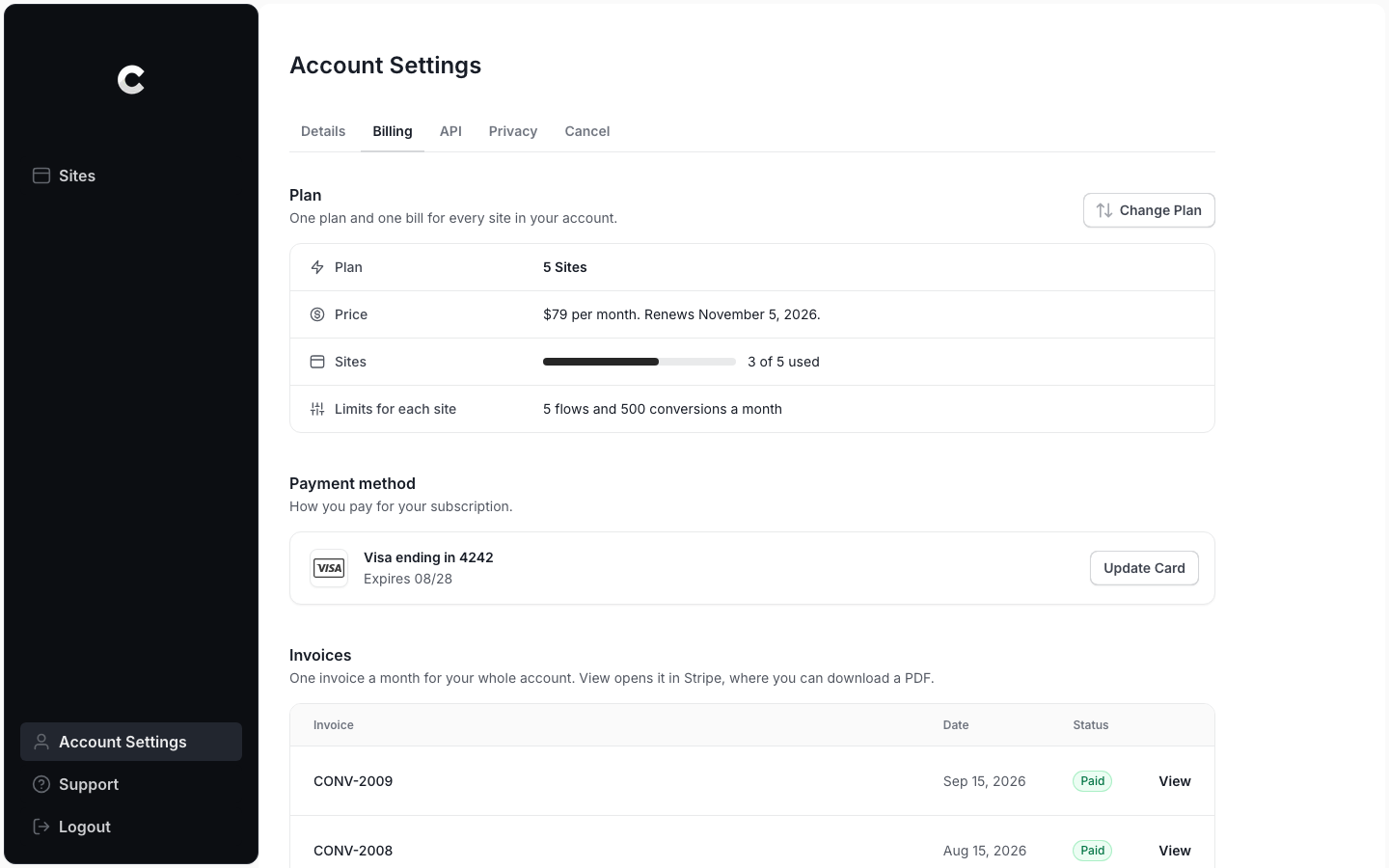
Account Settings is in the left sidebar on the Sites page, near the bottom. Click Account Settings and you'll see 5 tabs, called Details, Billing, API, Privacy and Cancel.
If you're inside a client site, you won't see Account Settings in the sidebar. Simply click the site's name at the top of the sidebar to go back to the Sites page first.
How to open Site Settings
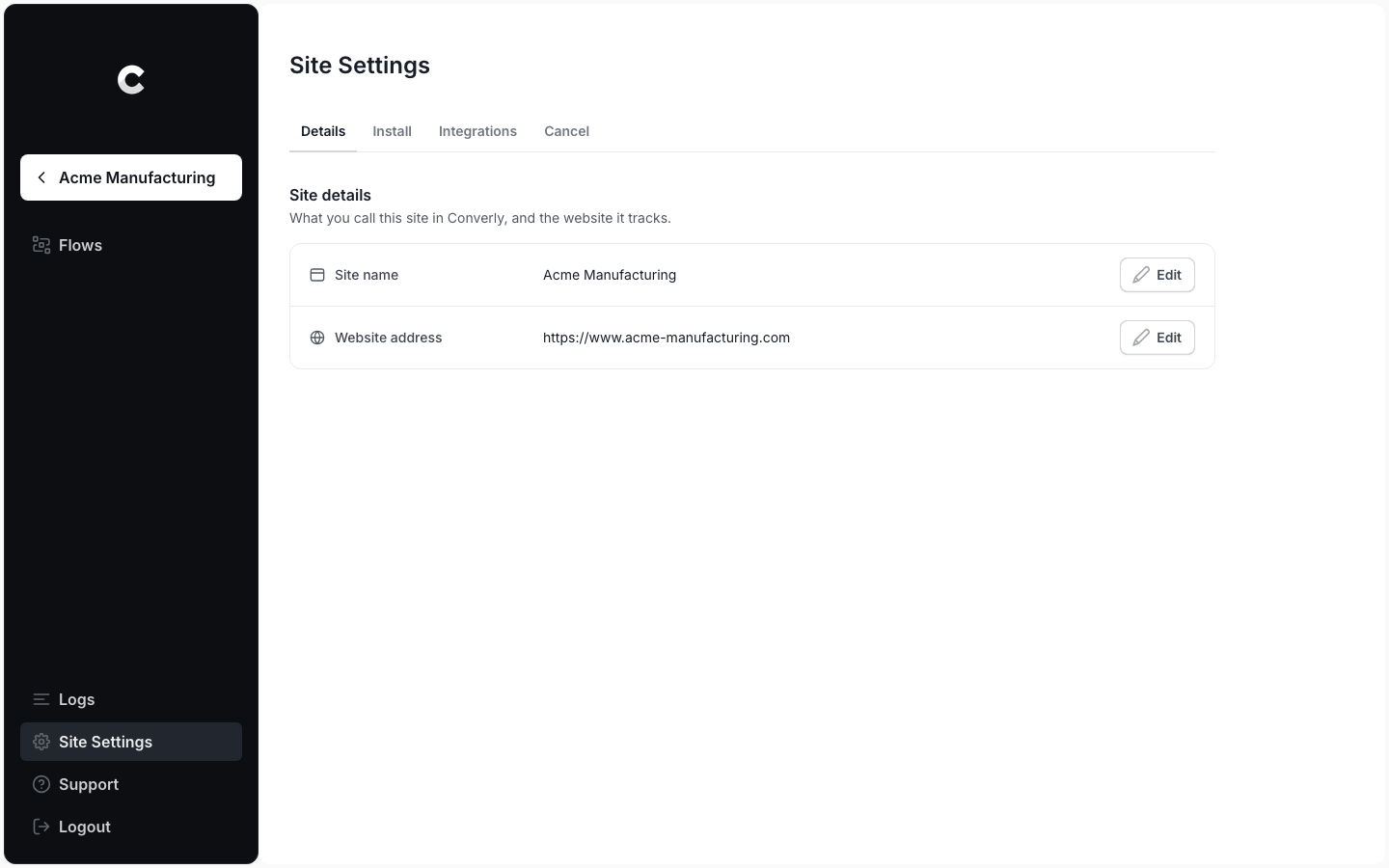
Each site has its own Site Settings. On the Sites page, click the site to open it, then click Site Settings in the left sidebar. You'll see 4 tabs, called Details, Install, Integrations and Cancel. Everything here applies to that one site only.
A quicker way is the ⋮ menu at the end of the site's row on the Sites page. Choose Site Settings to open its settings, or Get Tracking Code to go straight to its Install tab.
What's in each tab
Account Settings
- Details. Your name, your company and your login details (email, password and two-factor authentication). There's no website address here, because each site has its own.
- Billing. Your plan, its price, how many sites you're using, your payment card and your invoices. You get one plan and one bill for every site in your account.
- API. API keys that connect the Converly command line tool to your account, so you or an AI agent can set up tracking.
- Privacy. Deletes a visitor's form submissions from the logs of every site in your account, so you only need to do it once.
- Cancel. Cancels your whole subscription, which stops tracking on every site.
Site Settings
- Details. The site's name (only you see it) and the website address Converly accepts its conversions from.
- Install. The site's own tracking code, plus guides for adding it to the client's website.
- Integrations. The ad platforms and lead tools connected to this site. You connect them while building a flow, and they only work for this site.
- Cancel. Removes this one site. It doesn't touch your subscription or your other sites.
The 2 Cancel tabs do very different things
Cancel in Site Settings permanently removes one site. Cancel in Account Settings cancels your whole subscription and stops tracking on every site at once. Check which one you're on before you click. See Remove a site and Cancel your account.
Following our other help articles
When a help article tells you to click Settings in the left sidebar, simply swap it for the right place:
- Articles about your login, plan, card, invoices, API keys, visitor data or cancelling. Go to the Sites page and click Account Settings.
- Articles about the tracking code, a website address or connected integrations. Open the client's site first, then click Site Settings.
Then carry on with the article from the tab it names. The tabs have the same names in both places.
That's all there is to it!