
When you stop working with a client, you can remove their site from your account. Converly stops tracking it and frees up its space on your plan, so you can add another site in its place.
Removing a site is permanent
There's no confirmation step and no way to undo it. As soon as you click Remove Site, the site's tracking stops and its flows and connections are deleted. If you want to track the website again later, you'll need to add it as a new site and set it up from scratch, including installing a new tracking code.
To remove a site, follow the instructions below:
Step 1: Open the site's Cancel tab
The first step is to find the site you want to remove. On the Sites page, click the ⋮ menu at the end of its row and choose Remove Site.
You can also get there from inside the site. Click Site Settings in the left sidebar, then open the Cancel tab.
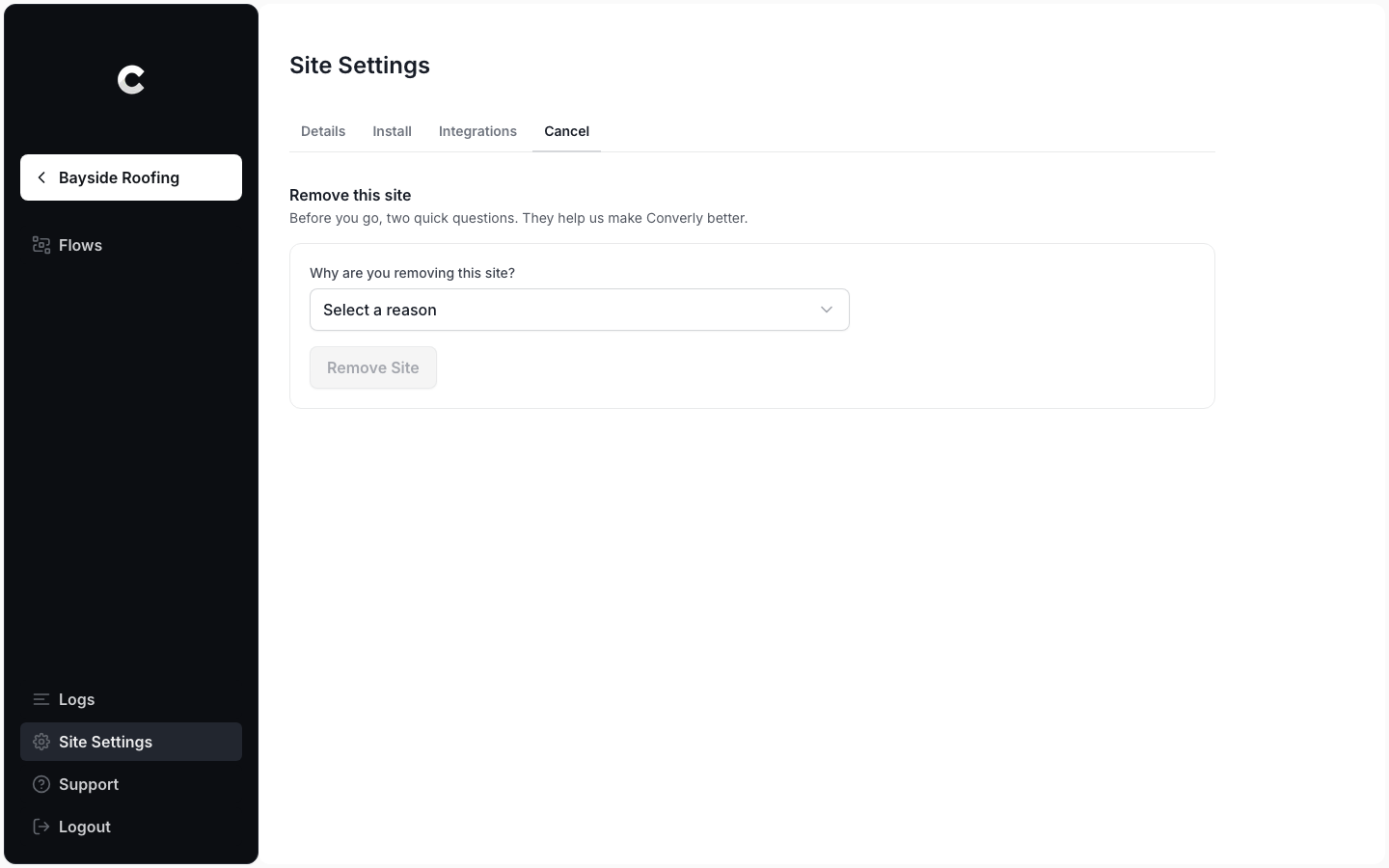
The Cancel tab in Site Settings only removes this one site. It doesn't cancel your subscription, which is done from Account Settings instead. Account Settings and Site Settings explains the difference.
Step 2: Tell us why
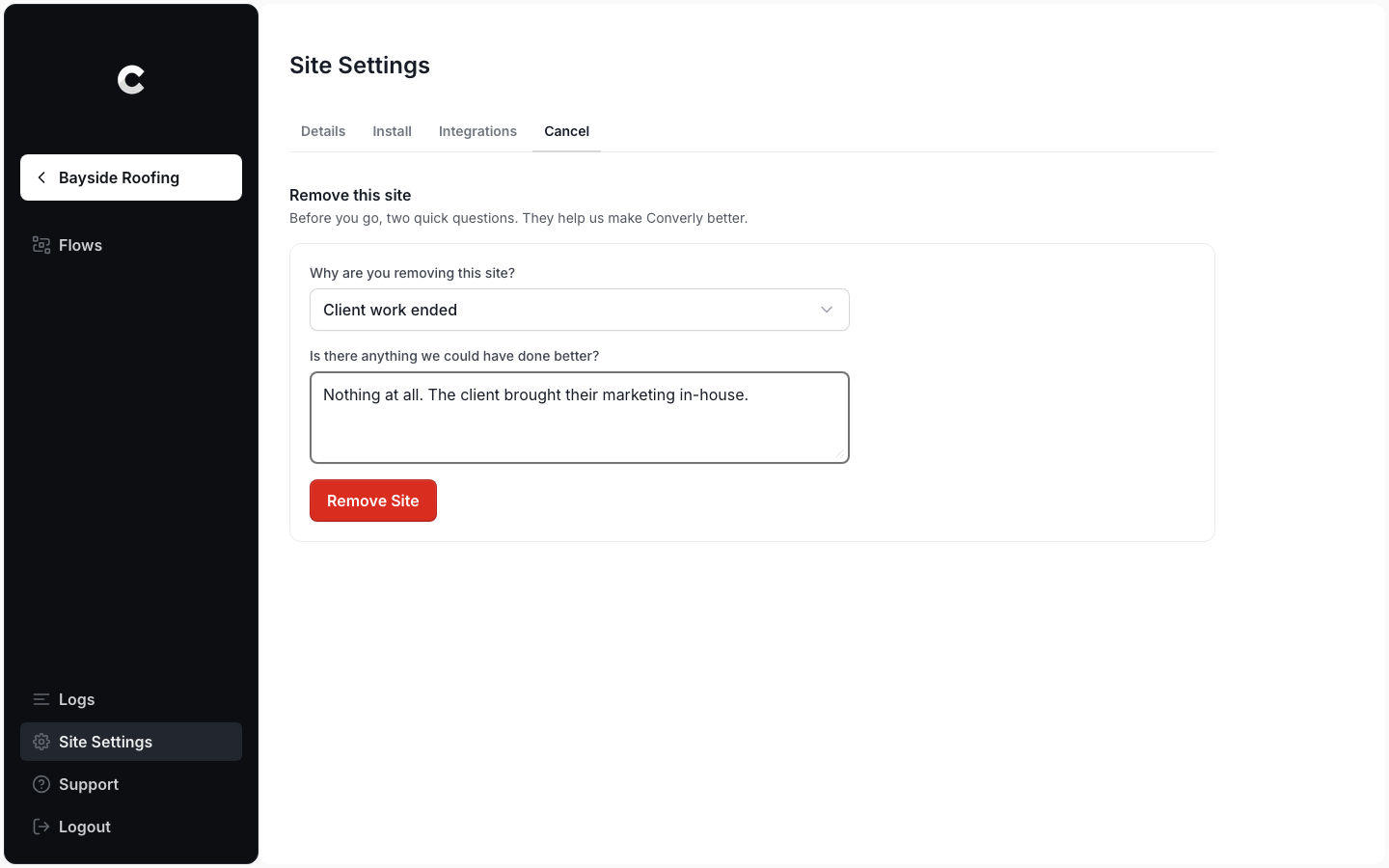
We ask 2 quick questions before you go. Choose a reason from the Why are you removing this site? dropdown, then answer the follow-up question that appears (for example, Client work ended asks whether there's anything we could have done better). Both are required, and the Remove Site button stays greyed out until you've answered them.
Step 3: Click Remove Site
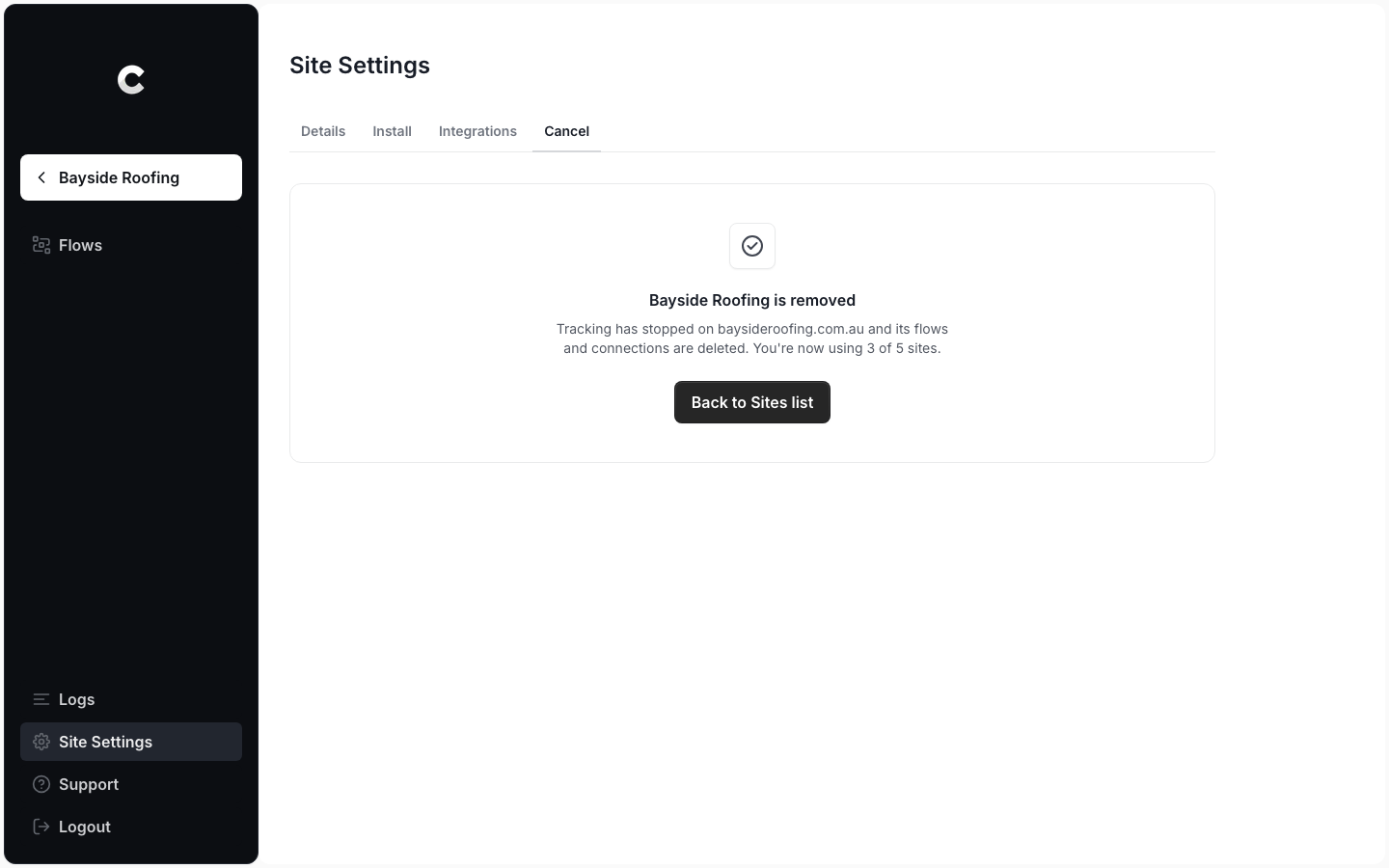
When you're ready, click Remove Site. The site is removed straight away, and you'll see a message saying it's removed, along with how many sites you're now using (for example You're now using 3 of 5 sites). Click Back to Sites list to return to your sites.
Step 4: Remove the code from the client's website
We also recommend removing the site's tracking code from the client's website, the same way you added it. Once the site is removed, the code no longer tracks anything, but it's tidier to take it off.
That's it! The site is removed.
What happens when you remove a site
Here's what changes, and when:
- Tracking stops straight away. Converly stops accepting and sending the site's conversions as soon as you click, usually within a second. The only exception is a visitor who already has a page of the website open. Any tags running in their browser may still fire until they reload the page or leave.
- Its flows and connections are deleted. The site's saved logins for ad platforms and lead tools are deleted within a few minutes. Your other sites and their connections aren't affected.
- Its logs are deleted. The site's logs disappear from Converly. Contact details like names, emails and phone numbers are deleted within 7 days, and the rest of its conversion history within 30 days, the same as for any conversion.
- Its space on your plan frees up straight away. You can add a new site in its place right away.
- Your bill stays the same. Removing a site doesn't change your plan or its price. If your sites now fit on a smaller plan, you can change to it to pay less.
Removing your last site
On a Multiple sites plan you can remove every site. The Sites page then shows No sites yet, and you can add a new one whenever you're ready.
You keep paying for your plan until you change it or cancel. To stop paying altogether, cancel your account from Account Settings.
Troubleshooting
We couldn't confirm the removal
Occasionally Converly can't confirm straight away that tracking has stopped, and you'll see We couldn't confirm the removal. Try again. Simply click Remove Site again, as it's safe to retry. If you've already left the page, there's nothing more you need to do. The site shows Removing on the Sites page and Converly finishes the removal automatically. Until it does, the site may still track conversions.
If you see Another change to your plan is in progress, wait a moment and click Remove Site again.