
ActiveCampaign is a popular email marketing and automation tool, and one of the things it does is give you forms you can embed on your website to collect leads. Converly turns every one of those form submissions into a conversion you can send to Google Ads, Meta, or anywhere else you advertise.
There is nothing to connect and nothing to paste inside ActiveCampaign. No API key, no extra tracking code, no changes to the form itself. Once Converly is installed on your site it watches your pages for ActiveCampaign submissions and counts the ones that genuinely went through.
To set it up, follow the instructions below.
Before you start: Converly needs to be installed on your site (see Install Converly), your website address needs to be set in Converly, and your ActiveCampaign form needs to be live on a page.
Which ActiveCampaign forms this works with
This trigger works with ActiveCampaign forms that are embedded on your own website.
All 4 form styles are covered, so it does not matter which one you picked when you built the form in ActiveCampaign.
- Inline. The form sits in the page, in amongst your content.
- Modal. The form pops up over the page.
- Floating box. The form floats in a corner of the page.
- Floating bar. The form sits in a strip across the top or bottom of the page.
Both of the embed options ActiveCampaign offers you are covered too. It works the same whether you used the Simple embed (the short snippet of code ActiveCampaign gives you) or the Full embed (the long block of code you paste in). Each of them puts a real form on your page, which is exactly what Converly watches for.
ActiveCampaign landing pages are not covered
This trigger only works on your own website. If your form lives on a landing page that ActiveCampaign hosts for you (an address ending in activehosted.com, or a domain you pointed at ActiveCampaign's landing page builder), Converly cannot track it. Those pages are built and served by ActiveCampaign, so there is nowhere for you to install the Converly snippet. To track those leads, move the form onto a page of your own website.
Step 1: Create a flow
A flow is the rule that turns a form submission into a conversion. Click Flows in the left sidebar, then Create New Flow, and give it a name like "ActiveCampaign enquiries".
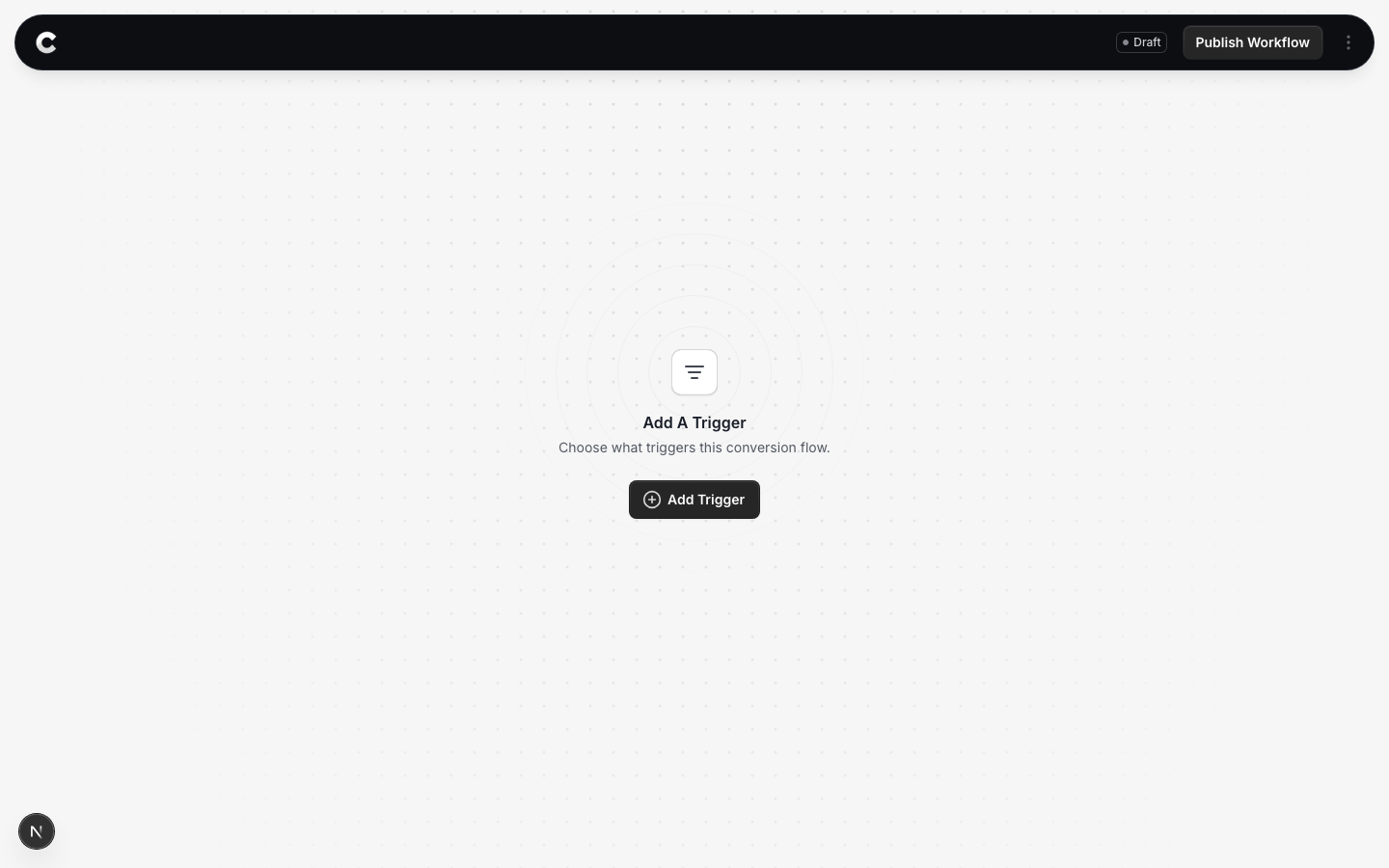
You land in the flow builder. It is empty for now. Click Add Trigger to choose what starts this flow.
Step 2: Choose ActiveCampaign
A panel slides in from the right listing every lead capture tool Converly supports. ActiveCampaign sits under the Marketing category, so simply click that chip along the top to narrow the list down, or type "active" into the search box.
Click ActiveCampaign to select it.
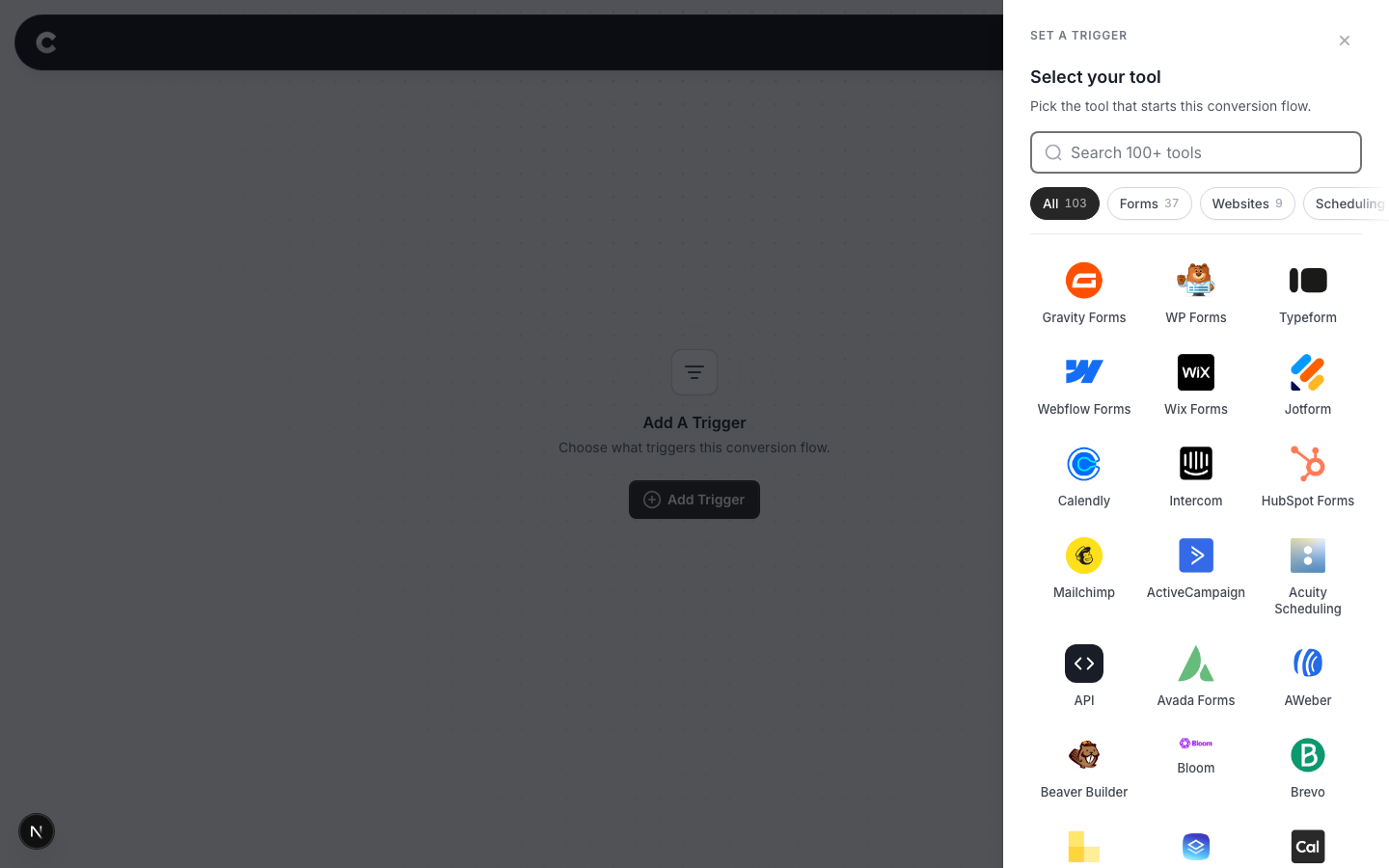
Notice there is no connect step and no login. Converly reads the form on your own page, so it never needs access to your ActiveCampaign account.
Step 3: Choose where it fires
This step is the one to get right. Converly does not ask you to pick a specific ActiveCampaign form. It listens for any ActiveCampaign form on your site being submitted. The page setting is how you narrow that down to the one form you actually want to count.
Read this before you choose
If you do not set a specific page, this trigger fires every time someone submits any ActiveCampaign form anywhere on your site. If you have an enquiry form on your contact page and a newsletter box floating on every blog post, both would count as the same conversion. To track just one of them, use the specific pages option below.
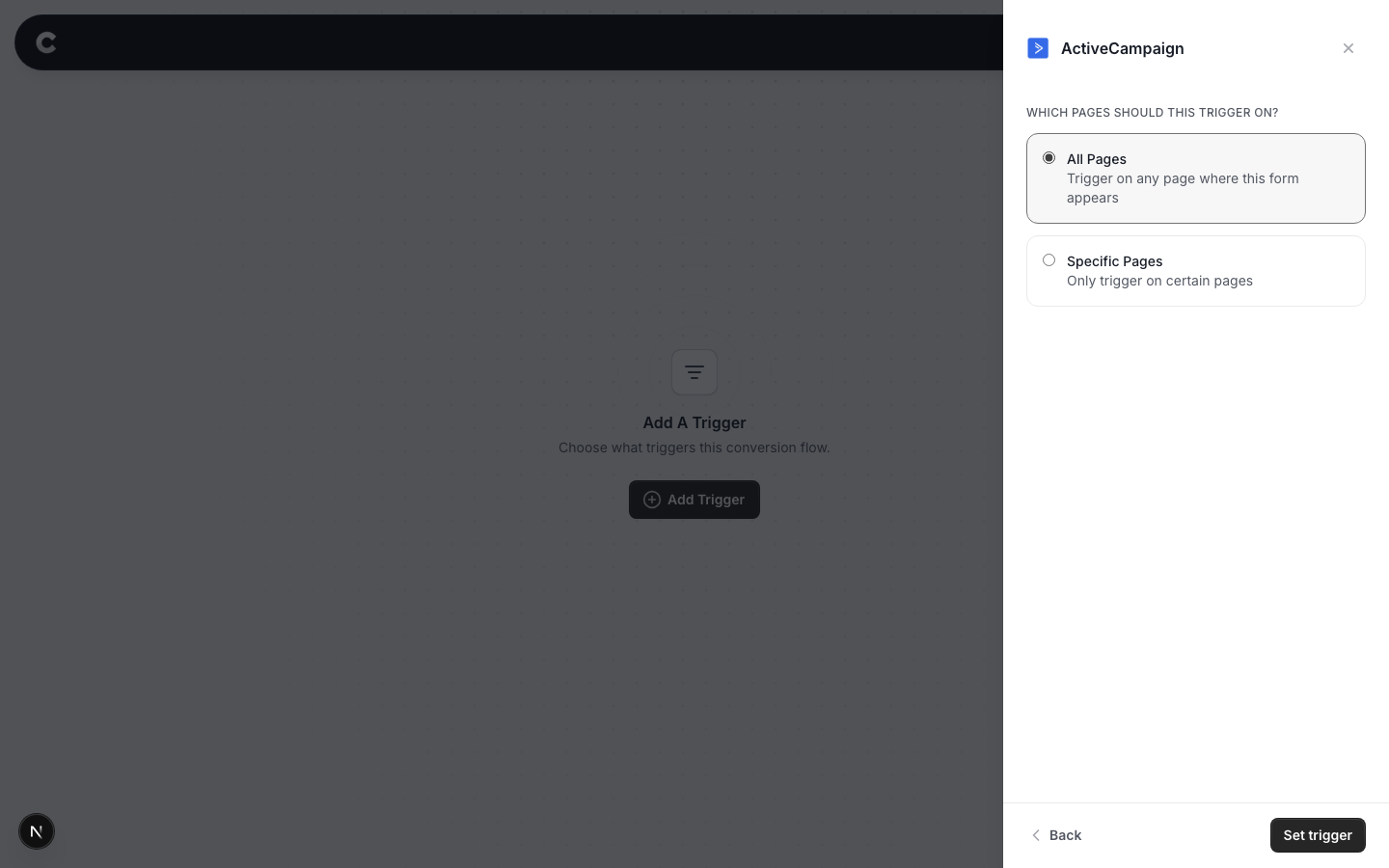
Option 1: Trigger on all pages
A conversion fires whenever anyone submits an ActiveCampaign form, on any page of your site. Only choose this if you have a single form, or if every ActiveCampaign form on the site genuinely should count as the same conversion.
Option 2: Trigger on specific pages
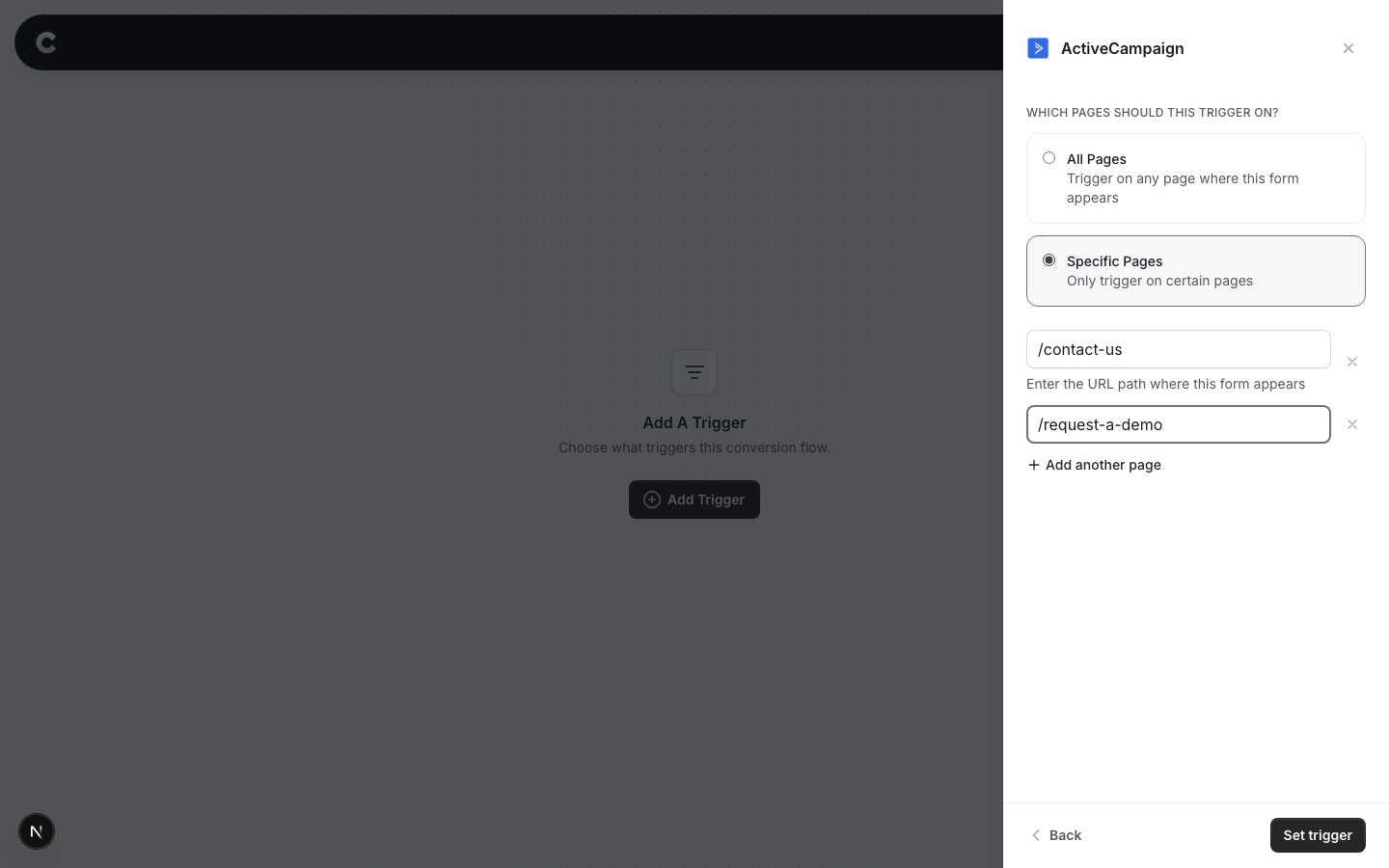
This is how most people should set it up. Listing a page tells Converly to only count a submission that happens on that page, which is how you isolate one specific form.
For example, to count only your enquiry form, find the page that form lives on (say https://www.yoursite.com/contact-us), select Specific Pages, and enter the path /contact-us. The path is just the part of the address after your domain. Start it with a slash, and do not include your domain. A submission now only counts if it happens on that page, so a newsletter box sitting on your blog is ignored.
Click Add another page if the same form appears on more than one page, or the x to remove one.
A tip for floating and modal forms
A floating box, floating bar or modal form usually appears on every page of your site, not just one. If that is the form you want to count, All Pages is the right choice for it. Give it its own flow, separate from the flow tracking your main enquiry form, so the 2 do not get mixed together in your reporting.
When you have picked an option, click Set trigger.
Step 4: Add your destinations and publish
A trigger on its own does not send anything anywhere. The next step is to add one or more destinations (Google Ads, Meta, GA4 and so on), then publish the flow. See Building a flow for that part.
Publishing is the bit people forget. A flow that is saved but not published captures nothing at all.
Step 5: Test it works
Open a new incognito window and go to the page with your ActiveCampaign form. Fill it in exactly as a real visitor would, using a real email address so ActiveCampaign accepts it, then submit it.
Let the page do whatever it normally does. It will either show you the thank-you message in place, or send you off to a thank-you page. Both are fine, and both count.
Then go back to Converly and open the Activity Log. Your test should appear within a minute or so, showing the details that came off the form and the destinations it was sent to.
If nothing shows up, work through If your form isn't being tracked at the bottom of this page.
That's it! You've set everything up.
The rest of this article explains how the tracking actually works. You do not need any of it to get up and running, but it is worth a read if something isn't being counted and you want to know why.
How Converly knows a submission worked
Converly never counts a conversion just because someone pressed Submit. Plenty of submissions get knocked back, and counting those would fill your ad platforms with leads that never existed.
So when someone submits your form, Converly takes a note of what they typed and then waits for ActiveCampaign to confirm it accepted the submission. Only then does it count a conversion. There are 2 ways ActiveCampaign gives that confirmation, and which one you see depends on how you set the form up.
Your form shows a thank-you message
This is the default. The form disappears and your thank-you message appears in its place, without the page reloading.
That swap only happens once ActiveCampaign's servers have accepted the submission, which makes it solid proof. Converly watches for your form's own thank-you message to appear, and counts the conversion when it does.
Your form sends the visitor to another page
This is the option ActiveCampaign calls Open URL, where a successful submission takes the visitor to a thank-you page you nominate.
Converly handles this one differently, because the page is on its way out. It waits for ActiveCampaign's answer to come back, checks that answer wasn't a rejection, and then counts the conversion as the visitor moves to the thank-you page. The conversion is sent in a way that survives the page changing, so nothing is lost in the move.
Submissions that get rejected
A rejected submission is never counted, and there are 3 ways your form can reject one.
- A field the visitor missed. ActiveCampaign checks required fields before it sends anything, so nothing leaves the page at all.
- An email address that isn't valid. Same as above. The little error appears under the field and the submission never goes anywhere.
- A rejection from ActiveCampaign's servers. Sometimes the form looks fine on the page but ActiveCampaign knocks it back once it arrives, most often over a phone number in a format it won't accept. Converly reads the answer that comes back, sees the error, and counts nothing.
If your visitor corrects the problem and submits again, that second attempt is judged on its own. A successful retry after a rejected attempt counts once, which is exactly what you want.
What Converly captures from your form
From the submitted form, Converly reads:
- Email, name and phone number. These are hashed before being sent to any ad platform, which is what lets Google and Meta match your conversions back to the ad click that produced them.
- The names of the fields on your form, without their values. This is what lets Converly show you what your form asked for in the Activity Log.
Alongside that, Converly adds the browser context it already tracks, like click IDs from Google and Meta, the referrer, and any UTM parameters on the page.
One nice detail on phone numbers. ActiveCampaign tidies up whatever the visitor typed into a proper international format before it sends it on, and Converly picks up that tidied version rather than the raw typing. So a number typed as "021 555 0123" is captured in the same format ActiveCampaign itself recorded it, which is the format the ad platforms want.
Passwords, card numbers and one-time codes are never read, whatever form they appear on.
Known limitations
Being straight with you about where this trigger under reports. All of these fail in the safe direction, meaning a conversion is missed rather than invented.
ActiveCampaign-hosted landing pages. Covered in the callout near the top of this article. There is nowhere to install Converly on a page ActiveCampaign hosts, so those forms cannot be tracked. Move the form onto your own website.
Forms that clear the thank-you message straight away. If your page has been customised to wipe or replace the thank-you message the instant it appears, the proof Converly relies on can be gone before it is seen, and the conversion is not counted.
A very slow thank-you page. On a form that redirects, Converly counts the conversion when the visitor moves to your thank-you page shortly after ActiveCampaign answers. If something on your site delays that move by more than a few seconds, the conversion is not counted.
If your form isn't being tracked
Work through this in order.
- Check Converly is installed on the page with the form. Your install status in the dashboard will show whether Converly has ever seen that page.
- Check the form is on your own website, not on a landing page hosted by ActiveCampaign.
- Check your website address is set correctly in Converly. Conversions from an address Converly doesn't recognise are rejected. See Update your website.
- Check the flow is published, not just saved. An unpublished flow captures nothing.
- Check the page paths you entered exactly match the real page addresses, if you chose Specific Pages in Step 3.
- Check the submission actually went through. Look in ActiveCampaign for the contact your test created. If the contact isn't there, ActiveCampaign rejected the submission, and Converly was right not to count it.
- Still stuck? Send us the address of the page your form is on and we'll take a look.