
Plenty of websites have a contact form that somebody built by hand in HTML, rather than with a form builder like Gravity Forms or Typeform. The HTML Form trigger is for exactly those forms, plus any form tool Converly doesn't yet list by name.
There is nothing to connect and nothing to paste into your form. Once Converly is installed on your site, it watches your pages for form submissions and works out on its own which ones are genuine conversions, so you can send them to Google Ads, Meta, or anywhere else.
To set it up, follow the instructions below.
Use the dedicated trigger where one exists
If your form was built with Webflow, Gravity Forms, WP Forms, Contact Form 7, Elementor, Fluent Forms, Formidable, Forminator, Ninja Forms, Divi, WS Form, Framer, Jotform, Kit, ActiveCampaign, Mailchimp, Unbounce, HubSpot or Wix, use that tool's own trigger instead. Those triggers know each platform's exact success signal, so they are more accurate. Converly deliberately steps back from those forms in the HTML Form trigger, so setting both up would not double count, but it would leave you with a trigger that never fires.
Before you start: Converly needs to be installed on your site (see Install Converly), your website address needs to be set in Converly, and the form needs to be live on a page.
Will this work with my form?
The HTML Form trigger works things out on its own, so it is worth 30 seconds to check your form fits before you build the flow. There are 2 questions.
1. Does your form look like a lead form? Converly only pays attention to a form that has an email field, or a message box (the multi-line kind), or 2 or more text fields. It skips any form containing a password field, and it skips search boxes and filters.
2. Does something visible happen when a submission succeeds? Converly never counts a conversion just because someone pressed Submit. It waits for proof your site accepted the submission, which means one of these needs to happen. A confirmation message appears, or the page redirects to a thank-you page, or the form empties itself, or the form is replaced by a confirmation.
Almost every real contact form does one of those 4 things. If yours does something else, read Known limitations before you go further.
Both of these questions are covered in full detail further down this page, which is the section to read if a form ever isn't being tracked.
Step 1: Create a flow
A flow is the rule that turns a form submission into a conversion. Click Flows in the left sidebar, then Create New Flow, and give it a name like "Contact form leads".
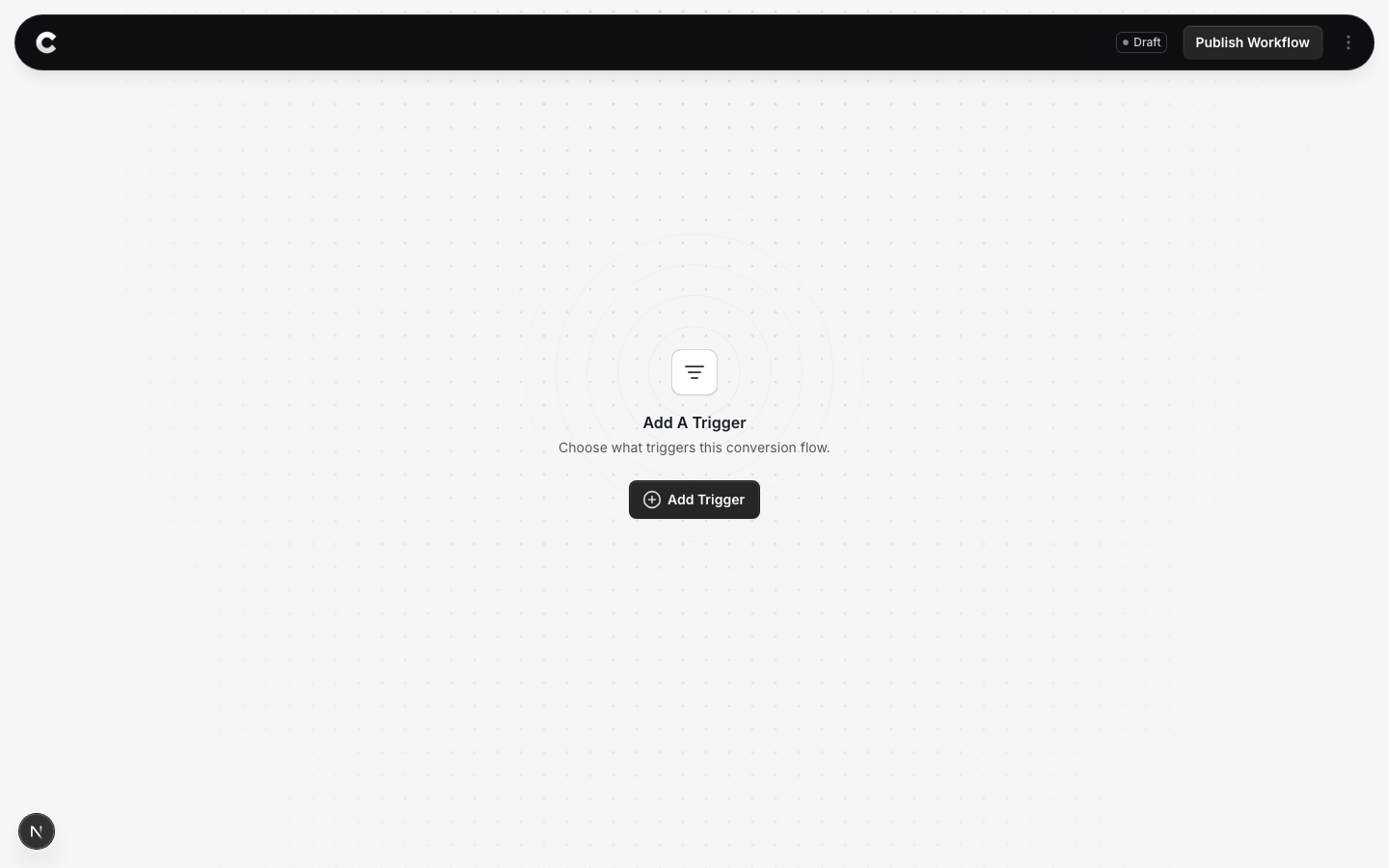
You land in the flow builder. It is empty for now. Click Add Trigger to choose what starts this flow.
Step 2: Choose HTML Form
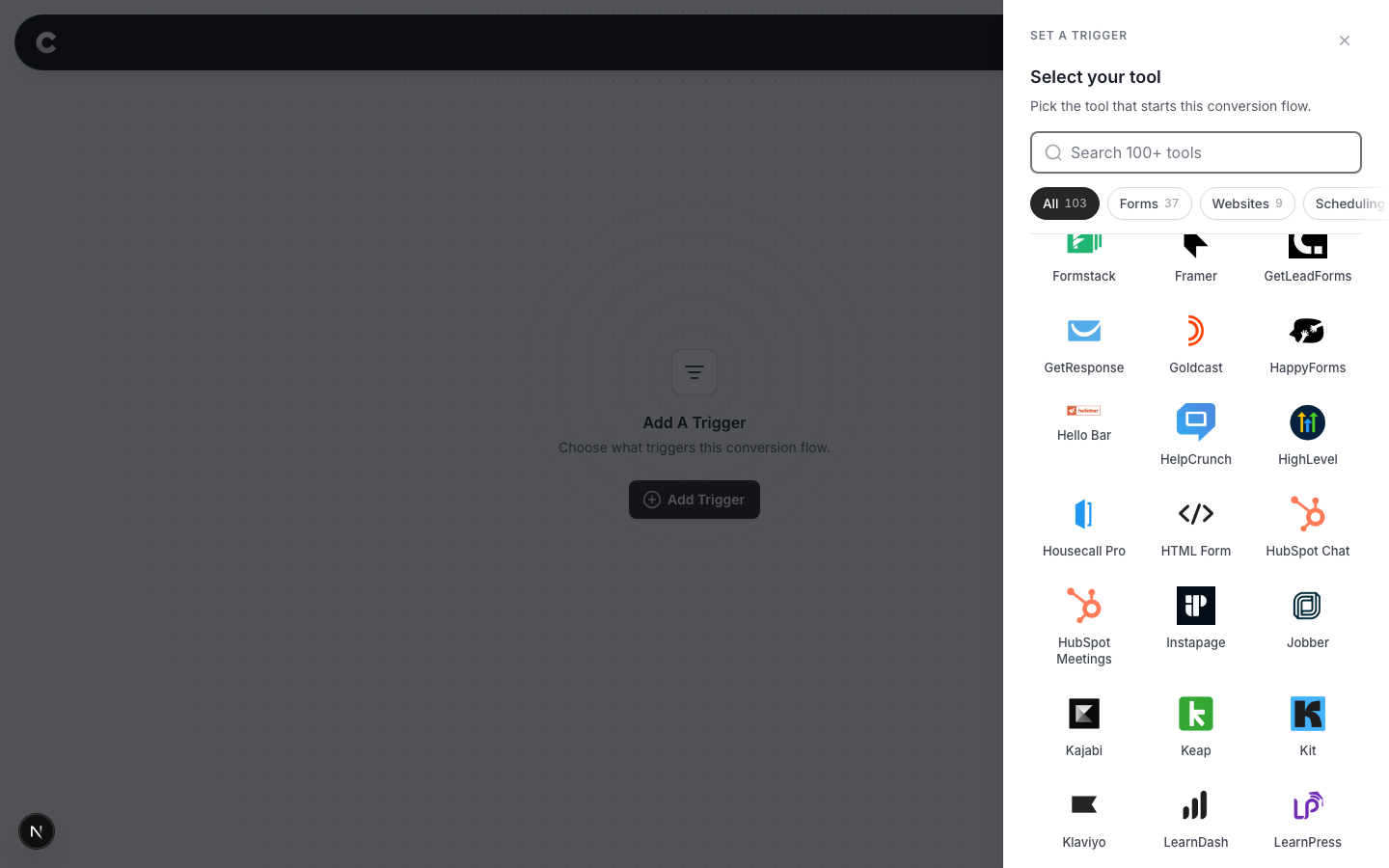
A panel slides in from the right listing every lead capture tool Converly supports, grouped by type. HTML Form is at the end of the form builders.
Click HTML Form. If you do not see it straight away, scroll the panel or use the search box at the top.
Step 3: Choose where it fires
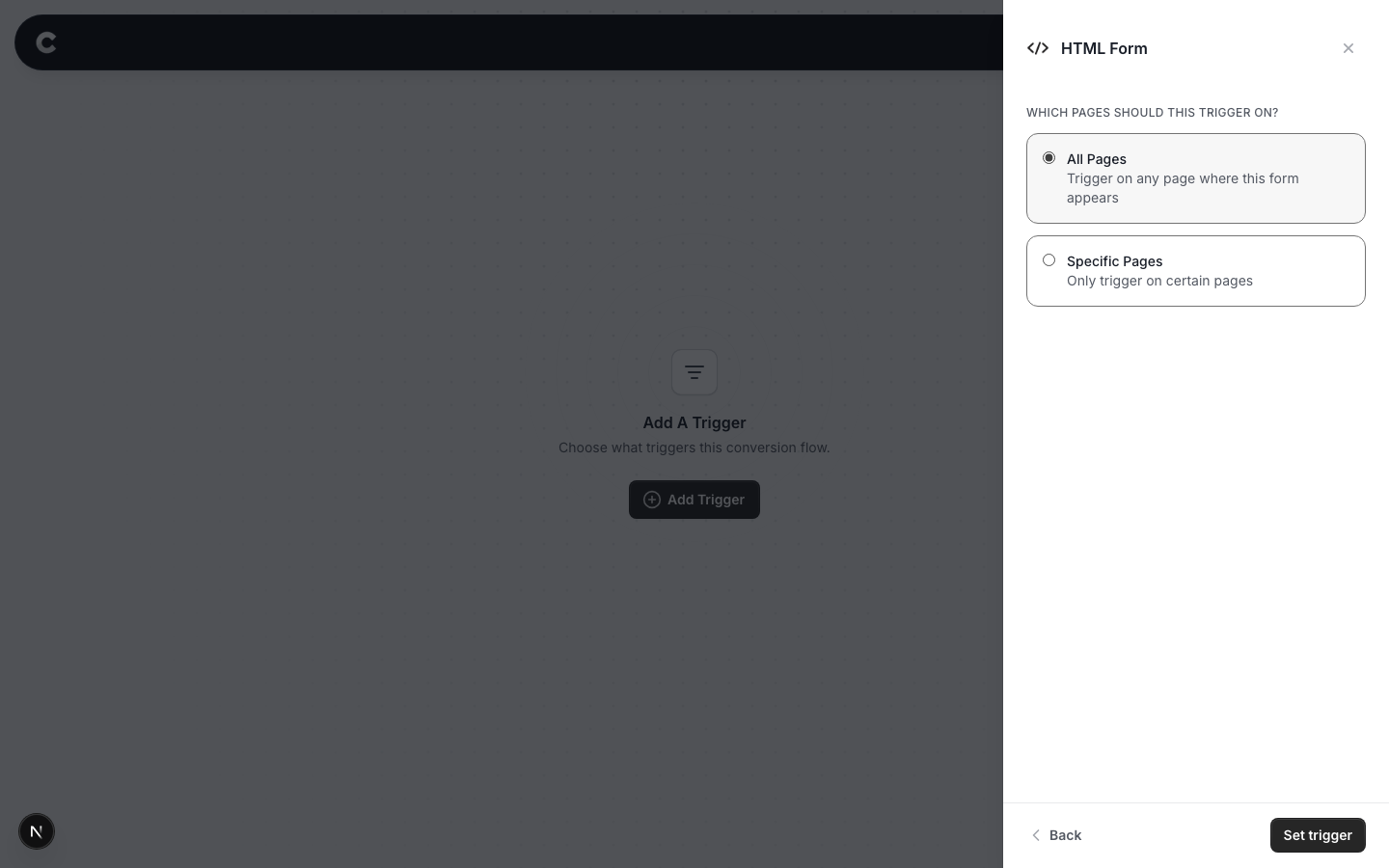
This step is the one to get right. Converly does not ask you to pick a specific form, because a hand-built form has no name or ID for it to offer you. It listens for any qualifying form on your site being submitted. The page setting is how you narrow that down to the one form you actually want to count.
Read this before you choose
If you do not set a specific page, this trigger fires every time someone submits any qualifying form anywhere on your site. If you have a contact form, a newsletter box, and a job application form all hand-built in HTML, all 3 would count as the same conversion. To track just one of them, use the specific page option below.
Option 1: Trigger on all pages
A conversion fires whenever anyone submits a qualifying form, on any page of your site. Only choose this if you have a single form, or if every hand-built form on the site genuinely should count as the same conversion.
Option 2: Trigger on specific pages
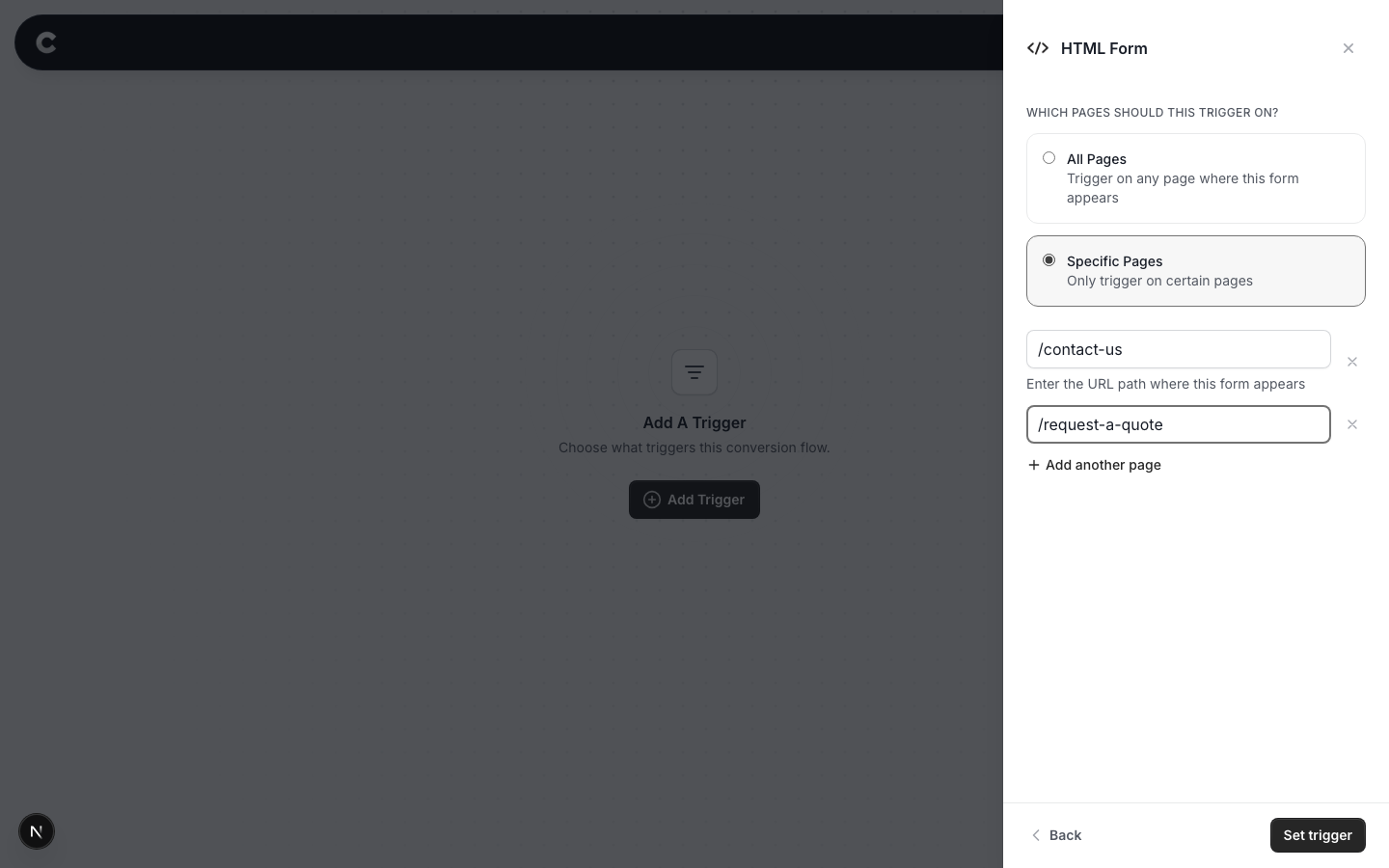
This is how most people should set it up. Listing a page tells Converly to only count a submission that happens on that page, which is how you isolate one specific form.
For example, to count only your contact form, find the page that form lives on (say https://www.yoursite.com/contact-us), select Specific Pages, and enter the path /contact-us. The path is just the part of the address after your domain. Start it with a slash, and do not include your domain. A submission now only counts if it happens on that page, so the newsletter box and job form elsewhere are ignored.
Click Add another page if the same form appears on more than one page, or the x to remove one.
When you have picked an option, click Set trigger.
Step 4: Add your destinations and publish
A trigger on its own does not send anything anywhere. The next step is to add one or more destinations (Google Ads, Meta, GA4 and so on), then publish the flow. See Building a flow for that part.
Publishing is the bit people forget. A flow that is saved but not published captures nothing at all.
Step 5: Test it works
This trigger is worth testing properly, because it depends on how your particular form behaves.
Open a new incognito window, go to the page with your form, and fill it in exactly as a real visitor would. Use a real email address so the submission gets through your own validation. Submit it, and let the page do whatever it normally does.
Then go back to Converly and click Logs in the left sidebar to open your conversion log. Your test should appear within a minute or so, showing the fields on your form and the destinations it was sent to.
If nothing appears, work through If your form isn't being tracked at the bottom of this page.
That's it! You've set everything up.
The rest of this article explains exactly how the detection works. You do not need any of it to get up and running, but it is the section to read if something isn't being tracked and you want to know why.
Which forms Converly watches
A form has to look like a lead form before Converly pays any attention to it. It qualifies if it has any one of these.
- An email field, or
- a message box (a multi-line text area), or
- 2 or more text fields.
That covers contact forms, quote requests, callback requests, newsletter signups, and enquiry forms.
Forms Converly deliberately ignores
Login and password forms. Any form containing a password field is skipped entirely. Signing in is not a conversion, and we never want password fields anywhere near the tracking pipeline. If you want to track account signups, use the API trigger instead.
Search boxes and filters. A form is treated as a search box, and skipped, if any of these are true.
- It, or a section around it, is marked up as a search area.
- It contains a search box and has no email field or message box.
- It is set up to submit as a GET request and has no email field or message box.
- Its only text field is named something like q, s, search, query or keyword.
Forms belonging to a form builder Converly supports by name. If the form carries the signature of Webflow, Gravity Forms, WP Forms, Contact Form 7, Elementor, Fluent Forms, Formidable, Forminator, Ninja Forms, Divi, WS Form, Framer, Jotform, Kit, ActiveCampaign, Mailchimp, Unbounce, HubSpot or Wix, this trigger stands back and leaves it to that tool's own trigger. Use the matching trigger from the picker for those.
How Converly decides a submission worked
Converly never counts a conversion just because someone pressed Submit. A submission can still be rejected, either by the form's own validation or by the server behind it, and counting those would inflate your numbers with leads that never existed.
So the moment someone submits, Converly takes a snapshot of what they typed and then waits for proof your site actually accepted it. There are 4 kinds of proof, and any one of them is enough.
Converly keeps watching for about 30 seconds. If none of the 4 appear in that time, it assumes the submission did not go through and counts nothing.
1. A confirmation message appears
The most common pattern by far. Your form stays on the page and a confirmation message appears above, below, or in place of the button.
Converly recognises a message as a confirmation in either of 2 ways.
By its name in the page code. The element's CSS class, id, or data attribute contains "success" or "thank". Examples that work are class="form-success", id="thank-you" and class="submissionSuccess". This route works no matter what language your site is written in, because class names are nearly always in English even on non-English sites.
By its wording. The visible text contains one of thanks, success, received, "in touch", submitted, "message sent", "got it", appreciate or subscribe. This route is English only.
The rule that keeps this accurate. In both cases the message must have changed state. It has to have been hidden, or not on the page at all, at the moment of submission, and become visible afterwards. This is why a page that already displays the words "Thank you for visiting" in its footer will never produce a false conversion. Only a message that appears in response to the submission counts.
A message is rejected as proof if any of these are true.
- It is longer than about 300 characters, which means it is a page section rather than a confirmation banner.
- Its wording contains a negative, like "your message was not submitted" or "submission unsuccessful".
- Its wording is a progress update, like "Sending..." or "Please wait".
- Its class or id names an error or a failure.
2. The page redirects to a thank-you page
The second most common pattern, and the other one most sites use.
Converly snapshots what the visitor typed, then watches for the page to navigate away. If it does, and nothing on the page indicated a rejection, the conversion is counted and sent using the browser mechanism designed to survive a page leaving, so nothing is lost in the redirect.
There are 2 time limits, because the 2 styles of redirect carry different weight as proof.
7 seconds when your form submits the traditional way, where the browser leaves the page by itself as part of the submission. Here the navigation is the submission, which is strong proof.
4 seconds when your page handles the submission itself and then sends the visitor to a thank-you page afterwards, which is what a modern form usually does. Here the navigation is more circumstantial, so Converly is stricter about how long it will wait.
Navigate later than that and Converly assumes the visitor simply left the page, and counts nothing.
3. The form clears itself
Some forms empty their fields on success. If every field that had something in it is empty afterwards, and the form is still on the page, that counts.
There are 2 guards on this one. If the visitor clicked a Reset button, it does not count, because they cleared the form themselves. And Converly checks again before counting, so a form that clears itself the instant you press Submit, before the server has answered, does not count if the server then rejects it.
4. The form is replaced by a confirmation
The form is removed from the page or hidden, and a confirmation message appears in its place. This is common on sites that swap the form out for a confirmation panel.
Note that a form simply disappearing is not enough on its own. A popup closing, or a page section being swapped out, looks identical to a form being replaced on success, so Converly needs the confirmation message as well.
The double check before counting
Whichever proof appears, Converly waits about 2 seconds and looks again before counting the conversion. It checks that no error message has appeared in the meantime, and that the proof is still there.
This catches a very common real-world case. Plenty of forms show a confirmation optimistically the instant you press Submit, and only then find out the server rejected it. Without the pause, that would count as a conversion. With it, the error arrives during the wait and the conversion is correctly dropped.
The wait costs you nothing. Conversions are sent from Converly's servers, and no part of your page is waiting on it. If your site redirects during that window, the redirect completes the check immediately rather than losing the conversion.
What counts as a failed submission
Converly treats a submission as rejected, and counts nothing, if any of this appears while it is watching.
- A field marked as invalid.
- An element whose class, id or data attribute names an error, an invalid state, a failure, or a danger state.
- Text containing error wording, such as error, required, invalid, "try again", "please enter", "cannot", "unable", "went wrong" or "rejected".
- An accessibility alert (the kind a screen reader reads out loud) whose wording isn't a confirmation.
Once a rejection has been seen, that submission is finished. Even if the error message disappears afterwards (which it usually does, the moment the visitor starts correcting the field), Converly will not count that attempt. If they fix it and submit again, that is a fresh attempt and is judged on its own.
An ordinary informational notice, such as a blue "Check your inbox for the next step" box, is not treated as an error, so it won't suppress a genuine conversion.
What Converly captures from your form
From the submitted form, Converly reads:
- Email, phone, first name and last name. These are worked out from the field types, the autocomplete hints, and the field names. They are hashed before being sent to any ad platform, which is what lets Google and Meta match your conversions back to real ad clicks.
- A list of the field names on your form, without their values. This is what lets Converly show you what is on your form in the conversion log.
Alongside that, Converly contributes the browser context it already tracks, like click IDs, the referrer and UTM parameters.
Fields Converly never reads
Passwords, credit card fields and one-time codes are skipped before their value is read at all. A field is skipped when its type, its autocomplete hint, its name, its id, or its visible label indicates a password, a card number, a security code, a one-time code, a PIN or a social security number. Neither the value nor the field name enters Converly's system.
Known limitations
Being straight with you about where this trigger under reports. All of these fail in the safe direction, meaning a conversion is missed rather than invented.
A confirmation message a long way from the form. Converly watches the form and the area immediately around it. If your confirmation appears as a site-wide notification bar or a floating toast at the very top of the page, while the form itself sits deep inside the page, it may not be seen.
Confirmation wording in another language, with no English class name. Message wording is matched in English. If your confirmation element also has a class or id containing "success" or "thank", which is very common, you are fine in any language. If it has neither, that message won't be recognised.
Sites that swap the confirmation for a countdown before redirecting. If your thank-you message is replaced by something like "Redirecting in 3..." before the page navigates, the original proof is gone by the time the page leaves, so the conversion isn't counted.
Forms with no real form submission. Some modern web apps use a button that sends the data in the background, with no actual form submission underneath. There is nothing for Converly to detect. If your form is built this way, get in touch and we'll look at the options.
Forms inside an embedded frame from another website. Converly can't see inside those. Most of those platforms have their own Converly trigger, so use that instead. See Typeform, Jotform, Calendly and Acuity Scheduling.
Signup forms with a password field. Skipped on purpose. Use the API trigger.
If your form isn't being tracked
Work through this in order.
- Check Converly is installed on the page with the form. Your install status in the dashboard will show whether Converly has ever seen that page.
- Check your website address is set correctly in Converly. Conversions from an address Converly doesn't recognise are rejected. See Update your website.
- Check the flow is published, not just saved. An unpublished flow captures nothing.
- Check your form qualifies. It needs an email field, a message box, or at least 2 text fields, and it must not contain a password field.
- Check the page paths you entered exactly match the real page addresses, if you chose Specific Pages in Step 3.
- Check what your form does on success. If it shows a confirmation, does that confirmation appear only after submission, rather than sitting on the page the whole time? If it redirects, does the redirect happen within a few seconds?
- Still stuck? Send us the page address. The most common fix is a confirmation element that needs a "success" class name, which is a one line change on your side, and we'll tell you exactly what to add.