If you run ads that drive people to an Acuity Scheduling booking page, this guide turns every appointment into a conversion you can send to Google Ads, Meta, or anywhere else.
Before you start: you need admin access to your Acuity Scheduling account, and Converly installed on your site.
Step 1: Create a flow
A flow is the rule that turns an Acuity booking into a conversion. Click Flows in the left sidebar, then Create New Flow, and give it a name like "Acuity bookings".
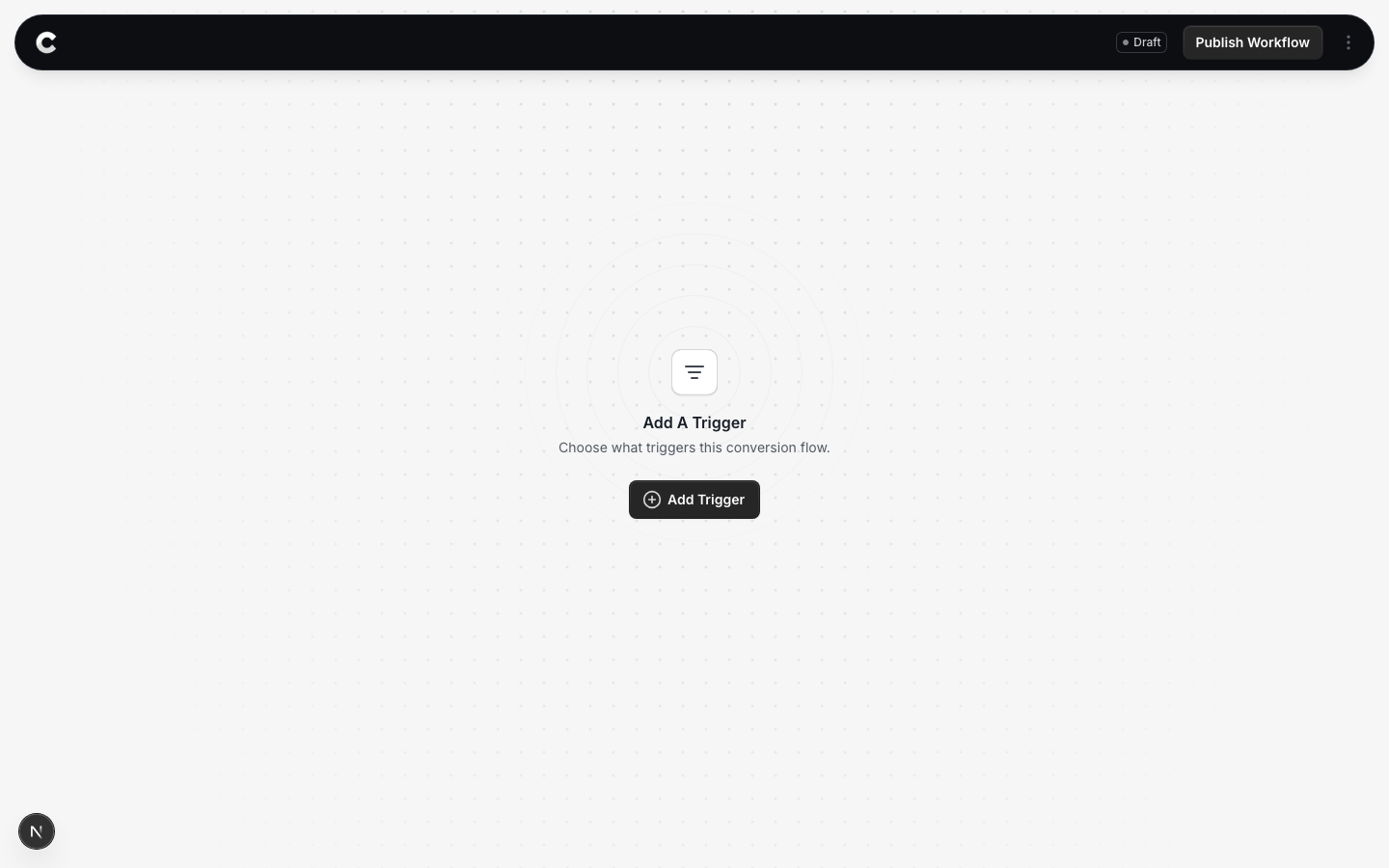
You land in the flow builder. It is empty for now. Click Add Trigger to choose what starts this flow.
Step 2: Choose Acuity Scheduling
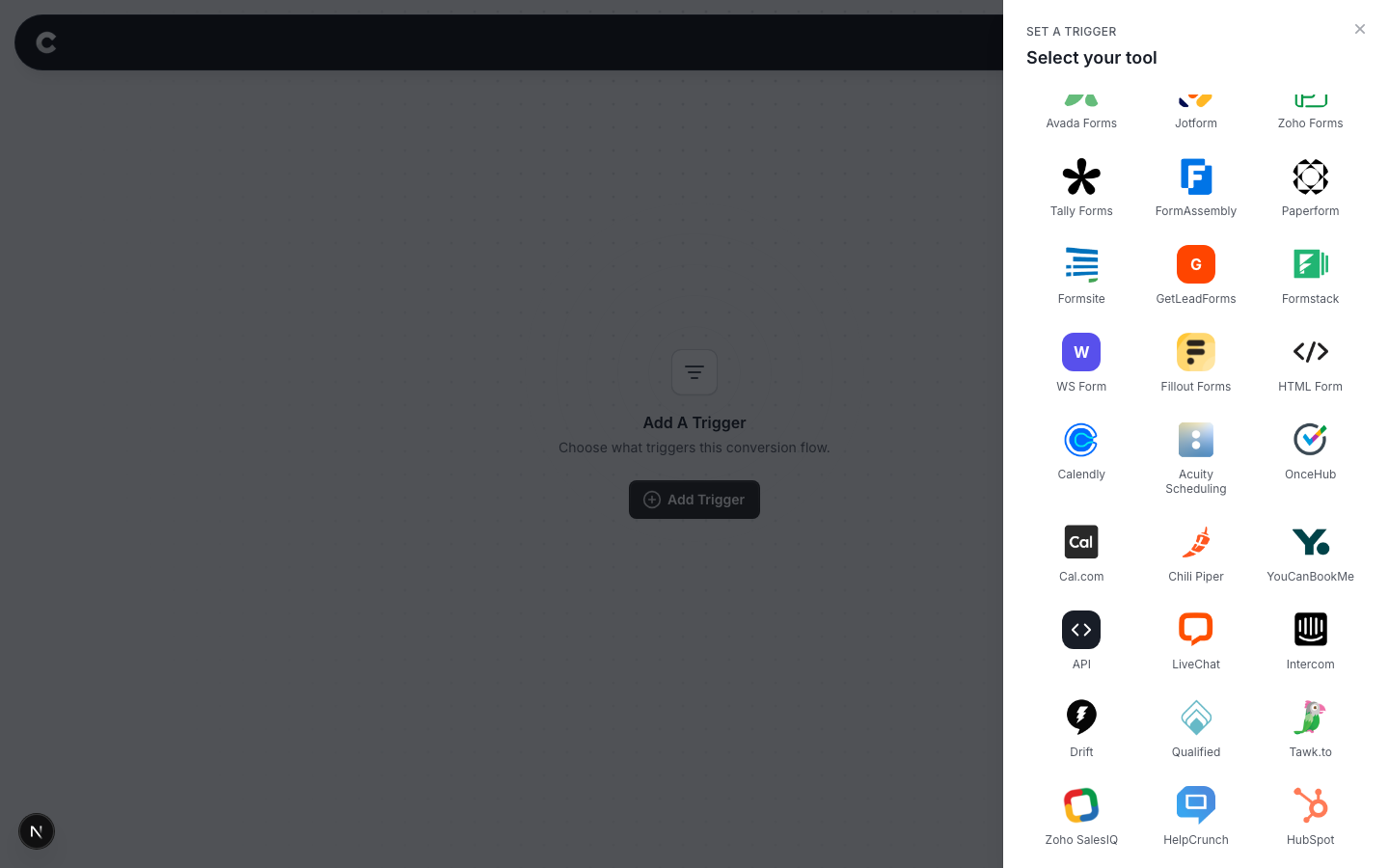
A panel slides in from the right listing every lead capture tool Converly supports, grouped by type. Acuity Scheduling is under the scheduling tools.
Click Acuity Scheduling. If you do not see it straight away, scroll the panel or use the search box at the top.
Step 3: Connect your Acuity account
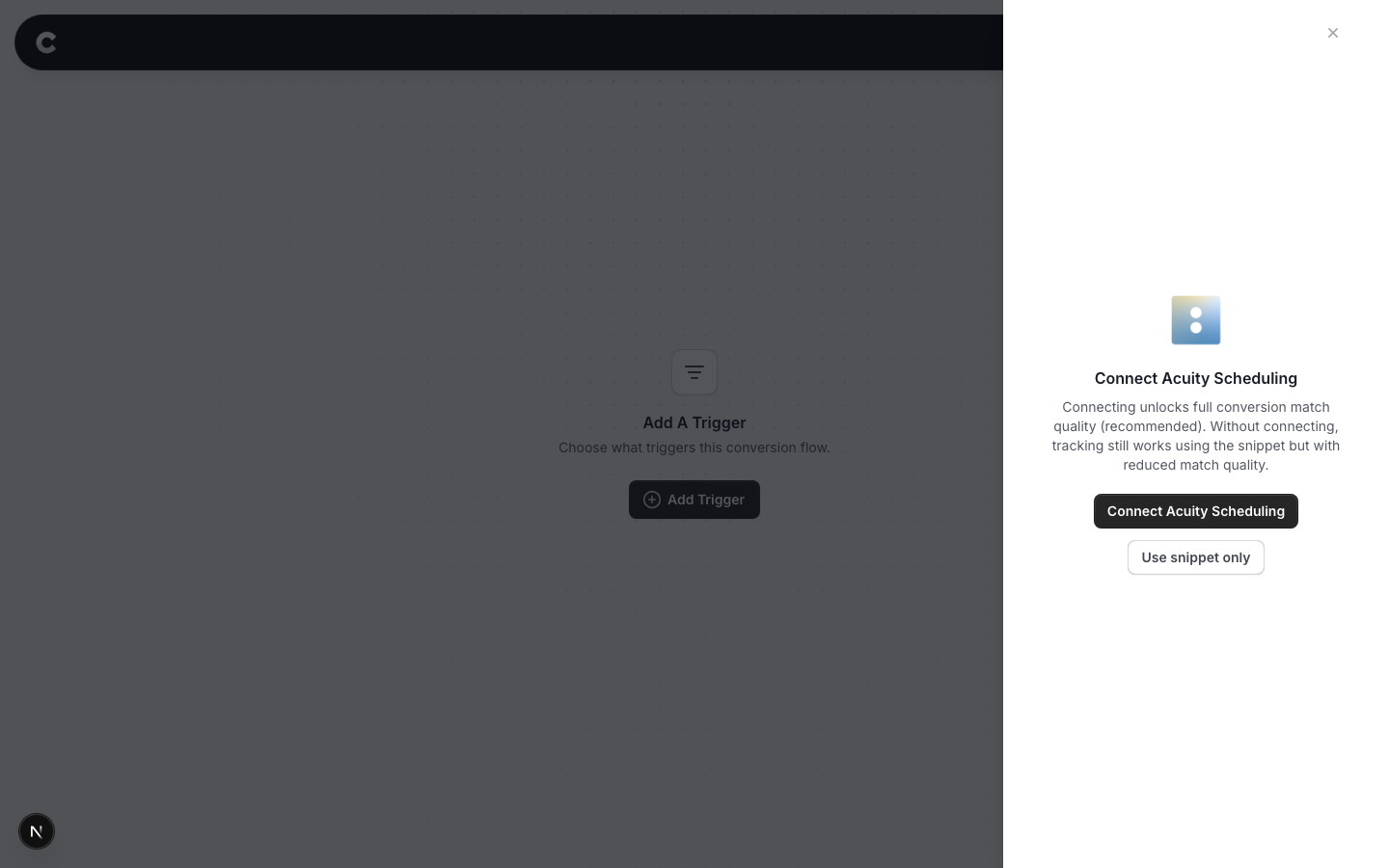
Acuity gives you two ways to track bookings:
- Connect Acuity Scheduling (recommended). Converly links to your Acuity account so it can read each booking in full. This gives you the best conversion match quality, which means more of your bookings get matched back to the ad click that drove them.
- Use snippet only. Tracking still works, but with reduced match quality. You paste a small snippet into Acuity instead of connecting your account.
We recommend connecting. Click Connect Acuity Scheduling, sign in to Acuity in the window that opens, and approve it. You come back here, now connected.
Step 4: Choose which appointments count
Now you decide which Acuity bookings should fire a conversion.
By default the dropdown is set to Always trigger this conversion flow, which counts every booking. To only count certain meetings, change it to A specific appointment type is selected, then tick the appointment types that matter.
For example, if only a paid strategy session is a real conversion for you, tick that one and leave the free intro call unticked. You can tick more than one.
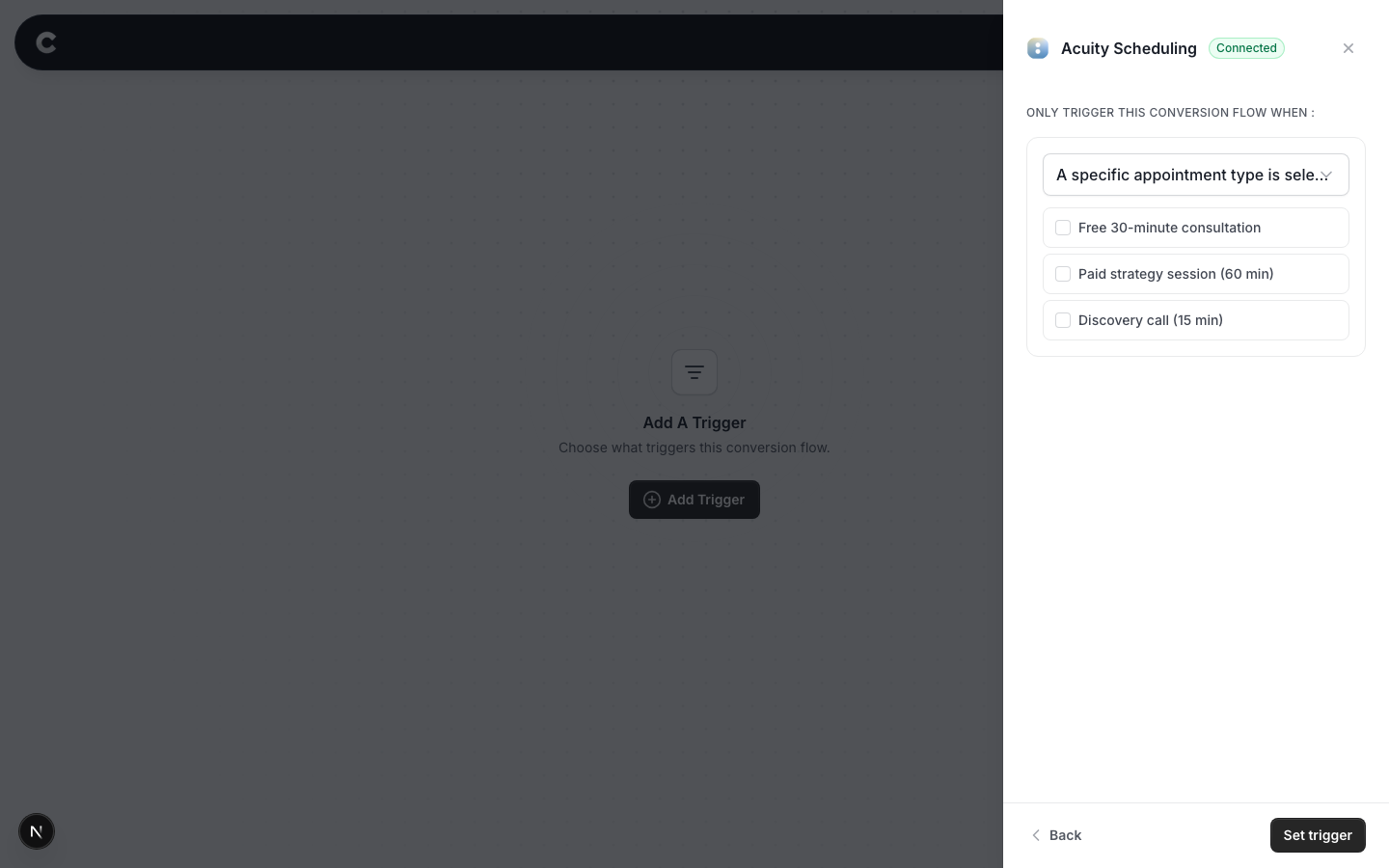
When you are happy, click Set trigger.
What happens next
A trigger on its own does not send anything yet. Next you add one or more destinations (Google Ads, Meta, and so on) and publish the flow. See Building a flow for that part.
If bookings are not showing up later, check that the right appointment types are still ticked on the trigger, that the flow is set to Active rather than Draft, and that Acuity is still connected on the Integrations tab under Settings.