
Sending conversions to Google Analytics 4 records each lead as an event in GA4, so it sits alongside the rest of your traffic and funnels. Converly sends server-side through the Measurement Protocol, so events still land even if the GA4 browser tag is blocked.
A destination is added inside a flow as an action, so you connect GA4 while building (or editing) a flow.
Before you start: you need a flow that already has a trigger set up (see Building a flow), and access to a GA4 property with a web data stream.
Step 1: Add an action
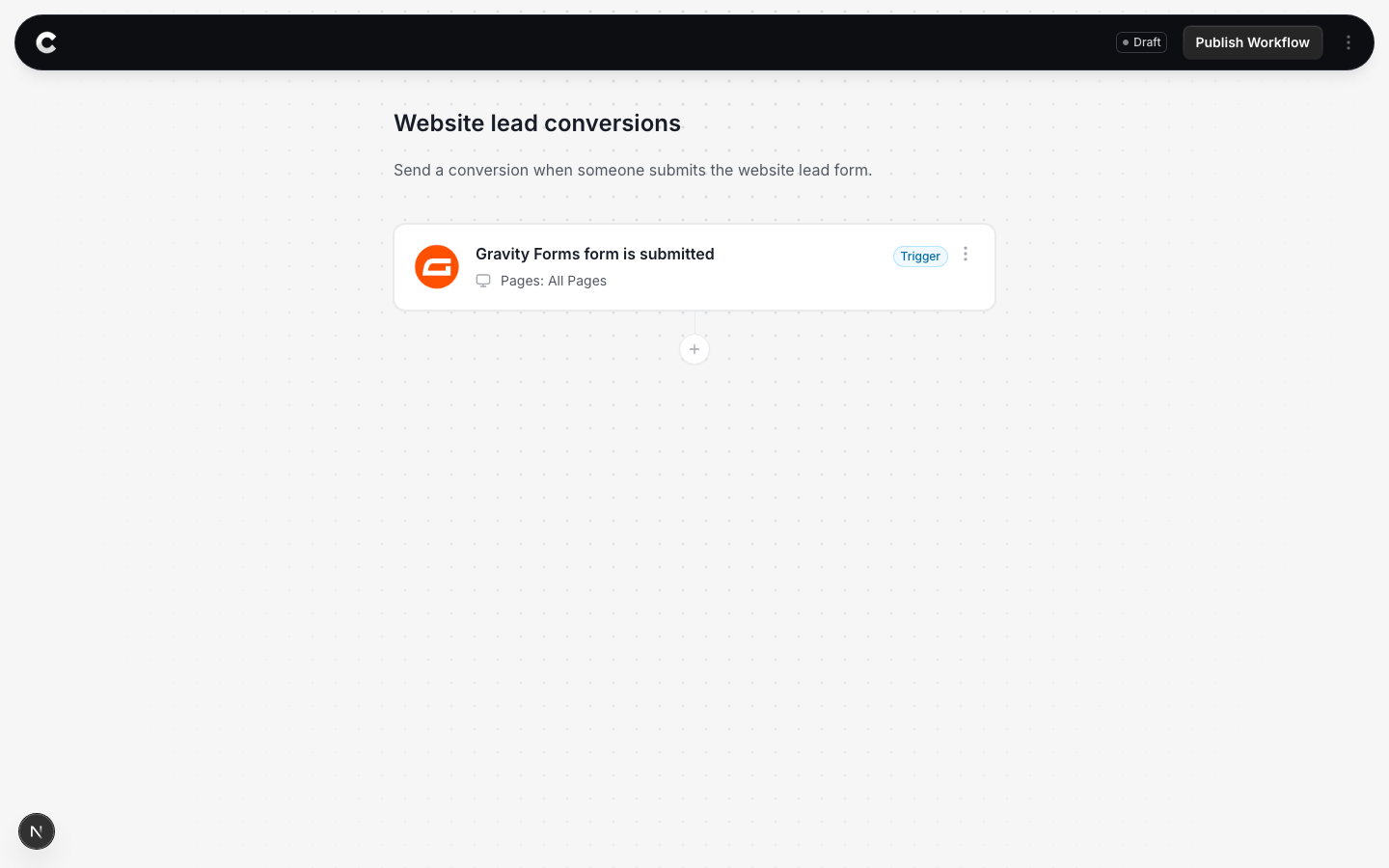
Open the flow with your trigger. Below the trigger card there is a + button. Click it to add an action.
Step 2: Choose Google Analytics
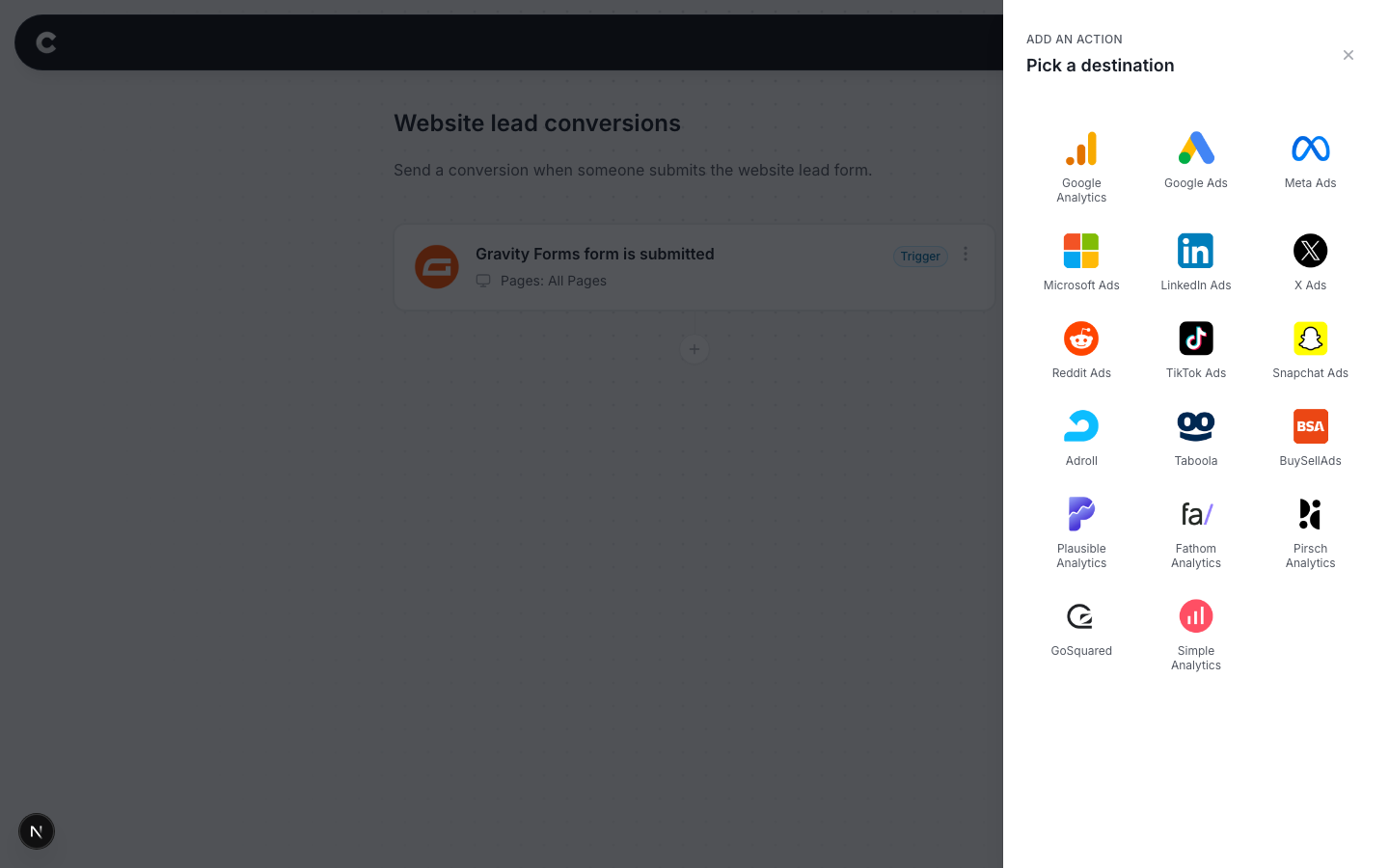
A panel slides in from the right listing every destination Converly can send to. Click Google Analytics.
Step 3: Connect Google Analytics
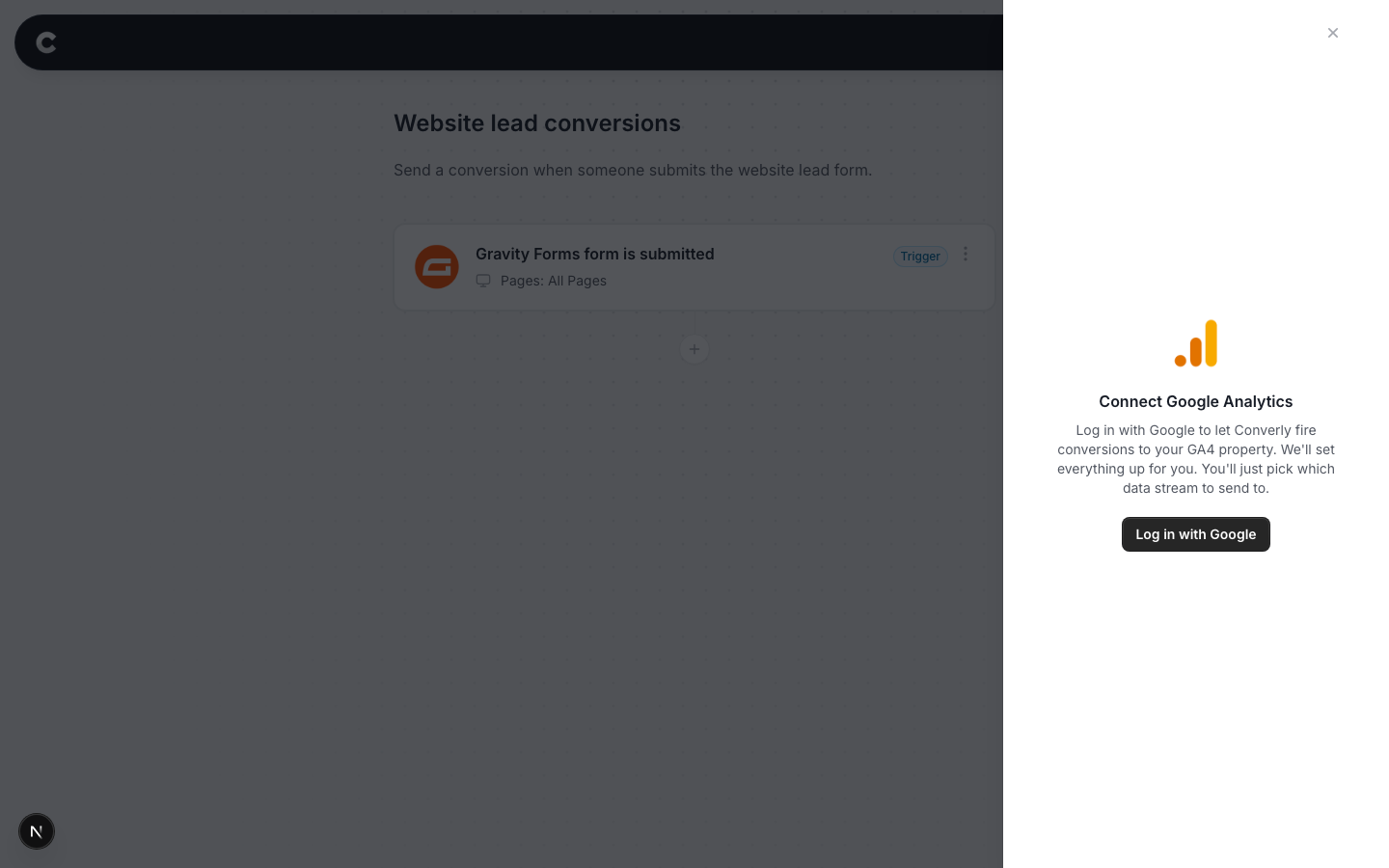
The first time you use GA4 you need to connect it. Click Log in with Google.
A Google window opens. Sign in with the account that has access to your GA4 property, and approve the request. The window closes and you come back to Converly, where you pick your GA4 account, property, and the web data stream Converly should send to. This is a one time step. After this, GA4 stays connected for every flow.
Step 4: Choose your conversion
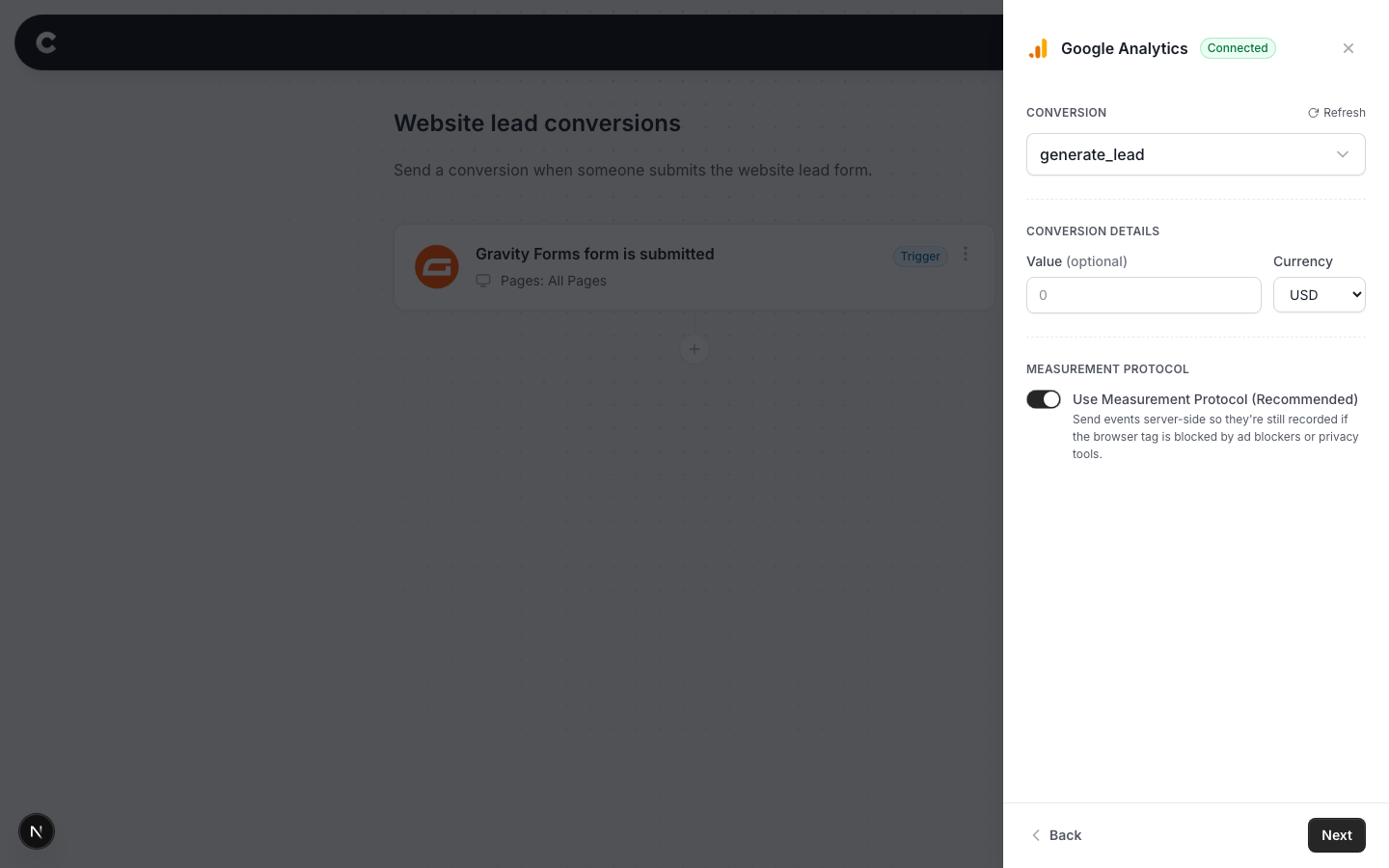
Pick which GA4 event to record. Choose a recommended event like generate_lead or sign_up from the dropdown, or pick Use a custom event name to send your own.
Set a value and currency if each lead is worth a fixed amount, or leave the value blank.
Leave Measurement Protocol turned on. It sends the event server-side, so it still records even if the GA4 browser tag is blocked by an ad blocker or privacy tool.
Step 5: Send a test
GA4 has a live debug view, so you can watch your test arrive. You do not need a code for this one.
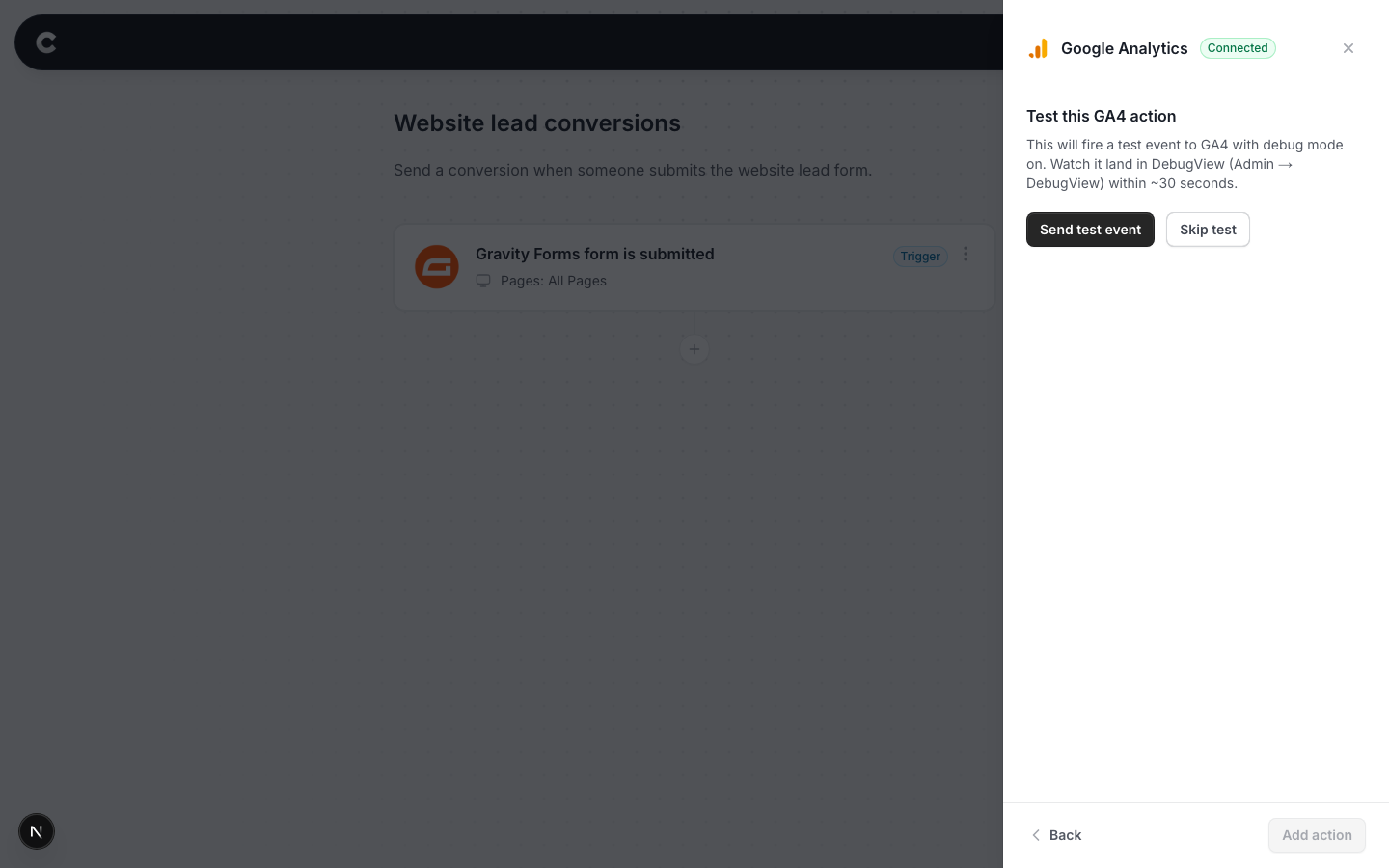
- Click Send test event. Converly fires it with debug mode on.
- In Google Analytics, open Admin, then DebugView.
The event usually appears in DebugView within about 30 seconds. Once you have seen it, click Add action and publish the flow.
You can watch this one arrive live
Unlike Google Ads, GA4 shows debug events almost instantly. If nothing appears after a minute, make sure you are looking at DebugView in the same property and data stream you connected.
What happens next
Once the flow is published, real conversions flow to GA4 automatically. You can also watch them arrive in Converly on the Activity page.
If events are not showing in GA4 later, mark the event as a key event in GA4 if you want it counted as a conversion, check the flow is Active rather than Draft in Converly, and confirm the connection still shows as connected under Settings.