
Converly sends conversions to Google Ads using the Google account you connected. If that account does not have enough access to your Google Ads account, Google refuses the conversions even though everything else is set up correctly.
The fix is to raise that account's access level to Standard or higher, which an admin does inside Google Ads in about a minute.
The important part, and the bit that catches people out, is the access level of the Google account you connected to Converly, which is not always the account you are signed in to Google Ads with right now.
Follow the instructions below:
Before you start
You need Admin access to the Google Ads account to change anyone's access level, including your own. If you are not an admin, simply send this article to whoever is.
Step 1: Check which Google account is connected
In Converly, go to Settings, then Integrations, and look at the Google Ads row. It shows the Google account Converly is connected as.
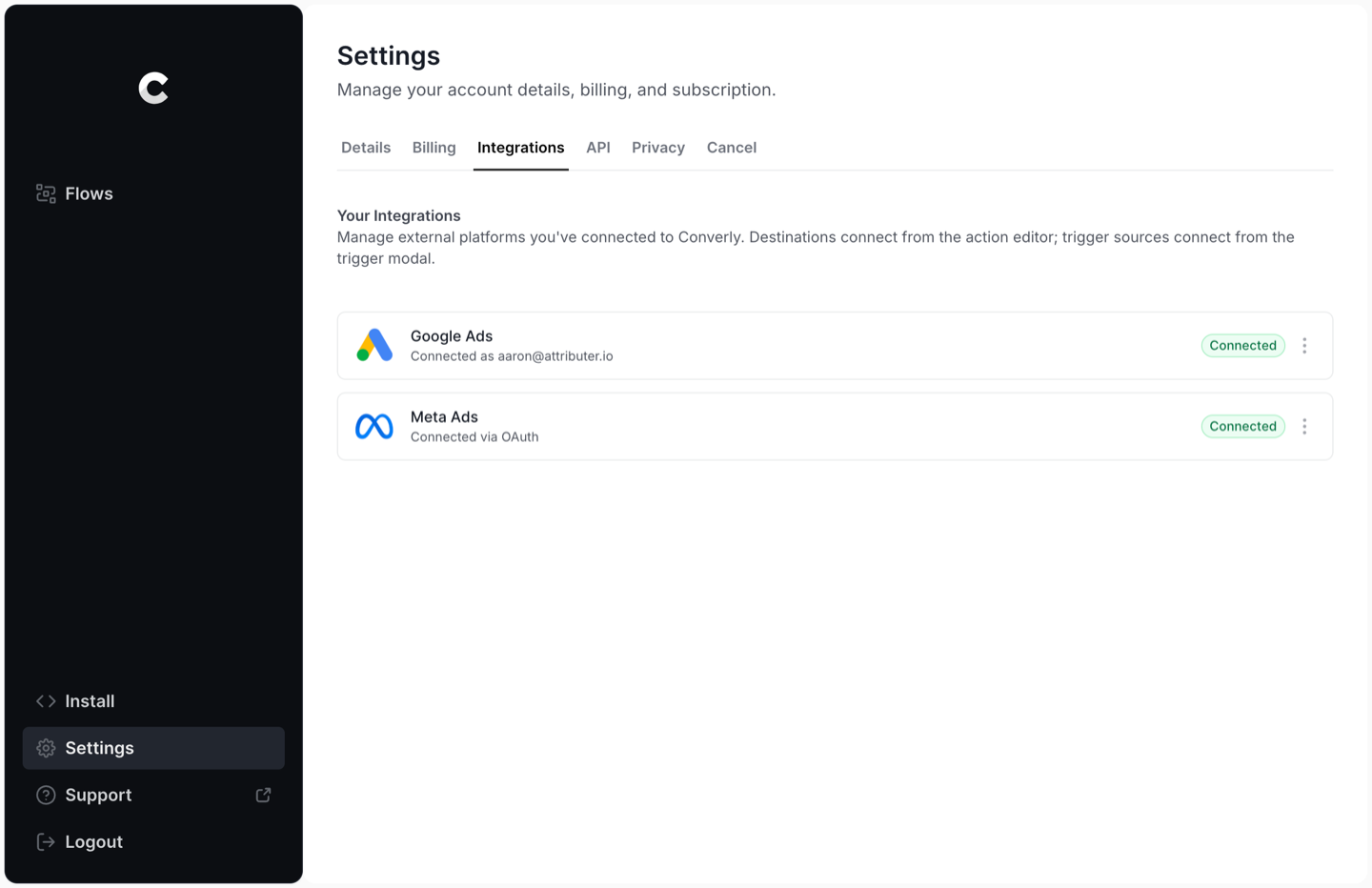
Make a note of that email address. It is the one you are about to grant access to.
Step 2: Give that account Standard access
Sign in to Google Ads, click the Admin icon in the left menu, choose Access and security, then open the Users tab.
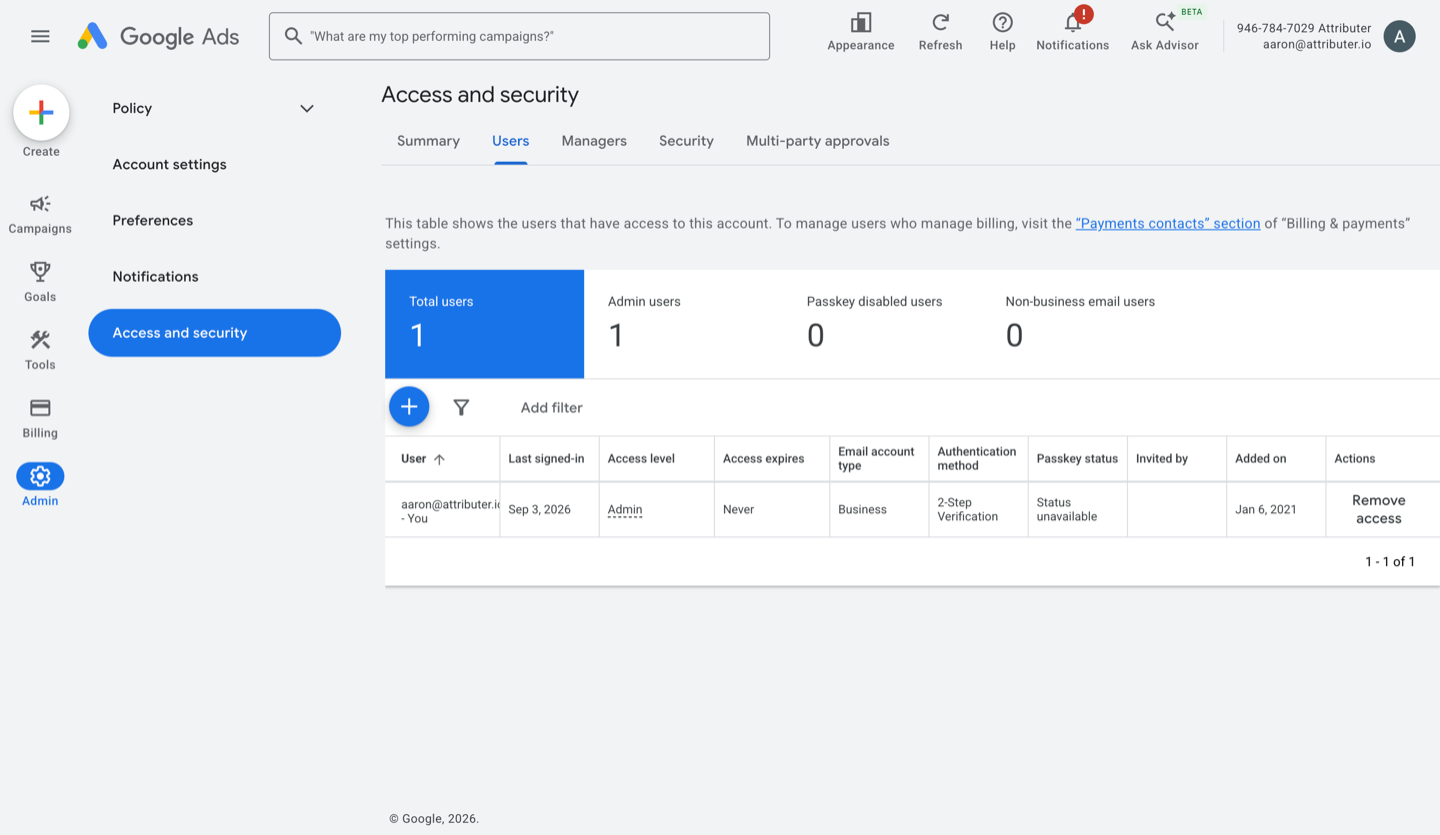
Find the email address from Step 1 in the User column. Its current access level sits in the Access level column with a dotted underline, which means you can change it. Click it, then choose Standard or Admin from the dropdown and save.
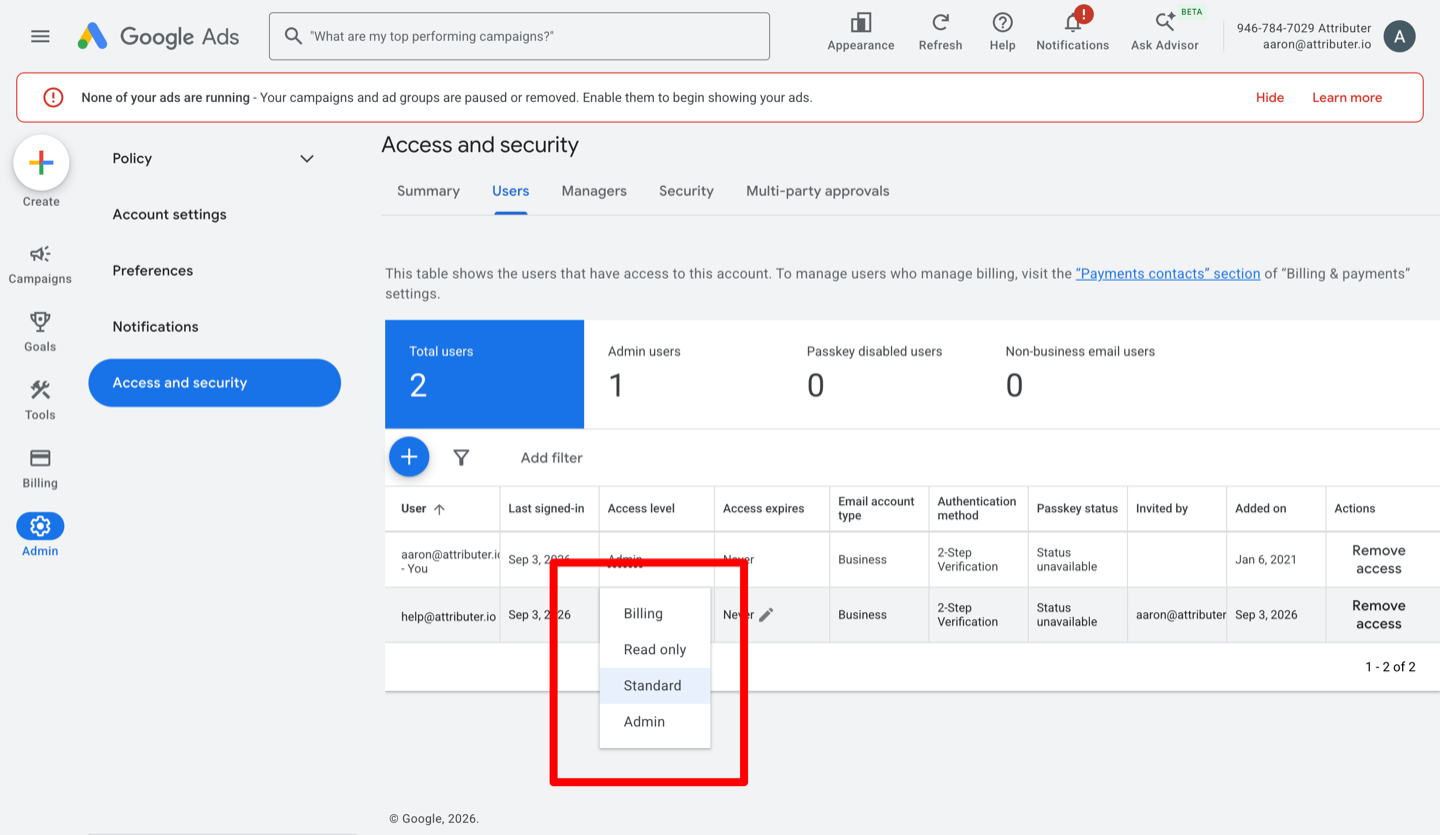
The dropdown offers Billing, Read only, Standard and Admin. Converly needs Standard or Admin, because the levels below cannot read back the conversion settings Converly checks before it sends.
If the account is not in the list at all
It has never been invited. Click the blue plus button above the table on the Users tab, enter the email address from Step 1, choose Standard, then click Send invitation.
The invitation has to be accepted before the access takes effect, so open the invitation email from that account and accept it before moving on.
Step 3: Go back to Converly and check again
Return to the Converly screen that sent you here and click Check again.
Access changes can take a minute to reach Google, so if the screen says the same thing, simply wait a moment and click it once more.
You do not need to reconnect Google Ads or rebuild your flow. Your flow was saved before this screen appeared, so I'll do this later is always safe to use.
That's it! Once Converly comes back ready it takes you straight on to testing your flow.
If it still says there is an access problem
Check you changed the right account. The most common cause is granting access to your own Google account rather than the one Converly connected with. Step 1 tells you which one that is.
Check the invitation was accepted, if you invited the account rather than changing an existing entry. An invitation that is sent but not accepted grants nothing.
If Converly says conversions are managed by a manager account it cannot access, this is a different problem and the Users tab will not fix it. The Managers tab on the same page shows which manager accounts are linked, which is a useful place to confirm what you are dealing with. Your conversions are owned by a Google Ads manager account that the connected Google account cannot see at all. Either sign in to Converly with a Google account that can reach that manager, or ask your Google Ads admin to give the connected account access to the manager itself, then reconnect Google Ads in Converly. Reconnecting is required here, because Converly reads the account structure at connect time.