
The Customer Data Terms are Google's confirmation that you are allowed to share customer data with them. Google will not accept conversions from Converly until your Google Ads account has agreed to them, so this is usually the last thing standing between your flow and live conversion data.
It takes about a minute, you do it inside Google Ads rather than in Converly, and you only ever do it once per account.
Converly checks for it automatically. If you have landed here from the One more step in Google Ads screen, Converly asked Google whether your account had accepted and Google said no.
Follow the instructions below:
Before you start
You need Admin access to the Google Ads account. Accepting terms on behalf of your company is an account level agreement, and people with Standard access often cannot see the option at all. If you are not an admin, simply send this article to whoever is.
You do not need to touch your website, install a tag, or change anything in Converly while you do this.
Step 1: Accept the Customer Data Terms
Sign in to Google Ads and check you are in the right account. Converly's message names the account it is waiting on, in the form 302-340-4935, so compare that with the account number in the top right of Google Ads.
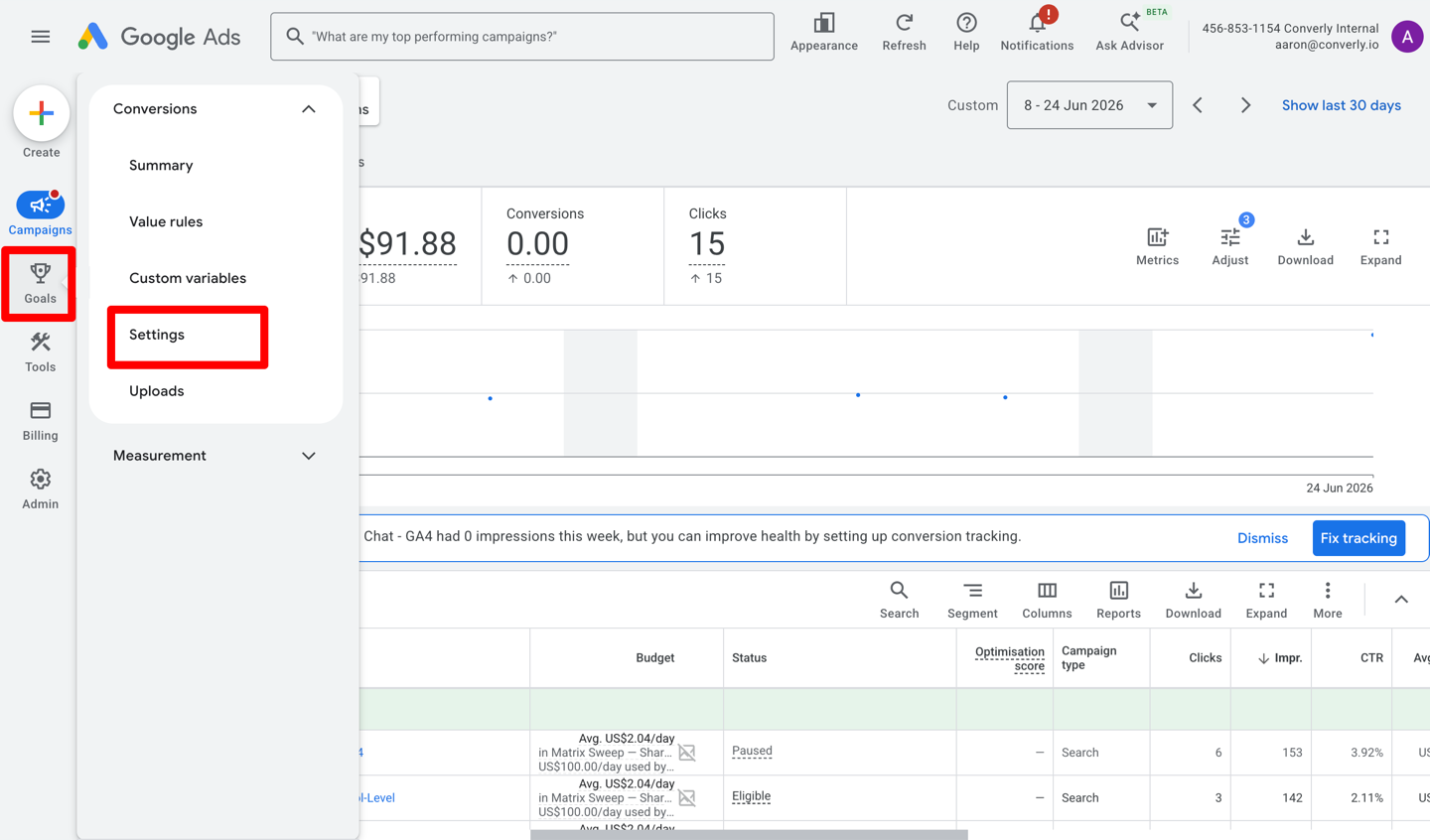
Then click the Goals icon in the left menu and choose Settings.
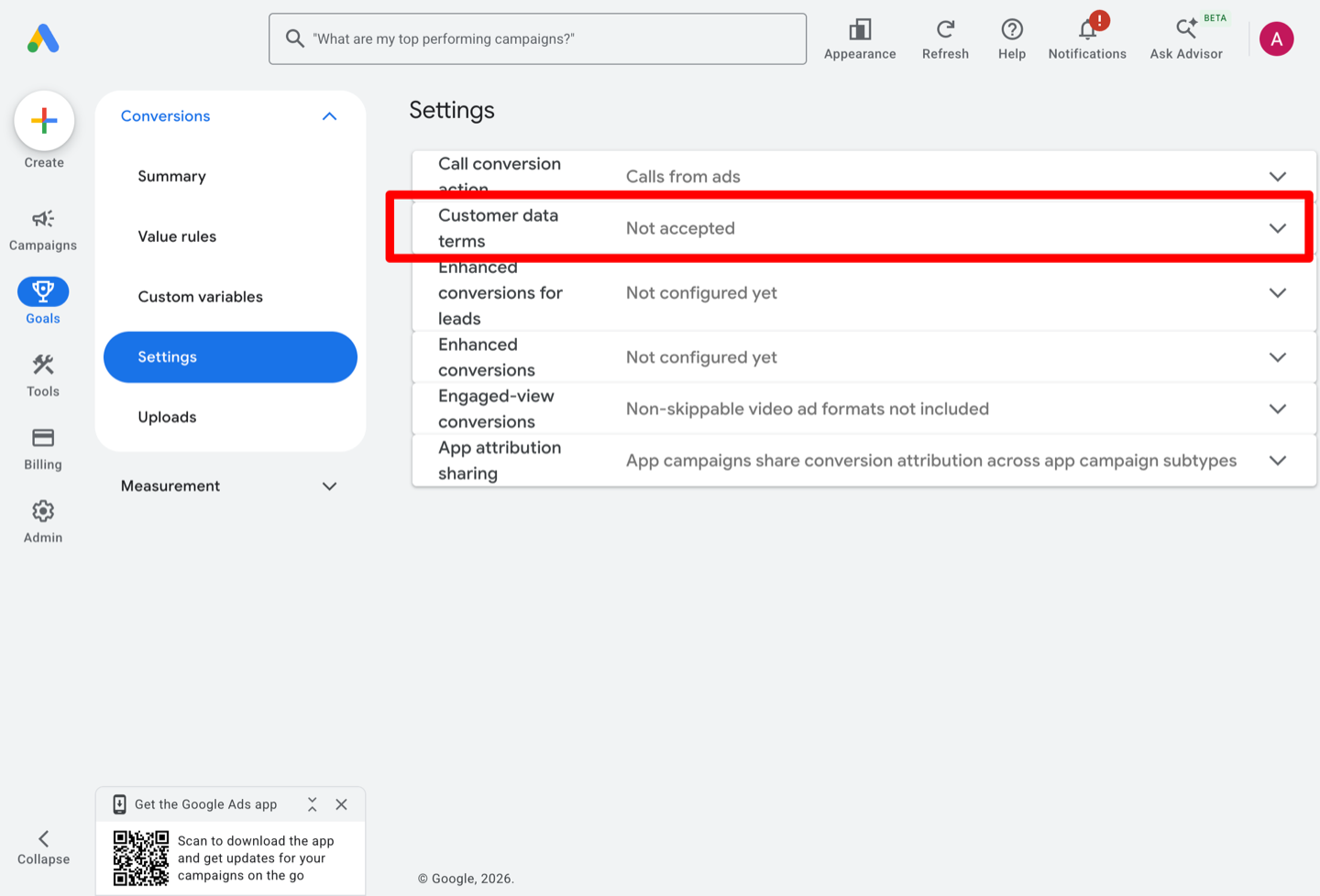
Find the Customer data terms row and click the arrow on the right to expand it. If your account has not accepted yet, this row reads Not accepted.
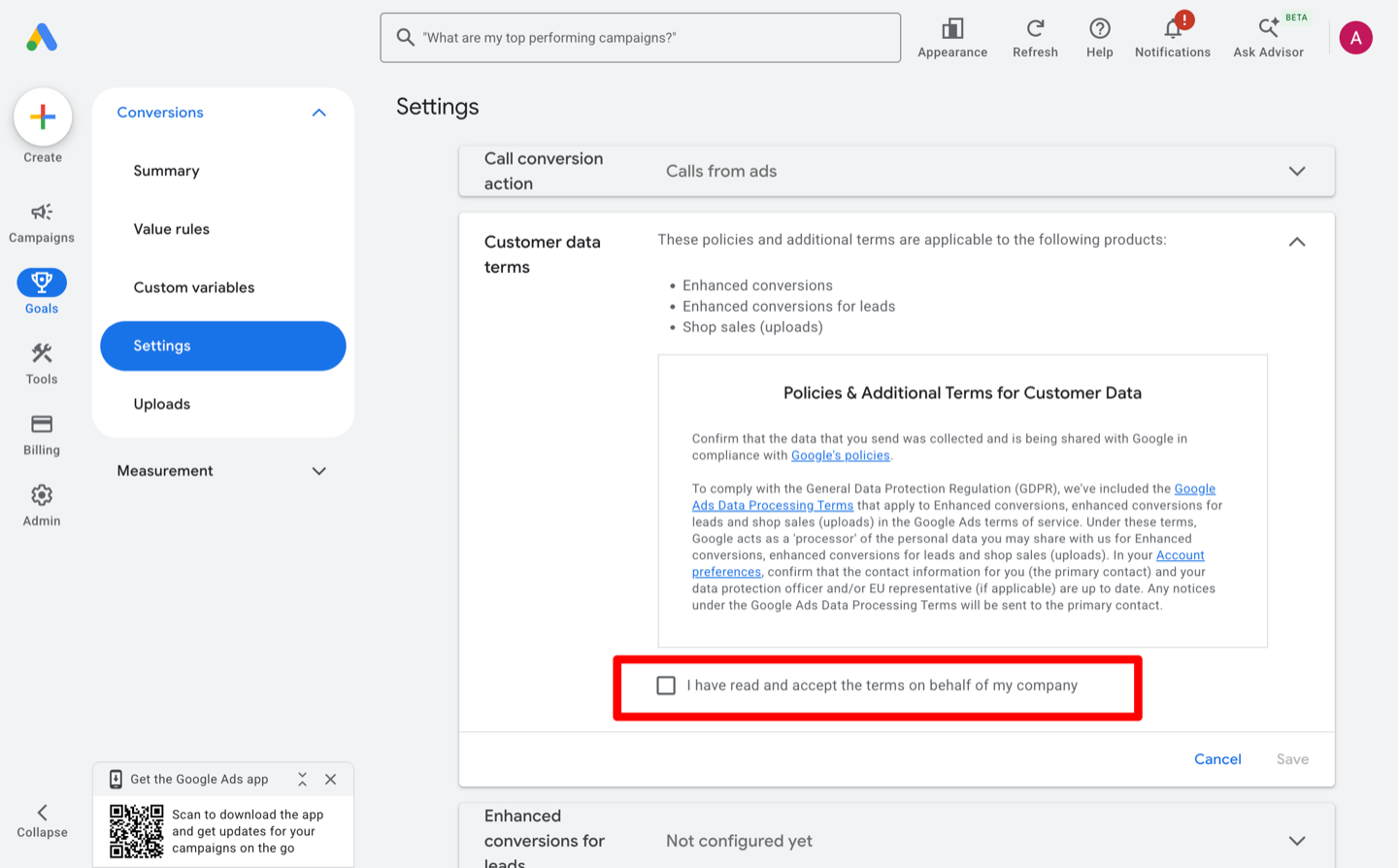
The terms open in the row itself. Read the Policies and Additional Terms for Customer Data, tick I have read and accept the terms on behalf of my company, then click Save.
Step 2: Turn on enhanced conversions for leads
Accepting the terms tells Google it is allowed to receive the data. Turning on enhanced conversions for leads is what actually lets Google use it. Converly needs both, and they are two separate rows on the same screen.
Staying on Goals, then Settings, find the Enhanced conversions for leads row and expand it.
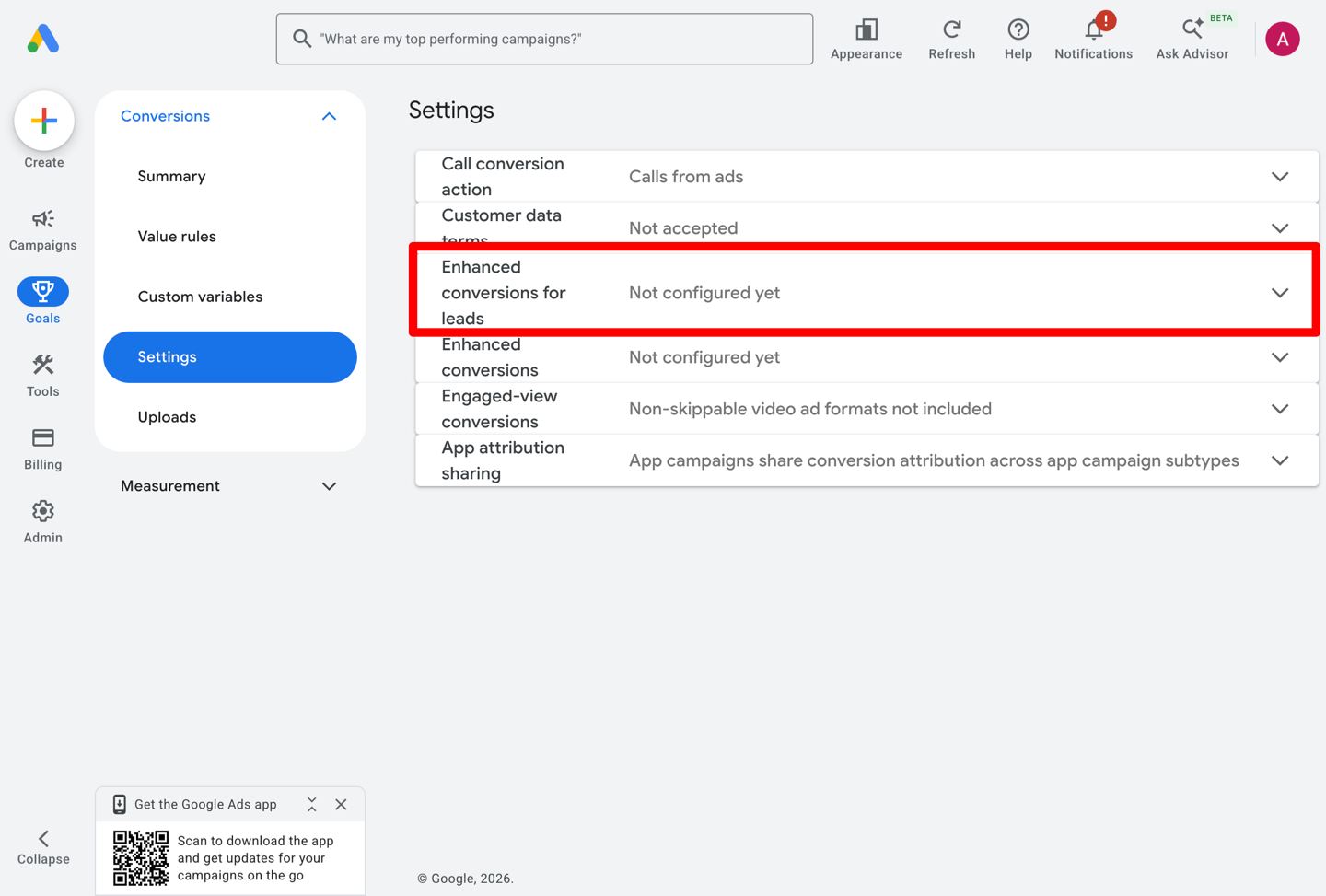
Tick Turn on enhanced conversions for leads, choose Google tag in the method dropdown, then click Save.
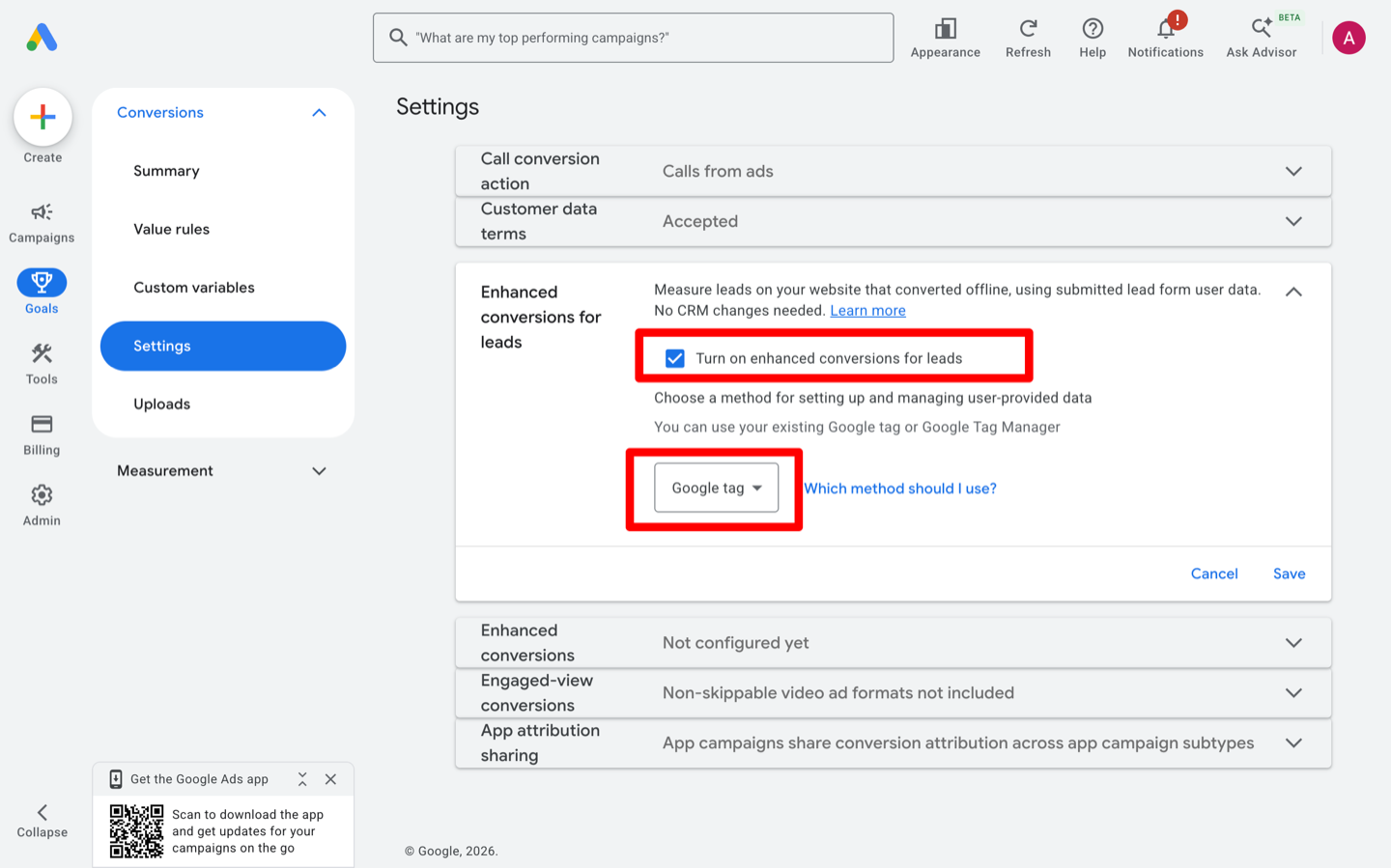
There is a separate Enhanced conversions row just below this one. That is for conversions measured by a tag on your website, rather than sent from a server the way Converly sends them. You do not need to change it.
Step 3: Go back to Converly and check again
Return to the Converly screen that sent you here and click Check again.
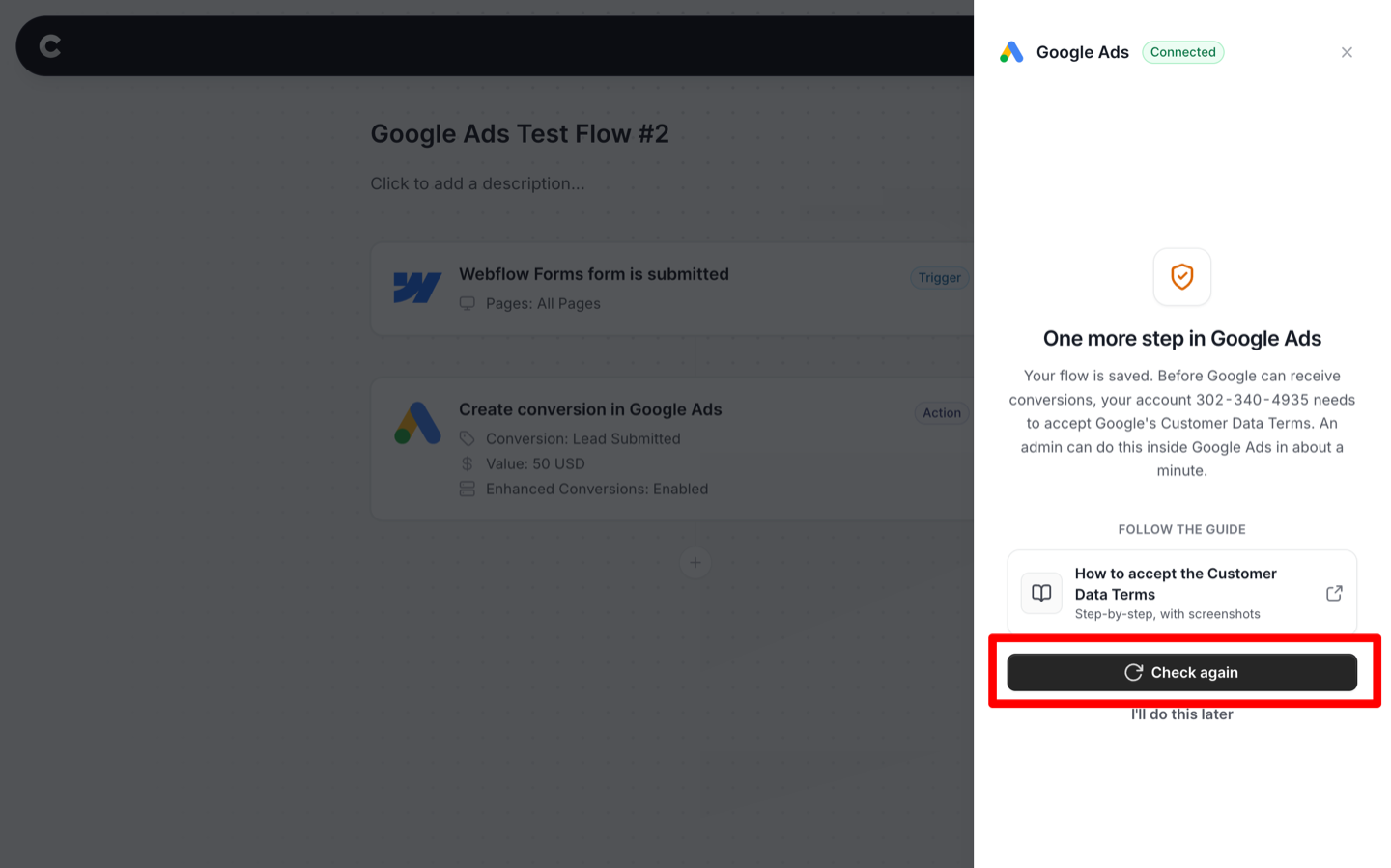
Acceptance can take up to a minute to reach Google, so if the screen says the same thing, simply wait a moment and click it once more.
You do not need to reconnect the account or rebuild your flow. Your flow was saved before this screen appeared, so I'll do this later is always safe to use, and picking this back up later costs you nothing.
That's it! Once Converly comes back ready it takes you straight on to testing your flow.
If it still says the terms are not accepted
Check that enhanced conversions for leads is actually turned on. Accepting the terms on its own is not enough, and it is easy to finish Step 1 and stop there. Converly reports these as two separate things, so the screen will tell you which one is missing.
Check the access level of the Google account you connected. Converly reads the setting back through that account, so if it has less than Standard access on your Google Ads account it cannot see that you accepted.
If there is no Customer data terms row on the screen at all, your conversions are tracked by a manager account and Google keeps this setting there instead. Follow Accept the Customer Data Terms in your manager account instead.